> For the complete documentation index, see [llms.txt](https://docs.prismacloud.io/llms.txt). Markdown versions of documentation pages are available by appending `.md` to page URLs; this page is available as [Markdown](https://docs.prismacloud.io/admin-guide/32/vulnerability-management/scan-procedure.md).
# Image Vulnerability Scanning
This article describes the vulnerability image scanning flow for deployed containers, registries, and CI. The scanning flow is similar for both Docker and Dockerless images, except for a single difference, described in [Scan reports for CRI environments](#_scan_reports_for_cri_environments).
## Image scanning procedure
Prisma Cloud uses a variety of approaches that are purpose-built differently for detecting packages on images and hosts.
The Host Defender only scans applications, as well as language-based packages, if the processes are running.
The Windows Defender only scans packages that are installed with a package manager, missing Microsoft hotfixes, and .net framework applications.
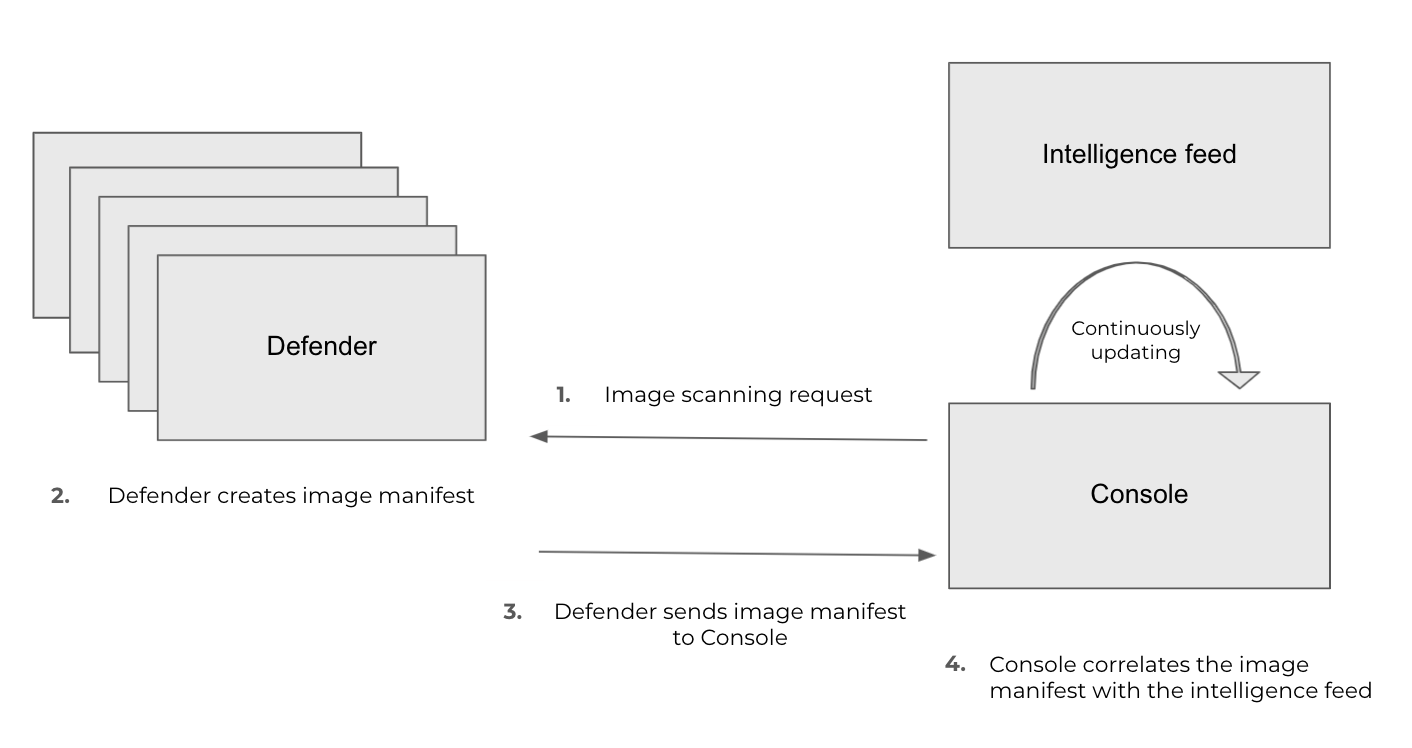
The following diagram (Chart 1) shows the Defender scanning flow:
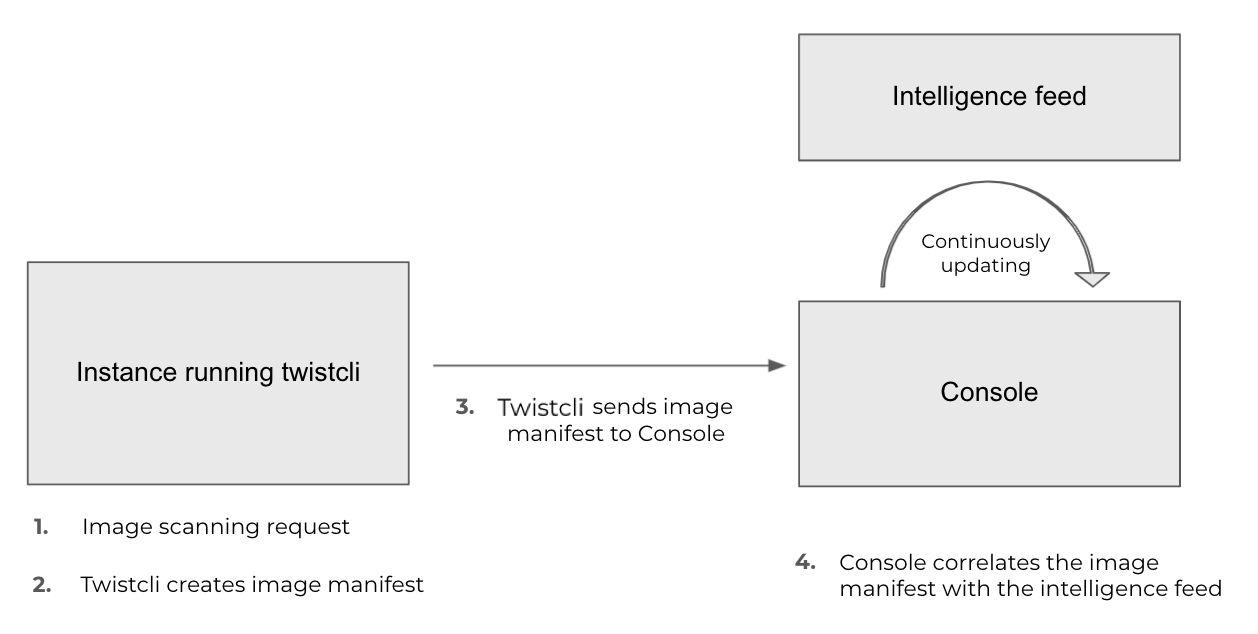
The following diagram (Chart 2) shows the `twistcli` scanning flow:
The steps in the scanning flow are:
1. An image scanning request is initiated. This can be done by one of the following:
* Console - generates periodic scan requests (see Chart 1)
* Defender - when a new container starts (in this step we skip step 1 in Chart 1 since the Defender initiates the scan)
* twistcli - triggered manually or in the CI pipeline (see Chart 2)
2. Defender harvests the image components versions to create the image manifest by scanning the image, and the Defender looks for:
1. Component and version details from OS package managers.
2. Executables (identified by magic signatures on the file system) **not** installed by the package manager:
1. Selects the executables that are [supported by Prisma Cloud](/admin-guide/32/vulnerability-management/prisma-cloud-vulnerability-feed.md).
2. Identifies each executable’s version details from the binary metadata.
3. Based on the information from step 2, Defender generates an **image manifest** and sends it to the Console.
4. The Console identifies the vulnerabilities in each image by correlating the image manifest with the Intelligence Stream:
1. The intelligence CVE stream is composed of [per-distro](/admin-guide/32/install/system-requirements.md#image-base-layers) CVEs (such as Red Hat and Ubuntu), un-packaged software CVEs (see [supported packages and languages](/admin-guide/32/vulnerability-management/prisma-cloud-vulnerability-feed.md)), and various open-source library CVEs (such as Node.js and python). The Console is continually updated by the Intelligence Stream to provide the most up-to-date results.
The following table lists the manifest files known to the scanner.
| Package manager | File name |
| ---------------- | ---------------------------------------------------------------- |
| Go | go.sum |
| Java (Gradle) | build.gradle, build.gradle.kts, gradle.properties |
| Java (Maven) | pom.xml |
| JavaScript (NPM) | package.json, package-lock.json, npm-shrinkwrap.json, bower.json |
| Python (pip) | req\*.txt |
1. The correlation results are calculated, stored in a database, and displayed in the Console UI.
The Console manages the current scan state and distributes the work to Defenders.
## Go Symbol Extraction
When scanning Golang binaries, Prisma Cloud extracts Go symbols by default. This enables accurate vulnerability evaluation for specific package names and symbols.
Prisma Cloud also provides the ability to selectively disable symbol extraction to optimize the scanning process.
To disable Go symbol extraction, add one of the following options, as relevant:
* Add the environment variable `SYMBOL_EXTRACTION_ENABLED=False` in the twistlock.cfg file.
* When using twistcli, add the `--disable-symbol-extraction` flag to the image scan command.
## Scan reports for CRI environments
**Deployed images** — The scanning logic is the same for Dockers and Dockerless environments, the only difference lies in the scanned object. In Docker environments, Prisma Cloud scans images by running the image with Defender as the entrypoint. Dockerless doesn’t support this method, so for Dockerless environments, Prisma Cloud scans the running container. As a result, when scanning deployed images in Dockerless environments, the Defender detects the packages added to a running container only when the packages are added before the initial scan.
The Console stores the CI image scan and registry scan results. An image previously scanned as a registry image will not be re-scanned by the Defender at the runtime.
**Registry scan** — The scanning logic is the same for Docker and Dockerless environments Any Container Defender running on a host with the Docker Engine container runtime or container runtime interface (CRI) can scan a registry. Learn more about [registry scanning](/admin-guide/32/vulnerability-management/registry-scanning/configure-registry-scanning.md).
When a scan result for an image with a certain `SHA-ID` exists, the Console checks if there is a version of the Defender that is newer than the one that scanned the image. If there is a newer Defender available, then the Console sends a scan request to the Defender to re-scan the image with the same `SHA-ID`, if not this image is not re-scanned.
**Twistcli scans** — Scans conducted by twistcli are similar for Docker and Dockless (CRI). In both environments, twistcli scans run from outside the container image. For Dockerless environments, Podman must be installed on the host, to allow scans to run from outside the container image. Learn more in the [twistcli scan images document](/admin-guide/32/tools/twistcli-scan-images.md#dockerless-scan).
---
# Agent Instructions
This documentation is published with GitBook. GitBook is the documentation platform designed so that both humans and AI agents can read, navigate, and reason over technical content effectively. Learn more at gitbook.com.
## Querying This Documentation
If you need additional information that is not directly available in this page, you can query the documentation by asking a question.
Perform an HTTP GET request on the following URL with the `ask` and `goal` query parameters:
```
GET https://docs.prismacloud.io/admin-guide/32/vulnerability-management/scan-procedure.md?ask=&goal=
```
`ask` is the immediate question: it should be specific, self-contained, and written in natural language.
`goal` is what the user is ultimately trying to achieve, the reason they need the answer. Sharing it helps GitBook give you a better, more relevant answer. A goal is most helpful when it describes the outcome the user wants rather than restating the question. For example, with `ask=how do I create an API token`, a goal like `automate deployments from our CI pipeline` lets GitBook tailor the answer to that use case.
The response will contain a direct answer to the question and relevant excerpts and sources from the documentation.
Use this mechanism when the answer is not explicitly present in the current page, you need clarification or additional context, or you want to retrieve related documentation sections.