> For the complete documentation index, see [llms.txt](https://docs.prismacloud.io/llms.txt). Markdown versions of documentation pages are available by appending `.md` to page URLs; this page is available as [Markdown](https://docs.prismacloud.io/admin-guide/32/vulnerability-management/serverless-functions.md).
# Configure Serverless Function Scanning
Prisma Cloud can scan serverless functions for visibility into vulnerabilities and [compliance issues](/admin-guide/32/compliance/serverless.md). For runtime protection, you must deploy a [serverless Defender](https://github.com/PaloAltoNetworks/pc-docs-md/tree/main/compute-edition/32/admin-guide/install/deploy-defender/serverless/serverless.md). Prisma Cloud supports AWS Lambda, Google Cloud Functions, and Azure Functions.
Serverless computing is an execution model in which a cloud provider dynamically manages the allocation of machine resources and schedules the execution of functions provided by users. Serverless architectures delegate the operational responsibilities, along with many security concerns, to the cloud provider. In particular, your app itself is still prone to attack. The vulnerabilities in your code and associated dependencies are the footholds attackers use to compromise an app. Prisma Cloud can show you a function’s dependencies, and surface the vulnerabilities in those dependent components.
## Capabilities
For serverless, Prisma Cloud can scan Node.js, Python, Java, C#, Ruby, and Go packages. For a list of supported runtimes see [system requirements](/admin-guide/32/install/system-requirements.md).
Prisma Cloud scans are triggered by the following events:
* When the settings change, including when new functions are added for scanning.
* When you explicitly click the **Scan** button in the **Monitor > Vulnerabilities > Functions > Scanned Functions** page.
* Periodically. By default, Prisma Cloud rescans serverless functions every 24 hours, but you can configure a custom interval in **Manage > System > Scan**.
## The Scanning Process for Serverless Functions
Configure Prisma Cloud to periodically scan your serverless functions. Unlike image scanning, the Prisma Cloud console handles all function scanning. Once you onboarded your cloud accounts, the Prisma Cloud console can give you visibility into vulnerabilities and [compliance issues](/admin-guide/32/compliance/serverless.md) in your serverless functions. For runtime protection, you must deploy a [serverless Defender](https://github.com/PaloAltoNetworks/pc-docs-md/tree/main/compute-edition/32/admin-guide/install/deploy-defender/serverless/serverless.md).
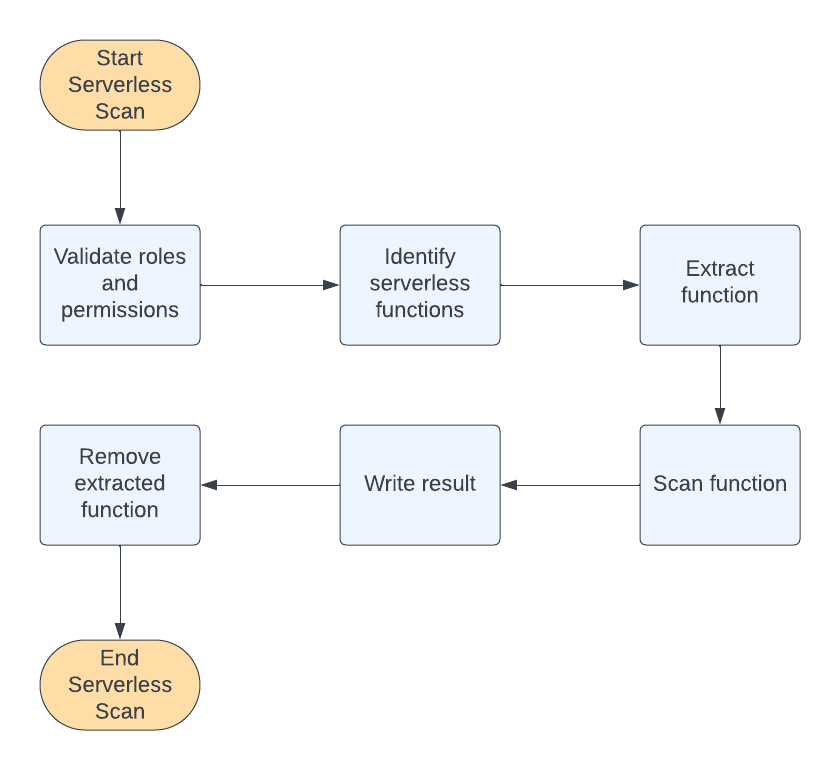
The Prisma Cloud console performs the following steps to scan serverless functions.
1. Validates that the Prisma Cloud role for the onboarded cloud account has the appropriate permissions and that those permissions are not blocked by an organizational policy.
2. Identifies all serverless functions.
3. Extracts a function using the appropriate `GET` method sending it to the Prisma Cloud console.
4. Scans the function’s code using Palo Alto Networks proprietary methods.
5. Writes the scan results to the the Prisma Cloud console. You can see the results under **Monitor > Vulnerabilities > Functions > Scanned functions**.
In the scan results, the "Defended" column indicates that functions have been scanned for vulnerabilities and compliance by the Prisma Cloud. This status is applied regardless of whether the scan succeeds or fails. Even if a scan fails, functions are marked as "defended" in cloud discovery to signify their inclusion in the security evaluation process.
For the serverless API and CSV reports, "defended" means that the serverless functions are protected at runtime by Compute Defender.
6. Deletes the function code after the scan is completed.
7. Validates that the function code is deleted from the Prisma Cloud console.
## Scan Lambda Layer Serverless Functions
1. Open Console.
2. Go to **Defend > Vulnerabilities > Functions > Functions**.
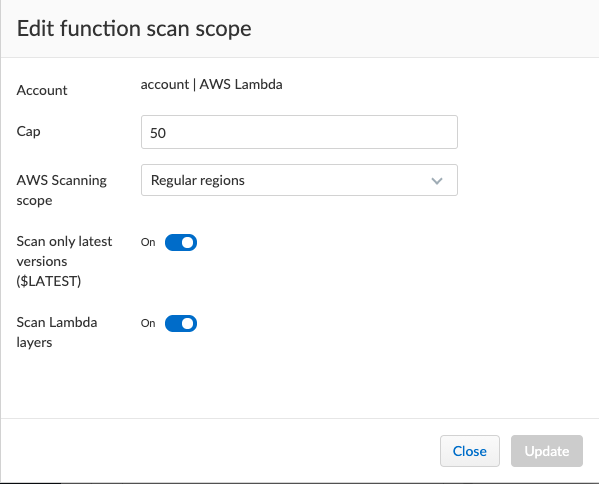
3. Click on **Add scope**. In the dialog, enter the following settings:
1. (AWS only) Select **Scan only latest versions** to only scan the latest version of each function. Otherwise, the scanning will cover all versions of each function up to the specified **Limit** value.
2. (AWS only) Select **Scan Lambda Layers** to enable scanning function layers as well.
3. (AWS only) Specify which regions to scan in **AWS Scanning scope**. By default, the scope is applied to **Regular regions**. Other options include **China regions** or **Government regions**.
4. Specify a **Limit** for the number of functions to scan.
Prisma Cloud scans the X most recent functions, where X is the limit value. Set this value to '0' to scan all functions.
For scanning Google Cloud Functions with GCP organization level credentials, the limit value is for the entire organization. Increase the limit as needed to cover all the projects within your GCP organization.
5. Select the accounts to scan by credential. If you wish to add an account, click on **Add credential**.
If you create a credential in the credentials store (**Manage > Authentication > Credentials store**), your service principal authenticates with a password.
6. Click **Add**.
4. Click the green save button.
5. View the scan report.
Go to **Monitor > Vulnerabilities > Functions > Scanned functions**.
All vulnerabilities identified in the latest serverless scan report can be exported to a CSV file by clicking on the CSV button in the top right of the table.
## View AWS Lambda Layers scan report
Prisma Cloud can scan the AWS Lambda Layers code as part of the Lambda function’s code scanning. This capability can help you determine whether the vulnerability issues are associated with the function or function Layers. Follow the steps below to view the Lambda Layers scan results:
1. Open Console.
2. Make sure you selected the **Scan Lambda layers** in the **Defend > Vulnerabilities > Functions > Functions > Serverless Accounts > Function scan scope**
3. Go to **Monitor > Vulnerabilities > Functions > Scanned functions**.
4. Filter the table to include functions with the desired Layer by adding the **Layers** filter.
You can also filter the results by a specific layer name or postfix wildcards. Example: `Layers:* OR Layers:arn:aws:lambda:*`
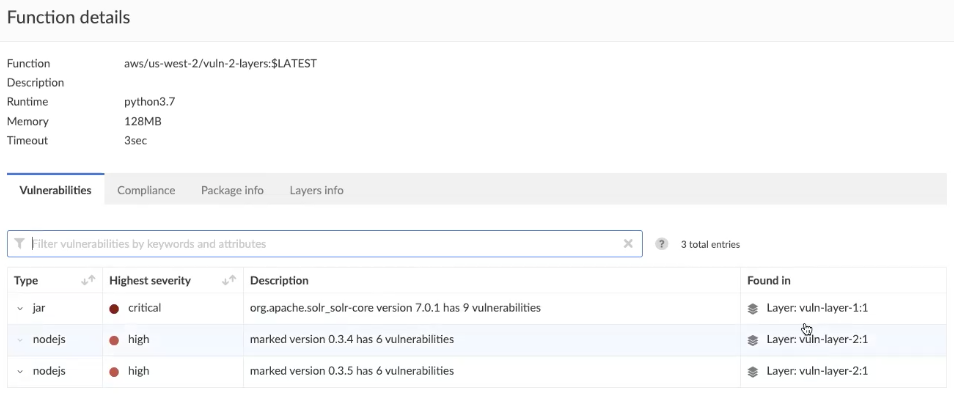
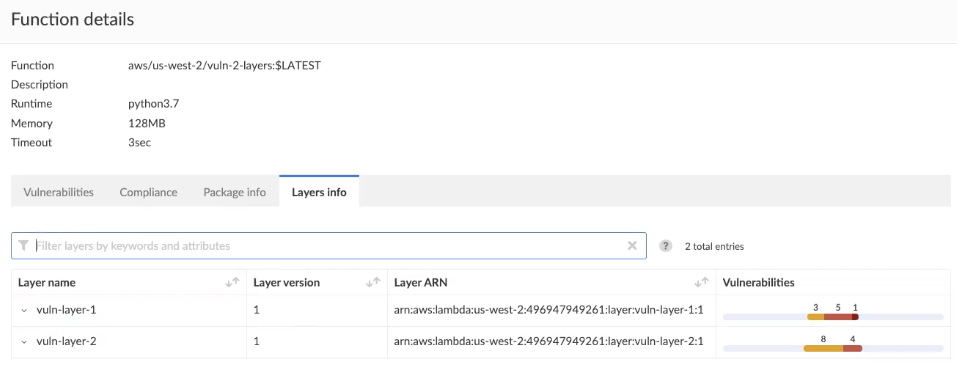
5. Open the **Function details** dialog to view the details about the Layers and the vulnerabilities associated with them:
1. Click on a specific function
2. See the Function’s vulnerabilities, compliance issues and package info in the related tabs. Use the **Found in** column to determine if the component is associated with the Function or with the Function’s Layers.
3. Use the **Layers info** tab to see the full list of the Function’s Layers, and aggregated information about the Layers vulnerabilities. In case that there are vulnerabilities associated with the layer you will be able to expand the layer raw to list all the vulnerabilities.
## Authenticating with AWS
The serverless scanner is implemented as part of Console. The scanner requires the following permissions policy:
\+
```json
{
"Version": "2012-10-17",
"Statement": [
{
"Sid": "PrismaCloudComputeServerlessScan",
"Effect": "Allow",
"Action": [
"lambda:ListFunctions",
"lambda:GetFunction",
"iam:GetPolicy",
"iam:GetPolicyVersion",
"iam:GetRole",
"iam:GetRolePolicy",
"iam:ListAttachedRolePolicies",
"iam:ListRolePolicies",
"lambda:GetLayerVersion",
"kms:Decrypt"
],
"Resource": "*"
}
]
}
```
**IAM User**
If authenticating with an IAM user, use the Security Token Service (STS) to temporarily issue security credentials to Prisma Cloud to scan your Lambda functions. AWS STS is considered a best practice for IAM users per the AWS Well-Architected Framework. Learn how to use [AWS STS](/admin-guide/32/authentication/credentials-store/aws-credentials.md#aws-security-token-service-sts).
When authenticating with an IAM user, Console can access and scan functions across multiple regions.
Prisma Cloud doesn’t support scanning Serverless functions with IAM policies containing `NotAction` and/or `NotResource` elements.
**IAM Role**
## Scanning Azure Functions
Azure Functions are architected differently than AWS Lambda and Google Cloud Functions. Azure function apps can hold multiple functions. The functions are not segregated from each other. They share the same file system. Rather than separately scanning each function in a function app, download the root directory of the function app, which contains all its functions, and scan them as a bundle.
Prisma Cloud supports scanning both Windows and Linux functions. For Linux functions, the support is only for functions that use **External package URL** as the deployment technology. For more information, see [Deployment technologies in Azure Functions](https://docs.microsoft.com/en-us/azure/azure-functions/functions-deployment-technologies).
To do this, you must know the Region, Name (of the function), and Service Key. To get the Service Key, download and [install the Azure CLI](https://docs.microsoft.com/en-us/cli/azure/install-azure-cli?view=azure-cli-latest), then:
1. Within your Azure portal, create a custom role with the following permissions:
```
{
"permissions": [
{
"actions": [
"Microsoft.Web/sites/Read",
"Microsoft.Web/sites/config/list/Action",
"Microsoft.web/sites/functions/action",
"Microsoft.web/sites/functions/read",
"Microsoft.Web/sites/publishxml/Action"
],
"notActions": [],
"dataActions": [],
"notDataActions": []
}
]
}
```
2. Using the CLI, log into your account with a user that has the [User Administrator](https://docs.microsoft.com/en-us/azure/active-directory/roles/permissions-reference#user-administrator) role.
```
$ az login
```
3. Get the service key.
```
$ az ad sp create-for-rbac --sdk-auth --name twistlock-azure-serverless-scanning --role CUSTOM_ROLE_NAME
```
Sample output from the previous command:
```
{
"clientId": "f8e9de2o-45bd-af94-ae11-b9r8c5tfy3b6",
"clientSecret": "4dfds482-6sdd-4dsb-b5ff-56123043c4dc",
"subscriptionId": "ea19322m-z2bd-501c-dd11-234m547a944e",
"tenantId": "c189c61a-6c27-41c3-9949-ca5c8cc4a624",
"activeDirectoryEndpointUrl": "https://login.microsoftonline.com",
"resourceManagerEndpointUrl": "https://management.azure.com/",
"activeDirectoryGraphResourceId": "https://graph.windows.net/",
"sqlManagementEndpointUrl": "https://management.core.windows.net:8443/",
"galleryEndpointUrl": "https://gallery.azure.com/",
"managementEndpointUrl": "https://management.core.windows.net/"
}
```
4. Copy the JSON output, which is your secret key, and paste it into the **Service Key** field for your Azure credentials in Prisma Cloud Console.
## Scanning Google Cloud Functions
To scan Google Cloud Functions, you must create an appropriate [credential](/admin-guide/32/authentication/credentials-store/gcp-credentials.md) to authenticate with GCP. The service account should include the following custom permissions:
```
cloudfunctions.functions.sourceCodeGet
cloudfunctions.functions.get
cloudfunctions.functions.list
cloudfunctions.locations.get
cloudfunctions.locations.list
cloudfunctions.operations.get
cloudfunctions.operations.list
cloudfunctions.runtimes.list
```
Prisma Cloud currently supports scanning functions that are packaged with local dependencies.
## Scanning functions at build time with twistcli
You can also use the `twistcli` command line utility to scan your serverless functions. First download your serverless function as a ZIP file, then run:
```
$ twistcli serverless scan
```
To view scan reports in Console, go to **Monitor > Vulnerabilities > Functions > CI** or **Monitor > Compliance > Functions > CI**.
### Twistcli Options
`--details`\
Show all vulnerability details.
`--tlscacert` `PATH`\
Path to Prisma Cloud CA certificate file. If no CA certificate is specified, the connection to Console is insecure.
`--include-js-dependencies`\
Include javascript package dependencies.
`--token` `TOKEN`\
Token to use for Prisma Cloud Console authentication. Tokens can be retrieved from the API endpoint *api/v1/authenticate* or from the **Manage > Authenticate > User Certificates** page in Console.
`--cloudformation-template` `PATH`\
Path to the CloudFormation template file in JSON or YAML format. Prisma Cloud scans the function source code for AWS service APIs being used, compares the APIs being used to the function permissions, and reports when functions have permissions for APIs they don’t need.
`--function` `NAME`\
Function name to be used in policy detection and Console results. When creating policy rules in Console, you can target specific rules to specific functions by function name. If this field is left unspecified, the function zip file name is used.
`--output-used-apis`\
Report APIs used by the function
`--publish`\
Publish the scan result to the Console. True by default.
---
# Agent Instructions
This documentation is published with GitBook. GitBook is the documentation platform designed so that both humans and AI agents can read, navigate, and reason over technical content effectively. Learn more at gitbook.com.
## Querying This Documentation
If you need additional information that is not directly available in this page, you can query the documentation by asking a question.
Perform an HTTP GET request on the following URL with the `ask` and `goal` query parameters:
```
GET https://docs.prismacloud.io/admin-guide/32/vulnerability-management/serverless-functions.md?ask=&goal=
```
`ask` is the immediate question: it should be specific, self-contained, and written in natural language.
`goal` is what the user is ultimately trying to achieve, the reason they need the answer. Sharing it helps GitBook give you a better, more relevant answer. A goal is most helpful when it describes the outcome the user wants rather than restating the question. For example, with `ask=how do I create an API token`, a goal like `automate deployments from our CI pipeline` lets GitBook tailor the answer to that use case.
The response will contain a direct answer to the question and relevant excerpts and sources from the documentation.
Use this mechanism when the answer is not explicitly present in the current page, you need clarification or additional context, or you want to retrieve related documentation sections.