> For the complete documentation index, see [llms.txt](https://docs.prismacloud.io/llms.txt). Markdown versions of documentation pages are available by appending `.md` to page URLs; this page is available as [Markdown](https://docs.prismacloud.io/admin-guide/33/alerts/ibm-cloud-security-advisor.md).
# IBM Cloud Security Advisor
IBM Cloud Security Advisor is a centralized security dashboard. Prisma Cloud can be configured to send security findings to your service dashboard.
## Configuring alert frequency
You can configure the rate at which alerts are emitted. This is a global setting that controls the spamminess of the alert service. Alerts received during the specified period are aggregated into a single alert. For each alert profile, an alert is sent as soon as the first matching event is received. All subsequent alerts are sent once per period.
1. Open Console, and go to **Manage > Alerts**.
2. In **General settings**, select the default frequency for all alerts.
You can specify the following frequencies.
* **10 Minutes**
* **1 Hour**
* **1 Day**.
## Sending alerts to Security Advisor
Alert profiles specify which events should trigger the alert machinery, and to which channel alerts are sent. You can send alerts to any combination of channels by creating multiple alert profiles.
Alert profiles consist of two parts:
**(1) Alert settings — Who should get the alerts, and on what channel?** Configure Prisma Cloud to integrate with your messaging service and specify the people or places where alerts should be sent. For example, configure the email channel and specify a list of all the email addresses where alerts should be sent. Or for JIRA, configure the project where the issue should be created, along with the type of issue, priority, assignee, and so on.
**(2) Alert triggers — Which events should trigger an alert to be sent?** Specify which of the rules that make up your overall policy should trigger alerts.
If you use multi-factor authentication, you must create an exception or app-specific password to allow Console to authenticate to the service.
## Create new alert profile
Create a new alert profile.
1. In **Manage > Alerts**, click **Add profile**.
2. Enter a name for your alert profile.
3. In **Provider**, select **IBM Cloud Security Advisor**.
## Configure the channel
Configure the channel.
1. In **Credential**, click **Add new** or select an existing service account.
Create a new xref:\~/authentication/credentials-store/ibm-credentials.adoc\[IBM Cloud credential] as needed.
2. Copy the configuration URL, and set it aside. You’ll need it for the next step.
3. Go to the Security Advisor dashboard, and then follow the steps in [Prisma Cloud partner integration](https://console.bluemix.net/docs/services/security-advisor/partners.html#setup-twistlock) to complete the setup process.
4. Click **Send Test Alert** to test the connection.
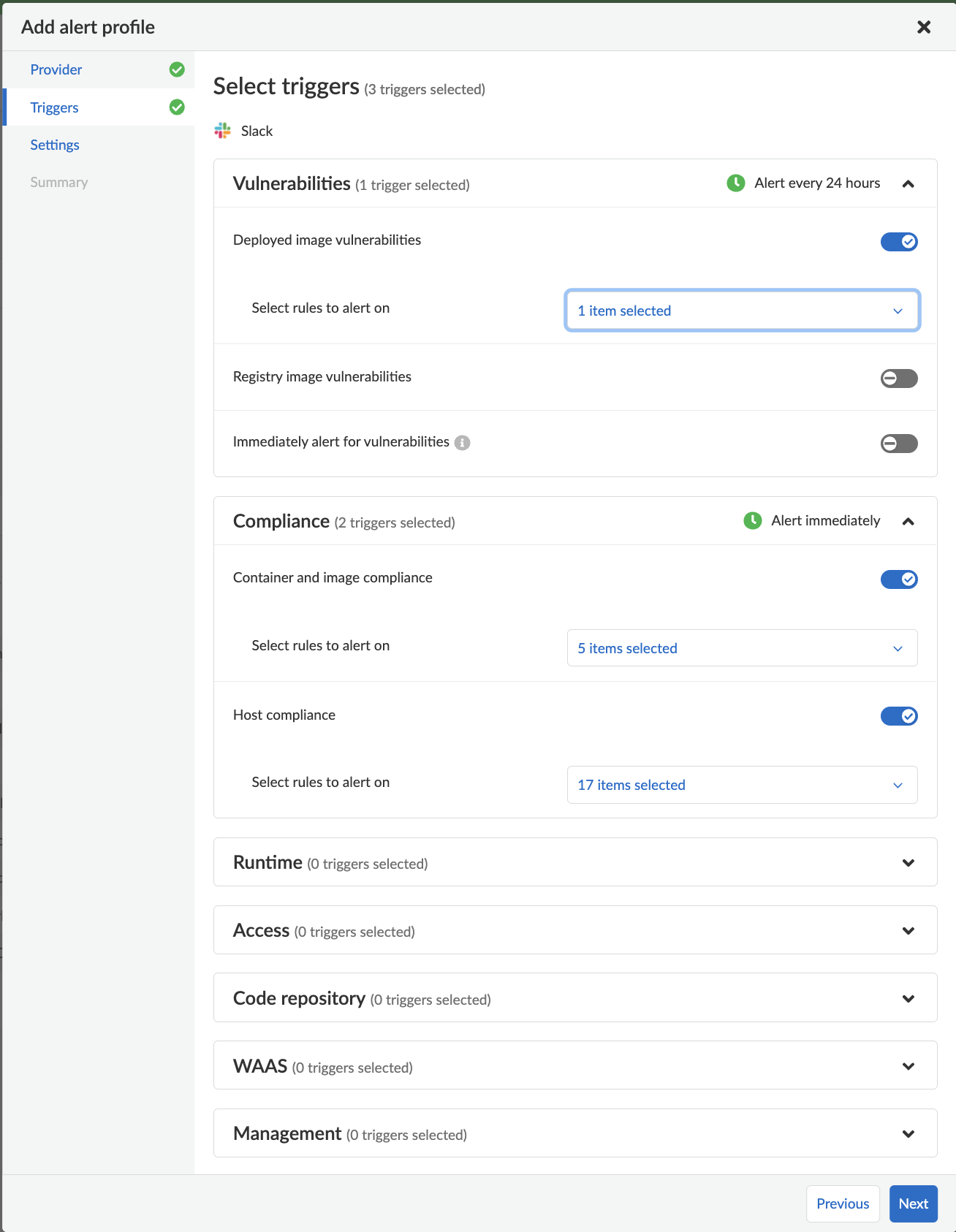
## Configure the triggers
1. In **Select triggers**, select the events that should trigger an alert to be sent.
2. To specify specific rules that should trigger an alert, deselect **All rules**, and then select any individual rules.
3. Click **Next**.
---
# Agent Instructions
This documentation is published with GitBook. GitBook is the documentation platform designed so that both humans and AI agents can read, navigate, and reason over technical content effectively. Learn more at gitbook.com.
## Querying This Documentation
If you need additional information that is not directly available in this page, you can query the documentation by asking a question.
Perform an HTTP GET request on the following URL with the `ask` and `goal` query parameters:
```
GET https://docs.prismacloud.io/admin-guide/33/alerts/ibm-cloud-security-advisor.md?ask=&goal=
```
`ask` is the immediate question: it should be specific, self-contained, and written in natural language.
`goal` is what the user is ultimately trying to achieve, the reason they need the answer. Sharing it helps GitBook give you a better, more relevant answer. A goal is most helpful when it describes the outcome the user wants rather than restating the question. For example, with `ask=how do I create an API token`, a goal like `automate deployments from our CI pipeline` lets GitBook tailor the answer to that use case.
The response will contain a direct answer to the question and relevant excerpts and sources from the documentation.
Use this mechanism when the answer is not explicitly present in the current page, you need clarification or additional context, or you want to retrieve related documentation sections.