> For the complete documentation index, see [llms.txt](https://docs.prismacloud.io/llms.txt). Markdown versions of documentation pages are available by appending `.md` to page URLs; this page is available as [Markdown](https://docs.prismacloud.io/admin-guide/33/authentication/oauth2-openshift.md).
# OpenShift (OAuth 2.0)
OpenShift users can log into Prisma Cloud Console using OpenShift as an OAuth 2.0 provider.
Prisma Cloud currently supports OpenShift Platform versions 4.5 and older as an OAuth 2.0 provider. We are working to add support for OpenShift versions 4.6 and later.
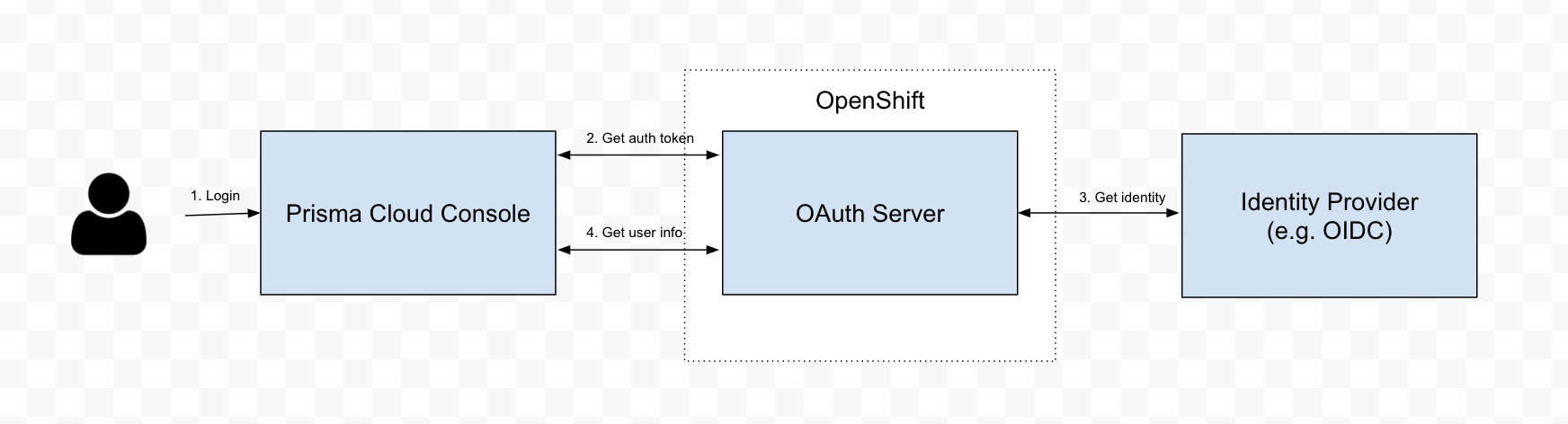
The OpenShift master includes a built-in OAuth server. You can integrate OpenShift authentication into Prisma Cloud. When users attempt to access Prisma Cloud, which is a protected resource, they are redirected to authenticate with OpenShift. After authenticating successfully, they are redirected back to Prisma Cloud Console with an OAuth token. This token scopes what the user can do in OpenShift. Prisma Cloud only needs the auth token to get the user’s info (e.g. user name, email), and check the Prisma Cloud database to see if this user is authorized. If so, Prisma Cloud creates a JWT token, with a [role](/admin-guide/33/authentication/user-roles.md) claim, to complete the authentication process to Console. Roles are assigned based on users and group information specified in Console.
The following diagram shows the login flow when the auth provider is LDAP. With LDAP, users enter their credentials in Prisma Cloud Console, and Prisma authenticates with the LDAP server on the user’s behalf. With all other auth providers, Prisma isn’t part of verifying the user credentials Instead Prisma redirects the client to the auth provider for authentication. Once the user successfully authenticates via the authentication provider, the client is redirected back to Prisma Cloud Console with an object (SAML assertion for SAML, JWT token for OIDC, Access token for OAuth 2.0) that proves a successful login or, in the OAuth 2.0 case, gives us access to the application to verify the user identity.
Prisma Cloud supports the authorization code flow only.
## Integrate Prisma Cloud with OpenShift
Configure Prisma Cloud so that OpenShift users can log into Prisma Cloud with the same identity.
1. In OpenShift, [register Prisma Cloud as an OAuth client](https://docs.openshift.com/container-platform/4.4/authentication/configuring-internal-oauth.html#oauth-register-additional-client_configuring-internal-oauth). Set the redirect URL to:
https\://\:\/api/v1/authenticate/callback/oauth.
2. Log into Prisma Cloud Console.
3. Go to **Manage > Authentication > Identity Providers > OAuth 2.0**.
4. Set **Integrate Oauth 2.0 users and groups with Prisma Cloud** to **Enabled**.
5. Set **Identity provider** to **OpenShift**.
6. Set **Client ID** to the **name** of the OAuth client you set up in OpenShift.
7. Set **Client secret** to the **secret** in the OAuth client you set up in OpenShift.
8. Set **Auth URL** to ****.
9. Set **Token URL** to ****.
10. In **User Info API URL**, enter the TCP endpoint for the OpenShift API server. For example, ****.
11. Click **Save**.
## Prisma Cloud to OpenShift user identity mappings
Create a Prisma Cloud user for every OpenShift user that should have access to Prisma Cloud.
After the user is authenticated, Prisma Cloud uses the access token to query OpenShift for the user’s information (user name, email). The user information returned from OpenShift is compared against the Prisma Cloud Console database to determine if the user is authorized. If so, a JWT token is returned.
1. Go to **Manage > Authentication > Users**.
2. Click **Add User**.
3. Set **Username** to the OpenShift user name.
4. Set **Auth method** to **OAuth**.
5. Select a [role](/admin-guide/33/authentication/user-roles.md) for the user.
6. Click **Save**.
7. Test logging into Prisma Cloud Console.
1. Logout of Prisma Cloud.
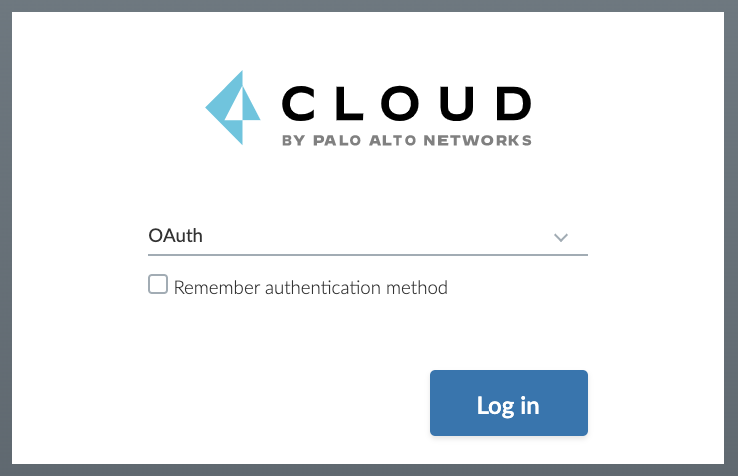
2. On the login page, select **OAuth**, and then click **Login**.
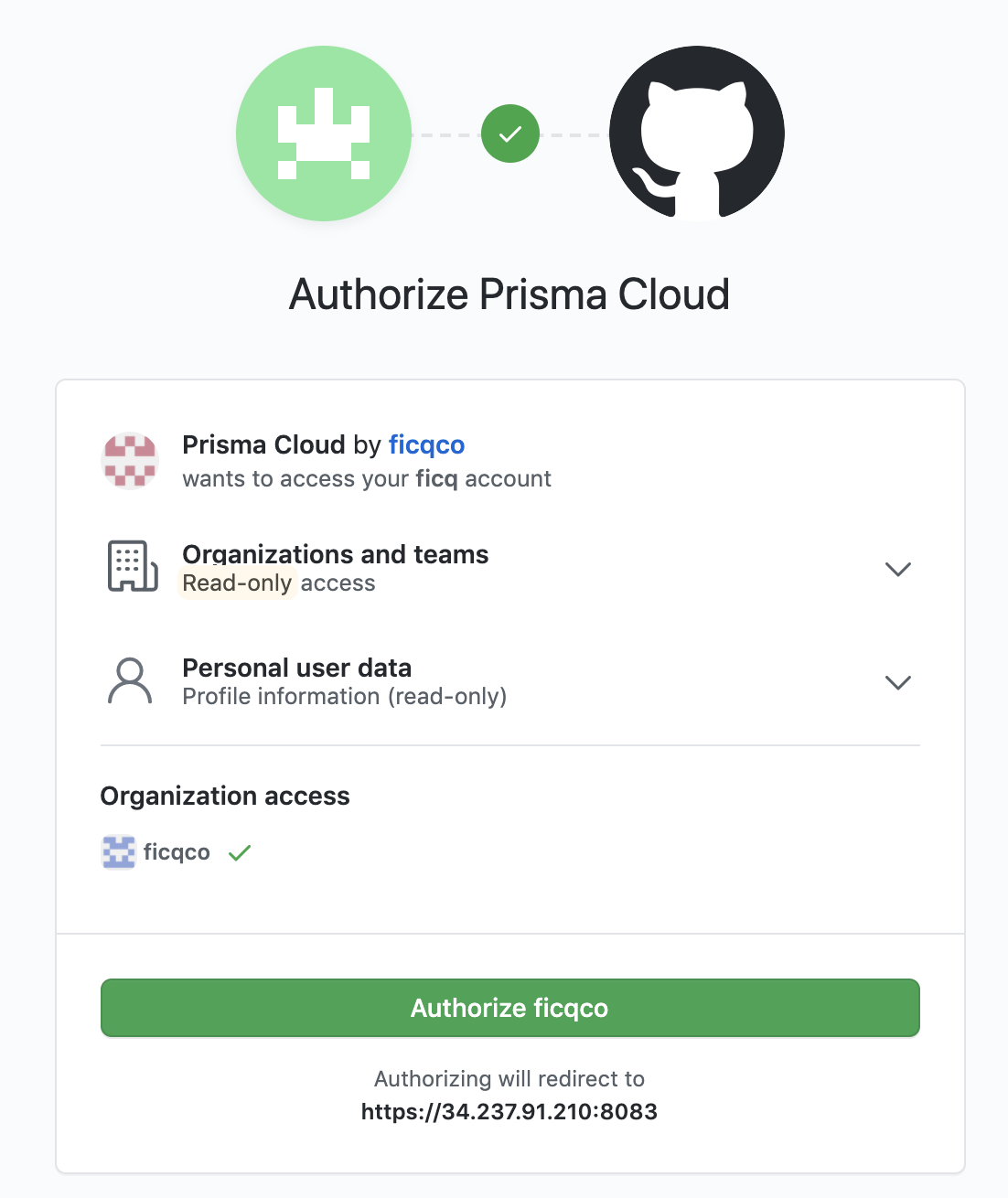
3. Authorize the Prisma Cloud OAuth App to sign you in.
### Prisma Cloud to OpenShift group mappings
Use groups to streamline how Prisma Cloud roles are assigned to users. When you use groups to assign roles, you don’t have to create individual Prisma Cloud accounts for each user.
Groups can be associated and authenticated with by multiple identity providers.
1. Go to **Manage > Authentication > Groups**.
2. Click **Add Group**.
3. In **Name**, enter an OpenShift group name.
4. In **Authentication method**, select **External Providers**.
5. In **Authentication Providers**, select **OAuth group**.
6. Select a [role](/admin-guide/33/authentication/user-roles.md) for the members of the group.
7. Click **Save**.
8. Test logging into Prisma Cloud Console.
1. Logout of Prisma Cloud.
2. On the login page, select **OAuth**, and then click **Login**.
3. Authorize the Prisma Cloud OAuth App to sign you in.
---
# Agent Instructions
This documentation is published with GitBook. GitBook is the documentation platform designed so that both humans and AI agents can read, navigate, and reason over technical content effectively. Learn more at gitbook.com.
## Querying This Documentation
If you need additional information that is not directly available in this page, you can query the documentation by asking a question.
Perform an HTTP GET request on the following URL with the `ask` and `goal` query parameters:
```
GET https://docs.prismacloud.io/admin-guide/33/authentication/oauth2-openshift.md?ask=&goal=
```
`ask` is the immediate question: it should be specific, self-contained, and written in natural language.
`goal` is what the user is ultimately trying to achieve, the reason they need the answer. Sharing it helps GitBook give you a better, more relevant answer. A goal is most helpful when it describes the outcome the user wants rather than restating the question. For example, with `ask=how do I create an API token`, a goal like `automate deployments from our CI pipeline` lets GitBook tailor the answer to that use case.
The response will contain a direct answer to the question and relevant excerpts and sources from the documentation.
Use this mechanism when the answer is not explicitly present in the current page, you need clarification or additional context, or you want to retrieve related documentation sections.