> For the complete documentation index, see [llms.txt](https://docs.prismacloud.io/llms.txt). Markdown versions of documentation pages are available by appending `.md` to page URLs; this page is available as [Markdown](https://docs.prismacloud.io/admin-guide/33/authentication/saml-google-g-suite.md).
# Google G Suite (SAML 2.0)
Many organizations use SAML to authenticate users for web services. Prisma Cloud supports the SAML 2.0 federation protocol to access the Prisma Cloud Console. When SAML support is enabled, users can log into Console with their federated credentials. This article provides detailed steps for federating your Prisma Cloud Console with Google G Suite.
The Prisma Cloud/G Suite SAML federation flow works as follows:
1. Users browse to Prisma Cloud Console.
2. Their browsers are redirected to the G Suite SAML 2.0 endpoint.
3. They enter their credentials to authenticate. Multi-factor authentication can be enforced at this step.
4. A SAML token is returned to Prisma Cloud Console.
5. Prisma Cloud Console validates the SAML token’s signature and associates the user to their Prisma Cloud account via user identity mapping or group membership.
## Setting up Google G Suite
Prisma Cloud supports SAML integration with Google G Suite.
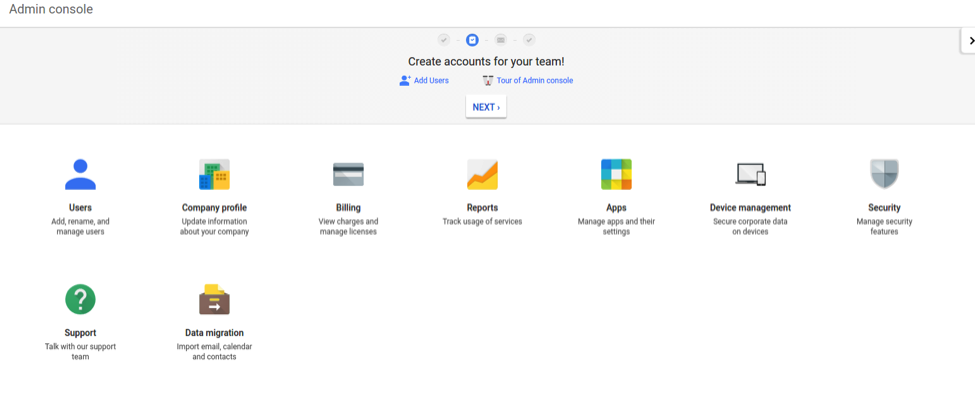
1. Log into your G Suite admin console.
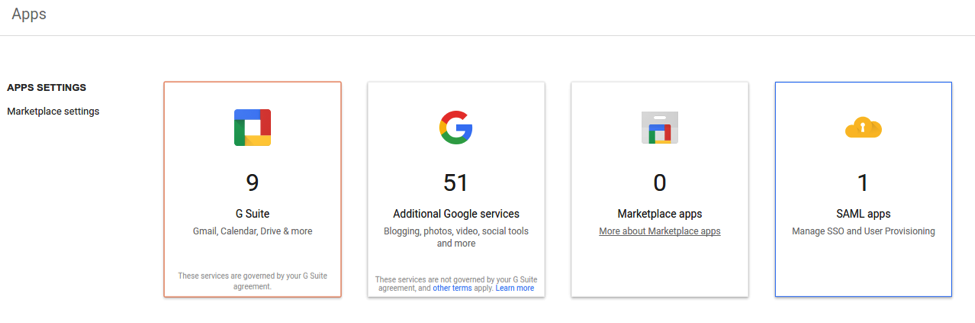
2. Click on **Apps**.
3. Click on **SAML apps**.
4. Click the **+** button at the bottom to add a new app.
5. Click **SETUP MY OWN CUSTOM APP** at the bottom of the dialog.
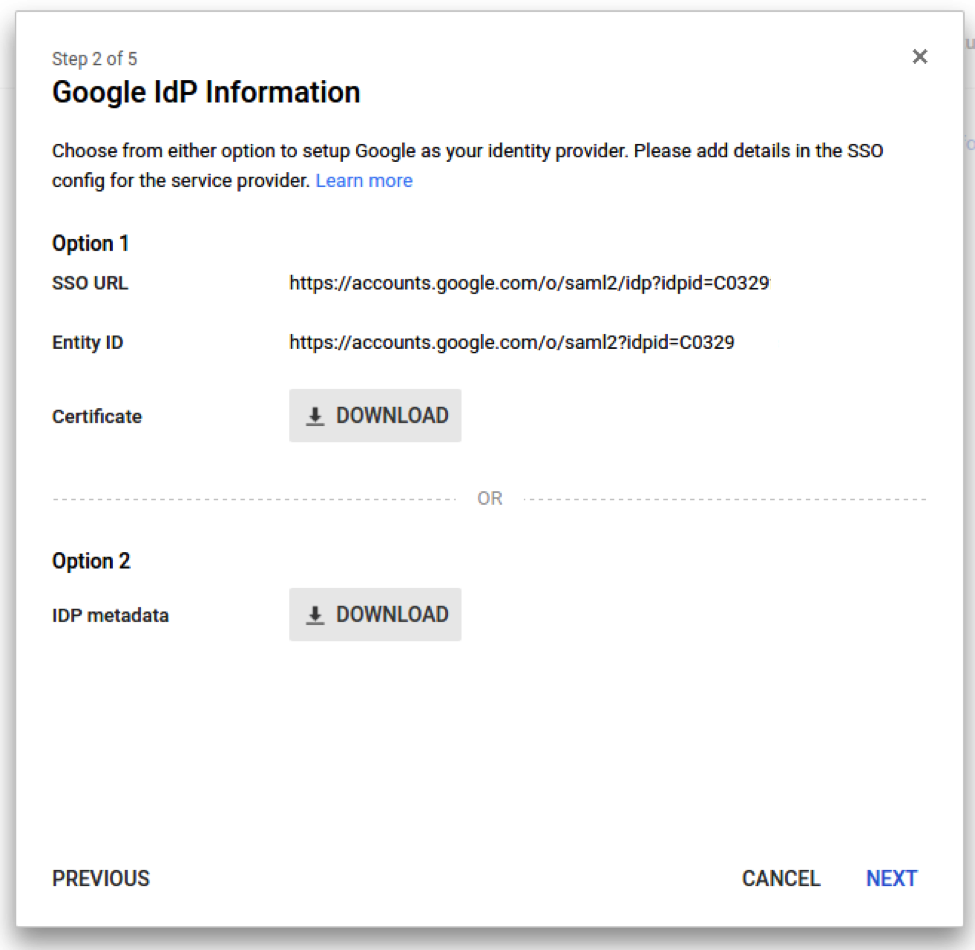
6. Copy the **SSO URL** and **Entity ID**, and download the certificate. You will need these later for setting up the integration in Prisma Cloud Console. Click **NEXT**.
7. Enter an **Application Name**, such as **Prisma Cloud**, then click **NEXT**.
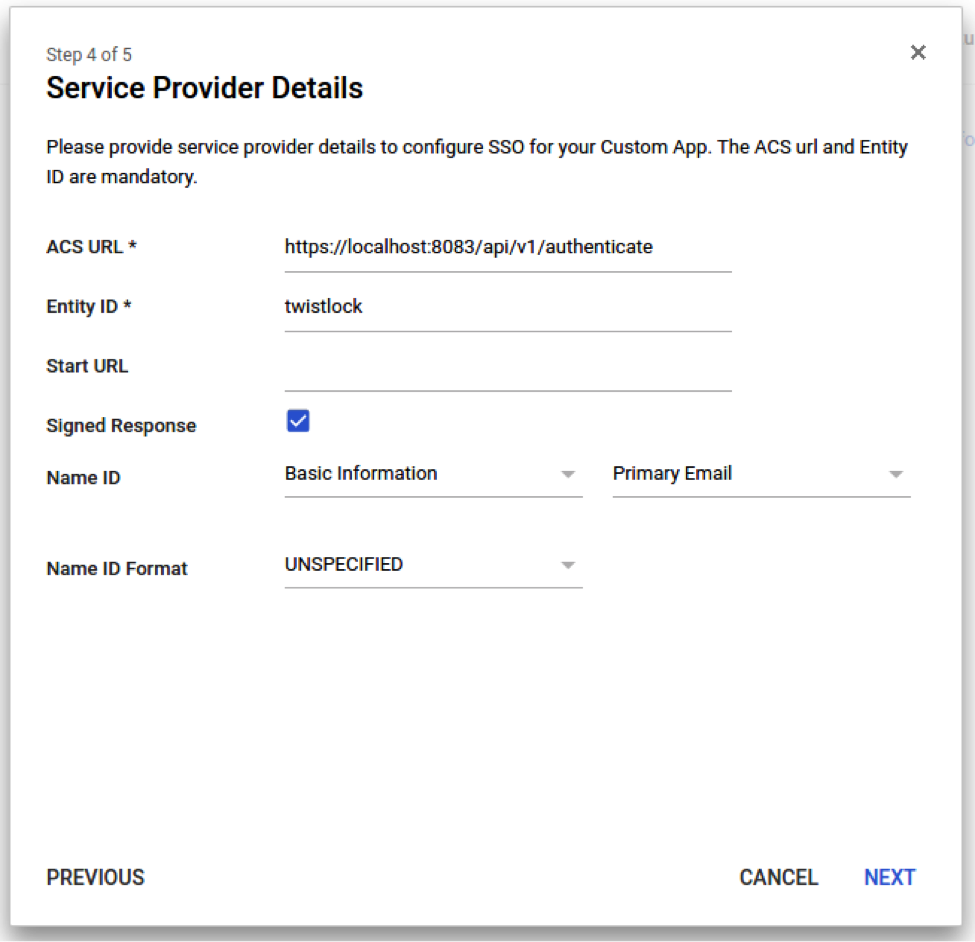
8. In the Service Provider Details dialog, enter the following details, then click **NEXT**.
1. In **ACS URL**, enter: **https\://\:8083/api/v1/authenticate**.
2. In **Entity ID**, enter: **twistlock**.
3. Enable **Signed Response**.
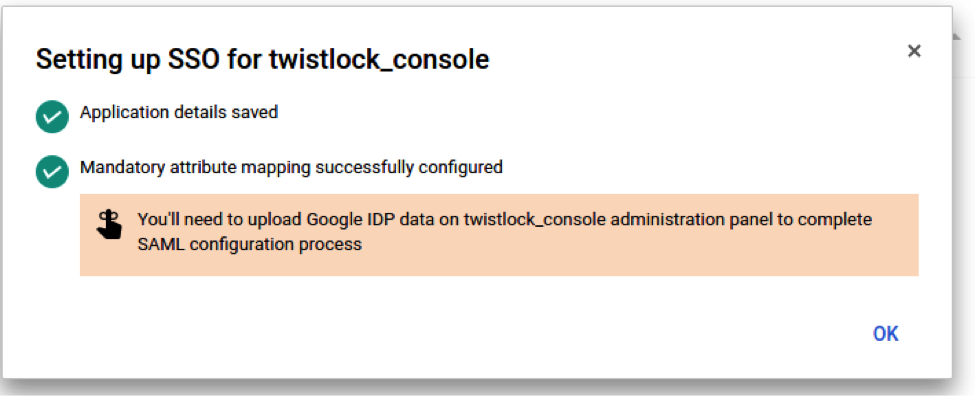
9. Click **FINISH**, then **OK**.
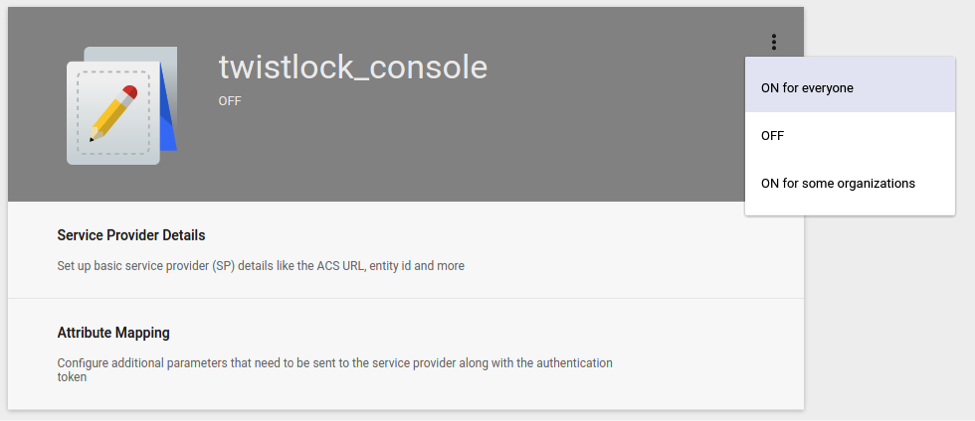
10. Turn the application to on. Select either **ON** for everyone or **ON for some organizations**.
## Setting up Prisma Cloud
Set up Prisma Cloud for G Suite integration.
1. Log into Console, then go to **Manage > Authentication > Identity Providers > SAML**.
2. Set **Integrate SAML users and groups with Prisma Cloud** to **Enabled**.
3. Set **Identity provider** to **G Suite**.
4. Set up the following parameters:
1. Paste the SSO URL, Entity ID, and certificate that you copied during the G Suite set up into the **Identity Provider single sign-on URL**, **Identity provider issuer**, and **X.509 certificate** fields.
2. Set **Audience** to match the application Entity ID configured in G Suite. Enter **twistlock**.
3. Click **Save**.
5. Go to **Manage > Authentication > Users**, and click **Add user**.
6. In the **Username** field, enter the G Suite email address the user you want to add. Select a role, then click **Save**. Be sure **Create user in local Prisma Cloud account database** is **Off**.
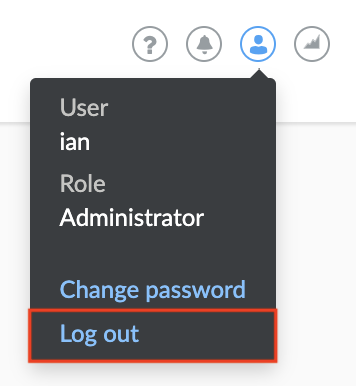
7. Log out of Console.
You will be redirected into G Suite and you might need to enter your credentials. After that, you will be redirected back into Prisma Cloud and authenticated as a user.
---
# Agent Instructions
This documentation is published with GitBook. GitBook is the documentation platform designed so that both humans and AI agents can read, navigate, and reason over technical content effectively. Learn more at gitbook.com.
## Querying This Documentation
If you need additional information that is not directly available in this page, you can query the documentation by asking a question.
Perform an HTTP GET request on the following URL with the `ask` and `goal` query parameters:
```
GET https://docs.prismacloud.io/admin-guide/33/authentication/saml-google-g-suite.md?ask=&goal=
```
`ask` is the immediate question: it should be specific, self-contained, and written in natural language.
`goal` is what the user is ultimately trying to achieve, the reason they need the answer. Sharing it helps GitBook give you a better, more relevant answer. A goal is most helpful when it describes the outcome the user wants rather than restating the question. For example, with `ask=how do I create an API token`, a goal like `automate deployments from our CI pipeline` lets GitBook tailor the answer to that use case.
The response will contain a direct answer to the question and relevant excerpts and sources from the documentation.
Use this mechanism when the answer is not explicitly present in the current page, you need clarification or additional context, or you want to retrieve related documentation sections.