> For the complete documentation index, see [llms.txt](https://docs.prismacloud.io/llms.txt). Markdown versions of documentation pages are available by appending `.md` to page URLs; this page is available as [Markdown](https://docs.prismacloud.io/admin-guide/33/continuous-integration/jenkins-freestyle-project.md).
# Jenkins Freestyle project
Jenkins Freestyle projects let you create general-purpose build jobs with maximum flexibility.
## Setting up a Freestyle project for container images
Create a Freestyle project that builds a Docker image and then scans it for vulnerability and compliance issues.
1. Go to the Jenkins top page.
2. Create a new project.
1. Click **New Item**.
2. In **Enter an item name**, enter a name for your project.
3. Select **Freestyle project**.
4. Click **OK**.
3. Add a build step.
1. Scroll down to the **Build** section.
2. In the **Add build step** drop-down list, select **Execute shell**.
3. In the **Command** text box, enter the following:
```
echo "Creating Dockerfile..."
echo "FROM imiell/bad-dockerfile:latest" > Dockerfile
docker build --no-cache -t test/test-image:0.1 .
```
4. Add a build step that scans the container image(s) for vulnerabilities.
1. In the **Add build step** drop-down list, select **Scan Prisma Cloud Images**.
2. In the **Image** field, select the image to scan by specifying the repository and tag.
Use [pattern matching expressions](/admin-guide/33/configure/rule-ordering-pattern-matching.md). For example, enter `test/test-image*`.
Select the following **Advanced settings** for specific scenarios.
* Select [**Ignore image creation time**](/admin-guide/33/continuous-integration/jenkins-plugin.md#ignore-image-creation-time).
* To scan an image created outside of this build.
* To scan the image every build, even if the build might doesn’t generate an new image.
* Select **Scan the image every build, even if it hasn’t changed since the last build**
* To avoid errors after the first time you create the Docker image.
5. Add a post-build action to publish the scan results in Jenkins directly.
This post-build step depends on a file generated by the previous scan build step, which holds the scan results. This step specifically makes the results available for review in the Jenkins build tool. Note that the previous scan step already published the results in Console, and they’re ready to be reviewed there.
1. Scroll down to **Post-build Actions**.
2. In the **Add post-build action** drop-down menu, select **Publish Prisma Cloud analysis results**.
3. In **Scan Result Files**, accept the default.
Scan result files aren’t deleted by the publish step. They stay in the workspace.
6. Click **Save**.
7. Click **Build Now**.
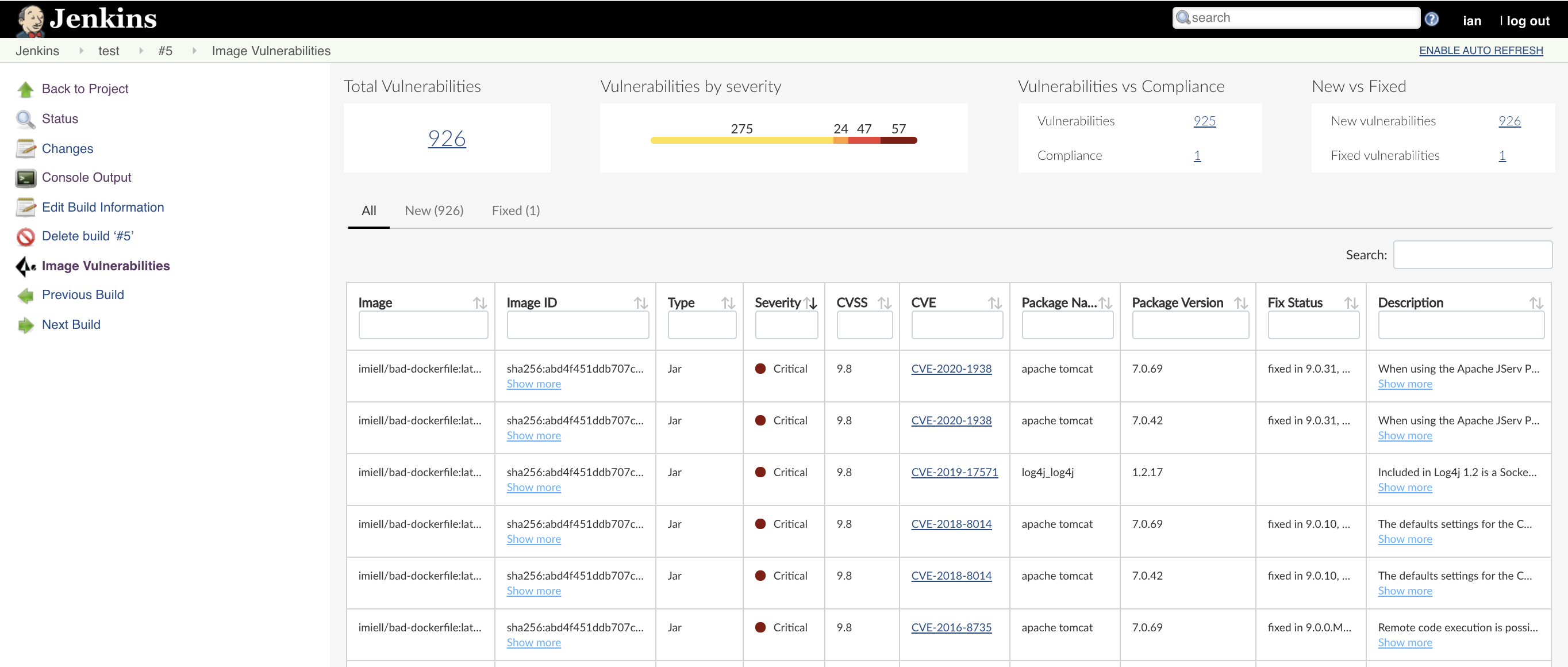
8. After the build completes, examine the results. Scan reports are available in the following locations:
* Prisma Cloud Console: Log into Console, and go to **Monitor > Vulnerabilities > Images > CI**.
* Jenkins: Drill down into the build job, then click **Image Vulnerabilities** to see a detailed report.
## Setting up a Freestyle project for serverless functions
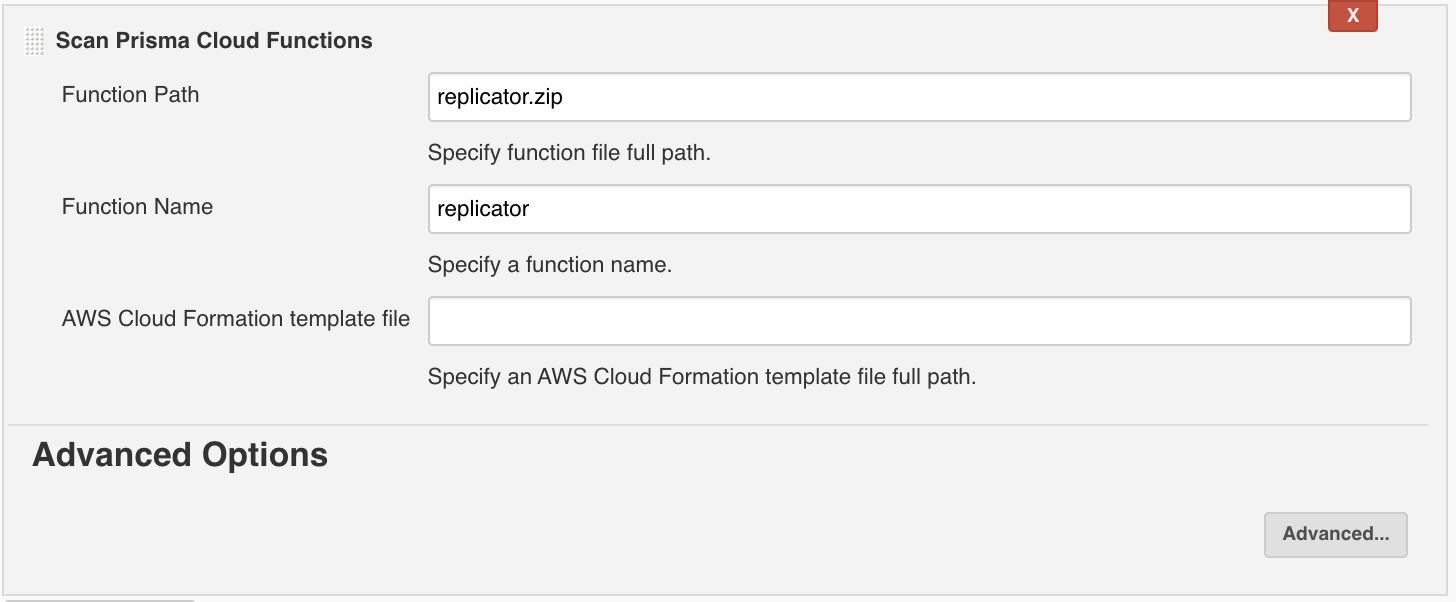
The procedure for setting up Jenkins to scan serverless functions is similar to the procedure for container images, except you should use the **Scan Prisma Cloud Functions** build step.
Where:
* **Function Path** — Path to the ZIP archive of the function to scan.
* **Function Name** — (Optional) String identifier for matching policy rules in Console with the functions being scanned. When creating policy rules in Console, you can target specific rules to specific functions by function name. If this field is left unspecified, the plugin matches the function to the first rule where the function name is a wildcard.
* **AWS CloudFormation template file** — (Optional) Path to CloudFormation template file in either JSON or YAML format. Prisma Cloud scans the function source code for AWS service APIs being used, compares the APIs being used to the function permissions, and reports when functions have permissions for APIs they don’t need.
---
# Agent Instructions
This documentation is published with GitBook. GitBook is the documentation platform designed so that both humans and AI agents can read, navigate, and reason over technical content effectively. Learn more at gitbook.com.
## Querying This Documentation
If you need additional information that is not directly available in this page, you can query the documentation by asking a question.
Perform an HTTP GET request on the following URL with the `ask` and `goal` query parameters:
```
GET https://docs.prismacloud.io/admin-guide/33/continuous-integration/jenkins-freestyle-project.md?ask=&goal=
```
`ask` is the immediate question: it should be specific, self-contained, and written in natural language.
`goal` is what the user is ultimately trying to achieve, the reason they need the answer. Sharing it helps GitBook give you a better, more relevant answer. A goal is most helpful when it describes the outcome the user wants rather than restating the question. For example, with `ask=how do I create an API token`, a goal like `automate deployments from our CI pipeline` lets GitBook tailor the answer to that use case.
The response will contain a direct answer to the question and relevant excerpts and sources from the documentation.
Use this mechanism when the answer is not explicitly present in the current page, you need clarification or additional context, or you want to retrieve related documentation sections.