> For the complete documentation index, see [llms.txt](https://docs.prismacloud.io/llms.txt). Markdown versions of documentation pages are available by appending `.md` to page URLs; this page is available as [Markdown](https://docs.prismacloud.io/admin-guide/33/continuous-integration/jenkins-pipeline-project.md).
# Jenkins Pipeline project
The Prisma Cloud Jenkins plugin supports Jenkins Pipeline. Jenkins Pipeline lets you implement and integrate continuous delivery pipelines into Jenkins.
In this workflow, there are two sequential steps for analyzing scan results. The *publish* build stage depends on the results file generated by *scan* build stage. The results file must be accessible when running the *publish* step. Therefore, it’s not possible to run both stages (*scan* and *publish*) on different nodes or in parallel.
For example, a pipeline script that scans a serverless function and publishes the results (assuming the function zip file exists in the current workspace) should look like this:
```
node('master') {
stage('Scan') {
prismaCloudScanFunction
}
stage('Publish') {
prismaCloudPublish
}
}
```
## Setting up a Pipeline project for container images
To set up a Jenkins Pipeline:
1. Go to the Jenkins top page.
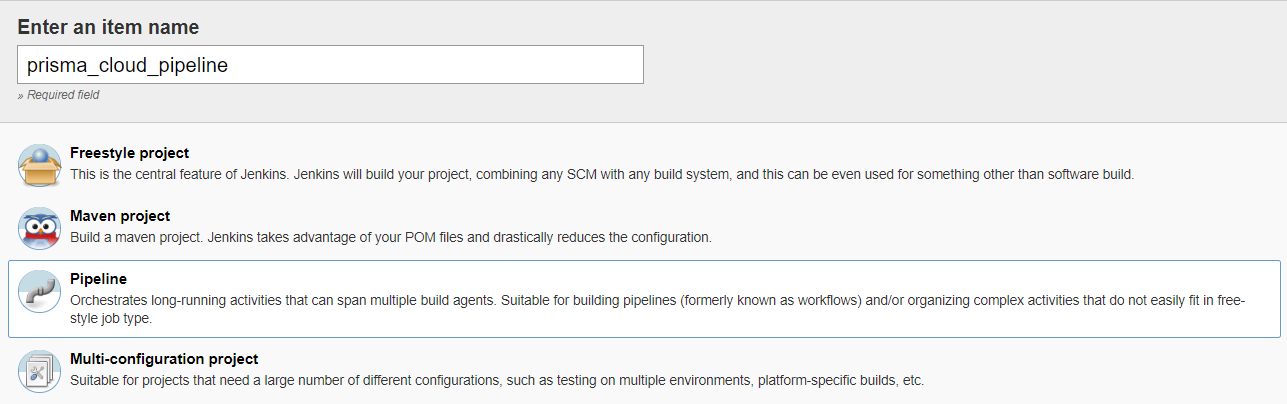
2. Create a new pipeline.
1. Click **New Item**.
2. In **Item** name, enter a name for your pipeline.
3. Select **Pipeline**.
4. Click **OK**.
3. Use Jenkin’s Snippet Generator to generate Pipeline Script for the Prisma Cloud steps.
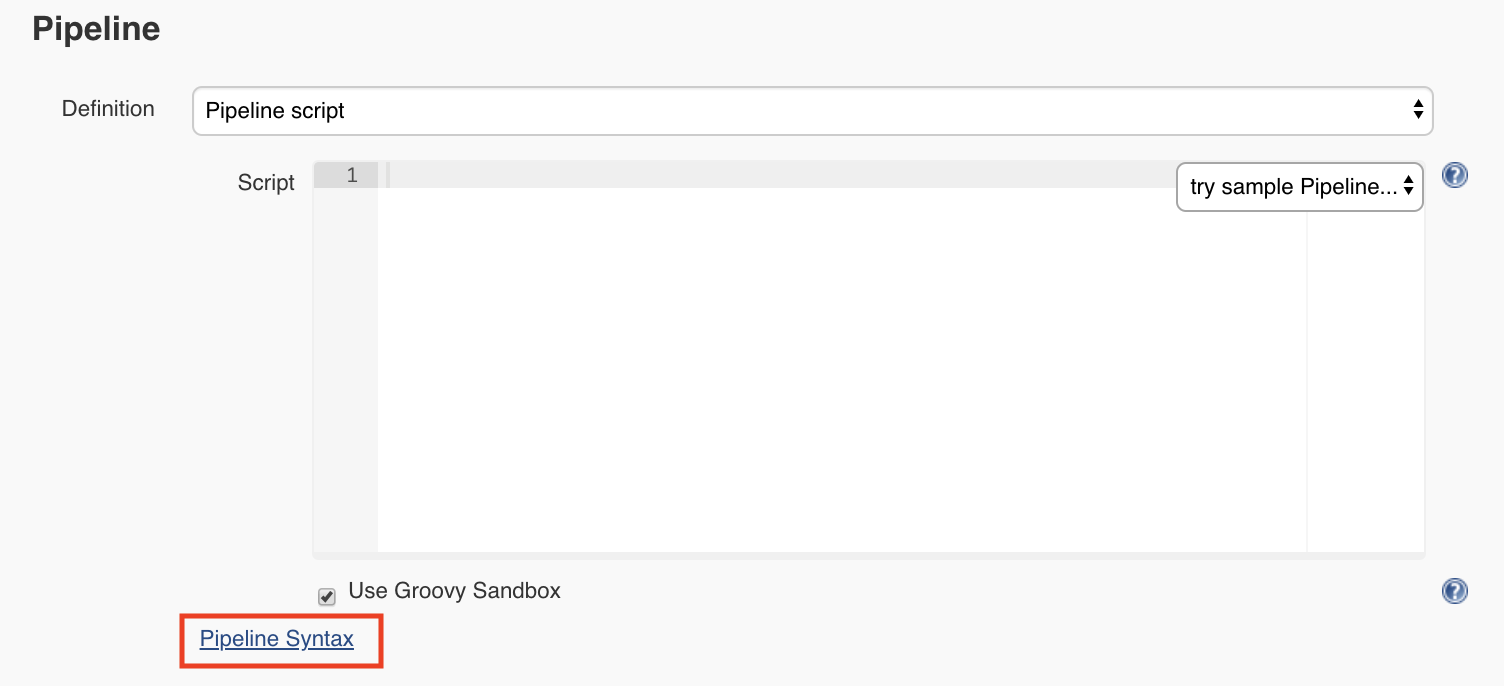
In the **Pipeline** section, click on the **Pipeline syntax** link, which takes you to *https\://\/job/docs\_issue/pipeline-syntax/*.
4. Generate Pipeline Script for the scan step.
1. In the **Sample Step** drop-down, select **prismaCloudScanImage - Scan Prisma Cloud Images**.
2. In the **Image** field, select the image to scan by specifying the repository and tag.
Specify the repository and tag using an exact match or [pattern matching expressions](/admin-guide/33/configure/rule-ordering-pattern-matching.md). For example, enter `test/test-image*`.
If the image you want to scan is created outside of this build, or if you want to scan the image every build, even if the build might not generate an new image, then click **Advanced**, and select [**Ignore image creation time**](/admin-guide/33/continuous-integration/jenkins-plugin.md#ignore-image-creation-time).
3. Click **Generate Pipeline Script**, copy the snippet, and set it aside.
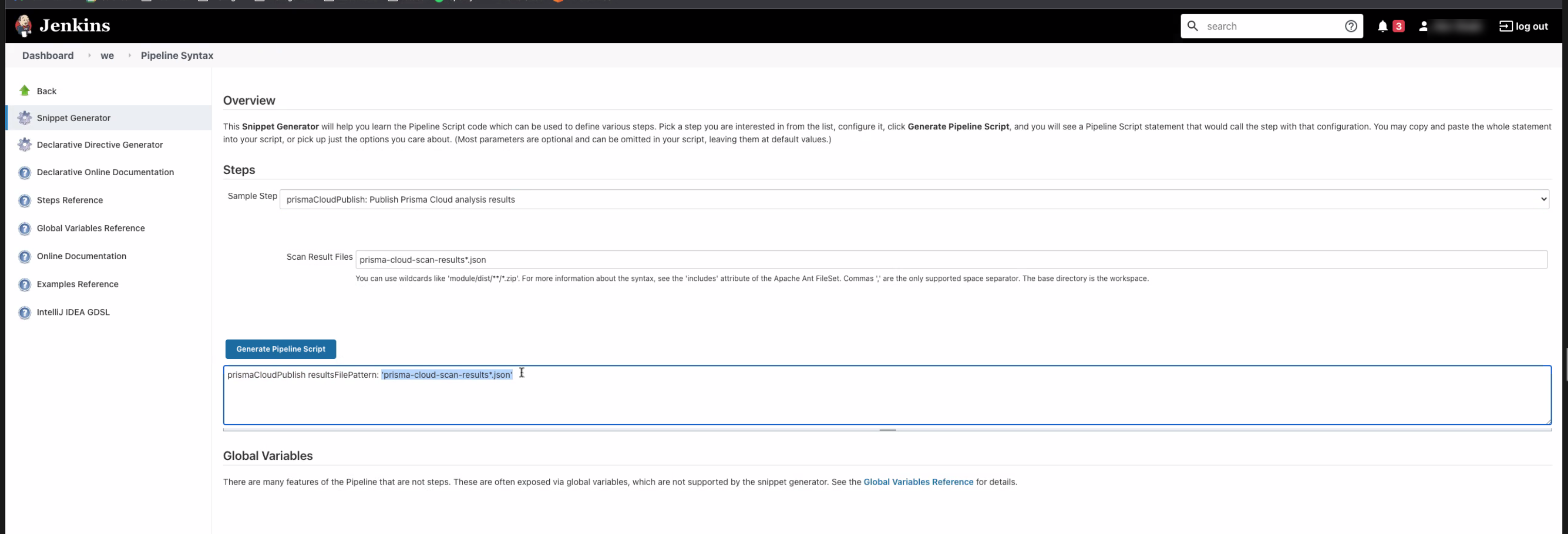
5. Generate Pipeline Script to publish the scan results in Jenkins directly.
This post-build step depends on a file generated by the previous scan build step, which holds the scan results. This step specifically makes the results available for review in the Jenkins build tool. Note that the previous scan step already published the results in Console, and they’re ready to be reviewed there.
1. In the **Sample Step** drop-down, select **prismaCloudPublish - Publish Prisma Cloud analysis results**.
2. In **Scan Result Files**, review the json filename.
If you have configured scanning for multiple images and configured unique filenames for each scan in the previous step, you must add a wildcard to the json filename for scan results. For example `prisma-cloud-scan-results*.json`. This ensures that publish command reads all the result files with the same name pattern, and publishes the results so that you can view it. In other cases, accept the default value `prisma-cloud-scan-results.json`.
Scan result files aren’t deleted by the publish step. They stay in the workspace.
3. Click **Generate Pipeline Script**, copy the snippet, and set it aside.
6. Return to your project configuration page.
7. Paste both snippets into the script section for your project configuration. Use the template below.
The following example template builds a simple image, and runs the scan and publish steps.
```
pipeline {
agent any
stages {
stage('Build') {
steps {
// Build an image for scanning | Input values for your image below
sh 'echo "FROM Dockerfile'
sh 'docker build --no-cache -t .'
}
}
stage('Scan') {
steps {
// Scan the image | Input value from first script copied below, ''
prismaCloudScanImage - Scan Prisma Cloud Images"
}
}
}
post {
always {
// The post section lets you run the publish step regardless of the scan results | Input value from second script copied below, "
prismaCloudPublish - Publish Prisma Cloud analysis results."
}
}
}
```
8. Click **Save**.
9. Click **Build Now**.
10. After the build completes, examine the results.
1. The Status page shows a summary of each build step:
2. Click on a step to view the log messages for that step:
3. Scan step returned result:
The criteria for passing or failing a scan is determined by the CI vulnerability and compliance policies set in Console. The default CI vulnerability policy alerts on all CVEs detected. The default CI compliance policy alerts on all critical and high compliance issues.
There are two reasons why `prismaCloudScanImage` scan step might return a failed result.
* The scan failed because the scanner found issues that violate your CI policy.
* Prisma Cloud Compute Jenkins plugin failed to run due to an error.
In order to understand the reason for the failure, view the step’s log messages, or move to the Jenkins Console Output page. Another option that can help you differentiate the reason for the failure could be to create preliminary steps to the scan step in order to check the Console’s availability, network connectivity, etc.
Anyhow, although the return value is ambiguous — you cannot determine the exact reason for the failure by just examining the return value — this setup supports automation. From an automation process perspective, you expect that the entire flow will work. If you scan an image, with or without a threshold, either it works or it does not work. If it fails, for whatever reason, you want to fail everything because there is a problem.
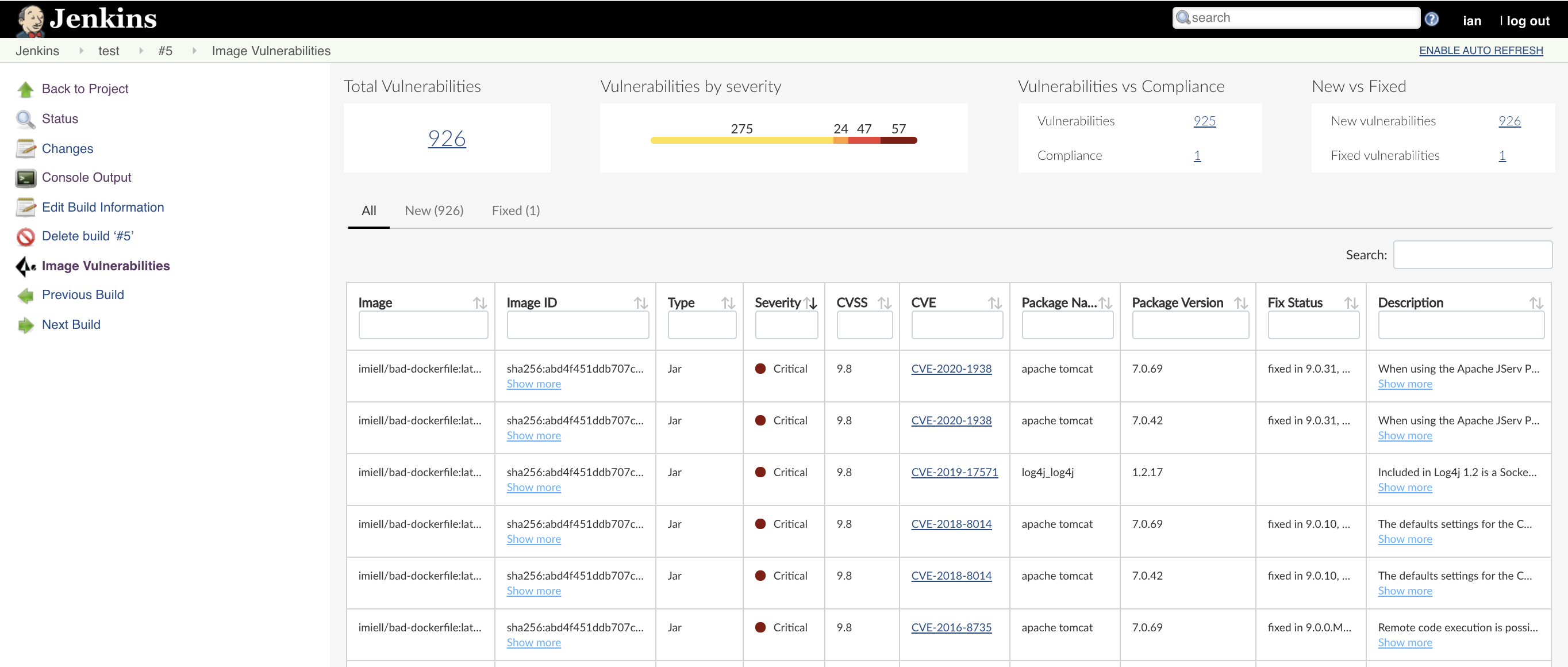
4. Scan reports are available in the following locations:
* Prisma Cloud Console: Log into Console, and go to **Monitor > Vulnerabilities > Images > CI**.
* Jenkins: Drill down into the build job, then click **Image Vulnerabilities** to see a detailed report.
The **Projects** column in the CI scan results table displays the name of the Jenkins pipeline you created.
Below is the sample code if you’d like to test an image for your Jenkins Pipeline for troubleshooting purposes:
The following example script builds a simple image, and runs the scan and publish steps.
```
pipeline {
agent any
stages {
stage('Build') {
steps {
// Build an image for scanning
sh 'echo "FROM imiell/bad-dockerfile:latest" > Dockerfile'
sh 'docker build --no-cache -t test/test-image:0.1 .'
}
}
stage('Scan') {
steps {
// Scan the image
prismaCloudScanImage ca: '',
cert: '',
dockerAddress: 'unix:///var/run/docker.sock',
image: 'test/test-image*',
key: '',
logLevel: 'info',
podmanPath: '',
// The project field below is only applicable if you are using Prisma Cloud Compute Edition and have set up projects (multiple consoles) on Prisma Cloud.
project: '',
resultsFile: 'prisma-cloud-scan-results.json',
ignoreImageBuildTime:true
}
}
}
post {
always {
// The post section lets you run the publish step regardless of the scan results
prismaCloudPublish resultsFilePattern: 'prisma-cloud-scan-results.json'
}
}
}
```
## Setting up a Pipeline project for serverless functions
The procedure for setting up Jenkins to scan serverless functions is similar to the procedure for container images, except select **prismaCloudScanFunction: Scan Prisma Cloud Functions** in the snippet generator.
Where:
* **Function Path (functionPath)** — Path to the ZIP archive of the function to scan.
* **Function Name (functionName)** — (Optional) String identifier for matching policy rules in Console with the functions being scanned. When creating policy rules in Console, you can target specific rules to specific functions by function name. If this field is left unspecified, the plugin will use the function zip file name to match against policy.
* **AWS CloudFormation template file (cloudFormationTemplateFile)** — (Optional) Path to CloudFormation template file in either JSON or YAML format. Prisma Cloud scans the function source code for AWS service APIs being used, compares the APIs being used to the function permissions, and reports when functions have permissions for APIs they don’t need.
---
# Agent Instructions
This documentation is published with GitBook. GitBook is the documentation platform designed so that both humans and AI agents can read, navigate, and reason over technical content effectively. Learn more at gitbook.com.
## Querying This Documentation
If you need additional information that is not directly available in this page, you can query the documentation by asking a question.
Perform an HTTP GET request on the following URL with the `ask` and `goal` query parameters:
```
GET https://docs.prismacloud.io/admin-guide/33/continuous-integration/jenkins-pipeline-project.md?ask=&goal=
```
`ask` is the immediate question: it should be specific, self-contained, and written in natural language.
`goal` is what the user is ultimately trying to achieve, the reason they need the answer. Sharing it helps GitBook give you a better, more relevant answer. A goal is most helpful when it describes the outcome the user wants rather than restating the question. For example, with `ask=how do I create an API token`, a goal like `automate deployments from our CI pipeline` lets GitBook tailor the answer to that use case.
The response will contain a direct answer to the question and relevant excerpts and sources from the documentation.
Use this mechanism when the answer is not explicitly present in the current page, you need clarification or additional context, or you want to retrieve related documentation sections.