> For the complete documentation index, see [llms.txt](https://docs.prismacloud.io/llms.txt). Markdown versions of documentation pages are available by appending `.md` to page URLs; this page is available as [Markdown](https://docs.prismacloud.io/admin-guide/33/runtime-defense/runtime-defense-app-embedded.md).
# Runtime defense for App-Embedded
App-Embedded Defenders monitor and protect your containers at runtime, ensuring they execute as designed, and securing them against suspicious activity.
App-Embedded Defender runtime rules let you control:
* Process activity.
* Network connections.
* File system activity.
App-Embedded Defenders also support [custom runtime rules](/admin-guide/33/runtime-defense/custom-runtime-rules.md).
For front-end containers, deploy the [WAAS](https://github.com/PaloAltoNetworks/pc-docs-md/tree/main/compute-edition/33/admin-guide/waas/waas.md) application firewall for additional runtime protection.
## App-Embedded runtime policy
App-Embedded Defenders have distinct process, network, and file system sensors to monitor a workload’s activity at runtime. Each sensor is implemented individually, with its own set controls and configurations. After deploying App-Embedded Defender, customize runtime protection for the workload by creating rules. Rules let you control process, network, and file system activity.
App-Embedded Defenders dynamically retrieve policies from Console as they are updated. You can embed App-Embedded Defender into a workload with a very simple initial policy, and refine it later, as needed.
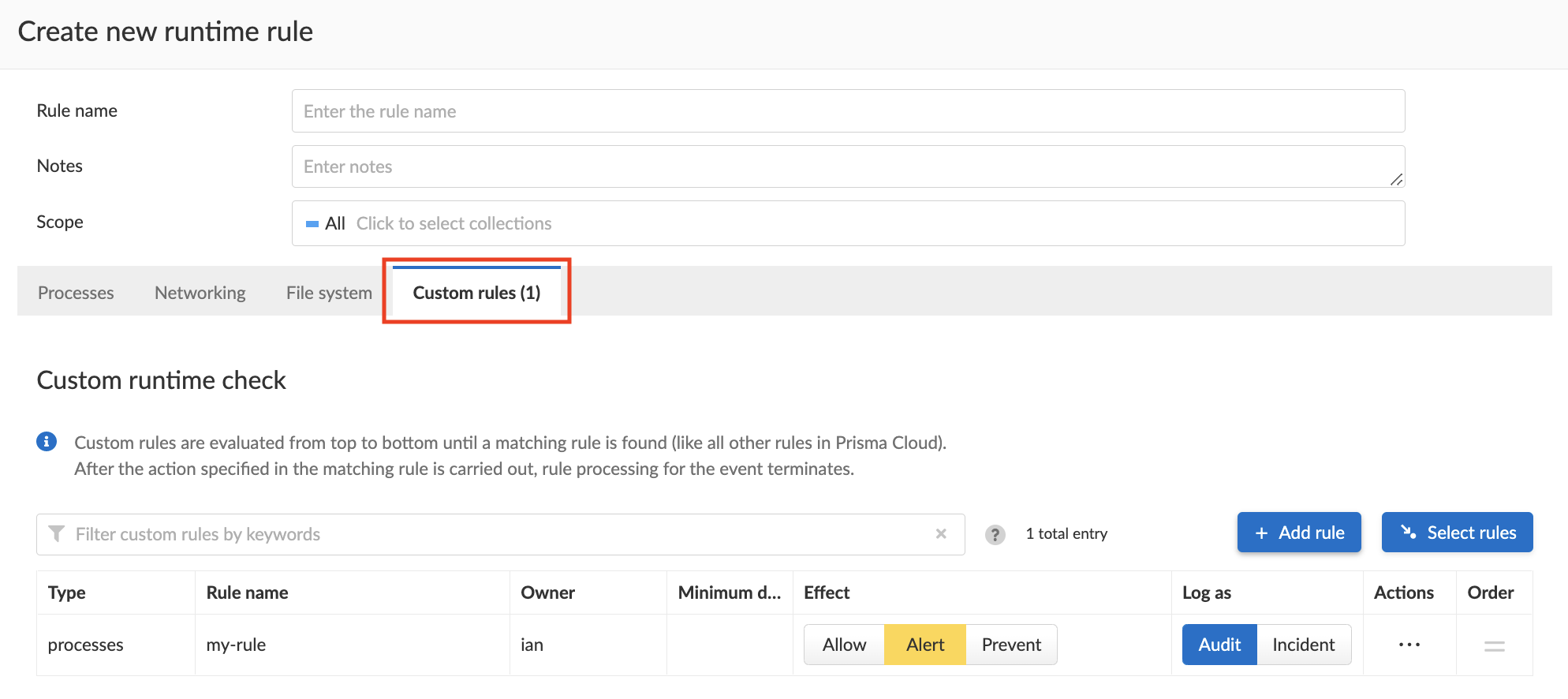
Audits can be reviewed under **Monitor > Events > App-Embedded Audits** App-Embedded Defender generates audits and incidents when one of the following conditions applies:
* The sensor is enabled. For example, the following screenshot shows that the file system sensor is enabled:
* A custom rule is attached to an App-Embedded runtime rule. For example:
Unlike Container Defenders, App-Embedded Defenders don’t support [learning and models](/admin-guide/33/runtime-defense/runtime-defense-containers.md#models).
## Effect
App-Embedded Defender runtime protectionn can be configured to operate in one of the following modes:
* **Disable** — Defender doesn’t provide any protection.
* **Alert** — Defender generates audits when it detects runtime activity that violates your defined policy. If alerts are configured, they’re also generated and sent. Audits can be reviewed under **Monitor > Events > App-Embedded audits**.
* **Prevent** — Prevents the runtime activity. For example, file system defense prevents the creation or modification of files.
App-Embedded Defenders don’t support the **Block** action, where Defender stops the entire container. Blocking isn’t feasible when workloads run on Containers-as-a-Service platforms, where neither the workload nor the embedded Defender have access to the underlying container runtime (e.g. Docker Engine).
## Process monitoring
App-Embedded Defender can detect anomalous process activity. Each control can be independently enabled or disabled.
* **Processes started from modified binaries** — Detects when binaries from a container image have been modified and then subsequently executed.
* **Crypto miners** — Detects crypto miners and creates a [crypto miner incident](/admin-guide/33/runtime-defense/incident-types/crypto-miners.md).
* **Explicitly allowed and denied processes** — Controls which processes can run. If you specify an allow list, then everything outside the allow list is denied by default. If you specify a deny list, then everything outside the deny list is allowed by default. Processes can be specified by a process name.
## Network monitoring
App-Embedded Defender can monitor container networking activity for patterns that indicate an attack might be underway. Each control can be independently enabled or disabled.
* **Allowed** and **Denied** — Specifies known good or bad network connections. You can define policy for listening ports, outbound internet ports for Internet destinations, and outbound IP addresses. If you specify an allow list, then everything outside the allow list is denied by default. If you specify a deny list, then everything outside the deny list is allowed by default.
### DNS
DNS monitoring analyzes DNS lookups from your running containers. Dangerous domains are detected as follows:
* **Prisma Cloud Intelligence Stream** — Prisma Cloud’s threat feed contains a list of known bad domains.
* **Explicit allow list:** Runtime rules let you augment the Prisma Cloud’s Intelligence Stream data with your own explicit lists of known good domains.
## File system monitoring
App-Embedded Defender’s runtime defense for container file systems continuously monitors and protects containers from suspicious file system activities and malware.
By default, App-Embedded Defender monitors both the container’s root file system and any mounted data volumes.
### Enabling file system monitoring
The file system sensor evaluates changes to the file system. File system monitoring is disabled by default because it can impact the protected workload’s performance.
When you embed App-Embedded Defender into a workload, the state of the file system monitoring subsystem is set. Once the state is set, it cannot be changed dynamically at runtime. You must re-embedd Defender with a different setting.
When the file system monitoring subsystem is enabled in App-Embedded Defender, the sensor captures file system events in the background, regardless of the settings in your runtime rules. In particular, file system forensics (binary created event) are collected and reported regardless of how your runtime policy is configured.
Security teams can globally specify the default setting for file system monitoring. During the Defender embed (deployment) flow, individual teams can then see and accept the organization’s recommended setting. They can also override the default setting as they see fit for the efficient operation of their own applications.
For more information, see [configuring the default setting for file system protection](/admin-guide/33/install/deploy-defender/app-embedded/config-app-embedded-fs-protection.md).
### Detections
Prisma Cloud can detect anomalous file system activity. Each control can be independently enabled or disabled.
Defender also looks for attributes that make files suspicious, including signs they’ve been rigged for anti-analysis.
* **Changes to binaries or certificates** — Detects when these types of files from a container image are modified.
* **Detection of encrypted/packed binaries** — Detects usage of encrypted/packed binaries. Such files are suspicious because it’s a sign they’ve been rigged for anti-analysis to deploy malware undetected.
* **Changes to SSH and admin account configuration files**
* **Binaries with suspicious ELF headers**
* **Custom feed for malware detection**
* **Use WildFire malware analysis** — Use WildFire, Palo Alto Networks' malware analysis engine, to detect malware. To use Wildfire, it must first be enabled.
* **Explicitly allowed and denied system paths** — Controls where files can be written. If you specify an allow list, then everything outside the allow list is denied by default. If you specify a deny list, then everything outside the deny list is allowed by default.
The **Prevent** effect is supported for "Changes to SSH and admin account configuration files" and denied system paths only. For all other detections, you are alerted with an audit but the activity is not prevented.
### Malware protection
App-Embedded Defender monitors container file systems for malicious binaries and certs using data from:
* Your [custom malware feed](/admin-guide/33/configure/custom-feeds.md).
* [Wildfire](/admin-guide/33/configure/wildfire.md).
When a file is written to the container file system, Defender compares the MD5 hash of the file to the MD5 hashes configured under **Manage > System > Custom feeds > Malware signatures**. If there is a match, Defender creates an audit.
## Custom rules
Custom rules offer another mechanism to protect running software. Custom rules are expressions that give you a precise way to describe and detect discrete runtime behaviors. Expressions let you examine various facets of an event in a programmatic way, then take action when they evaluate to true.
For more information, see [custom rules](/admin-guide/33/runtime-defense/custom-runtime-rules.md).
The **Prevent** effect isn’t supported when using the `file.type` or `file.md5` properties in custom rules for App-Embedded Defenders.
## Monitoring workloads at runtime
Go to **Monitor > Runtime > App-Embedded observations** to monitor and manage workloads protected by App-Embedded Defender. This page aggregates and reports runtime audits, forensics, and environment metadata for each workload. You can filter the workloads in the table by a number of facets, including collections and App ID.
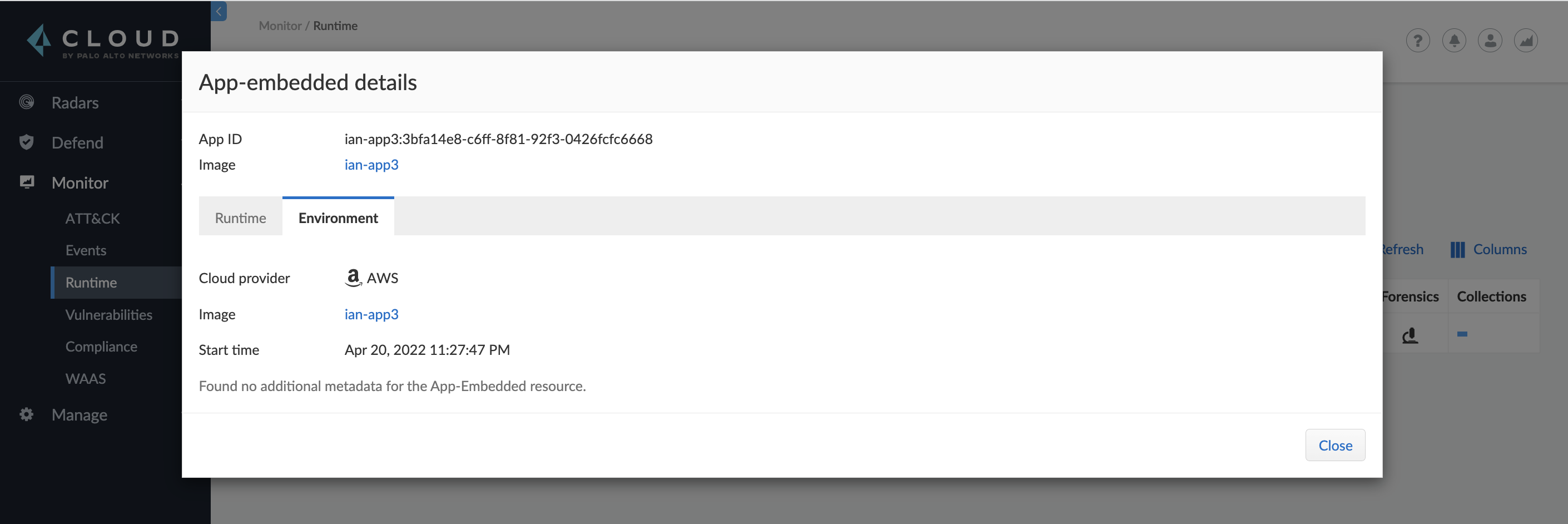
App-Embedded Defenders collect and report metadata about the environment in which they run. From the **App-Embedded observations** page, click on a protected workload to open the report, and the click on the **Environment** tab.
The metadata App-Embedded Defenders collect depends on what’s available from the underlying cloud provider. App-Embedded Defenders can collect and report the following metadata when running on the following cloud provider services:
| Metadata | AWS - Fargate with ECS | AWS - Fargate with EKS | Google Cloud Run | Azure ACI |
| ------------------------------ | ---------------------- | ---------------------- | ---------------- | --------- |
| Cloud provider | Y | Y | Y | Y |
| Region | Y | | Y | |
| Account ID | Y | | Y | |
| Cluster | Y | | | |
| Instance ID | Y (task ID) | | Y | |
| Resource name (e.g., pod name) | Y (container name) | | | |
| Image name | Y | Y | Y | Y |
| Container name | Y | | | |
| App ID | Y | Y | Y | Y |
When App-Embedded Defender runs in Fargate on Amazon EKS and Azure ACI, it emits an error that says Defender failed to fetch cloud metadata. This is by design, and the error message can safely be ignored.
For AWS Fargate on Amazon EKS, Prisma Cloud doesn’t report any cloud metadata because AWS doesn’t support the instance metadata service for pods that are deployed with Fargate. Similarly for images running on ACI, no cloud metadata is available for Prisma Cloud to report.
## Securing your App-Embedded containers
To secure App-Embedded containers, including Fargate tasks, embed the Prisma Cloud App-Embedded Defender into it. The steps are:
1. Define your policy in Prisma Cloud Console under **Defend > Runtime > App-Embedded policy**.
2. Embed the App-Embedded Defender into your container or task definition using one of the following procedures:
* [Install App-Embedded Defender](https://github.com/PaloAltoNetworks/pc-docs-md/tree/main/compute-edition/33/admin-guide/install/deploy-defender/app-embedded/app-embedded.md)
* [Install App-Embedded Defender for Fargate](/admin-guide/33/install/deploy-defender/app-embedded/install-app-embedded-defender-fargate.md)
3. Start the service that runs your container.
---
# Agent Instructions
This documentation is published with GitBook. GitBook is the documentation platform designed so that both humans and AI agents can read, navigate, and reason over technical content effectively. Learn more at gitbook.com.
## Querying This Documentation
If you need additional information that is not directly available in this page, you can query the documentation by asking a question.
Perform an HTTP GET request on the following URL with the `ask` and `goal` query parameters:
```
GET https://docs.prismacloud.io/admin-guide/33/runtime-defense/runtime-defense-app-embedded.md?ask=&goal=
```
`ask` is the immediate question: it should be specific, self-contained, and written in natural language.
`goal` is what the user is ultimately trying to achieve, the reason they need the answer. Sharing it helps GitBook give you a better, more relevant answer. A goal is most helpful when it describes the outcome the user wants rather than restating the question. For example, with `ask=how do I create an API token`, a goal like `automate deployments from our CI pipeline` lets GitBook tailor the answer to that use case.
The response will contain a direct answer to the question and relevant excerpts and sources from the documentation.
Use this mechanism when the answer is not explicitly present in the current page, you need clarification or additional context, or you want to retrieve related documentation sections.