> For the complete documentation index, see [llms.txt](https://docs.prismacloud.io/llms.txt). Markdown versions of documentation pages are available by appending `.md` to page URLs; this page is available as [Markdown](https://docs.prismacloud.io/admin-guide/33/upgrade/upgrade-process-self-hosted.md).
# Upgrade process
Prisma Cloud Console is backward compatible with up to two (n-2) major releases back (including all minor versions) for the following:
* All types of Defenders.
* Twistcli/Jenkins plugin.
When using projects, the same versions of `master` and `tenant` consoles are required.
## Upgrade and Notifications
The currently installed version of the Console is displayed in the bell menu. The Console notifies you when new versions of Prisma Cloud are available, and these notifications are displayed in the top right corner of the Console.
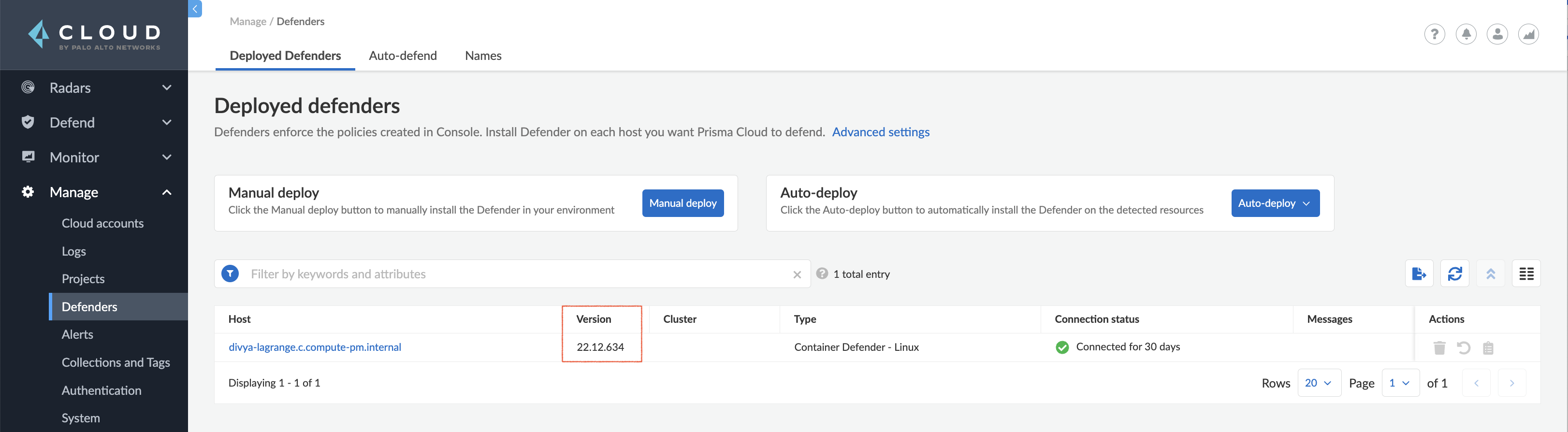
The versions of your deployed Defenders are listed under **Manage > Defenders > Defenders: Deployed**:
## Upgrade Process
The release images for Console and Defender are built from the UBI8-minimal base image, the upgrade is a full container image upgrade and the old container is replaced with a new container. You can upgrade the Console without losing any of your data or configurations because Prisma Cloud stores state information outside the container, all your rules and settings are immediately available to the upgraded Prisma Cloud containers.
Prisma Cloud state information is stored in a database in the location specified by DATA\_FOLDER, which is defined in *twistlock.cfg*. By default, the database is located in the */var/lib/twistlock* path.
The steps in the upgrade process are:
1. Upgrade Console.
When upgrading Console, if you are on two versions previous (n-2) to the latest (n), you must first upgrade to the most recent (n-1) version, and then upgrade to the latest version.
If you are on (n-1) version, then you can upgrade to the latest (n) version.
2. Go to **Manage > Defenders > Defenders: Deployed** and filter by **Upgrade Required** to upgrade all the listed Defenders.
After you upgrade Console, upgrade Defenders that have reached the end of the support lifecycle. You must first
3. Validate that all deployed Defenders have been upgraded.
4. Upgrade the Jenkins plugin, if required.
To download the latest version of all other Prisma Cloud Compute components (such as the Jenkins plugin), either go to **Manage > System > Utilities** to download the latest versions or retrieve them using the API.
## Upgrading Console when Using Projects
When you have one or more [tenant projects](/admin-guide/33/deployment-patterns/projects.md), upgrade all Supervisor Consoles before upgrading the Central Console. During the upgrade process, there may be times when the supervisors appear disconnected. This is normal because supervisors are disconnected while the upgrade occurs and the central console will try to reestablish connectivity every 10 minutes. Within 10 minutes of upgrading all supervisors and the Central Console, all supervisors should appear healthy.
Except during the upgrade process, the Central Console and all Supervisor Consoles must run the same product version. Having different product versions is not supported and may lead to instability and connectivity problems.
Upgrade each Supervisor and then the Central Console using the appropriate procedure:
* [Console - Onebox](/admin-guide/33/upgrade/upgrade-onebox.md)
* [Console - Kubernetes](/admin-guide/33/upgrade/upgrade-kubernetes.md)
* [Console - OpenShift](/admin-guide/33/upgrade/upgrade-openshift.md)
* [Console - Helm](/admin-guide/33/upgrade/upgrade-helm.md)
* [Console - Amazon ECS](/admin-guide/33/upgrade/upgrade-amazon-ecs.md)
---
# Agent Instructions
This documentation is published with GitBook. GitBook is the documentation platform designed so that both humans and AI agents can read, navigate, and reason over technical content effectively. Learn more at gitbook.com.
## Querying This Documentation
If you need additional information that is not directly available in this page, you can query the documentation by asking a question.
Perform an HTTP GET request on the following URL with the `ask` and `goal` query parameters:
```
GET https://docs.prismacloud.io/admin-guide/33/upgrade/upgrade-process-self-hosted.md?ask=&goal=
```
`ask` is the immediate question: it should be specific, self-contained, and written in natural language.
`goal` is what the user is ultimately trying to achieve, the reason they need the answer. Sharing it helps GitBook give you a better, more relevant answer. A goal is most helpful when it describes the outcome the user wants rather than restating the question. For example, with `ask=how do I create an API token`, a goal like `automate deployments from our CI pipeline` lets GitBook tailor the answer to that use case.
The response will contain a direct answer to the question and relevant excerpts and sources from the documentation.
Use this mechanism when the answer is not explicitly present in the current page, you need clarification or additional context, or you want to retrieve related documentation sections.