> For the complete documentation index, see [llms.txt](https://docs.prismacloud.io/llms.txt). Markdown versions of documentation pages are available by appending `.md` to page URLs; this page is available as [Markdown](https://docs.prismacloud.io/admin-guide/33/vulnerability-management/app-embedded-scanning.md).
# Scan App-Embedded Workloads
App-Embedded Defenders can scan their workloads for vulnerabilities.
To see the scan reports, go to **Monitor > Vulnerabilities > Images > Deployed** You can filter the table by:
* **App-Embedded: Select** — Narrows the results to just images protected by App-Embedded Defender.
* **App ID** — Narrows the list to specific images. App IDs are listed under the table’s **Apps** column.
For ECS Fargate tasks, the [App ID](/admin-guide/33/install/deploy-defender/app-embedded/install-app-embedded-defender-fargate.md#app-id-fargate) is partially constructed from the task name. AWS Fargate tasks can run multiple containers. All containers in a Fargate task have the same App ID.
For all other workloads protected by App-Embedded Defender, the [App ID](https://github.com/PaloAltoNetworks/pc-docs-md/tree/main/compute-edition/33/admin-guide/install/deploy-defender/app-embedded/app-embedded.md#app-id) is partially constructed from app name, which is a deploy-time configuration set in the App ID field of the embed workflow.
You can use wildcards to filter the table by app/image name. For example, if the app name is `dvwa`, then you could find all deployments with `Repository: dvwa*`. This filter would show `dvwa:0438dc81a9144fab8cf09320b0e1922b` and `dvwa:538359b5f7f54559ab227375fe68cd7a`.
## Create vulnerability rules
Create a vulnerability rule for a segment of App-Embedded workloads.
1. Login to the Console.
2. Go to **Defend > Vulnerabilities > Images > Deployed**.
3. Click **Add rule**.
4. Entar a rule name.
5. Click on **Scope** to select a relevant collection, or create a new collection.
Workloads are scoped by App ID. App ID is specified when you embed the App-Embedded Defender into a workload, and it’s a unique identifier for the Defender/task pair.
1. If creating a collection, click **Add collection**.
2. Enter collection name.
3. In the **App ID** field, enter one or more App IDs.
Postfix wildcards are supported.
4. Click **Save**.
5. Select the new collection.
6. Click **Select collection**.
6. Select an alert threshold.
Thresholds select, by severity, which vulnerabilities Prisma Cloud should report.
App-Embedded Defenders don’t support the block action.
7. Click **Save**.
## Deploy an example Fargate task
Deploy the `fargate-vulnerability-compliance-task` Fargate task. Follow the steps in [embed App-Embedded Defender into Fargate tasks](/admin-guide/33/install/deploy-defender/app-embedded/install-app-embedded-defender-fargate.md).
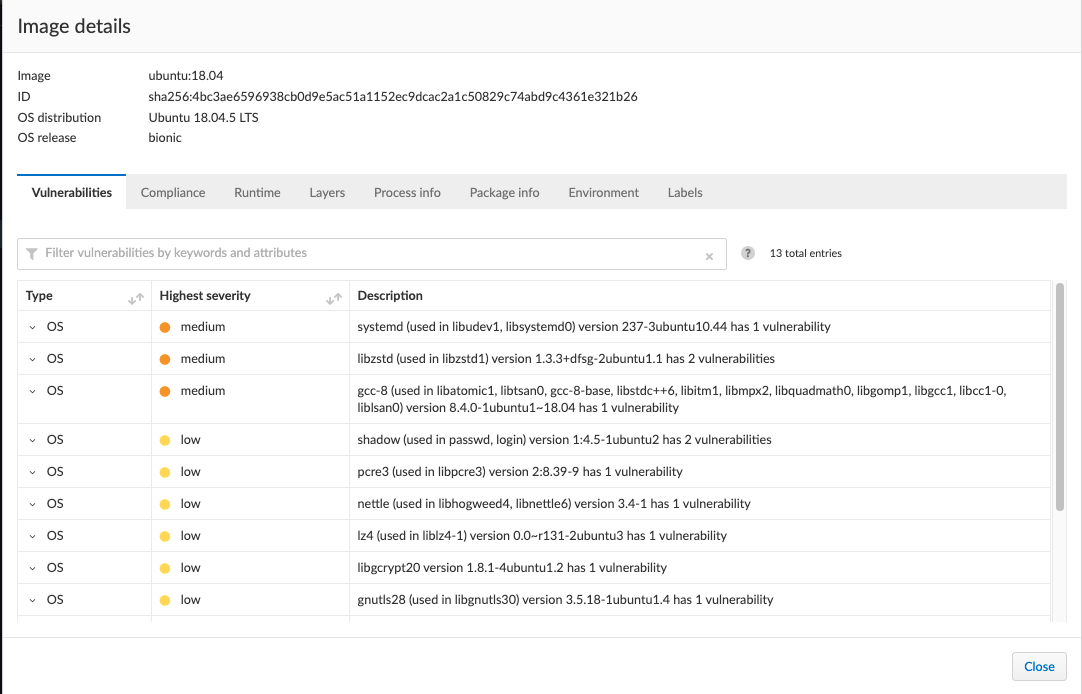
You can use the following task definition to test Prisma Cloud’s App-Embedded Defender. It’s based on an Ubuntu 18.04 image.
```json
{
"containerDefinitions": [
{
"command": [
"/bin/sh -c 'cp /bin/sleep /tmp/xmrig && echo \"[+] Sleeping...\" && while true; do sleep 1000 ; done'"
],
"entryPoint": [
"sh",
"-c"
],
"essential": true,
"image": "ubuntu:18.04",
"logConfiguration": {
"logDriver": "awslogs",
"options": {
"awslogs-group" : "/ecs/fargate-task-definition",
"awslogs-region": "us-east-1",
"awslogs-stream-prefix": "ecs"
}
},
"name": "Fargate-vul-comp-test",
"portMappings": [
{
"containerPort": 80,
"hostPort": 80,
"protocol": "tcp"
}
]
}
],
"cpu": "256",
"executionRoleArn": "arn:aws:iam::012345678910:role/ecsTaskExecutionRole",
"family": "fargate-vulnerability-compliance-task",
"memory": "512",
"networkMode": "awsvpc",
"requiresCompatibilities": [
"FARGATE"
]
}
```
## Review vulnerability scan reports
Review the scan results in Console.
If an App-Embedded Defender protects a container where the user isn’t root, the vulnerability and compliance scanning procedure will encounter permission denied errors that you can see in the Defender logs (**Manage > Defenders > Manage > Defenders > Actions > Logs**).
If an App-Embedded Defender protects a Fargate task with a container where the user isn’t root, the vulnerability and compliance scanning procedure will also encounter permission denied errors. However, the errors won’t be visible unless you download and inspect the Defender logs.
In both cases, the scan flow continues even though errors are encountered.
For Fargate version 1.3.0 and older, Prisma Cloud shows only a single scan report if the same image is run simultaneously as:
* A task on ECS Fargate, protected by App-Embedded Defender.
* A container on a host, protected by Container Defender.
In this case, the image is categorized as "App-Embedded". As a result, when the scan report table is filtered by **App-Embedded: Select**, a scan report will be shown. When the table is filtered by **App-Embedded: Exclude**, it will be hidden. And when filtering by **Hosts**, it will be hidden, even if the host matches, because the image is considered as App-Embedded.
For Fargate version 1.4.0, two separate scan reports are shown, one for App-Embedded and one for Container Defender.
1. Navigate to **Monitor > Vulnerabilities > Images > Deployed** and validate that the deployed image appears and contains vulnerabilities.
2. To see all images that are related to Fargate tasks, filter the image table by **App-Embedded: Select**.
You can also filter the results by a specific task name or postfix wildcards. For example, `fargate-task` or `fargate-task*`.
3. Search for the `fargate-vulnerability-compliance-task` Fargate task.
4. Click on the image to see more details.
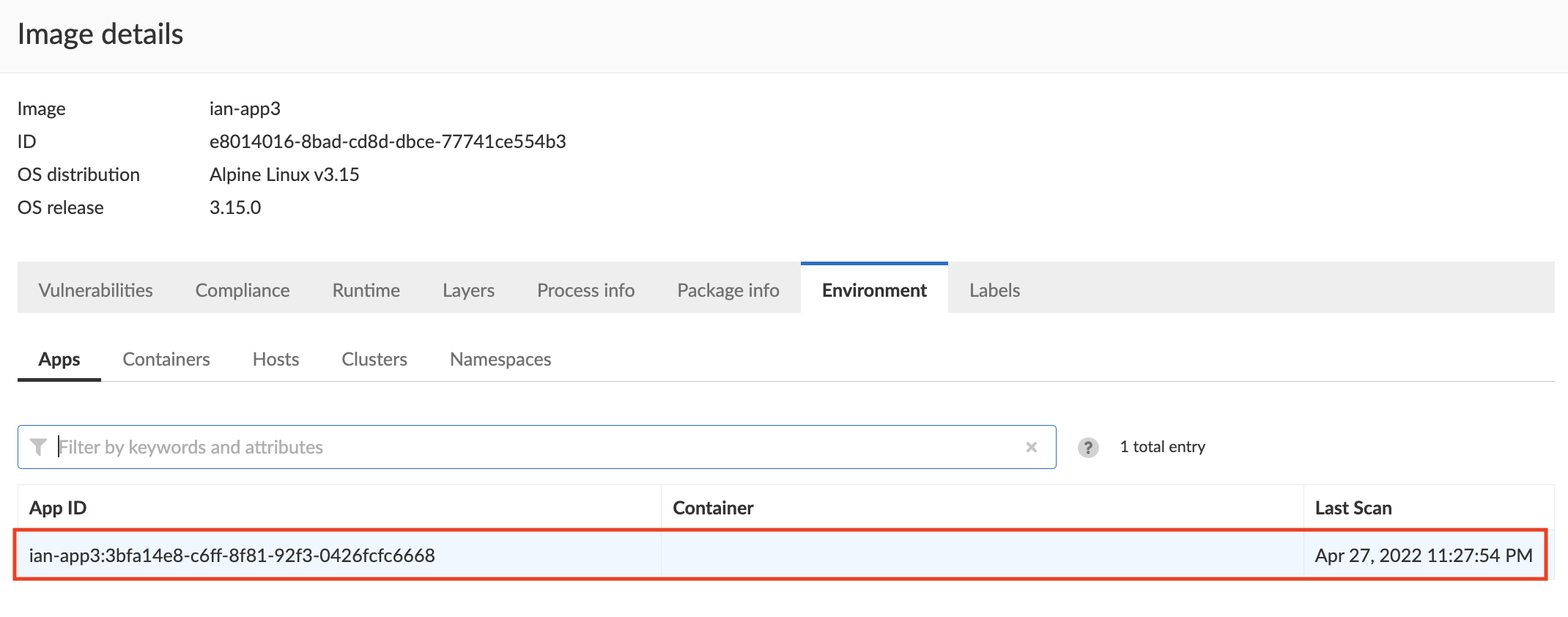
The **Apps** column shows a count of the number of running containers protected by App-Embedded Defender.
The **Layers**, **Processes info**, **Labels**, **Runtime**, and **Trust groups** tabs aren’t supported for images scanned by App-Embedded Defenders.
1. Click the **Vulnerabilities** tab to review all findings.
2. Review runtime information for the container.
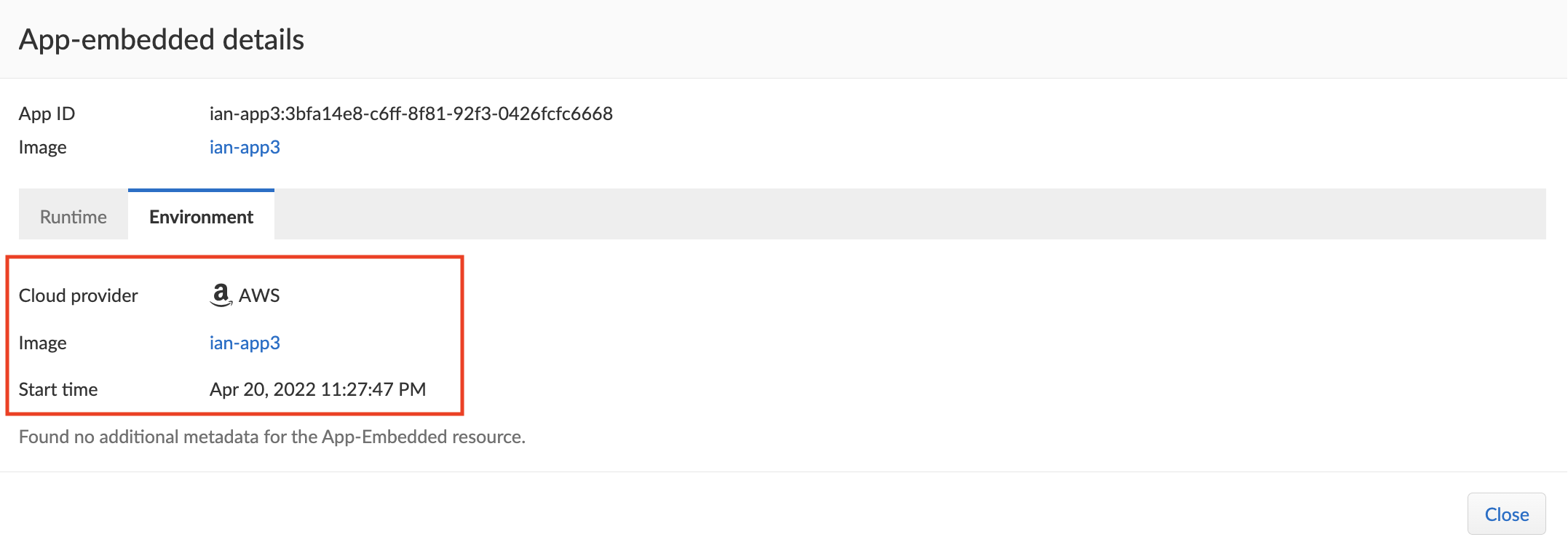
Go to the **Environment > Apps** tab, and then click on the app in the table to open the App-Embedded observations. You can bring up the same view by going directly to **Monitor > Runtime > App-Embedded observations**, and clicking on the same app.
The **Environment** tab shows cloud-provider metadata that App-Embedded Defender collected about the running container. For more information about the type of cloud-provider metadata App-Embedded Defender can collect, see [Monitoring workloads at runtime](/admin-guide/33/runtime-defense/runtime-defense-app-embedded.md#cloud-metadata).
---
# Agent Instructions
This documentation is published with GitBook. GitBook is the documentation platform designed so that both humans and AI agents can read, navigate, and reason over technical content effectively. Learn more at gitbook.com.
## Querying This Documentation
If you need additional information that is not directly available in this page, you can query the documentation by asking a question.
Perform an HTTP GET request on the following URL with the `ask` and `goal` query parameters:
```
GET https://docs.prismacloud.io/admin-guide/33/vulnerability-management/app-embedded-scanning.md?ask=&goal=
```
`ask` is the immediate question: it should be specific, self-contained, and written in natural language.
`goal` is what the user is ultimately trying to achieve, the reason they need the answer. Sharing it helps GitBook give you a better, more relevant answer. A goal is most helpful when it describes the outcome the user wants rather than restating the question. For example, with `ask=how do I create an API token`, a goal like `automate deployments from our CI pipeline` lets GitBook tailor the answer to that use case.
The response will contain a direct answer to the question and relevant excerpts and sources from the documentation.
Use this mechanism when the answer is not explicitly present in the current page, you need clarification or additional context, or you want to retrieve related documentation sections.