> For the complete documentation index, see [llms.txt](https://docs.prismacloud.io/llms.txt). Markdown versions of documentation pages are available by appending `.md` to page URLs; this page is available as [Markdown](https://docs.prismacloud.io/admin-guide/33/web-application-and-api-security-waas/waas-advanced-settings.md).
# Advanced settings
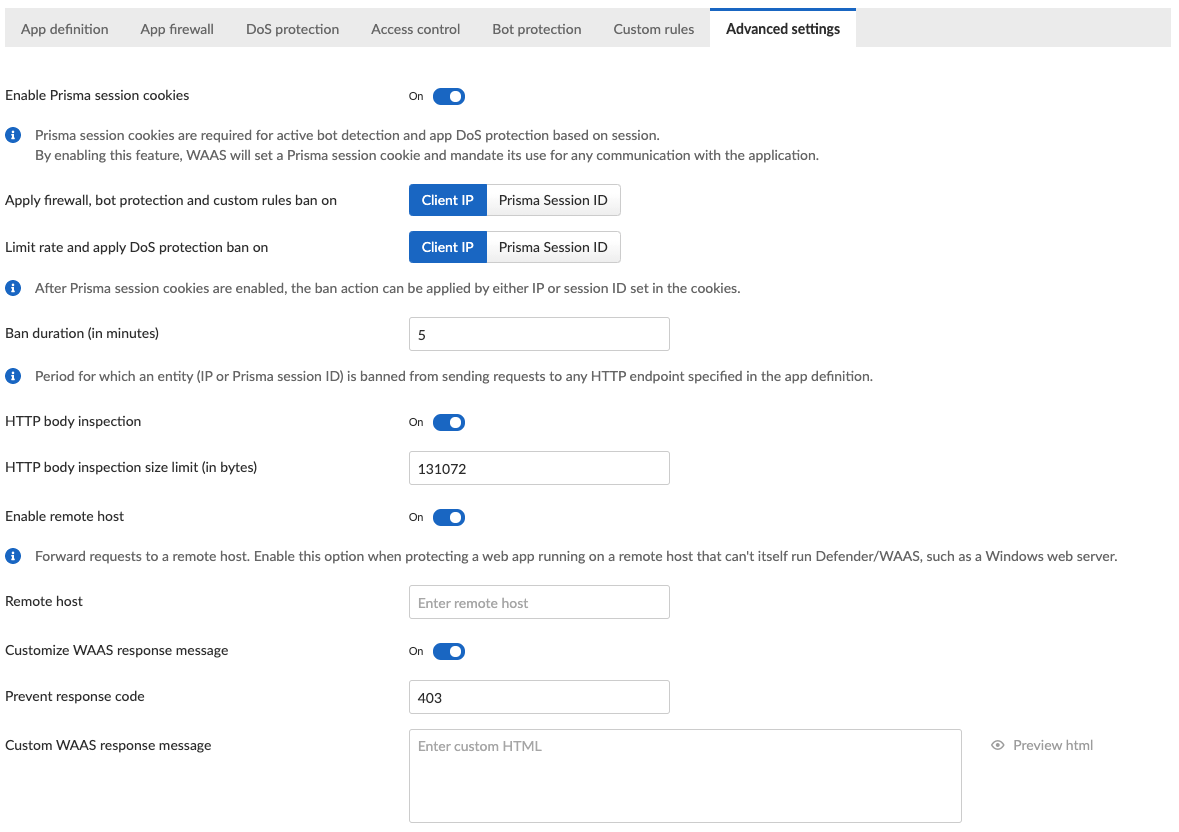
Advanced settings control various aspects of WAAS features.
## Prisma Sessions
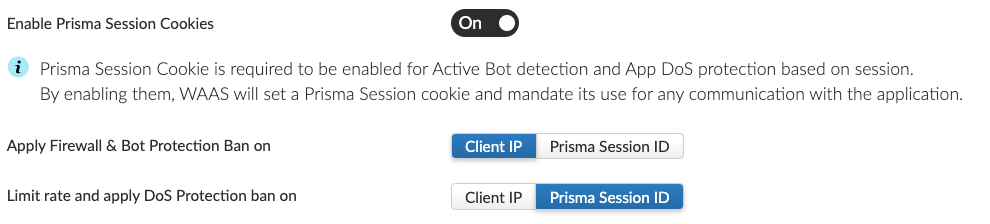
Prisma sessions are intended to address the problem of "Cookie Droppers" by validating clients support of cookies and Javascript before allowing them to reach the origin server.
Once enabled, WAAS serves an interstitial page for any request that does not include a valid Prisma Session Cookie. The interstitial page sets a cookie and redirects the client to the requested page using Javascript.
A client that doesn’t support cookies and Javascript will keep receiving the interstitial page. Browsers can easily proceed to the requested page, and once they possess a valid cookie they will not encounter the interstitial page.
When you enable Prisma Session Cookies along with WAAS API protection, remember that APIs are often accessed by "primitive" automation clients. Avoid enabling Prisma Session Cookies on such endpoints unless you are certain all clients accessing the protected API endpoints support both cookies and Javascript. You can allow "primitive" clients by adding them as [user-defined bots](/admin-guide/33/web-application-and-api-security-waas/waas-bot-protection.md#user-defined-bot) and setting the bot action to `Allow`. Allowed [user-defined bots](/admin-guide/33/web-application-and-api-security-waas/waas-bot-protection.md#user-defined-bot) will not be served with an interstitial page and their requests will be forwarded to the protected application.
Prisma Session Cookies set by WAAS are encrypted and signed to prevent cookie tampering. In addition, cookies include advanced protections against cookie replay attacks where cookies are harvested and re-used in other clients.
## Ban
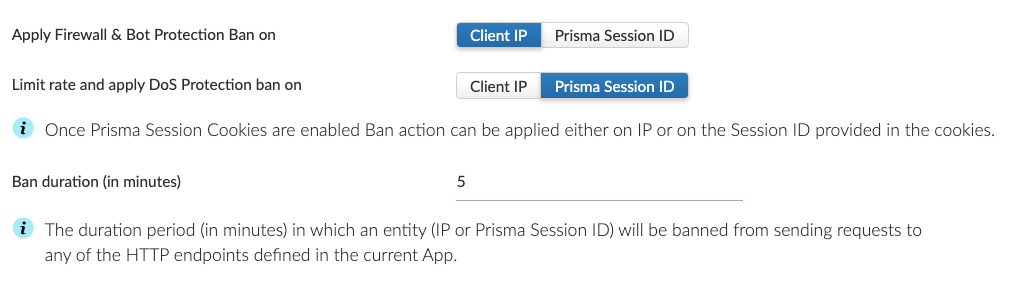
Ban action is available in the `App firewall`, `DoS protection` and `Bot protection` tabs. If triggered the ban action prevents access to the protected endpoints of the app for a time period set by you (the default is set to 5 minutes).
If Prisma Session Cookies are enabled, you can apply the `ban` action by either `Prisma Session Id` or by IP address.
When the X-Forwarded-For HTTP header is included in the request headers, actions will apply based on the first IP listed in the header value (true client IP).
## Body Inspection
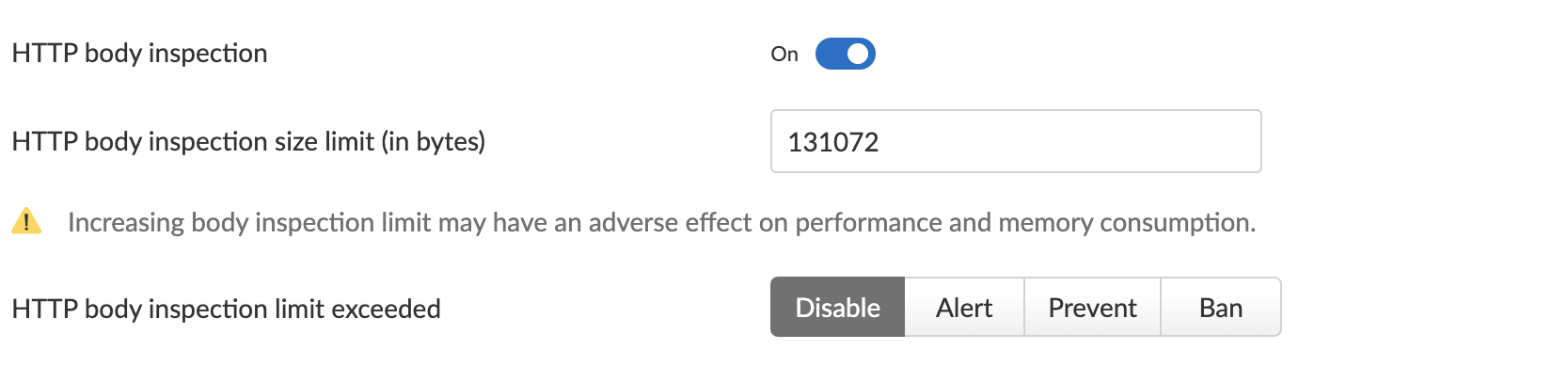
Body inspection can be disabled or limited up to a configurable size (in Bytes).
WAAS body inspection limit is 131,072 Bytes (128Kb). WAAS protection is subject to one of the following actions when the body inspection limit exceeds:
* **Disable** - The request is passed to the protected application.
* **Alert** - The request is passed to the protected application and an audit is generated for visibility.
* **Prevent** - The request is denied from reaching the protected application, an audit is generated and WAAS responds with an HTML page indicating the request was blocked.
* **Ban** - Can be applied on either IP or Prisma Session IDs. All requests originating from the same IP/Prisma Session to the protected application are denied for the configured time period (default is 5 minutes) following the last detected attack.
To enable ban by Prisma Session ID, enable the Prisma Session Cookies in WAAS Advanced Settings.
## Remote Host
This option is intended to defend web applications running on remote hosts which can not be protected directly by WAAS (for example, Windows Servers).
Remote host option is only available for WAAS host rules.
Use-case scenario:
1. A "middle-box" host instance with WAAS supported OS should be set up.
2. Traffic to the web application should be directed to the "middle-box" host.
3. Ports on the "middle-box" host to which traffic is directed to should be unused (WAAS will listen on these ports for incoming requests).
4. WAAS host rule with `Remote host` settings should be deployed to protect the "middle-box" host.
5. Incoming traffic to the "middle-box" host will be forwarded to the specified address (resolvable hostname or IP address) by WAAS.
WAAS sets the original `Host` HTTP header value in the `X-Forwarded-Host` HTTP header of the forwarded request. The `Host` header is set to the hostname or IP mentioned in the WAAS settings.
Use of TLS and destination port is determined by the endpoint configuration in the `App definition` tab.
Example:
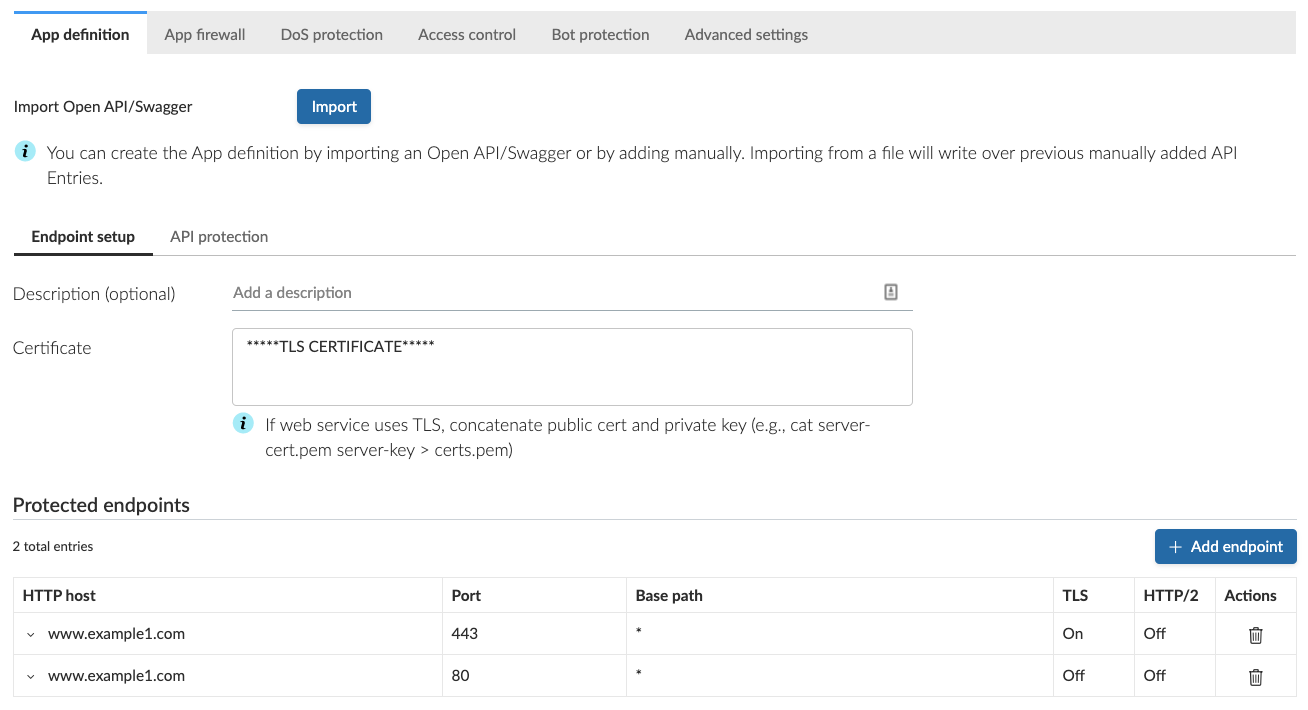
The following protected endpoints are defined in the `App definition` tab:
Remote host has been configured as follows:
Expected result is as follows:
* HTTPS traffic to [www.example1.com](http://www.example1.com) on port 443 would be forwarded via HTTPS to [www.remotehost.com](http://www.remotehost.com)
* HTTP traffic to [www.example1.com](http://www.example1.com) on port 80 would be forwarded via HTTP to [www.remotehost.com](http://www.remotehost.com)
Protected endpoints with TLS enabled will not forward non-TLS HTTP requests.
Enter the host address without 'http' or 'https' string. For example, enter `www.example.com` and not .
Enter the host address without 'http' or 'https' string. For example, enter "[www.example.com](http://www.example.com)" and not "". Enter the host address without 'http' or 'https' string. For example, enter "[www.example.com](http://www.example.com)" and not "".
## Customize WAAS Response Message
You can customize the response HTML and HTTP status code that are returned by WAAS when a **`Prevent`** or **`Ban`** effect occurs:
* **Prevent response code** - HTTP response code
* **Custom WAAS response message** - HTML code to be served. Click on image::waas\_preview\_HTML.png\[scale=10] for a preview of the rendered HTML code.
You can include Prisma Event IDs as part of customized responses by adding the following placeholder in user-provided HTML: `#eventID`.
User-provided HTML must start and end with HTML tags.
Javascript code will not be rended in the preview window.
## Prisma Event IDs
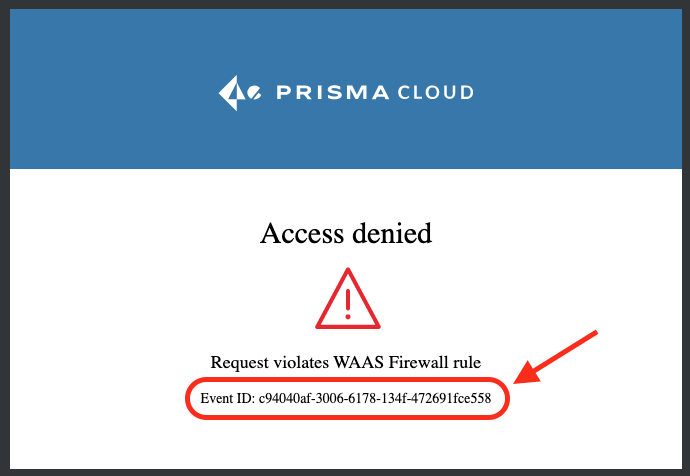
By default, responses sent to end users by WAAS are assigned an Event ID that may later be searched in the event monitor. An event ID is included in the response header **X-Prisma-Event-Id** and is also included in the default WAAS block message:
You can include Prisma Event IDs as part of customized responses by adding the following placeholder in user-provided HTML: `#eventID`.
Prisma Event IDs can be referenced in WAAS Event Analytics using the `Event ID` filter:
---
# Agent Instructions
This documentation is published with GitBook. GitBook is the documentation platform designed so that both humans and AI agents can read, navigate, and reason over technical content effectively. Learn more at gitbook.com.
## Querying This Documentation
If you need additional information that is not directly available in this page, you can query the documentation by asking a question.
Perform an HTTP GET request on the following URL with the `ask` and `goal` query parameters:
```
GET https://docs.prismacloud.io/admin-guide/33/web-application-and-api-security-waas/waas-advanced-settings.md?ask=&goal=
```
`ask` is the immediate question: it should be specific, self-contained, and written in natural language.
`goal` is what the user is ultimately trying to achieve, the reason they need the answer. Sharing it helps GitBook give you a better, more relevant answer. A goal is most helpful when it describes the outcome the user wants rather than restating the question. For example, with `ask=how do I create an API token`, a goal like `automate deployments from our CI pipeline` lets GitBook tailor the answer to that use case.
The response will contain a direct answer to the question and relevant excerpts and sources from the documentation.
Use this mechanism when the answer is not explicitly present in the current page, you need clarification or additional context, or you want to retrieve related documentation sections.