> For the complete documentation index, see [llms.txt](https://docs.prismacloud.io/llms.txt). Markdown versions of documentation pages are available by appending `.md` to page URLs; this page is available as [Markdown](https://docs.prismacloud.io/admin-guide/33/web-application-and-api-security-waas/waas-dos-protection.md).
# DoS protection
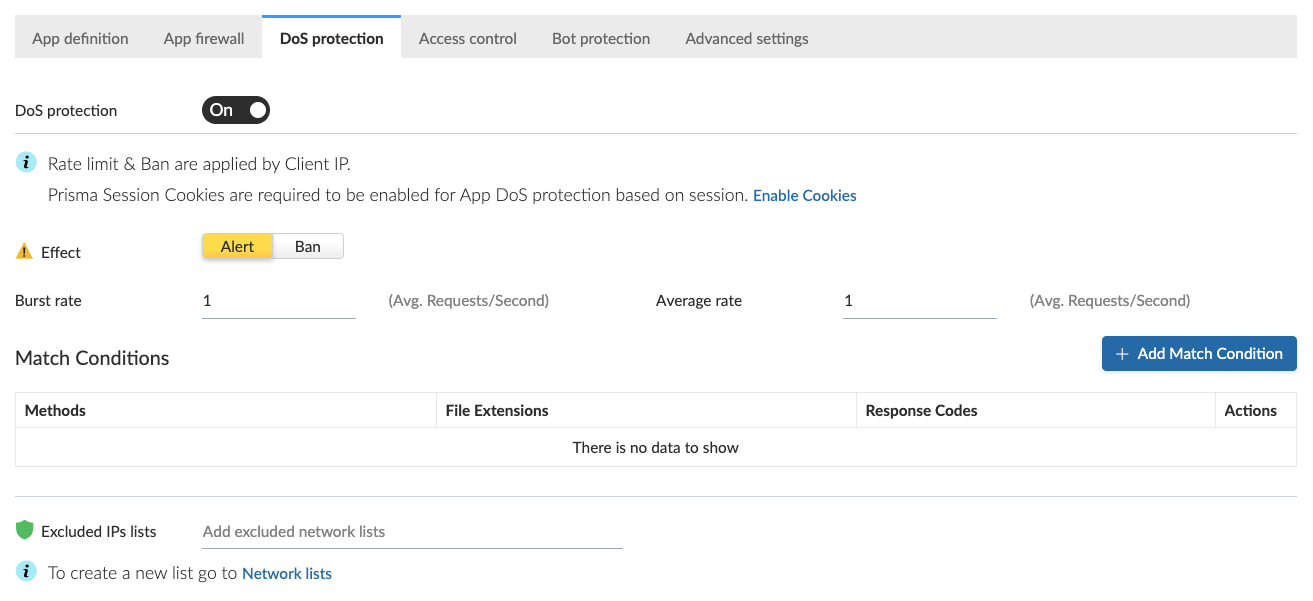
WAAS is able to enforce rate limit on IPs or sessions to protect against high-rate and "low and slow" application layer DoS attacks.
## DoS protection Overview
WAAS is able to limit the rate of requests to the protected endpoints within each app based on two configurable request rates:
* **Burst Rate** - Average rate of requests per second calculated over a 5 seconds period
* **Average Rate** - Average rate of requests per second calculated over a 120 seconds period
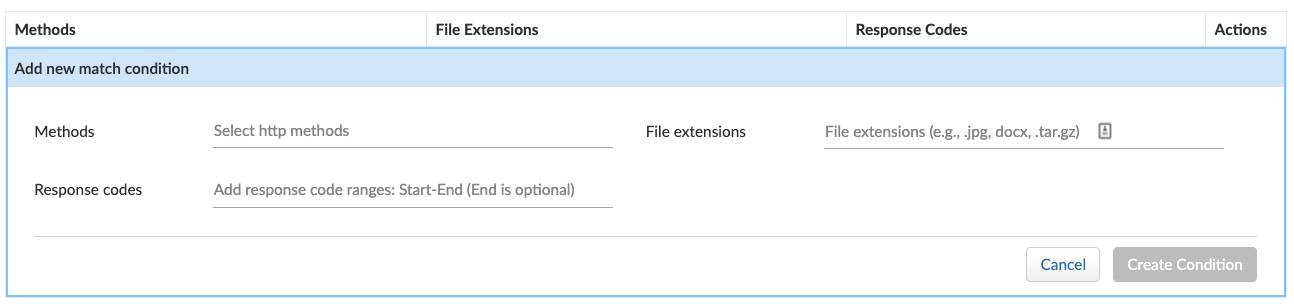
Users are able to specify match conditions for qualifying requests to be included in the count. Match conditions are based on HTTP methods, File Extensions and HTTP response codes.
Users are also able to specify [Network lists](/admin-guide/33/web-application-and-api-security-waas/waas-access-control.md#network-lists) to be excluded from the DoS protection rate accounting.
If no match conditions are specified - all requests to the protected endpoints would be included in the rate accounting.
## Enabling DoS protection
1. Enter **DoS Protection** tab and set the `DoS Protection` toggle to `On`
2. Set the effect with the [action](#dos-actions) to apply once a threshold is reached.
A message at the top of the page indicates the entity by which the ban will be applied (IP or Prisma Session ID).
To enable ban by Prisma Session ID, [Prisma Session Cookies](/admin-guide/33/web-application-and-api-security-waas/waas-advanced-settings.md#prisma-session) has to be enabled in the Advanced Settings tab. for more information please refer to the [Advanced Settings](/admin-guide/33/web-application-and-api-security-waas/waas-advanced-settings.md#prisma-session) help page.
3. Apply rate limitation thresholds (requests per second) for `Burst rate` (calculated over 5 seconds) and for `Average rate` (calculated over 120 seconds)
4. To apply the rate limitation on a subset of requests click on button.
Conditions can be specified as a combination (**AND**) of the following:
* **HTTP Methods**
* **File Extensions** - multiple extensions are allowed (e.g. `.jpg, .jpeg, .png`).
* **HTTP Response Codes** - specify either a single response code, a range or a combination of them (e.g. `302, 400-410, 500-599`).
5. Multiple match conditions are allowed (**OR** relation between them).
In the above example the following request would be counted against the rate limitation thresholds:
* `HEAD` HTTP requests
* `POST` HTTP requests with file extension of `.tar.gz`
* `GET` or `PUT` HTTP requests with file extension of `.jpg, .jpeg, .png` to which the origin responded with and HTTP response code of `302` or in the range of `400-410` or in the range of `500-599`
6. Specify [Network lists](/admin-guide/33/web-application-and-api-security-waas/waas-access-control.md#network-lists) of IP addresses to be excluded from the rate accounting.
## DoS actions
Requests that exceed the rate limitation thresholds are subject to one of the following actions:
* **Alert** - The request is passed to the protected application and an audit is generated for visibility.
* **Ban** - Can be applied on either IP or Prisma Session. All requests originating from the same IP/Prisma Session to the protected application are denied for the configured time period (default is 5 minutes) following the last detected attack.
A message at the top of the page indicates the entity by which the ban will be applied (IP or Prisma Session ID). When the X-Forwarded-For HTTP header is included in the request headers, ban will apply based on the first IP listed in the header value (true client IP).
For more information on enabling Prisma Sessions and configuring ban definitions please refer to the [Advanced Settings](/admin-guide/33/web-application-and-api-security-waas/waas-advanced-settings.md#ban-settings) help page.
WAAS implements state, which is required for banning user sessions by IP address or Prisma Sessions. Because Defenders do not share state, any application that is replicated across multiple nodes must enable IP stickiness on the load balancer.
---
# Agent Instructions
This documentation is published with GitBook. GitBook is the documentation platform designed so that both humans and AI agents can read, navigate, and reason over technical content effectively. Learn more at gitbook.com.
## Querying This Documentation
If you need additional information that is not directly available in this page, you can query the documentation by asking a question.
Perform an HTTP GET request on the following URL with the `ask` and `goal` query parameters:
```
GET https://docs.prismacloud.io/admin-guide/33/web-application-and-api-security-waas/waas-dos-protection.md?ask=&goal=
```
`ask` is the immediate question: it should be specific, self-contained, and written in natural language.
`goal` is what the user is ultimately trying to achieve, the reason they need the answer. Sharing it helps GitBook give you a better, more relevant answer. A goal is most helpful when it describes the outcome the user wants rather than restating the question. For example, with `ask=how do I create an API token`, a goal like `automate deployments from our CI pipeline` lets GitBook tailor the answer to that use case.
The response will contain a direct answer to the question and relevant excerpts and sources from the documentation.
Use this mechanism when the answer is not explicitly present in the current page, you need clarification or additional context, or you want to retrieve related documentation sections.