> For the complete documentation index, see [llms.txt](https://docs.prismacloud.io/llms.txt). Markdown versions of documentation pages are available by appending `.md` to page URLs; this page is available as [Markdown](https://docs.prismacloud.io/admin-guide/agentless-scanning/agentless-scanning-modes.md).
# Agentless Scanning Modes
There are two ways you can set up agentless scanning with Prisma Cloud.
* [Same account mode (Default)](#same-account-mode): scans all hosts of a cloud account within the same cloud account.
* [Hub account mode](#hub-account-mode): a centralized account, called the **hub account**, scans hosts in other cloud accounts, called **target accounts**.
Hub account mode is only supported for AWS, Azure, and GCP.
## Same Account Mode
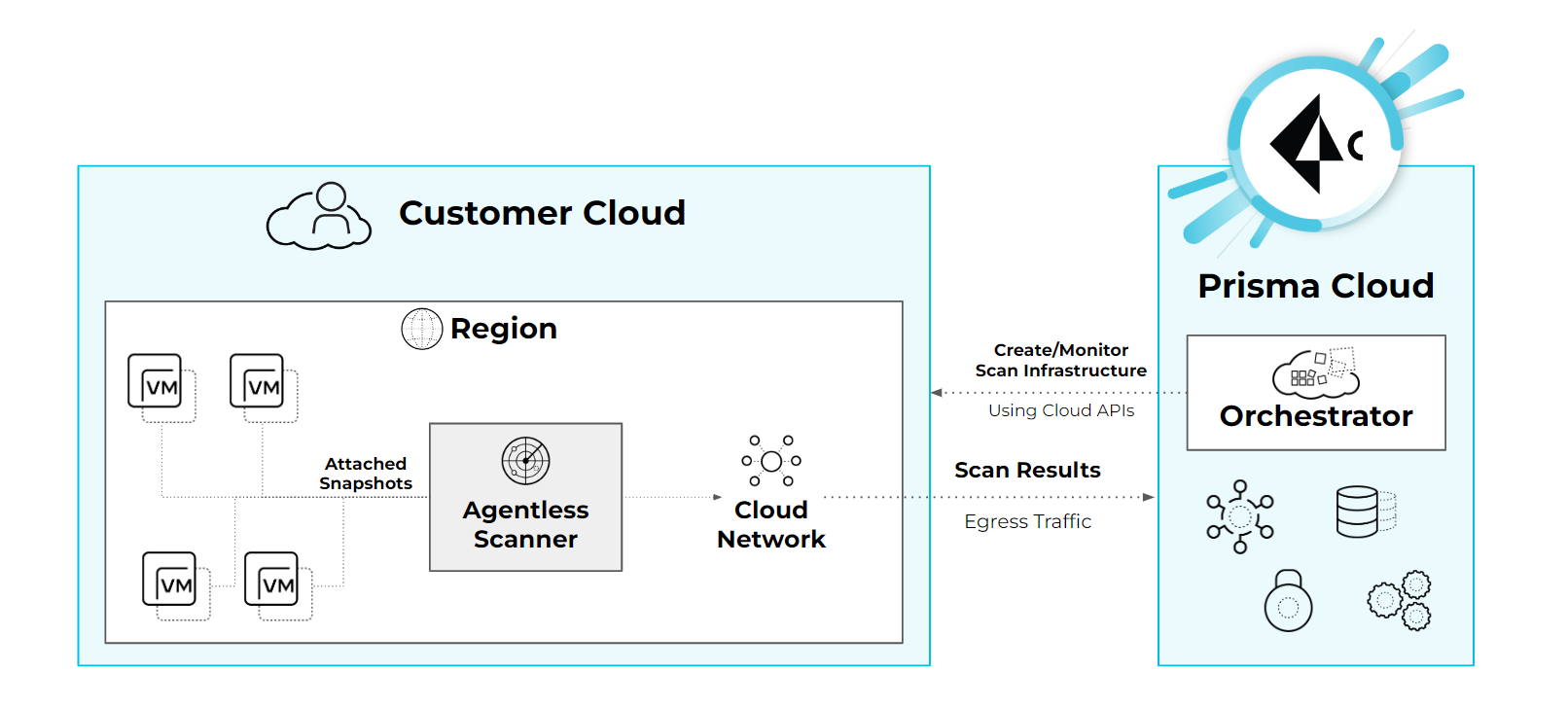
In the same account mode, all of the [agentless scanning process](https://github.com/PaloAltoNetworks/pc-docs-md/tree/main/compute-edition/34/admin-guide/agentless-scanning/agentless-scanning.md#scanning-process) takes place within the same account. All snapshots, scanner instances, and network infrastructure are set up within every region that has workloads deployed to it. The same account mode is the default agentless scanning mode when onboarding cloud accounts to Prisma Cloud.
The following diagram gives a high level view of agentless scanning in same account mode:
## Hub Account Mode
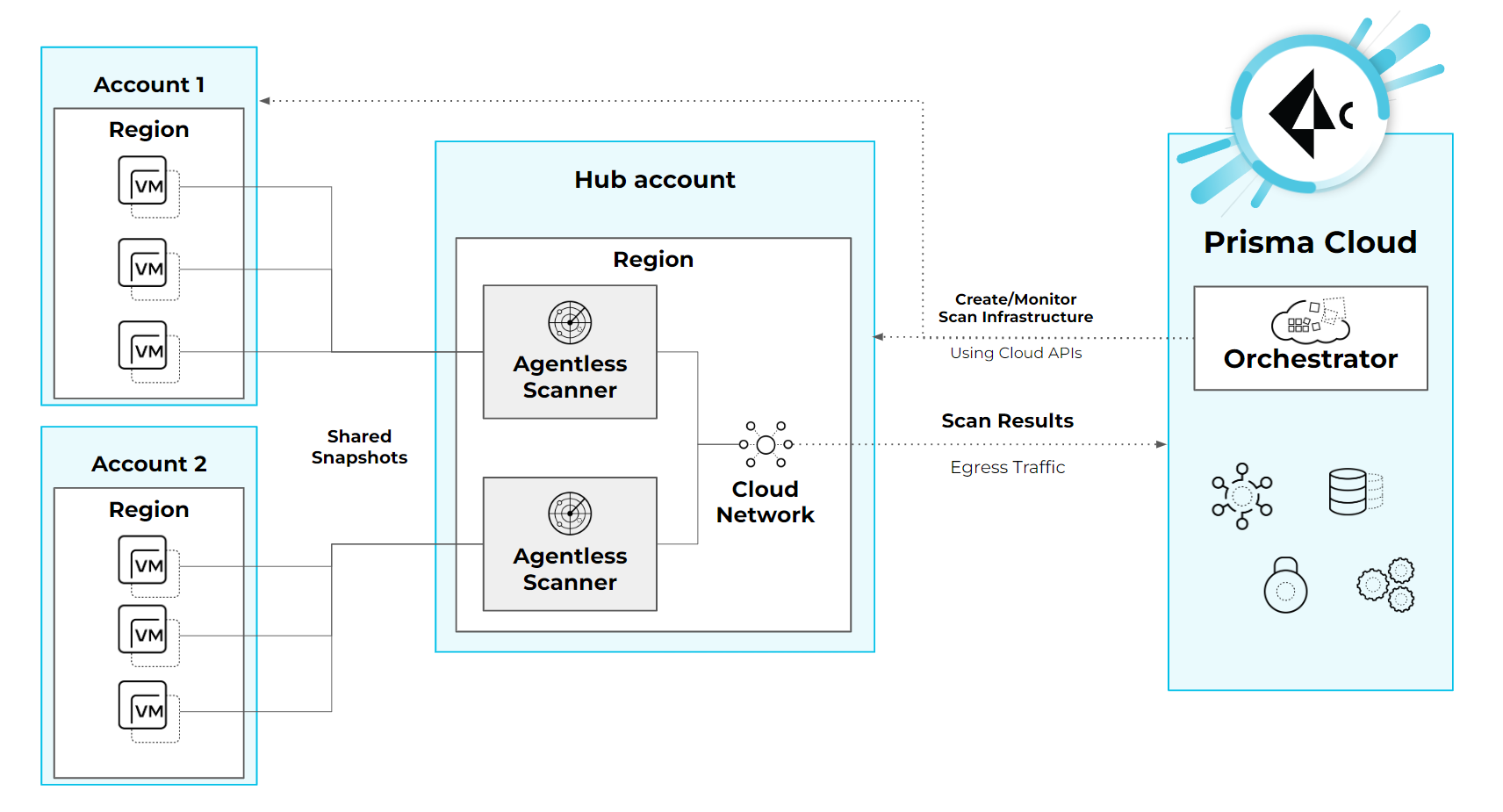
In hub account mode, most of the agentless scanning process takes place in a centralized account known as the hub account. You should dedicate this account entirely to the agentless scanning process. Each account that the hub account should scan is called a target account.
There is no limit to the number of hub accounts that you can configure and you can use each hub account to scan a different subset of target accounts. In this mode, the scanner instances and networking infrastructure are created only on the hub account. You don’t have to replicate the agentless scanning configuration across target accounts since you can configure agentless scanning centrally on the hub account configuration. For example, you don’t need to replicate networking configuration across target accounts if you configured your [networking infrastructure](https://github.com/PaloAltoNetworks/pc-docs-md/tree/main/compute-edition/34/admin-guide/agentless-scanning/agentless-scanning.md#networking-infrastructure) in the hub account.
* In AWS, snapshots are created within every target account and are then shared with the hub account.
* In Azure and GCP, snapshots are created directly within the hub account.
Scanners in the hub account scan target accounts independently. An agentless scanner in the hub account only scans snapshots from one target account and this ensures segregation between target accounts.
The following diagram gives a high level view of agentless scanning in hub account mode.
### Proxy Configuration in Hub Accounts
When using a hub account with agentless scanning, the proxy configuration is only available in the target accounts' configurations and not on the hub.
This approach accounts for the possibility that different target accounts might have varying proxy requirements, which, in turn, allows for greater flexibility and adaptability in the configuration process.
## Scanning Modes Comparison
| | Same Account | Hub Account |
| -------------------------------------------- | ----------------------------------------------------------------------------------------------------------------------------------------------------------------------------------------------------------------------------------------------------------------------------------------------------------------------------------------------------------------------------- | --------------------------------------------------------------------------------------------------------------------------------------------------------------------------------------------------------------------------------------------------------------------------------------------------------------------------------------------------------------------------------------------------------------------------------------------------------------------------------------------------------------------------------------------------------------------------------------- |
| **Scan Duration** | Scales across all accounts, overall scan duration is short. Assuming the maximum number of scanners is set to 50 scanners, the limit is per region being scanned. If **two** accounts are scanned, with **one** region each. In this example, agentless scanning scales as follows: 2 accounts \* 1 region per account \* 50 maximum scanners leads to 100 scanners in total. | Scales only within the hub account, overall scan duration is longer. This effect is because agentless can only scale across the maximum number of scanners defined on the hub account, regardless of the number of accounts or regions scanned. Note: In addition, encrypted volumes in AWS are required to be copied, so scaling in hub mode is bottle-necked by the concurrent snapshot copy limit in AWS, which is [20 by default](https://aws.amazon.com/about-aws/whats-new/2020/04/amazon-ebs-increases-concurrent-snapshot-copy-limits-to-20-snapshots-per-destination-region/). |
| **Permissions** | All read and write permissions are required on the same account. | Most of the write permissions are required only on the hub account, and target accounts require mostly read permissions. Because of this, this mode provides a better way to segregate permissions. |
| **Networking** | Networking infrastructure is required on every account. If you use custom network resources, you need to create the networking infrastructure in every region in every account. | Networking infrastructure is only required on the hub account. If you use custom network resources, you only need to create the networking infrastructure in all regions of the hub account. |
| **CSP Costs Incurred by Agentless Scanning** | Each cloud account is billed for the CSP costs incurred by agentless scanning. | The hub account is billed for the majority of the CSP costs incurred by agentless scanning. You can still correlate the costs each target account incurs using CSPs costs analysis along with custom tags on the agentless scanning resources. |
| **Onboarding and Configuration** | No additional configuration required. This is the default mode to help you get started as soon as you complete onboarding. | Additional configuration required for each account after you complete onboarding your accounts. |
## Adding Scan Mode Column to the Cloud Accounts Table
To add the scan mode column to the accounts table, complete the following steps:
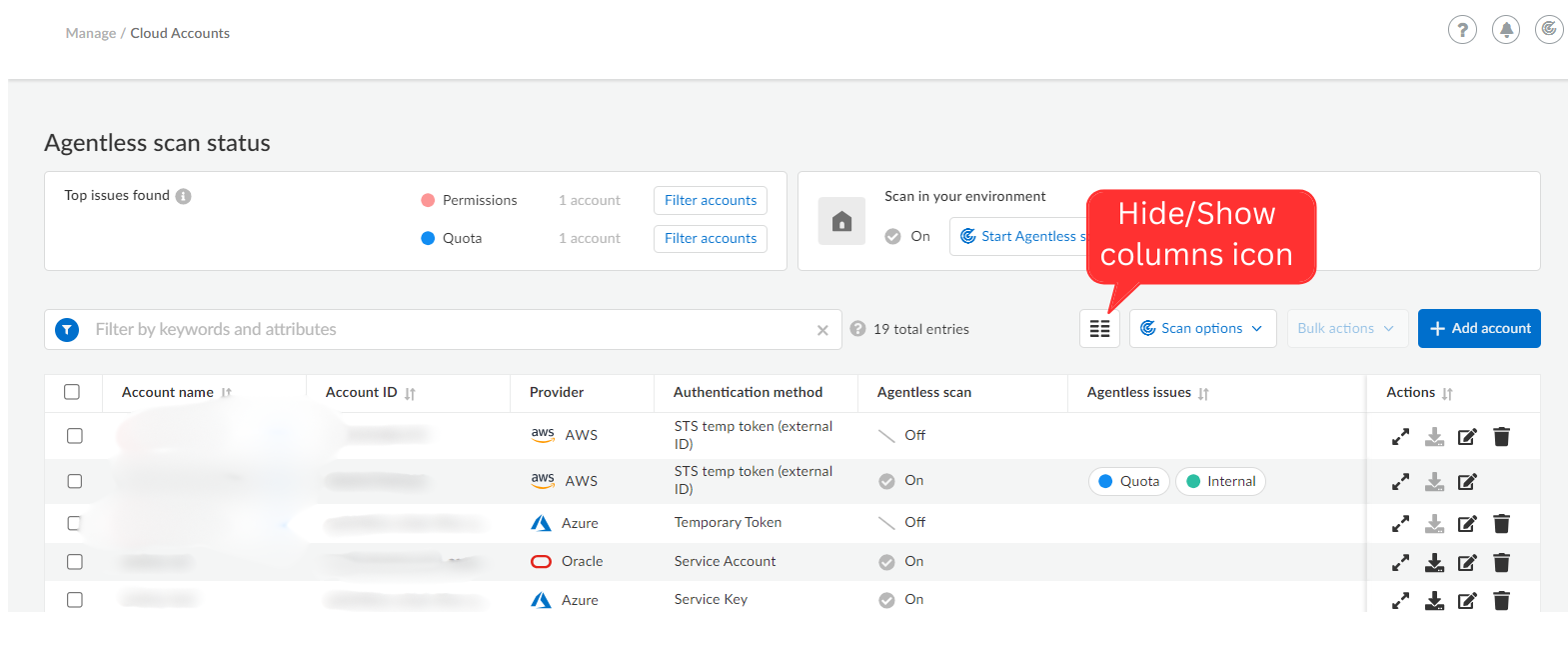
1. Go to **Runtime Security > Manage > Cloud accounts**.
2. Select **Hide/show columns** icon in the Accounts table.
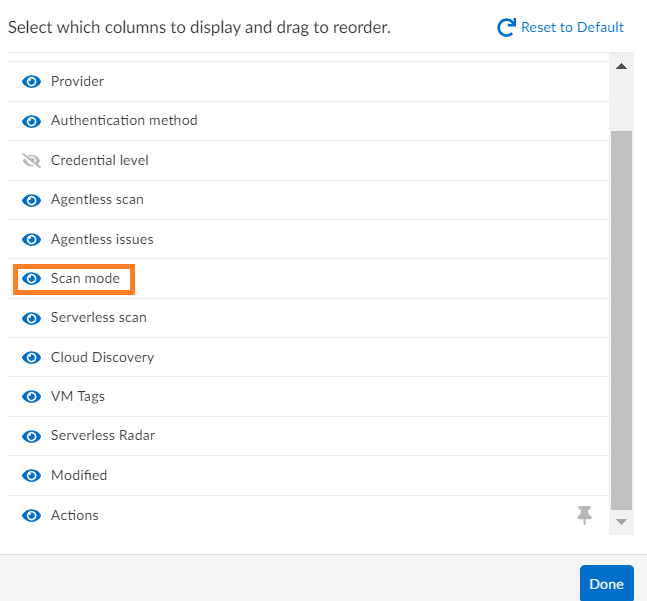
3. In **Configure Columns**, select **Scan mode**, and click **Done**.
The Scan mode column appears in the Accounts table.
4. To filter the accounts based on a specific scan mode, do the following:
In **Filter by keywords and attributes**, select **Scan Mode** and then select the specific mode.
---
# Agent Instructions
This documentation is published with GitBook. GitBook is the documentation platform designed so that both humans and AI agents can read, navigate, and reason over technical content effectively. Learn more at gitbook.com.
## Querying This Documentation
If you need additional information that is not directly available in this page, you can query the documentation by asking a question.
Perform an HTTP GET request on the following URL with the `ask` and `goal` query parameters:
```
GET https://docs.prismacloud.io/admin-guide/agentless-scanning/agentless-scanning-modes.md?ask=&goal=
```
`ask` is the immediate question: it should be specific, self-contained, and written in natural language.
`goal` is what the user is ultimately trying to achieve, the reason they need the answer. Sharing it helps GitBook give you a better, more relevant answer. A goal is most helpful when it describes the outcome the user wants rather than restating the question. For example, with `ask=how do I create an API token`, a goal like `automate deployments from our CI pipeline` lets GitBook tailor the answer to that use case.
The response will contain a direct answer to the question and relevant excerpts and sources from the documentation.
Use this mechanism when the answer is not explicitly present in the current page, you need clarification or additional context, or you want to retrieve related documentation sections.