> For the complete documentation index, see [llms.txt](https://docs.prismacloud.io/llms.txt). Markdown versions of documentation pages are available by appending `.md` to page URLs; this page is available as [Markdown](https://docs.prismacloud.io/admin-guide/agentless-scanning/agentless-scanning-results.md).
# Agentless Scanning Results
Agentless scanning lets you inspect the risks and vulnerabilities of a cloud workload without having to install an agent or affecting the execution of the workload. Prisma Cloud gives you the flexibility to choose between agentless and agent-based security using Defenders. Prisma Cloud supports agentless scanning on AWS, GCP and Azure hosts, clusters, and containers for vulnerabilities and compliance. Prisma Cloud only supports agentless scanning of hosts for vulnerabilities and compliance on OCI.
See [scanning modes](https://github.com/PaloAltoNetworks/pc-docs-md/tree/main/compute-edition/34/admin-guide/agentless-scanning/agentless-scanning.md#scanning-modes) to review the scanning options and [to configure agentless scanning](https://github.com/PaloAltoNetworks/pc-docs-md/tree/main/compute-edition/34/admin-guide/agentless-scanning/onboard-accounts/onboard-accounts.md) on your accounts.
## Vulnerability Scan
Agentless scan results are cohesively integrated with Defender results throughout the Console to provide seamless experience.
Vulnerability scan rules control the data surfaced in Prisma Cloud Console, including scan reports and Radar visualizations. To modify these rules, see [vulnerability scan rules](/admin-guide/vulnerability-management/vuln-management-rules.md).
### View Scan Results
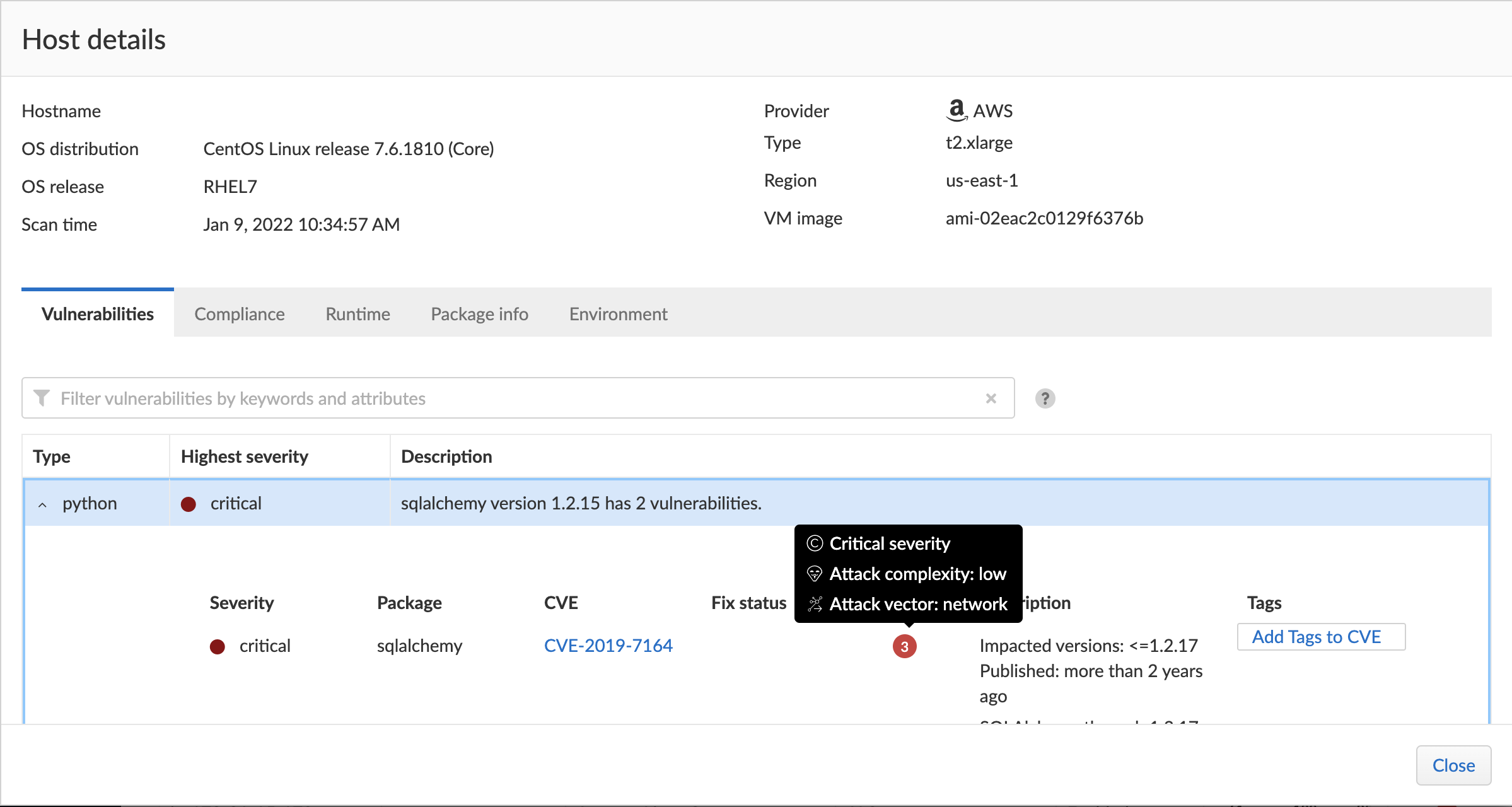
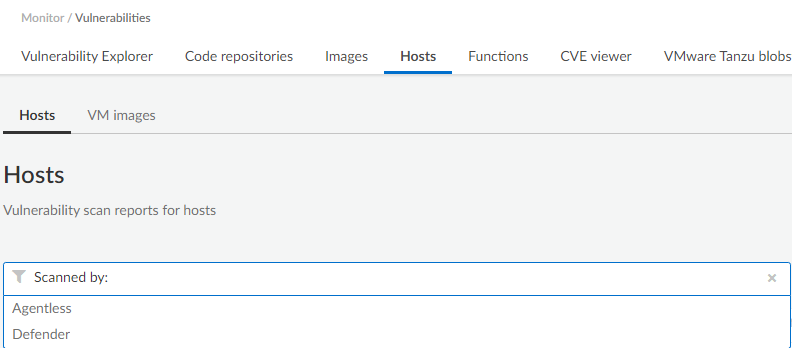
Navigate to **Monitor > Vulnerabilities > Hosts** to view agentless vulnerability scan results. You can see a column named **Scanned by** in the results page. On the rows where entry is **Agentless**, scan results are provided by agentless scanning.
Agentless scans provide risk factors associated with each vulnerability such as package in use, exposed to internet, etc. ([here](https://docs.paloaltonetworks.com/prisma/prisma-cloud/prisma-cloud-admin-compute/compliance/compliance_explorer)). You can add tags and create policies in alert mode for exceptions. Agentless scanning is integrated with Vulnerability Explorer and Host Radar.
## Compliance Scans
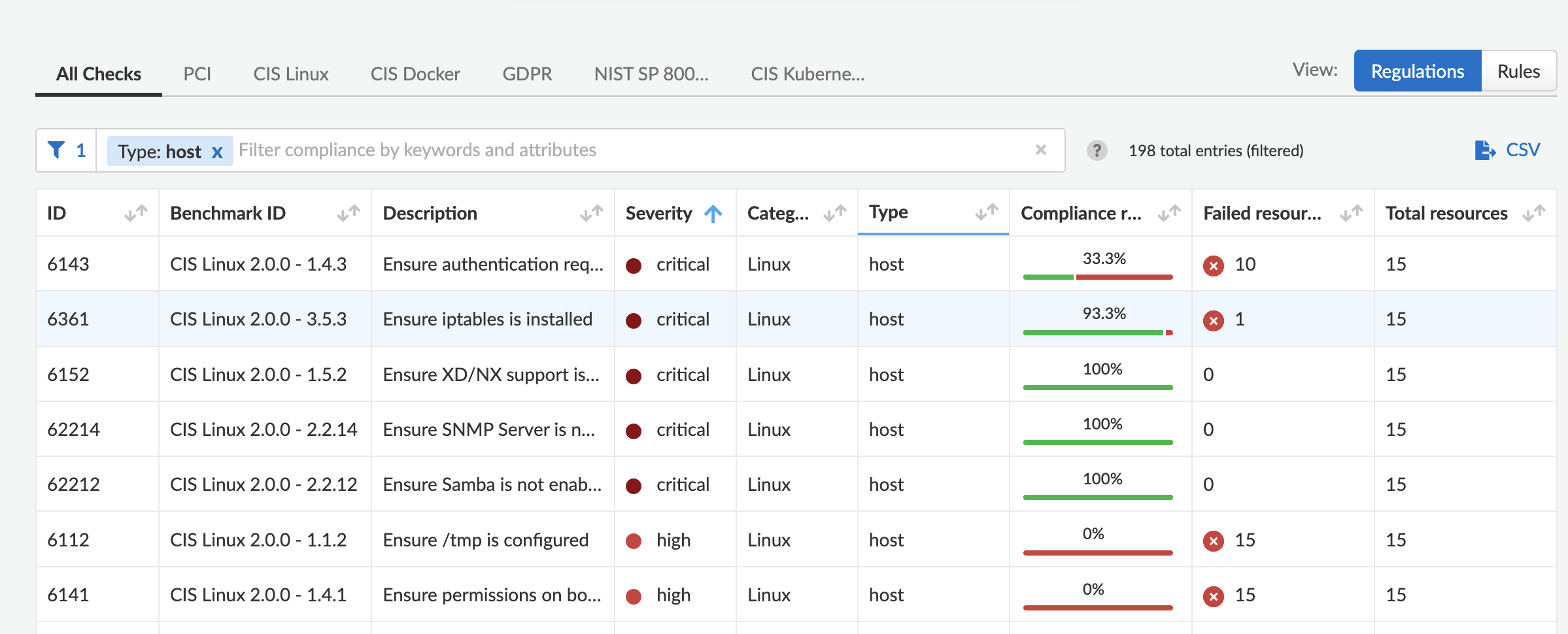
Navigate to **Monitor > Compliance > Hosts** to view agentless compliance scan results. You can see a column named **Scanned by** in the results page. On the rows where entry is **Agentless**, scan results are provided by agentless scanning.
Agentless scans provide risk factors associated with each compliance issue and overall compliance rate for host benchmarks. (learn more [here](https://docs.paloaltonetworks.com/prisma/prisma-cloud/prisma-cloud-admin-compute/vulnerability_management/vuln_explorer)). You can add tags and create policies in alert mode for exceptions. Agentless scanning is integrated with Compliance Explorer and Host Radar.
### Custom Compliance Scans
You can create custom compliance checks on file systems for your host and add them to your compliance policy for scanning. [Follow the instructions](https://docs.paloaltonetworks.com/prisma/prisma-cloud/prisma-cloud-admin-compute/compliance/custom_compliance_checks) to enable custom compliance checks in a single step for both Defenders and Agentless scans.
## Pending OS Updates
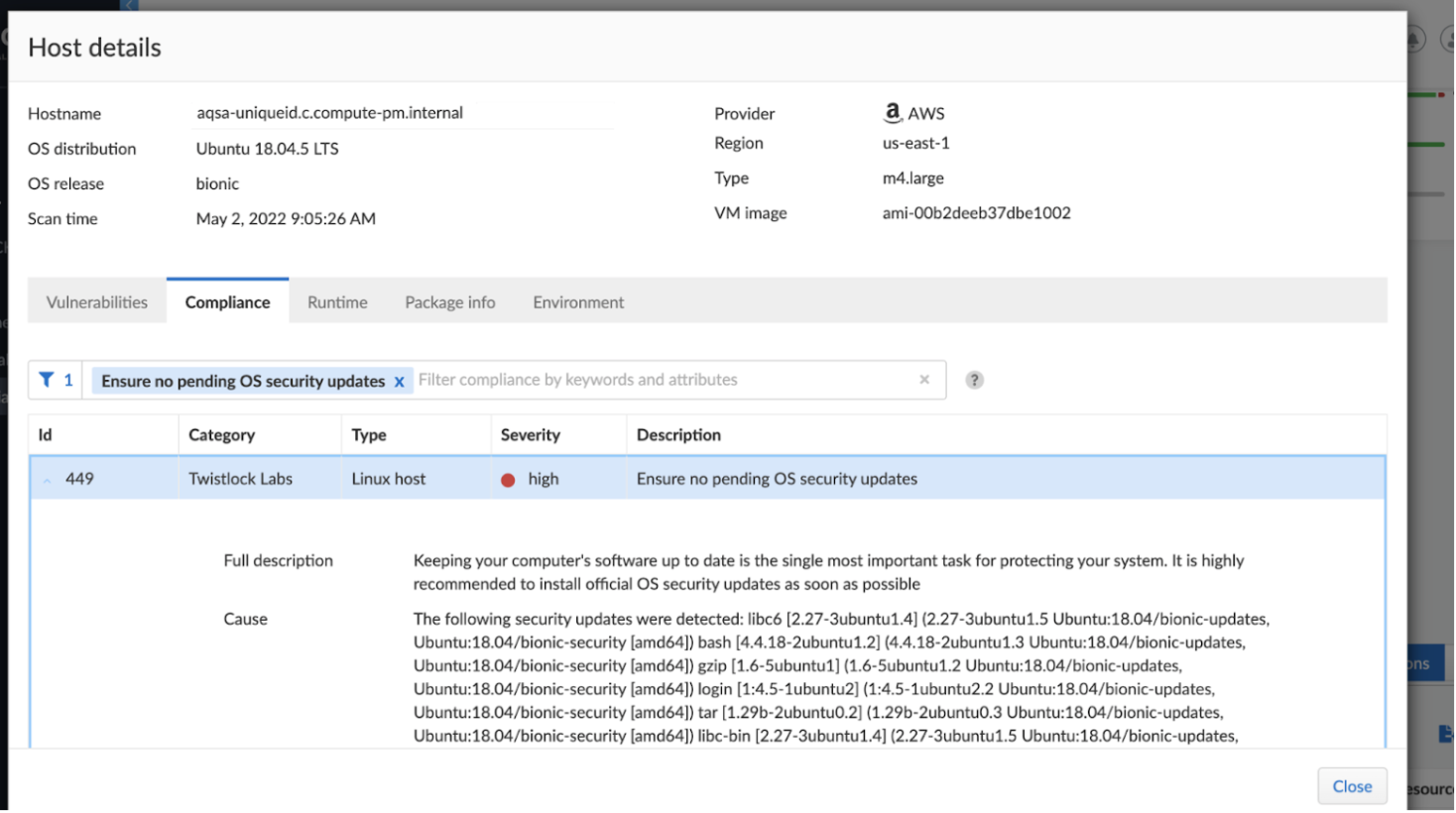
Unpatched OSes lead to security risks and greater possibility of exploits. Through agentless scanning, find pending OS security updates as a compliance check.
You can search for all hosts with pending OS updates by searching for "Ensure no pending OS updates" string in Compliance explorer page (Monitor > Compliance > Compliance eExplorer tab).
**Syntax:** \ \[\] (\ …)
## Cloud Discovery Integration
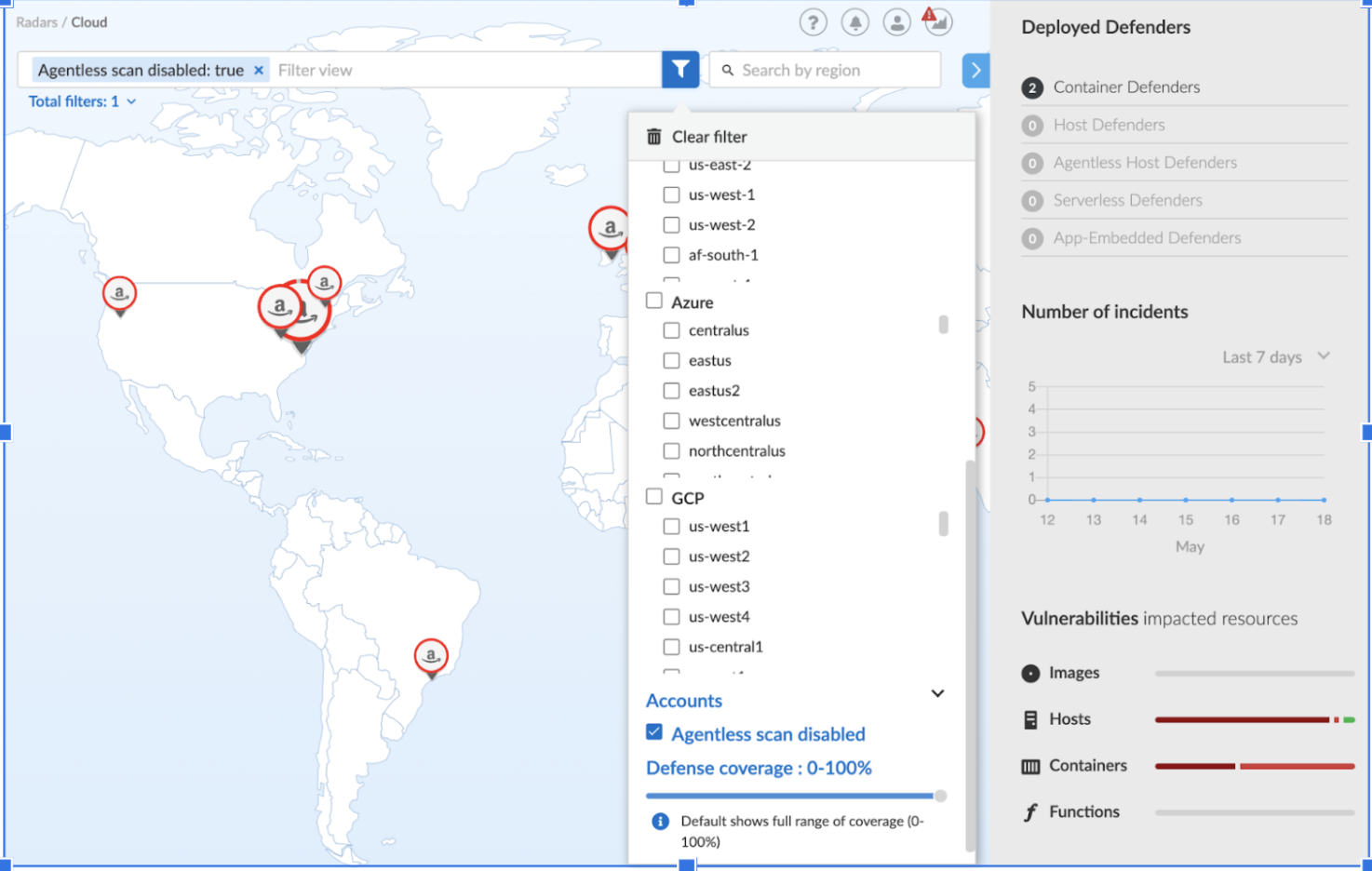
When cloud discovery is enabled, agentless scans are automatically integrated with the results to provide visibility into all regions and cloud accounts where agentless scanning is not enabled along with undefended hosts, containers, and serverless functions.
## Pre-flight checks
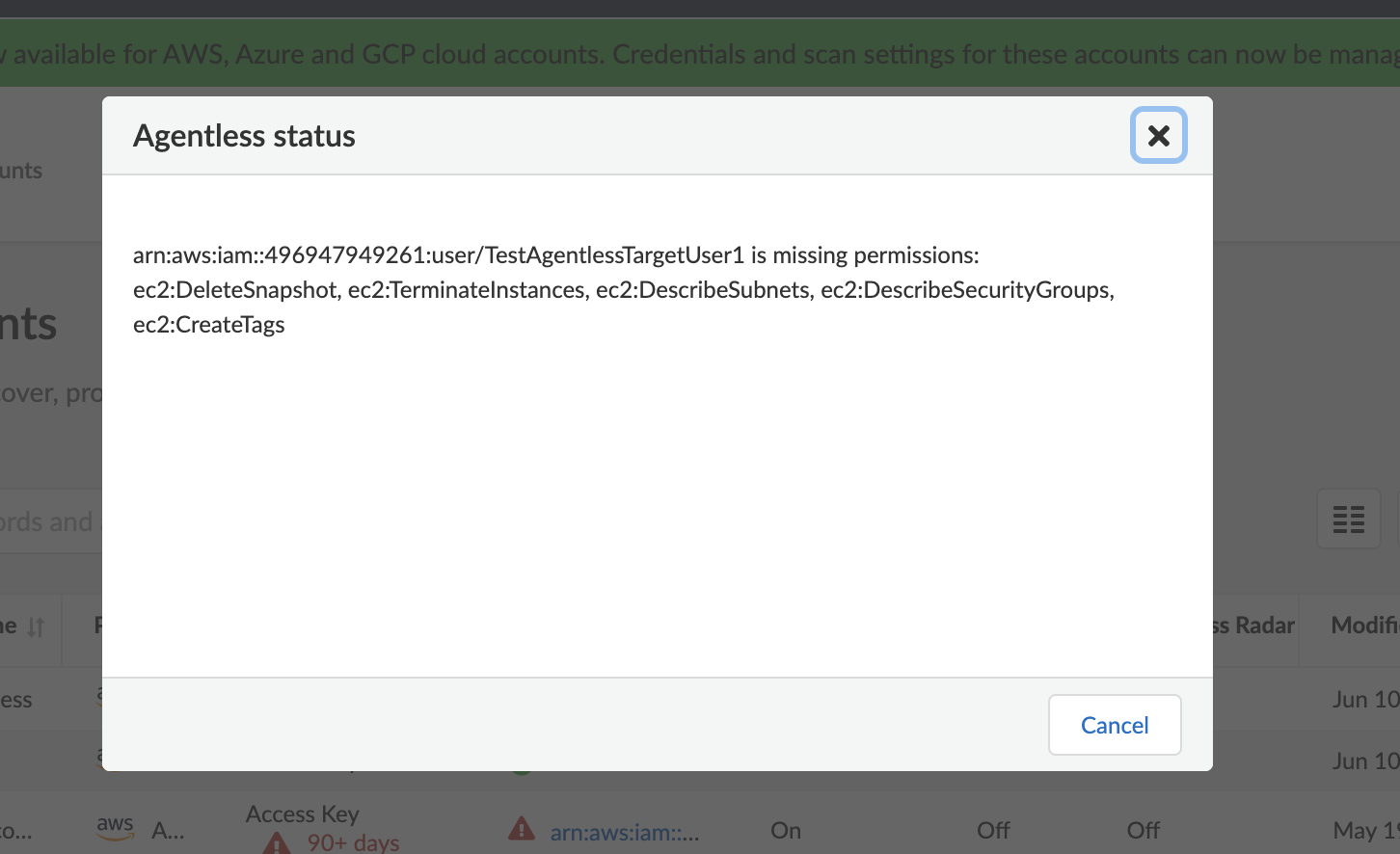
Before scanning, Prisma Cloud performs pre-flight checks and shows any missing permissions. You can see the status of the credentials without waiting for the scan to fail. This gives you proactive visibility into errors and missing permissions allowing you to fix them to ensure successful scans. The following image shows the notification of a missing permission.
## Agentless Hosts Coverage Report
To view the details of the scans performed on a cloud account, take the following steps.
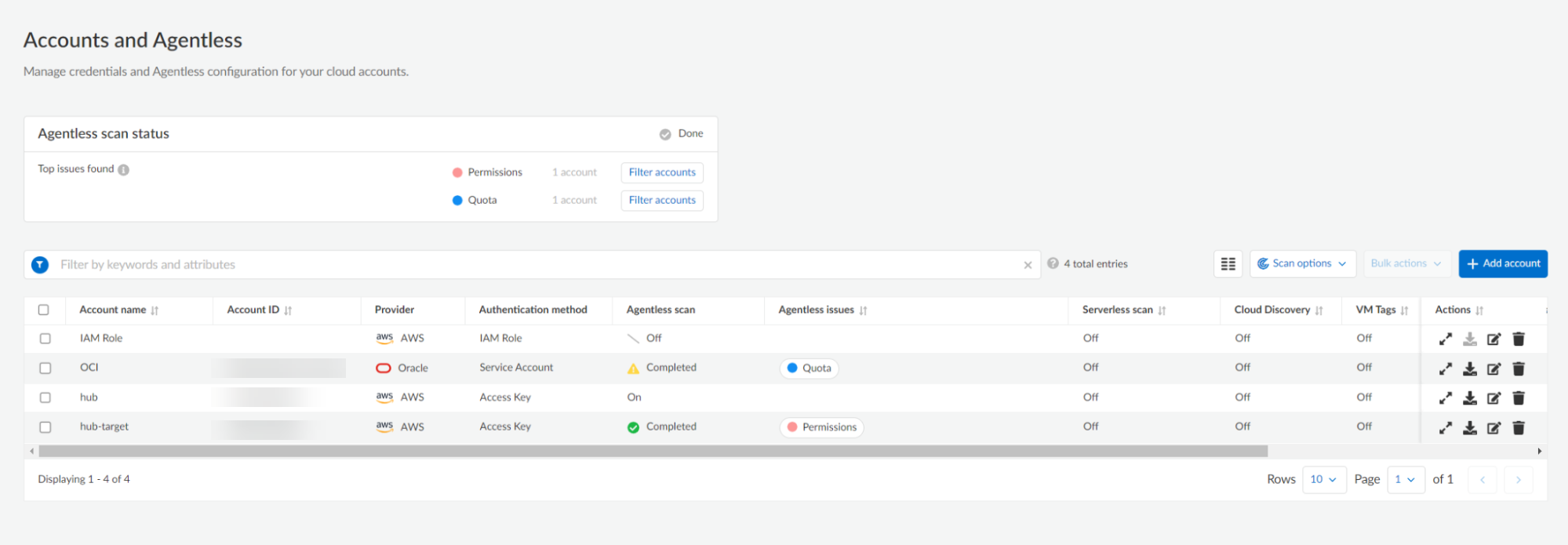
1. Go to **Manage > Cloud Accounts**.
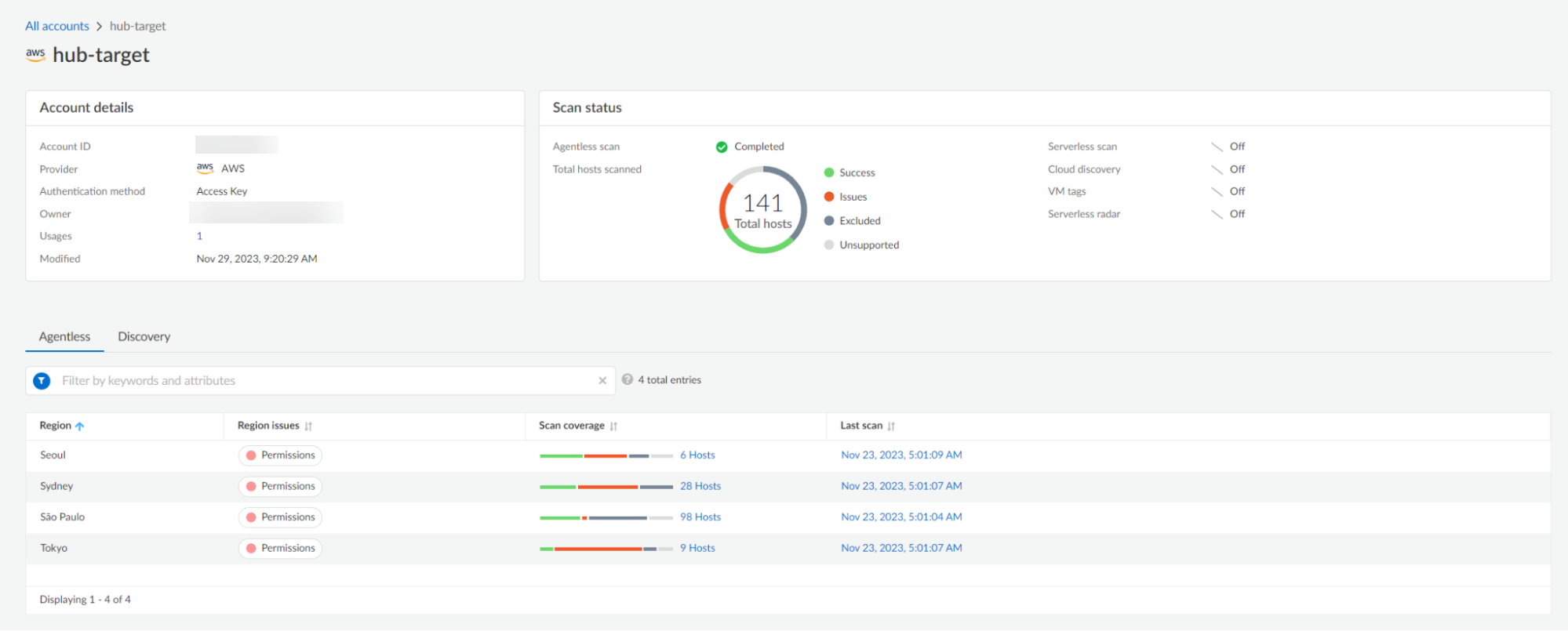
2. Select **Show account details** under the **Actions** column.
3. The **Scan status** section shows the **Total hosts** scanned and their status.
4. The **Region** table shows you a summary for each region under **Scan coverage**.
5. Select the host count for a given region to see the detailed report for that region.
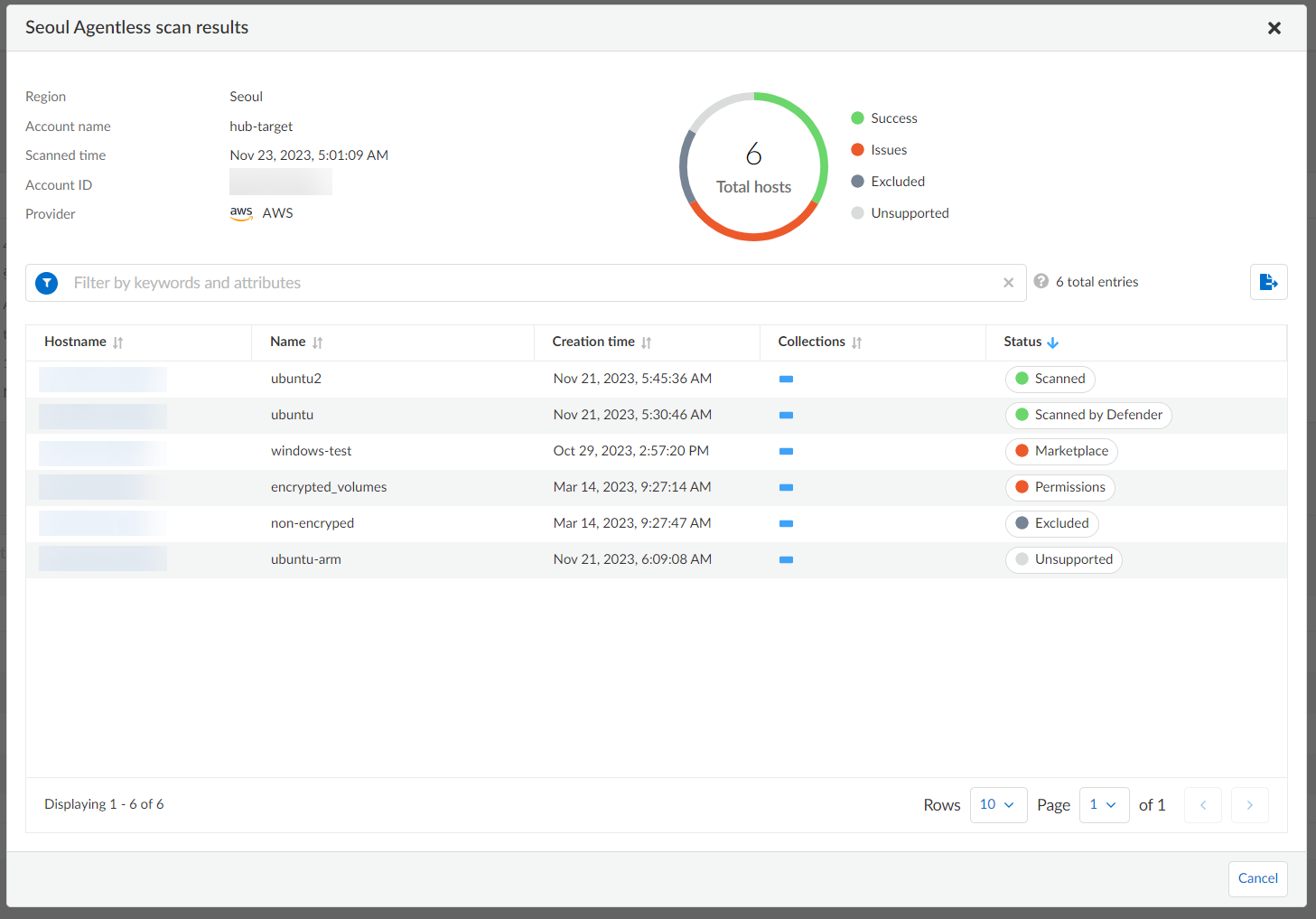
1. The detailed report for a region shows a summary of all hosts in a region.
2. Select a status on the **Scan status** pie chart to filter the hosts in the table to show only the hosts with that status.
3. Click on the **Status** of a given host in the table to see the following information.
1. If the host was scanned, you see the the host’s scan results.
2. If the host wasn’t scanned, you see a sidecar with the details on why it wasn’t scanned and recommended steps to get it scanned when applicable.
### Agentless Scanning for Cloud Accounts
* **During Onboarding**: When cloud accounts are onboarded to Prisma Cloud with the "Agentless Scanning" option enabled, scanning starts immediately. This provides instant visibility into the vulnerabilities and configurations risks for the account. If this option is disabled before onboarding, Prisma Cloud does not scan the workloads in the account. The account remains unscanned until agentless scanning is enabled.
To modify the scan settings, see [Edit Agentless Scan Settings](#enable-agentless-scan).
* **For existing accounts**: Enabling agentless scanning for existing accounts in Prisma Cloud does not initiate an immediate scan. Instead, these accounts are added to the next scheduled scan cycle, which occurs every 24 hours by default. This ensures that scans are conducted systematically according to the scan cycle, rather than starting immediately upon enabling.
To modify the scan cycle, see [Modify the Agentless Scan Interval](#modifying-the-agentless-scan-interval).
### Account Origin Filter
The **Account Origin** filter on the **Runtime Security > Manage > Cloud Accounts** page categorizes cloud accounts based on their source, making it easier to distinguish them during onboarding and scanning:
* **Local accounts** – Accounts created in Runtime Security only (not present in the Prisma Cloud console).
* **Manually imported accounts** – Accounts manually imported from the Prisma Cloud console to Runtime Security before the **Lagrange release (end of 2022)**.
* **Auto-imported accounts** – Accounts that originated in the Prisma Cloud console and were automatically imported into Runtime Security.
### Edit Agentless Scan Settings
You can safely enable agentless scanning settings for disabled accounts on the **Runtime Security** > **Manage** > **Cloud accounts** page. After enabling agentless scan, the scan will trigger with the correct configuration in place.
To edit agentless scan settings, complete the following steps:
1. Go to **Runtime Security > Manage > Cloud accounts**.
2. Select **Edit Account** icon from the Actions column for the account.
3. In **Account and Agentless setup**, go to **Agentless scanning** section.
4. Modify the agentless configuration options in this section.
5. Select **Save**.
After the configuration is modified, the next scan uses the updated settings.
### Modify the Agentless Scan Interval
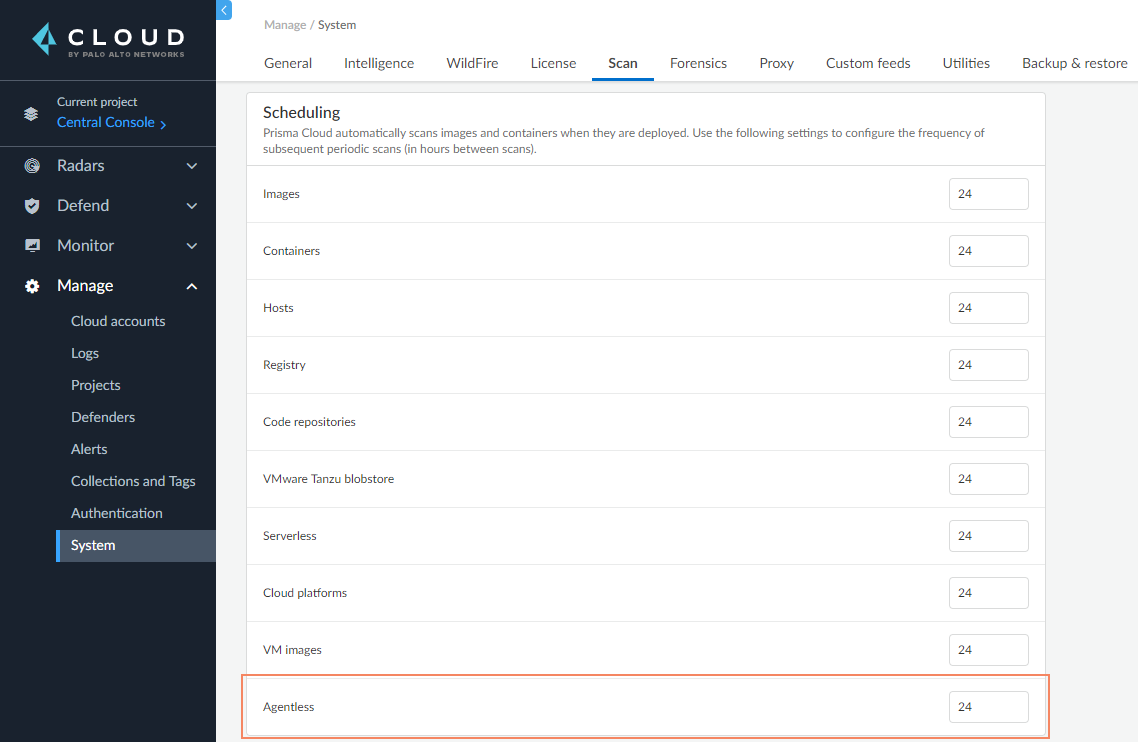
By default, agentless scans are triggered every 24 hours.
To change the interval, complete the following steps.
1. Go to **Runtime Security > Manage > System**.
2. Select the **Scan** tab.
3. In the **Scheduling** section, in **Agentless** box, type the new duration for the scan cycle.
4. Select **Save**
### Manually Start Agentless Scanning
To manually start a scan, complete the following steps.
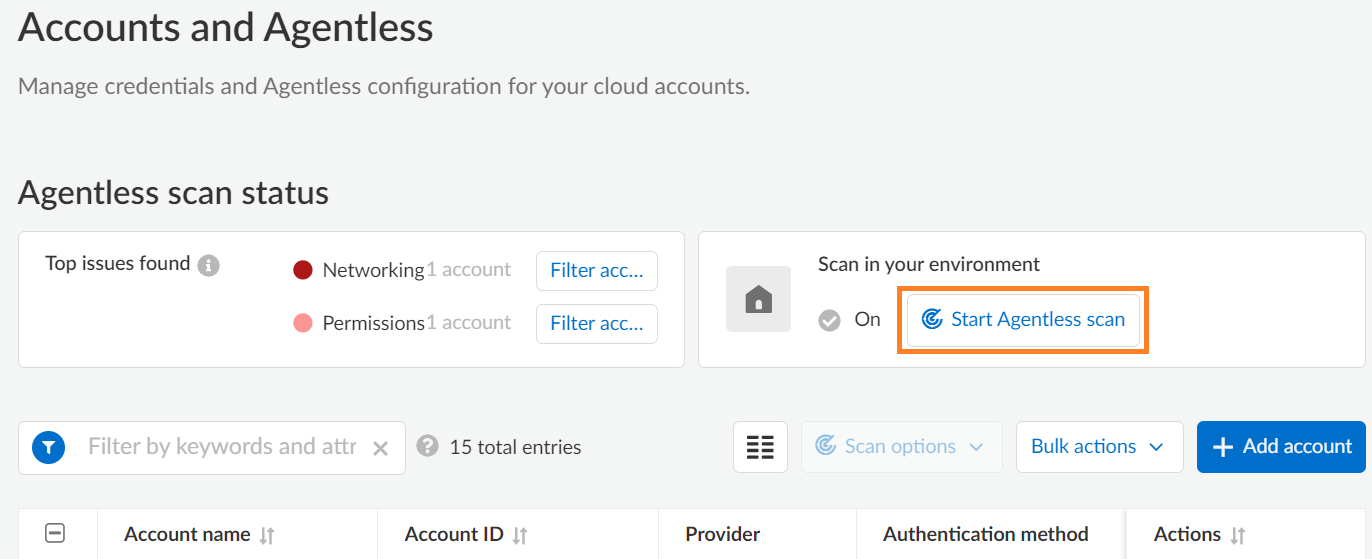
1. Go to **Runtime Security > Manage > Cloud accounts**.
2. In the **Scan in your environment** section, select **Start Agentless scan**.
Note: Scanning starts for all the accounts that have the agentless scanning option enabled.
3. Select the Scan icon in the top-right corner of the console to view the scan status.
4. To view the results, complete the following steps.
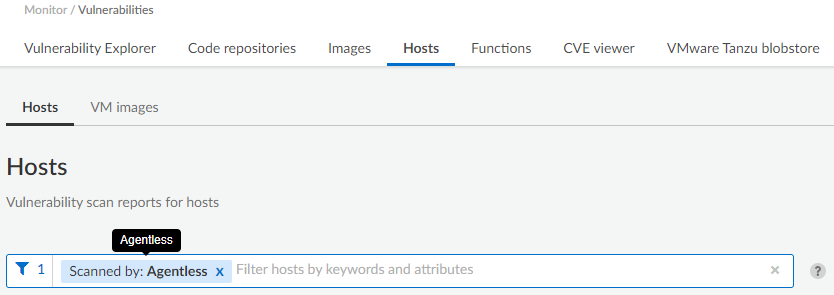
1. Go to **Runtime Security > Monitor > Vulnerabilities > Hosts** or **Runtime Security > Monitor > Vulnerabilities > Images**.
2. Select **Filter hosts**.
3. Select the **Scanned by** filter.
4. Select the **Agentless** filter.
---
# Agent Instructions
This documentation is published with GitBook. GitBook is the documentation platform designed so that both humans and AI agents can read, navigate, and reason over technical content effectively. Learn more at gitbook.com.
## Querying This Documentation
If you need additional information that is not directly available in this page, you can query the documentation by asking a question.
Perform an HTTP GET request on the following URL with the `ask` and `goal` query parameters:
```
GET https://docs.prismacloud.io/admin-guide/agentless-scanning/agentless-scanning-results.md?ask=&goal=
```
`ask` is the immediate question: it should be specific, self-contained, and written in natural language.
`goal` is what the user is ultimately trying to achieve, the reason they need the answer. Sharing it helps GitBook give you a better, more relevant answer. A goal is most helpful when it describes the outcome the user wants rather than restating the question. For example, with `ask=how do I create an API token`, a goal like `automate deployments from our CI pipeline` lets GitBook tailor the answer to that use case.
The response will contain a direct answer to the question and relevant excerpts and sources from the documentation.
Use this mechanism when the answer is not explicitly present in the current page, you need clarification or additional context, or you want to retrieve related documentation sections.