> For the complete documentation index, see [llms.txt](https://docs.prismacloud.io/llms.txt). Markdown versions of documentation pages are available by appending `.md` to page URLs; this page is available as [Markdown](https://docs.prismacloud.io/admin-guide/authentication/active-directory.md).
# Active Directory
Prisma Cloud can integrate with Active Directory (AD), an enterprise identity directory service.
If your AD environment uses alternative UPN suffixes (also referred to as explicit UPNs), see [Non-default UPN suffixes](/admin-guide/authentication/non-default-upn-suffixes.md) to understand how to use them with Prisma Cloud.
LDAP group names are case sensitive in Prisma Cloud.
With AD integration, you can reuse the identities and groups centrally defined in Active Directory, and extend your organization’s access control policy to manage the data users can see and the things they can do in the Prisma Cloud Console.
For more information about Prisma Cloud’s built-in roles, see [User Roles](/admin-guide/authentication/user-roles.md).
## Configuration options
The following configuration options are available:
| Configuration option | Description |
| -------------------- | --------------------------------------------------------------------------------------------------------------------------------------------------------------------------------------------------------------------------------------------------------------------------------------------------------------------------------------------------------------------------------------------------- |
| Enabled |
Enables or disables integration with Active Directory.
In Console, use the slider to enable (ON) or disable (OFF) integration with AD.
By default, integration with AD is disabled.
|
| URL |
Specifies the path to your LDAP server, such as an Active Directory Domain Controller.
The format for the LDAP server path is:
\://\:\ Where \ can be ldap or ldaps. For an Active Directory Global Catalog server, use ldap.
For performance and redundancy, use a load balanced path.
Example: ldap\://ldapserver.example.com:3268
|
| Search Base |
Specifies the search query base path for retrieving users from the directory.
Example: dc=example,dc=com
|
| User identifier |
User name format when authenticating
sAMAccountName = DOMAIN\sAMAccountName
userPrincipalName =
The Active Directory domain name must be provided when using sAMAccountName due to domain trust behavior.
|
| Account UPN |
Console Account UPN Specifies the username for the Prisma Cloud service account that has been set up to query Active Directory.
Specify the username with the User Principal Name (UPN) format:
\@\
Example:
|
| Account Password | Specifies the password for the Prisma Cloud service account. |
## Integrating Active Directory
Integrate Active Directory after you have installed Prisma Cloud.
1. Open Console, then go to **Manage > Authentication > Identity Providers**.
2. Set **Integrate LDAP users and groups with Prisma Cloud** to **Enabled**.
3. Specify all the parameters for connecting to your Active Directory service.
1. For **Authentication** type, select **Active Directory**.
2. In **Path to LDAP service**, specify the path to your LDAP server.
For example: `ldap://ldapserver.example.com:3268`
3. In **Search Base**, specify the base path to the subtree that contains your users.
For example: `dc=example,dc=com`
4. In Service Account UPN and Service Account Password, specify the credentials for your service account.
Specify the username in UPN format: \@\
For example, the account UPN format would be: `twistlock_service@example.com`
5. If you connect to Active Directory with ldaps, paste your CA certificate (PEM format) in the CA Certificate field.
This enables Prisma Cloud to validate the LDAPS certificate to prevent spoofing and man- in-the-middle attacks. If this field is left blank, Prisma Cloud will not perform validation of the LDAPS certificate.
4. Click **Save**.
## Adding Active Directory group to Prisma Cloud
To grant authentication to users in an Active Directory group, add the AD group to Prisma Cloud.
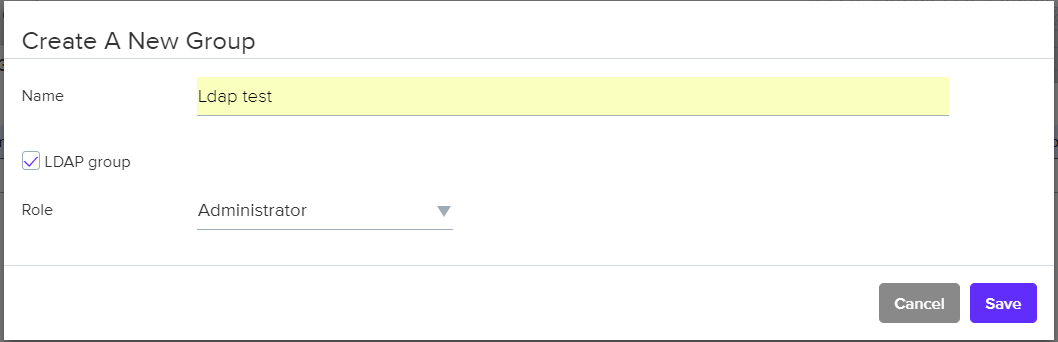
1. Navigate to **Manage > Authentication > Groups** and click **Add group**.
2. In the dialog, enter AD group name and select **LDAP group**.
3. Grant a [role](/admin-guide/authentication/user-roles.md) to members of the group.
## Verifying integration with Active Directory
Verify the integration with AD.
1. Open Console.
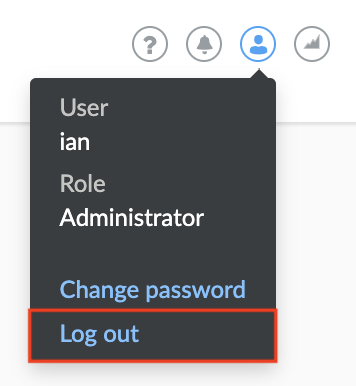
2. If you are logged into Console, log out.
3. At Console’s login page, enter the UPN and password of an existing Active Directory user.
If the log in is successful, you are directed to the view appropriate for the user’s role.
---
# Agent Instructions
This documentation is published with GitBook. GitBook is the documentation platform designed so that both humans and AI agents can read, navigate, and reason over technical content effectively. Learn more at gitbook.com.
## Querying This Documentation
If you need additional information that is not directly available in this page, you can query the documentation by asking a question.
Perform an HTTP GET request on the following URL with the `ask` and `goal` query parameters:
```
GET https://docs.prismacloud.io/admin-guide/authentication/active-directory.md?ask=&goal=
```
`ask` is the immediate question: it should be specific, self-contained, and written in natural language.
`goal` is what the user is ultimately trying to achieve, the reason they need the answer. Sharing it helps GitBook give you a better, more relevant answer. A goal is most helpful when it describes the outcome the user wants rather than restating the question. For example, with `ask=how do I create an API token`, a goal like `automate deployments from our CI pipeline` lets GitBook tailor the answer to that use case.
The response will contain a direct answer to the question and relevant excerpts and sources from the documentation.
Use this mechanism when the answer is not explicitly present in the current page, you need clarification or additional context, or you want to retrieve related documentation sections.