> For the complete documentation index, see [llms.txt](https://docs.prismacloud.io/llms.txt). Markdown versions of documentation pages are available by appending `.md` to page URLs; this page is available as [Markdown](https://docs.prismacloud.io/admin-guide/compliance/host-scanning.md).
# Host scanning
Prisma Cloud scans all hosts for compliance issues, provided that a defender is installed or the host is covered by an agentless scan. Among these, the following compliance issues are covered.
* **Host configuration**: Compliance issues in the host setup.
* **Docker daemon configuration**: Compliance issues that stem from misconfiguring your Docker daemons. Docker daemon derives its configuration from various files, including /etc/sysconfig/docker or /etc/default/docker. Misconfigured daemons affect all container instances on a host.
* **Docker daemon configuration files**: Compliance issues that arise from improperly securing critical configuration files with the correct permissions.
* **Docker security operations**: Recommendations and reminders for extending your current security best practices to include containers.
Prisma Cloud implements the checks from:
* CIS Distribution Independent Linux v2.0.0.
* CIS Amazon Linux 2 Benchmark v1.0.0 (for AL 2)
* CIS Amazon Linux Benchmark v2.1.0 (for AL 1)
* Compliance - For Linux hosts that have Defenders installed, you can also ensure adherence to specific application versions. Agentless scanning on hosts does not support this functionality.
## Enforce Application Control
If you want to ensure that Linux hosts in your deployment are running versions of an application that you have allowed or cannnot run versions of applications that you want to deny, you can use the Application Control checks. Application control checks can generate alerts if a non-compliant version of the application is detected on a host.
The most common uses are for : \* Enforce dedicated rules by application type. For example, control what versions of mysql can be running on a DB Server. \* Specify which applications you want to make sure are not allowed to run on hosts (for example, detect any version of mongodb and deny it) \* Create host profiles from a host that has the approved list of applications and apply the rule on all other hosts, so you are alerted when a version is changed.
To enforce application control, the host must have a Defender installed. The Host Defender scans periodically for the application control checks, and matches against the application control list attached to a compliance policy rule to allow or deny applications on the hosts in your environment.
The application control checks are evaluated only for the list of applications and the versions you have specified for match. When an application is not matched, there is no compliance enforcement for it.
Application control is supported for services with an open TCP port. You can view the list of applications for which you can enforce compliance on "Monitor > Compliance > Hosts> Hosts", and on the "Host Details > Package Info", the **App control** column lists the application running on the host and indicates Yes if it is supported for application control.
1. Add an application control list.
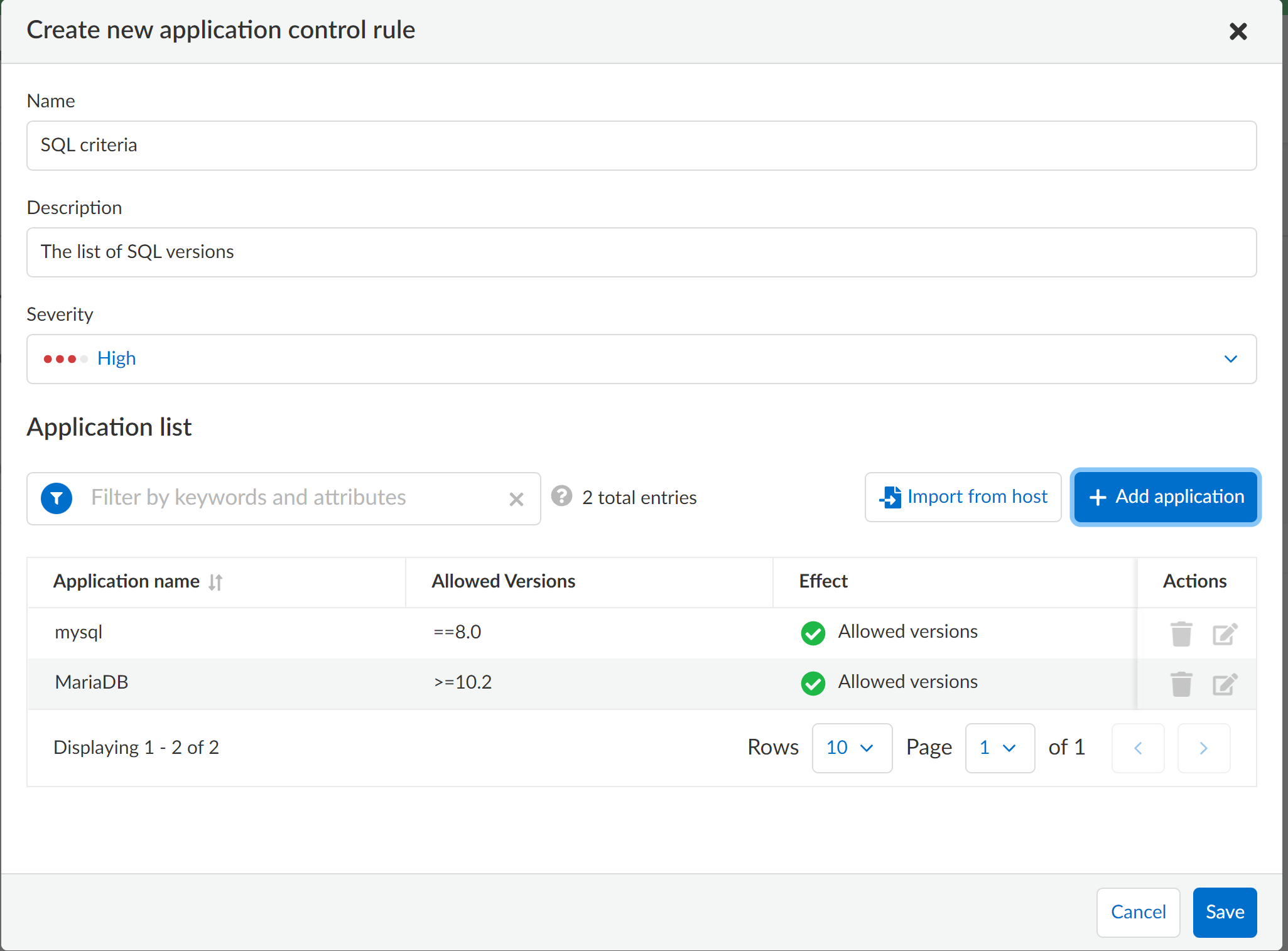
1. Select "Defend > Compliance > Hosts > Application control".
2. Enter a Name and optionally a Description for the application control rule.
3. Assign a Severity for the rule. The severity of the alert helps you triage issues when a compliance violation occurs.
4. Pick one of the following options to add the applications.
This rule defines the match criteria for verifying the list of applications that are running on Linux hosts with Defenders installed.
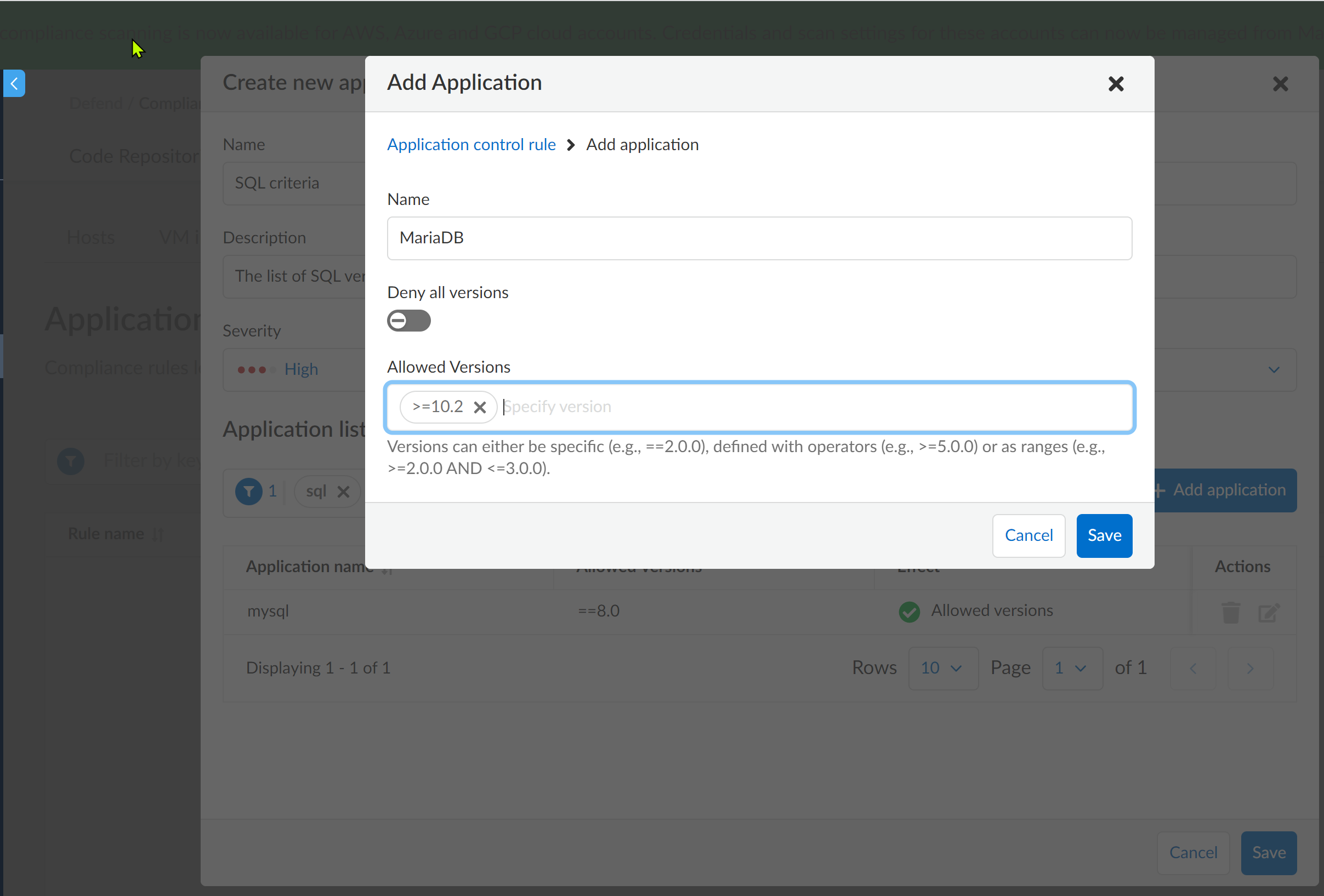
1. Option 1 - **Add application**.
1. Enter the name for this application.
2. Add the match criteria for the versions you want to allow (this is an allow list).
Create distinct rules that are specific to an application. For example, a database application or a web application that you want to monitor on the hosts in your inventory and trigger an alert when a compliance violation occurs. You can use `>`, `==` or `⇐`, or something like `>=2 AND ⇐5` to indicate a range between 2 and 5 (including 2 and 5). Alternatively, select **Deny all versions**, if you want to ensure that no version of the application should run on hosts in your environment.
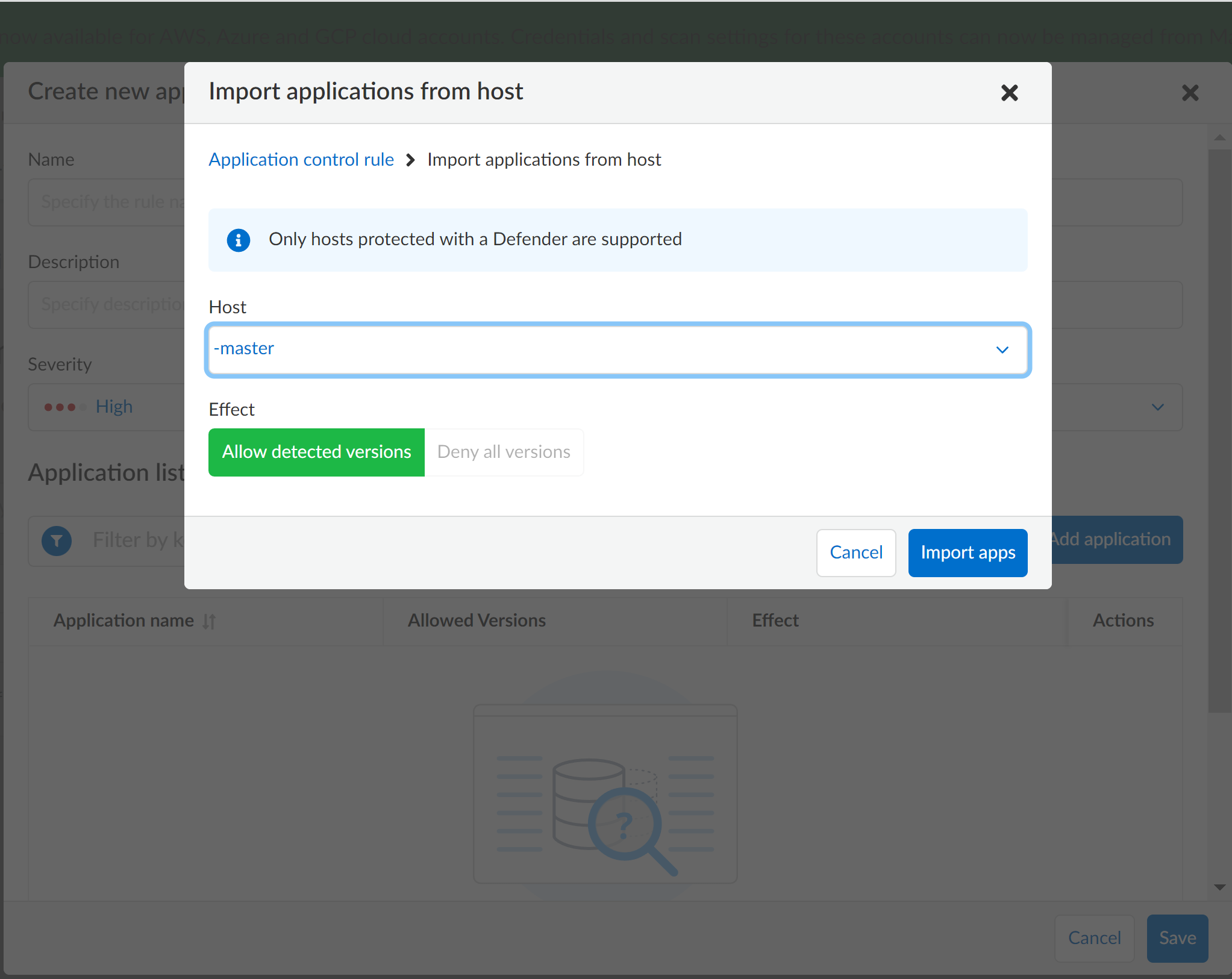
2. Option 2 - **Import from host**.
If you have a standard image on a specific host and the applications running on that host are what you want to monitor and verify compliance for, you do not have to create the rules manually. Users can import the list of applications along with the versions that are running on the host and automatically create the application control rules.
1. Select the Host from the list.
Ensure that you select Linux Hosts with Defenders installed.
2. Attach the application control list to a Compliance rule.
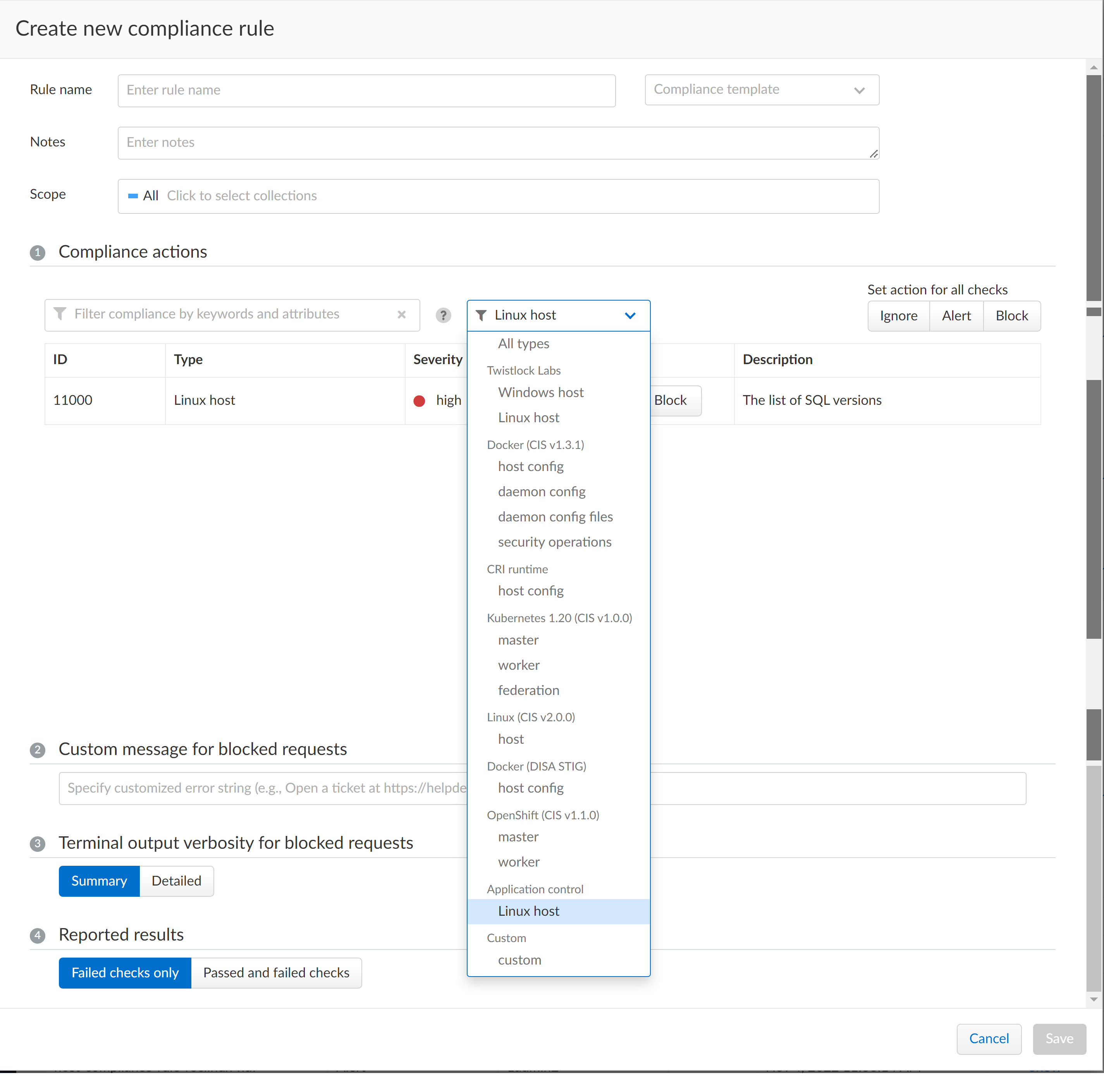
1. Select "Defend > Compliance > Hosts > Hosts".
2. Enter a **Rule name**.
3. Select the **Scope**, which are the hosts to which this rule applies.
4. Select the Compliance action.
1. Select **Application control** as the type of control,
2. Choose the new app control rule you created earlier.
3. Select the action.
You can choose alert or block to enforce the criteria in the application control list and generate alerts.
Do not select **Ignore** as an option, if you want to generate alerts for compliance violations.
Block does not block the non-compliant application from running on the host, but rather it blocks new containers for the specified application and version from being deployed on that host. So, when a rule is matched and the action is set to block, any new container will be blocked from running on that host.
3. View the scan results.
1. Select "Monitor > Compliance > Hosts".
2. Select a host to view the alerts in the host details section.
## Review host scan reports
Prisma Cloud lets you filter the displayed hosts by searching for specific hosts or by [collection](/admin-guide/configure/collections.md). Collections support AWS tags. When creating new collections, specify the tags you want to use for filtering in the **Labels** field.
You can filter the displayed hosts by searching for specific hosts or by choosing a [collection](/admin-guide/configure/collections.md). Collections support AWS tags. When creating a new collection, add the tags you want to use for filtering to the **Labels** field.
1. Open Console, then go to **Monitor > Compliance > Hosts > Hosts**.
Select **PDF** or **CSV** to export all the compliance issues identified in the latest scans to a PDF or a CSV file respectively.
2. Click on a host in the list.
A report for the compliance issues on the host is shown.
---
# Agent Instructions
This documentation is published with GitBook. GitBook is the documentation platform designed so that both humans and AI agents can read, navigate, and reason over technical content effectively. Learn more at gitbook.com.
## Querying This Documentation
If you need additional information that is not directly available in this page, you can query the documentation by asking a question.
Perform an HTTP GET request on the following URL with the `ask` and `goal` query parameters:
```
GET https://docs.prismacloud.io/admin-guide/compliance/host-scanning.md?ask=&goal=
```
`ask` is the immediate question: it should be specific, self-contained, and written in natural language.
`goal` is what the user is ultimately trying to achieve, the reason they need the answer. Sharing it helps GitBook give you a better, more relevant answer. A goal is most helpful when it describes the outcome the user wants rather than restating the question. For example, with `ask=how do I create an API token`, a goal like `automate deployments from our CI pipeline` lets GitBook tailor the answer to that use case.
The response will contain a direct answer to the question and relevant excerpts and sources from the documentation.
Use this mechanism when the answer is not explicitly present in the current page, you need clarification or additional context, or you want to retrieve related documentation sections.