> For the complete documentation index, see [llms.txt](https://docs.prismacloud.io/llms.txt). Markdown versions of documentation pages are available by appending `.md` to page URLs; this page is available as [Markdown](https://docs.prismacloud.io/admin-guide/compliance/manage-compliance.md).
# Manage compliance
Prisma Cloud can monitor and enforce compliance settings across your environment. Out of the box, Prisma Cloud supports hundreds of discrete checks that cover images, containers, hosts, clusters, and clouds.
Prisma Cloud provides predefined checks that are based on industry standards, such as the CIS benchmarks, as well as research and recommendations from Prisma Cloud Labs. Your security teams can review these best practices and enable the ones that align with your organization’s security mandate and consistently enforce them across your environment. Additionally, you can implement your own compliance checks with [scripts](/admin-guide/compliance/custom-compliance-checks.md).
## Enforcement
Compliance rules are defined and applied in the same way as vulnerability rules. When there is no matching rule for compliance checks on specific resources, Prisma Cloud generates alerts on all violations that are found. For checks that can be performed on static images, those checks are performed as images are scanned (either in the registry or on local hosts). Results are then displayed in the compliance reports under **Monitor > Compliance** on the Console.
When compliance rules are configured with block actions, they are enforced when a container is created. If the instantiated container violates your policy, Prisma Cloud prevents the container from being created.
Note that compliance enforcement is only one part of a defense in depth approach. Because compliance enforcement is applied at creation time, it is possible that a user with appropriate access could later change the configuration of a container, making it non-compliant after deployment. In these cases, the runtime layers of the defense-in-depth model provide protection by detecting anomalous activity, such as unauthorized processes.
Assume that you want to block any container that runs as root. The flow for blocking such a container is:
1. Prisma Cloud admin creates a new compliance rule that blocks containers from running as root.
2. The admin optionally targets the rule to a specific resources, such as a set of hosts, images, or containers.
3. Someone with rights to create containers attempts to deploy a container to the environment.
4. Prisma Cloud compares the image being deployed to the compliance state that it detected when it scanned the image. For deploy-time parameters, the specific Docker client commands sent are also analyzed.
1. If the comparison determines that the image is compliant with the policy, the 'docker run' command is allowed to proceed as normal, and the return message from Docker Engine is sent back to the user.
2. If the comparison determines that the image is not compliant, the container\_create command is blocked and Prisma Cloud returns an error message back to the user describing the violation.
5. In both success and failure cases, all activities are centrally logged in Console and (optionally) syslog.
## Supported runtimes
The supported runtimes for compliance are:
* Docker
* CRIO
* Containerd
## Surveying Prisma Cloud compliance checks
As you configure your compliance policy, you might want more details for the built-in checks. Teams that address compliance issues might also need more information about why checks fail, so that they can resolve the underlying issues.
As you explore the built-in checks, consider the following points.
### CIS
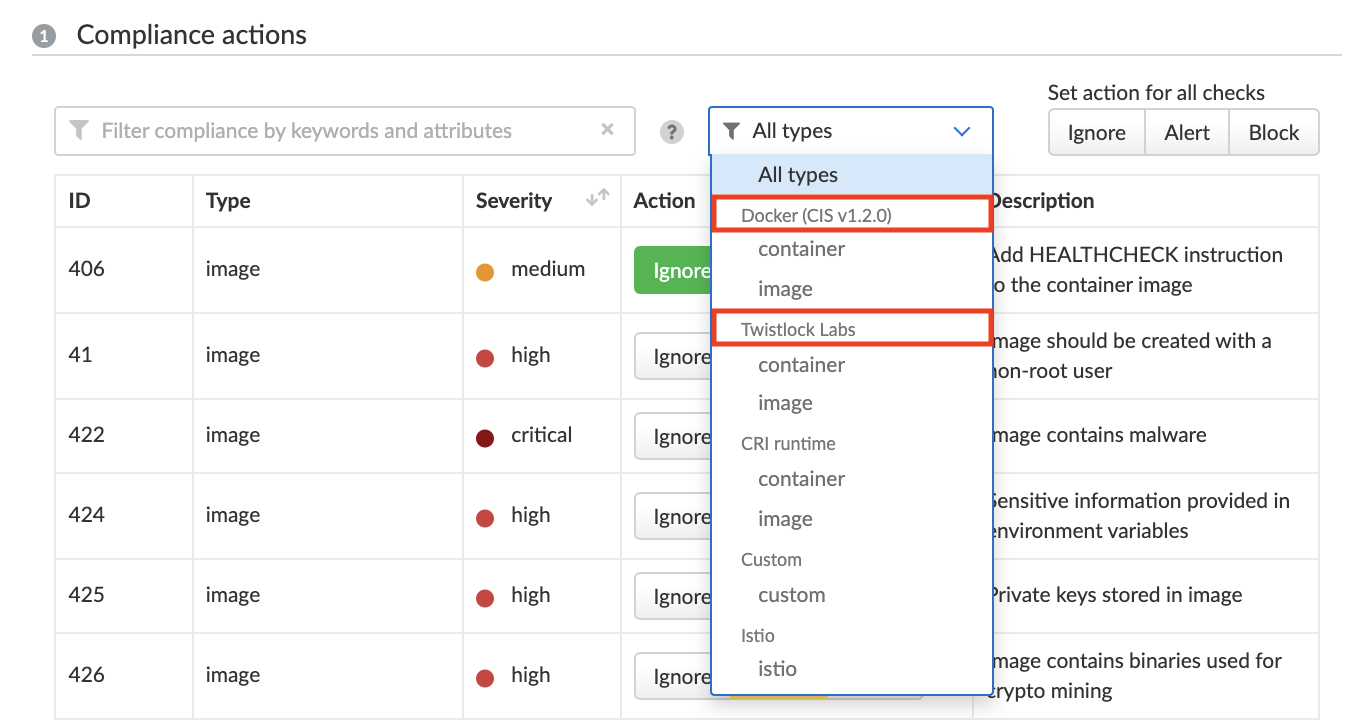
Most built-in checks are based on the [CIS benchmarks](/admin-guide/compliance/cis-benchmarks.md). For full details about what a check does, and why, refer to the CIS benchmark documentation. Prisma Cloud check IDs map to CIS benchmark IDs. For example, Prisma Cloud check ID 51 maps to CIS Docker Benchmark 5.1
### Check IDs
When creating compliance rules, there’s a drop-down menu that lets you filter checks by type. Each type has a heading, which indicates the origin of the checks. Checks from the CIS benchmarks are clearly labeled.
### CRI checks
All CRI checks are direct analogs of the Docker CIS checks, but repurposed for CRI environments.
### Twistlock Labs checks
For all other checks, including those from Twistlock Labs, we provide documentation.
* Twistlock Labs compliance checks for [containers, images, Istio, and Linux hosts](/admin-guide/compliance/prisma-cloud-compliance-checks.md).
* Twistlock Labs compliance checks for [serverless functions](/admin-guide/compliance/serverless.md).
* Twistlock Labs compliance checks for [Windows](/admin-guide/compliance/windows.md).
## Creating compliance rules
This procedure shows you how to set up a container compliance rule to block any containers running as root.
1. Open Console, then go to **Defend > Compliance > Containers and Images**.
2. Click **Add rule**.
1. Enter a rule name, such as **my-rule**.
2. In the search field under **Compliance actions**, enter **Container is running as root**.
As you type, the available checks are filtered to match your search query.
3. For check 599 (Container is running as root), set the action to **Block**.
The "Block" effect for the unsupported compliance policies is disabled in the UI and set to "Ignore" and "Alert" only.
4. In **Scope**, accept the default collection, **All**. The default collection applies the rule to all containers in your environment.
5. Click **Save**.
Your rule is now activated.
3. Verify that your rule is being enforced.
1. Connect to a host running Defender, then run the following command, which starts an Ubuntu container with a root user (uid 0).
```
$ docker run -u 0 -ti library/ubuntu /bin/sh
```
Defender should block the command with the following message:
```
docker: Error response from daemon: oci runtime error: [Prisma Cloud] Container operation blocked by policy: my-rule, has 1 compliance issues.
```
## Reporting full results
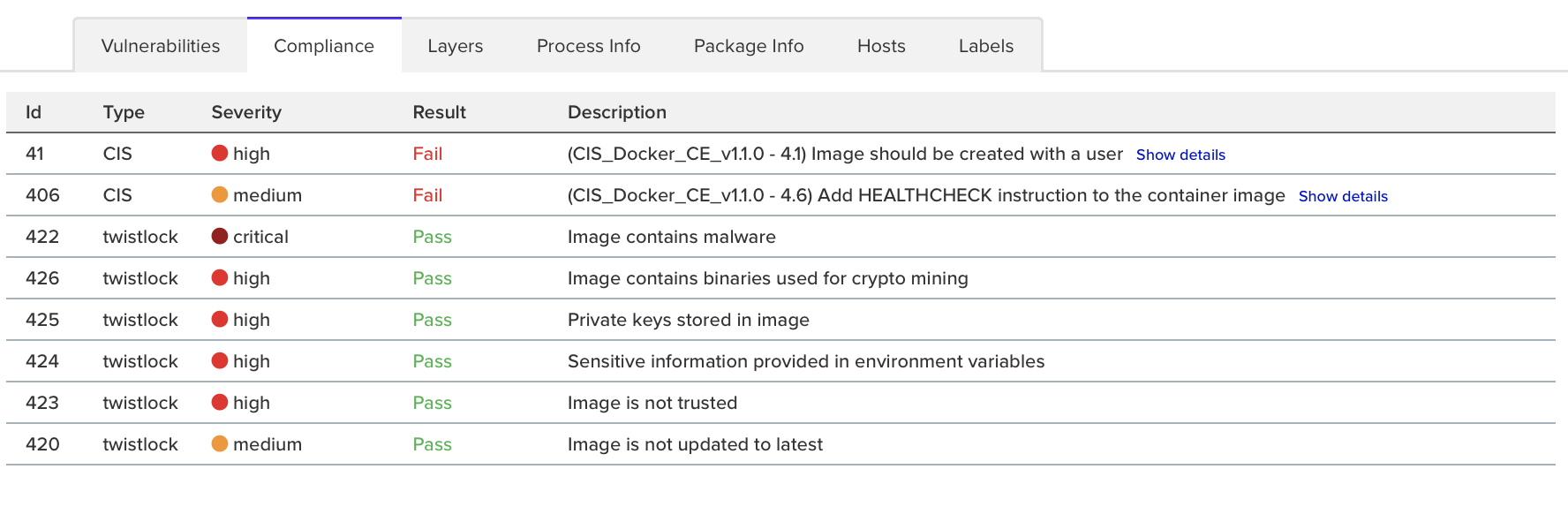
By default, Prisma Cloud reports only the compliance checks that fail. Sometimes you need both negative and affirmative results to prove compliance. You can configure Prisma Cloud to report checks that both pass and fail.
The contents of a full compliance report (both passed and failed checks) is the sum of all applied rules. If your compliance policy raises an alert for only two checks, your compliance report will show the results of two checks. To report on *all* compliance checks, set all compliance checks to either alert or block.
1. Open Console, then go to **Defend > Compliance > {Containers and Images | Hosts}**.
2. Click **Add rule**.
1. Enter a rule name.
2. Under **Reported results**, click **Passed and Failed Checks**.
3. Click **Save**.
Your rule is now activated.
3. Verify that the compliance reports show both passed and failed checks.
1. Go to **Defend > Compliance**, select any tab, then click on a resource in the table to open its scan report. You will see a list of checks that have both passed and failed.
---
# Agent Instructions
This documentation is published with GitBook. GitBook is the documentation platform designed so that both humans and AI agents can read, navigate, and reason over technical content effectively. Learn more at gitbook.com.
## Querying This Documentation
If you need additional information that is not directly available in this page, you can query the documentation by asking a question.
Perform an HTTP GET request on the following URL with the `ask` and `goal` query parameters:
```
GET https://docs.prismacloud.io/admin-guide/compliance/manage-compliance.md?ask=&goal=
```
`ask` is the immediate question: it should be specific, self-contained, and written in natural language.
`goal` is what the user is ultimately trying to achieve, the reason they need the answer. Sharing it helps GitBook give you a better, more relevant answer. A goal is most helpful when it describes the outcome the user wants rather than restating the question. For example, with `ask=how do I create an API token`, a goal like `automate deployments from our CI pipeline` lets GitBook tailor the answer to that use case.
The response will contain a direct answer to the question and relevant excerpts and sources from the documentation.
Use this mechanism when the answer is not explicitly present in the current page, you need clarification or additional context, or you want to retrieve related documentation sections.