> For the complete documentation index, see [llms.txt](https://docs.prismacloud.io/llms.txt). Markdown versions of documentation pages are available by appending `.md` to page URLs; this page is available as [Markdown](https://docs.prismacloud.io/admin-guide/configure/rule-ordering-pattern-matching.md).
# Rule ordering and pattern matching
Prisma Cloud supports pattern matching so that rules can be applied granularly. For example, you could apply a rule to any image with the name `ubuntu*`. Or you could apply a rule to all hosts, except those named `*test*`. This article describes how filtering and pattern matching works in Prisma Cloud.
## Pattern matching
All rules have resource filters that let you precisely target specific parts of your environment. This is known as a rule’s *scope*. Scope is specified using [collections](/admin-guide/configure/collections.md). Rules reference collections to set their scope.
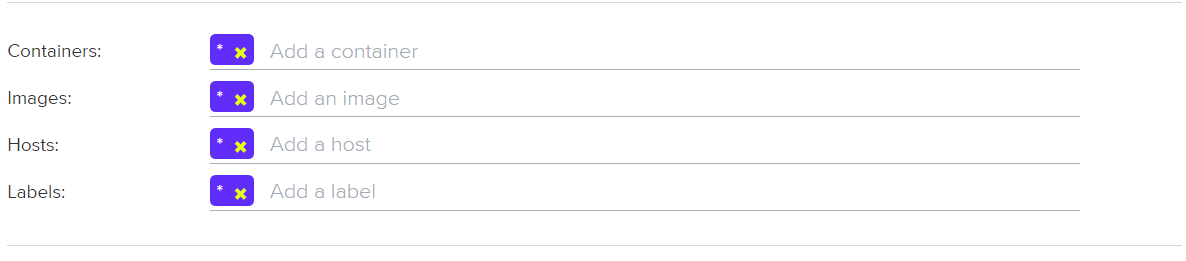
The fields in a collection let you capture a segment of the resources in your environment based on container name, image name, host name, etc. By default, each field is populated with a wildcard. Wildcards capture all objects of a given type. Constrain the scope of a collection by specifying filters in one or more field.
You can customize how a field is evaluated with string matching. When Prisma Cloud encounters a wildcard in a resource name, it evaluates the resource name according to the position of the wildcard.
* If the string starts with a wildcard, it’s evaluated as *string-ends-with*.
* If the string terminates with a wildcard, it’s evaluated as *string-starts-with*.
* If a string is starts and terminates with a wildcard, it’s evaluated as *string-contains*.
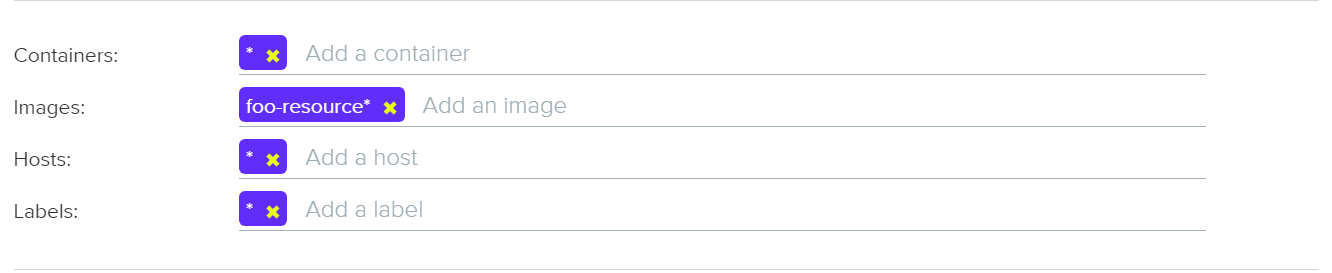
For example, if you specify a resource filter of `*foo-resource*`, Prisma Cloud matches that resource to any value that contains the string, such as `example-foo-resource` and `foo-resource-1`. Matching logic is case insensitive.
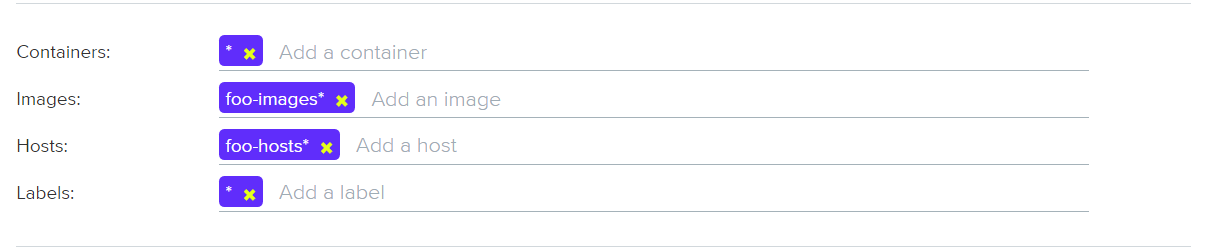
Individual fields are combined using **AND** logic. In the following example, there are filters for hosts named `foo-hosts*` and images named `foo-images*`. There are no filters for containers or labels (they’re wildcards). If this collection were used to scope a rule, the effective result would be to **apply this rule anytime the host name starts with foo-hosts and image name starts with foo-images, regardless of the container name or label**.
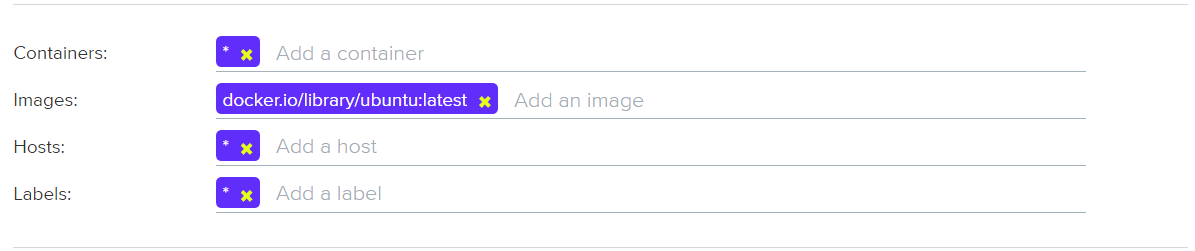
If strings have no wildcards, Prisma Cloud exactly matches the value you enter against the resource string. This gives you precise control over which values match. For example:
* `*/ubuntu:latest` matches `/library/ubuntu:latest` or `docker.io/library/ubuntu:latest`.
* `*:latest` matches `ubuntu:latest` or `debian:latest`.
* If you want to explicitly target just `ubuntu:latest` from Docker Hub, use `docker.io/library/ubuntu:latest`. Because the value you provide is the complete name of the resource, Prisma Cloud matches it exactly.
* `*_test` matches `host_sandbox_test` and `host_preprod_test` but doesn’t match `host_test_server`.
For DNS filtering, Prisma Cloud doesn’t prevent you from entering multiple wildcards per string, but it’s treated the same as if you simply entered the right-most wildcard. The following patterns are equivalent:
```
*.*.b.a == *.b.a
```
## Exemptions
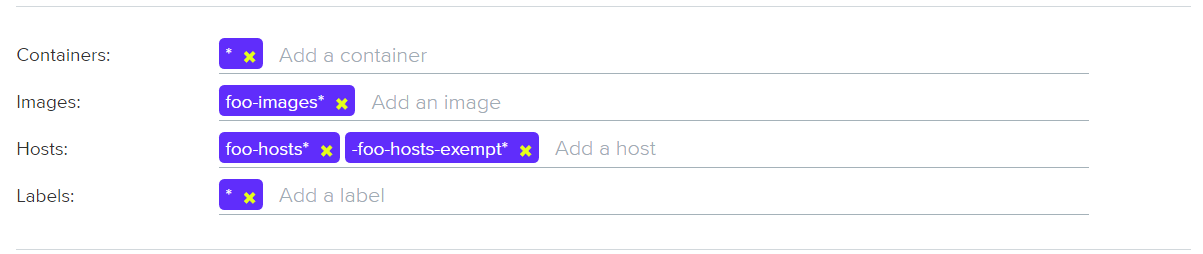
While basic string matching makes it easy to manage rules for most scenarios, you sometimes need more sophisticated logic. Prisma Cloud lets you exempt objects from a rule with the minus (`-`) sign (the NOT operator). From example, if you want a rule to apply to all hosts starting with `foo-hosts*`, except those starting with `foo-hosts-exempt*`, then you could create the following rule:
When Prisma Cloud evaluates an object against a rule with a NOT operator, it first skips any object for which there is a match with the exempted object. So, from our example:
1. If the host name starts with `foo-hosts-exempt`, skip the rule.
2. If the host name starts with `foo-hosts` AND the image name starts with `foo-images`, apply the rule.
All scope fields, in both policy rules and collection specs, support the NOT operator.
When using the NOT operator, remember that what’s being excluded can’t be broader than what’s included. For example, the following expression for scoping images is illogical:
```
-ngnix*, ngnix:latest
```
The following expression, however, is valid. It sets the scope to all NGINX images, and then excludes `nginx:latest` from the set.
```
ngnix*, -ngnix:latest
```
To exclude a single image from the universe, first use the NOT operator to omit the image. Then set the include scope with a wildcard.
```
-mongo:latest, *
```
## Rule ordering
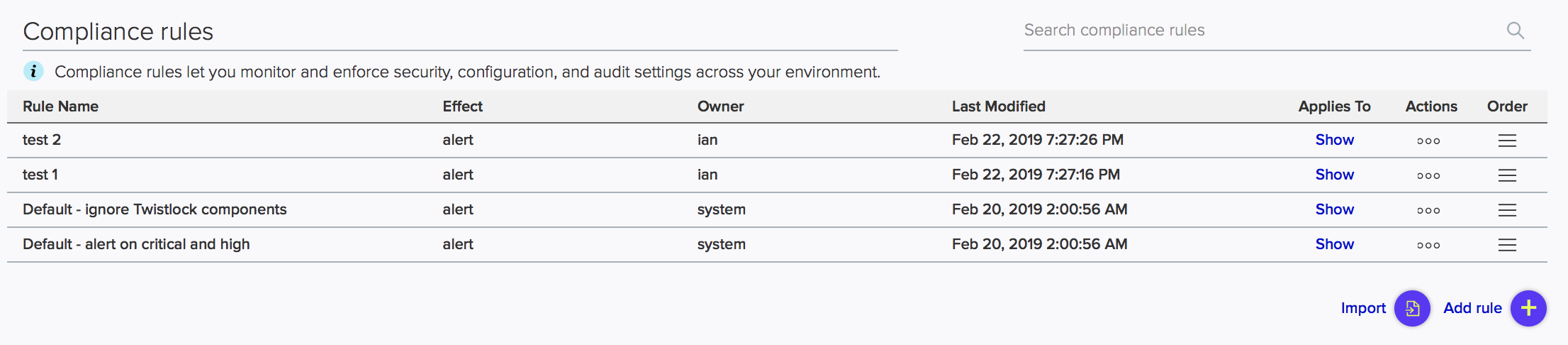
For any given feature area, such as vulnerability management or compliance, you might have multiple rules, such as *test 1* and *test 2*.
The entire set of rules in a given feature area is called the policy. The rules in the policy are evaluated from top to bottom, making it easy to understand how policy is applied. When evaluating whether to apply a rule to a given object, Prisma Cloud uses the following logic:
1. Does rule 1 apply to object? If yes, apply action(s) defined in rule and stop. If no, go to 2.
2. Does rule 2 apply to object? If yes, apply action(s) defined in rule and stop. If no, go to 3.
3. …
4. Apply the built-in Default rule (unless it was removed or modified).
Prisma Cloud evaluates the rule list from top to bottom until it finds a match based on the object filters. When a match is found, it applies the actions in the rule and stops processing further rules. If no match is found, then no action is applied. Sometimes this could mean that an attempted action is blocked (e.g. if no access control rule is matched that allows a user to run a container).
To reorder rules, click on a rule’s hamburger button and drag it to a new position in the list.
## Disabling rules
If you want to test how the system behaves without a particular rule, you can temporarily disable it. Disabling a rule gives you a way to preserve the rule and its configuration, but take it out of service, so that it’s ignored when Prisma Cloud evaluates events against your policy.
To disable a rule, click **Actions > Disable**.
## Image names
The canonical name of an image is it’s **full name** in a format like registry/repo/image-name. For example: `1234.dkr.ecr.us-east-1.amazonaws.com/morello:foo-images`. Within Docker itself, these canonical names can be seen by inspecting any given image, like this:
```
$ sudo docker inspect morello/foo-images | grep Repo -A 3
"RepoTags": [
"1234.dkr.ecr.us-east-1.amazonaws.com/morello:foo-images",
```
However, there’s a special case to be aware of with images sourced from Docker Hub. For those images, the Docker Engine and client do not show the full path in the canonical name; instead it only shows the ‘short name’ that can be used with Docker Hub and the full name is implied. For example, compare the previous example of an image on AWS ECR, with this image on Docker Hub:
```
$ sudo docker inspect morello/docker-whale | grep Repo -A 3
"RepoTags": [
"morello/docker-whale:latest",
```
Note that when the image is from Hub, the canonical name is listed as just the short name (the same name you could use with the Docker client to issue a command like ‘docker run morello/docker-whale’). For images like this, Prisma Cloud automatically prepends the actual address of the Docker Hub registry (docker.io) and, if necessary, the library repo name as well, even though these values are not shown by Docker itself.
For example, you can run the Alpine image from Docker Hub simply by issuing a Docker client command like ‘docker run -ti alpine /bin/sh’. The Docker client automatically knows that this means to pull and run the image that has a canonical name of docker.io/library/alpine:latest. However, this full canonical name is not exposed by the Docker client when inspecting the image:
```
$ sudo docker inspect alpine | grep Repo -A 2
"RepoTags": [
"alpine:latest"
],
"RepoDigests": [
"alpine@sha256:1354db23ff5478120c980eca1611a51c9f2b88b61f24283ee8200bf9a54f2e5c"
],
```
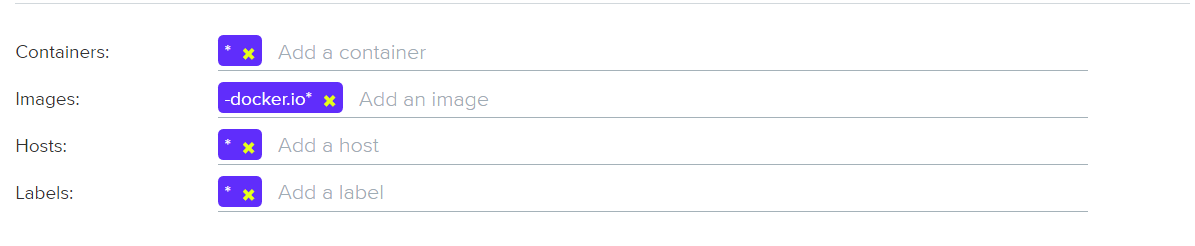
But because Prisma Cloud automatically prepends the proper values to compose the canonical name, a rule like this blocks images from Hub from running:
```
$ docker -H :9998 --tls run -ti alpine /bin/sh
docker: Error response from daemon: [Prisma Cloud] The command container_create denied for user admin by rule Deny - deny all docker.io images.
```
---
# Agent Instructions
This documentation is published with GitBook. GitBook is the documentation platform designed so that both humans and AI agents can read, navigate, and reason over technical content effectively. Learn more at gitbook.com.
## Querying This Documentation
If you need additional information that is not directly available in this page, you can query the documentation by asking a question.
Perform an HTTP GET request on the following URL with the `ask` and `goal` query parameters:
```
GET https://docs.prismacloud.io/admin-guide/configure/rule-ordering-pattern-matching.md?ask=&goal=
```
`ask` is the immediate question: it should be specific, self-contained, and written in natural language.
`goal` is what the user is ultimately trying to achieve, the reason they need the answer. Sharing it helps GitBook give you a better, more relevant answer. A goal is most helpful when it describes the outcome the user wants rather than restating the question. For example, with `ask=how do I create an API token`, a goal like `automate deployments from our CI pipeline` lets GitBook tailor the answer to that use case.
The response will contain a direct answer to the question and relevant excerpts and sources from the documentation.
Use this mechanism when the answer is not explicitly present in the current page, you need clarification or additional context, or you want to retrieve related documentation sections.