> For the complete documentation index, see [llms.txt](https://docs.prismacloud.io/llms.txt). Markdown versions of documentation pages are available by appending `.md` to page URLs; this page is available as [Markdown](https://docs.prismacloud.io/admin-guide/vulnerability-management/registry-scanning/scan-gcr.md).
# Google Container Registry
## Configure a GCR Registry Scan
**Prerequisites:**
* [Install a Defender](/admin-guide/install/deploy-defender/defender-types.md) somewhere in your environment.
* GCR access is governed by Google’s storage permissions. For Prisma Cloud to scan GCR, your service account must have the GCP IAM **Storage Object Viewer** role (see [Permissions and roles](https://cloud.google.com/container-registry/docs/access-control#permissions_and_roles)).
* Grant Prisma Cloud access to your registry with a [service account JSON key file](https://cloud.google.com/container-registry/docs/advanced-authentication). Your JSON token blob will look something like this:
```yaml
{
"type": "service_account",
"project_id": "my_project_id",
"private_key_id": "XXXXXXXXXXXXXXXXXXXXXXXXXXXXXXXXXXXX",
"private_key": "-----BEGIN PRIVATE KEY-----\nXXXXXXXXXXXXXXXXXXXXXXXXXXXXXXXXXXXXXXXXXXXXXXXXXXXXXXXXXXXXXXXXXXXXXXXXXXXXXXXXXXXXXXXXXXXXXXXXXXXXXXXXXXXXXXXXXXXXXXXXXXXXXXXXXXXXXXXXXXXXXXXXXXXXXXXXXXXXXXXXXXXXXXXXXXXXXXXXXXXXXXXXXXXXXXXXXXXXXXXXXXXXXXXXXXXXXXXXXXXXXXXXXXXXXXXXXXXXXXXXXXXXXXXXXXXXXXXXXXXXXXXXXXXXXXXXXXXXXXXXXXXXXXXXXXXXXXXXXXXXXXXXXXXXXXXXXXXXXXXXXXXXXXXXXXXXXXXXXXXXXXXXXXXXXXXXXXXXXXXXXXXXXXXXXXXXXXXXXXXXXXXXXXXXXXXXXXXXXXXXXXXXXXXXXXXXXXXXXXXXXXXXXXXXXXXXXXXXXXXXXXXXXXXXXXXXXXXXXXXXXXXXXXXXXXXXXXXXXXXXXXXXXXXXXXXXXXXXXXXXXXXXXXXXXXXXXXXXXXXXXXXXXXXXXXXXXXXXXXXXXXXXXXXXXXXXXXXXXXXXXXXXXXXXXXXXXXXXXXXXXXXXXXXXXXXXXXXXXXXXXXXXXXXXXXXXXXXXXXXXXXXXXXXXXXXXXXXXXXXXXXXXXXXXXXXXXXXXXXXXXXXXXXXXXXXXXXXXXXXXXXXXXXXXXXXXXXXXXXXXXXXXXXXXXXXXXXXXXXXXXXXXXXXXXXXXXXXXXXXXXXXXXXXXXXXXXXXXXXXXXXXXXXXXXXXXXXXXXXXXXXXXXXXXXXXXXXXXXXXXXXXXXXXXXXXXXXXXXXXXXXXXXXXXXXXXXXXXXXXXXXXXXXXXXXXXXXXXXXXXXXXXXXXXXXXXXXXXXXXXXXXXXXXXXXXXXXXXXXXXXXXXXXXXXXXXXXXXXXXXXXXXXXXXXXXXXXXXXXXXXXXXXXXXXXXXXXXXXXXXXXXXXXXXXXXXXXXXXXXXXXXXXXXXXXXXXXXXXXXXXXXXXXXXXXXXXXXXXXXXXXXXXXXXXXXXXXXXXXXXXXXXXXXXXXXXXXXXXXXXXXXXXXXXXXXXXXXXXXXXXXXXXXXXXXXXXXXXXXXXXXXXXXXXXXXXXXXXXXXXXXXXXXXXXXXXXXXXXXXXXXXXXXXXXXXXXXXXXXXXXXXXXXXXXXXXXXXXXXXXXXXXXXXXXXXXXXXXXXXXXXXXXXXXXXXXXXXXXXXXXXXXXXXXXXXXXXXXXXXXXXXXXXXXXXXXXXXXXXXXXXXXXXXXXXXXXXXXXXXXXXXXXXXXXXXXXXXXXXXXXXXXXXXXXXXXXXXXXXXXXXXXXXXXXXXXXXXXXXXXXXXXXXXXXXXXXXXXXXXXXXXXXXXXXXXXXXXXXXXXXXXXXXXXXXXXXXXXXXXXXXXXXXXXXXXXXXXXXXXXXXXXXXXXXXXXXXXXXXXXXXXXXXXXXXXXXXXXXXXXXXXXXXXXXXXXXXXXXXXXXXXXXXXXXXXXXXXXXXXXXXXXXXXXXXXXXXXXXXXXXXXXXXXXXXXXXXXXXXXXXXXXXXXXXXXXXXXXXXXXXXXXXXXXXXXXXXXXXXXXXXXXXXXXXXXXXXXXXXXXXX==\n-----END PRIVATE KEY-----\n",
"client_email": "XXXXXXXXXXXXXXX@XXXXXXXXXXXXXX.iam.gserviceaccount.com",
"client_id": "XXXXXXXXXXXXXXXXXXXXXXXXX",
"auth_uri": "https://accounts.google.com/o/oauth2/auth",
"token_uri": "https://oauth2.googleapis.com/token",
"auth_provider_x509_cert_url": "https://www.googleapis.com/oauth2/v1/certs",
"client_x509_cert_url": "https://www.googleapis.com/robot/v1/metadata/x509/XXXXXXXXXXXXXXXXXXXXXXXXXXXXXXX.iam.gserviceaccount.com"
}
```
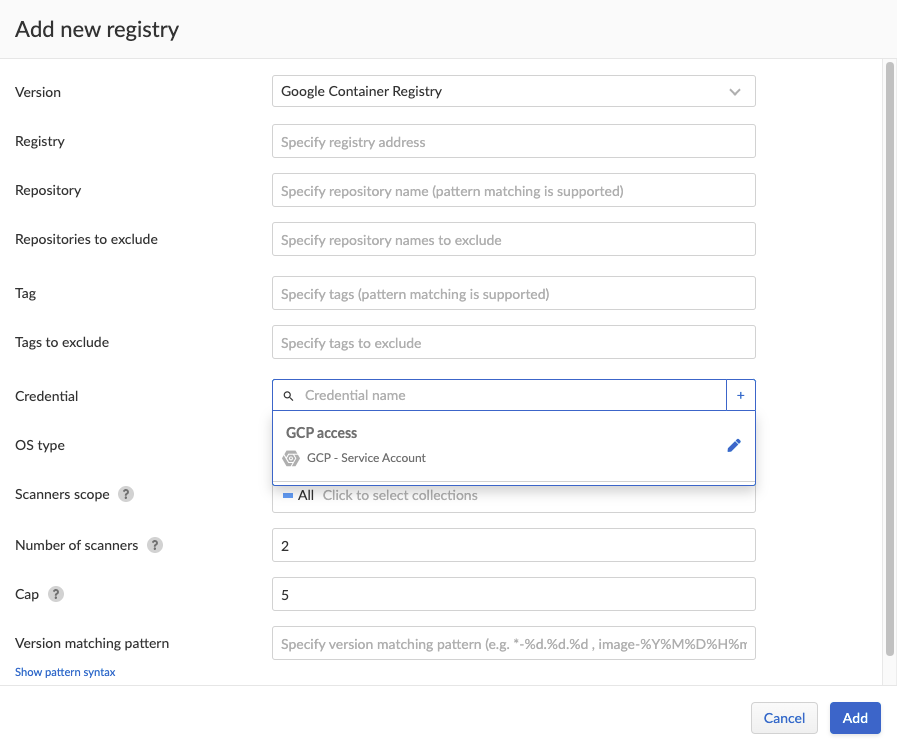
1. Open Console, then go to **Defend > Vulnerabilities > Images > Registry settings**.
2. Select **Add registry**.
3. In **Version**, select **Google Container Registry**.
4. Enter the registry address in the **Registry** field (e.g. `gcr.io`).
5. Enter the repository name followed by `/*` in the **Repository** field (e.g. `company-sandbox/*`).
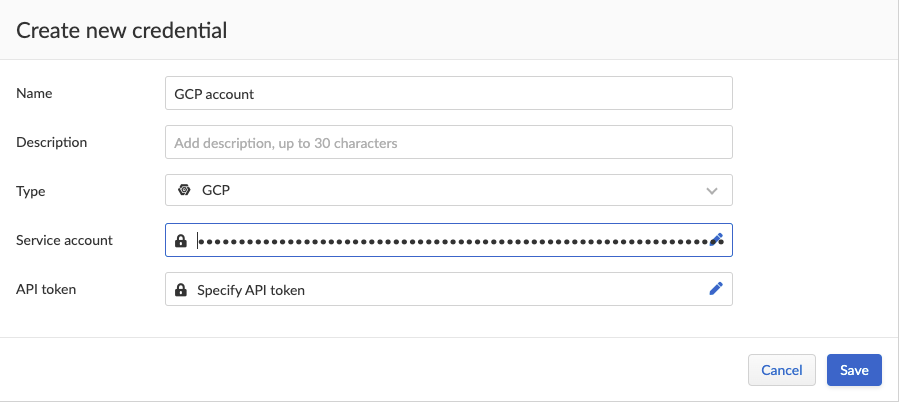
6. In **Credential**, enter the credentials required to access the registry. If the credentials have already been created in the Prisma Cloud credential store, select it. If not, click **Add** to create new credentials.
1. Select the **GCP** credential type and credential level, then paste the JSON token blob from your service account into the **Service Account** field. Leave the **API Token** field blank.
For GCP organizations with hundreds of projects, scanning GCR using organization level credentials might affect the scanning performance due to long query time from GCP. Therefore, the best approach to reduce scan time and to avoid potential timeouts, is to divide the projects within your organization into multiple GCP folders. Then, create a service account and credential for each one of them, and use these credentials for GCR scanning.
2. Save your credentials.
7. In **OS type**, specify whether the repo holds **Linux** or **Windows** images.
8. In **Scanners scope**, specify the collections of defenders to use for the scan.
Console selects the available Defenders from the scope to execute the scan job according to the **Number of scanners** setting. For more information, see [deployment patterns](/admin-guide/vulnerability-management/registry-scanning/configure-registry-scanning.md#deployment-patterns).
9. In **Number of scanners**, enter the number of Defenders across which scan jobs can be distributed.
10. Set **Cap** to the number of most recent images to scan.
Leaving **Cap** set to **5** will scan the 5 most recent images. Setting this field to **0** will scan all images.
11. Select **Add and scan**.
Verify that the images in the repository are being scanned under **Monitor > Vulnerabilities > Images > Registries**.
---
# Agent Instructions
This documentation is published with GitBook. GitBook is the documentation platform designed so that both humans and AI agents can read, navigate, and reason over technical content effectively. Learn more at gitbook.com.
## Querying This Documentation
If you need additional information that is not directly available in this page, you can query the documentation by asking a question.
Perform an HTTP GET request on the following URL with the `ask` and `goal` query parameters:
```
GET https://docs.prismacloud.io/admin-guide/vulnerability-management/registry-scanning/scan-gcr.md?ask=&goal=
```
`ask` is the immediate question: it should be specific, self-contained, and written in natural language.
`goal` is what the user is ultimately trying to achieve, the reason they need the answer. Sharing it helps GitBook give you a better, more relevant answer. A goal is most helpful when it describes the outcome the user wants rather than restating the question. For example, with `ask=how do I create an API token`, a goal like `automate deployments from our CI pipeline` lets GitBook tailor the answer to that use case.
The response will contain a direct answer to the question and relevant excerpts and sources from the documentation.
Use this mechanism when the answer is not explicitly present in the current page, you need clarification or additional context, or you want to retrieve related documentation sections.