> For the complete documentation index, see [llms.txt](https://docs.prismacloud.io/llms.txt). Markdown versions of documentation pages are available by appending `.md` to page URLs; this page is available as [Markdown](https://docs.prismacloud.io/admin-guide/vulnerability-management/registry-scanning/webhooks.md).
# Trigger Registry Scan with Webhooks
You can use webhooks to trigger a scan when images in your registry’s repositories are added or updated.
Prisma Cloud supports webhooks for:
* [Docker Hub](https://docs.docker.com/docker-hub/webhooks/)
* [Docker Registry](https://docs.docker.com/registry/notifications/)
* [Azure Registry](https://docs.microsoft.com/en-us/azure/container-registry/container-registry-webhook/)
* [Nexus Repository](https://help.sonatype.com/repomanager3/integrations/webhooks#:~:text=Webhooks%20are%20defined%20as%20an,events%20happening%20within%20Nexus%20Repository)
* [JFrog Artifactory](https://www.jfrog.com/confluence/display/JFROG/Webhooks)
Prisma Cloud requires Docker Registry 2.4 or later.
Google Container Registry and Amazon Elastic Container Registry do not currently support webhooks.
For Docker Hub, you must have Automated Builds enabled for your repository. Docker Hub webhooks are called when an image is built or a new tag is added to your automated build repository.
For Docker Private Registry, webhooks are called when manifests are pushed or pulled, and layers are pushed or pulled. Prisma Cloud scans images in response to layer push events.
For Azure Registry, you can configure webhooks for your container registry that generate events when certain actions are performed against it. See [Azure’s documentation](https://docs.microsoft.com/en-us/azure/container-registry/container-registry-webhook-reference/) for more information.
The Console needs a valid and trusted certificate for the webhook to work on JFrog Cloud.
To trigger a webhook for JFrog Cloud registry, enter a valid and trusted certificate while [configuring your self-hosted JFrog Artifactory](/admin-guide/vulnerability-management/registry-scanning/scan-artifactory.md).
Prisma Cloud also supports [scheduled registry scans](/admin-guide/configure/configure-scan-intervals.md), with support for most of the registry types, including Google Container Registry and Amazon Elastic Container Registry.
## Securing Console’s Management Port
Webhooks call the Prisma Cloud API on Console’s management ports over either HTTP or HTTPS.
By default, Prisma Cloud uses self-signed certificates to secure HTTP traffic. Self-signed certificates are not supported (trusted) by Docker Hub, and Docker Registry would require you to configure Prisma Cloud as a trusted CA certificate (not supported, and not recommended). Instead install a certificate signed by a trusted certificate authority (CA), such as Comodo or Symantec.
## Setting up Webhooks
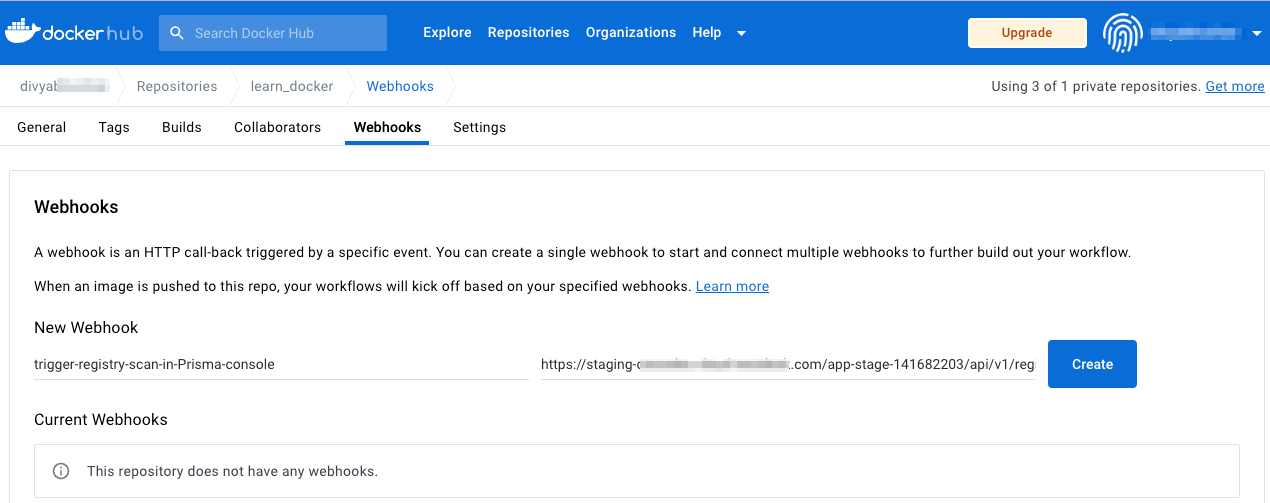
To set up webhook-initiated scans, configure your registry’s webhook with the URL provided in Console. The following procedure shows you how to set up webhooks in Docker Hub.
**Prerequisites:** Docker Hub, with Automated Builds enabled.
1. Open Console.
2. Go to **Compute > Defend > Vulnerabilities > Images > Registry settings**.
3. In **Webhooks**, copy the URL to your webhook configuration.
4. Configure your repository.
The following sections show how to configure Docker Hub and Nexus Repository. For other repositories, consult the vendor’s documentation.
* [Docker Hub](#configure-docker-hub)
* [Nexus Repository](#configure-nexus-repository)
5. Test the integration by triggering a build.
6. Go to **Monitor > Vulnerabilities > Images > Registries** to view the scan report. Prisma Cloud scans the image as soon as it is built.
## Create a Webhook in Docker Hub
1. Log in to Docker Hub.
2. In your chosen repository, select **Webhooks**.
1. Enter a name for the webhook.
2. Paste the webhook URL that you copied from Prisma Console.
3. Select **Create**.
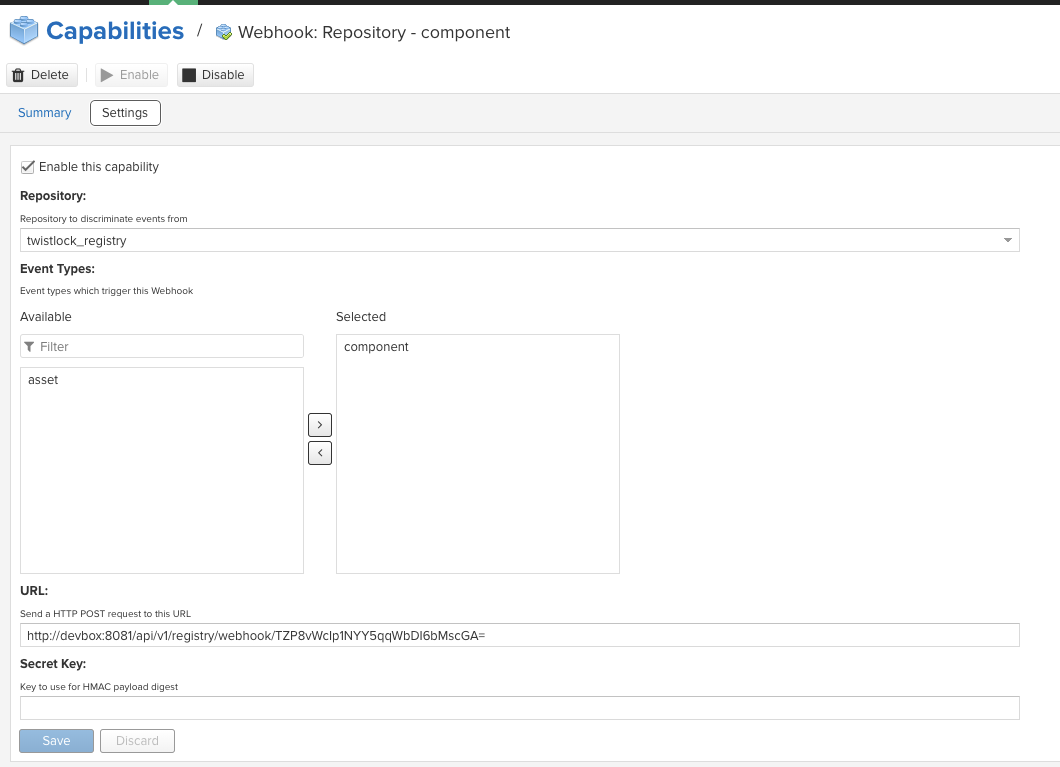
## Create a Webhook in Nexus Repository
When setting up webhooks in Nexus Repository, select the "component" event type for triggering the webhooks.
---
# Agent Instructions
This documentation is published with GitBook. GitBook is the documentation platform designed so that both humans and AI agents can read, navigate, and reason over technical content effectively. Learn more at gitbook.com.
## Querying This Documentation
If you need additional information that is not directly available in this page, you can query the documentation by asking a question.
Perform an HTTP GET request on the following URL with the `ask` and `goal` query parameters:
```
GET https://docs.prismacloud.io/admin-guide/vulnerability-management/registry-scanning/webhooks.md?ask=&goal=
```
`ask` is the immediate question: it should be specific, self-contained, and written in natural language.
`goal` is what the user is ultimately trying to achieve, the reason they need the answer. Sharing it helps GitBook give you a better, more relevant answer. A goal is most helpful when it describes the outcome the user wants rather than restating the question. For example, with `ask=how do I create an API token`, a goal like `automate deployments from our CI pipeline` lets GitBook tailor the answer to that use case.
The response will contain a direct answer to the question and relevant excerpts and sources from the documentation.
Use this mechanism when the answer is not explicitly present in the current page, you need clarification or additional context, or you want to retrieve related documentation sections.