> For the complete documentation index, see [llms.txt](https://docs.prismacloud.io/llms.txt). Markdown versions of documentation pages are available by appending `.md` to page URLs; this page is available as [Markdown](https://docs.prismacloud.io/content-collections/administration/anomalies/anomalies-trusted-ip-addresses-on-prisma-cloud.md).
# Trusted IP Addresses on Prisma Cloud
Add trusted IP addresses to permit access to the management interfaces or to label your internal networks on Prisma® Cloud and exclude them from anomaly alerts and RQL queries.
Prisma Cloud enables you to specify IP addresses or CIDR ranges for:
* **Trusted Login IP Addresses**—Restrict access to the Prisma Cloud administrator console and API to only the specified source IP addresses. Trusted Login IP addresses are limited to a maximum of 10.
* **Trusted Alert IP Addresses**—If you have internal networks that connect to your public cloud infrastructure, you can add these IP address ranges (or CIDR blocks) as trusted on Prisma Cloud. When you add IP addresses to this list, you can create a label to identify your internal networks that are not in the private IP address space to make alert analysis easier. When you visualize network traffic on the Prisma Cloud **Investigate** tab, instead of flagging your internal IP addresses as internet or external IP addresses, the service can identify these networks with the labels you provide.
Prisma Cloud default network policies that look for internet exposed instances also do not generate alerts when the source IP address is included in the trusted IP address list and the account hijacking anomaly policy filters out activities from known IP addresses. Also, when you use RQL to query network traffic, you can filter out traffic from known networks that are included in the trusted IP address list.
* **Anomaly Trusted List**—Exclude trusted IP addresses when conducting tests for PCI compliance or penetration testing on your network. Any addresses included in this list do not generate alerts against the Prisma Cloud [Anomaly Policies](https://github.com/PaloAltoNetworks/pc-docs-md/tree/main/enterprise-edition/content-collections/administration/governance/anomaly-policies.md#id31e46cf0-ad50-471b-b517-6a545b57521e) that detect unusual network activity such as the policies that detect internal port scan and port sweep activity, which are enabled by default.
You can also choose various resource types or identifiers for which you want to [Suppress Alerts for Prisma Cloud Anomaly Policies](https://github.com/PaloAltoNetworks/pc-docs-md/tree/main/enterprise-edition/content-collections/administration/alerts/suppress-alerts-for-prisma-cloud-anomaly-policies.md).
To add an IP address to the trusted list:
1. Add an Alert IP address.
1. Select **Settings > Trusted IP Addresses > Add Trusted Alert IP Addresses**.
You must have the System Administrator role on Prisma Cloud to view or edit the Trusted IP Addresses page. See [Prisma Cloud Administrator Permissions](https://github.com/PaloAltoNetworks/pc-docs-md/tree/main/enterprise-edition/content-collections/administration/administration/prisma-cloud-admin-permissions.md).
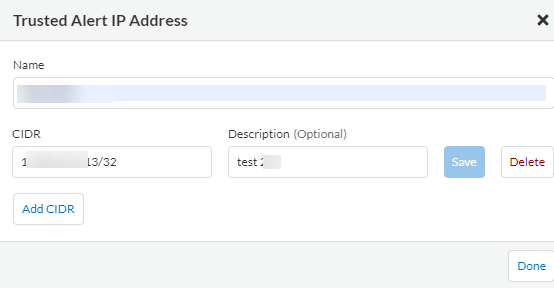
2. Enter a name or label for the **Network**.
3. Enter the **CIDR** and, optionally, add a **Description**, click **Save**, and then click **Done**.
Enter the CIDR block for IP addresses that are routable through the public Internet, you cannot add a private CIDR block. The IP addresses you enter may take up to 15 minutes to take effect, and when you run a network query, the trusted IP addresses are appropriately classified for new data ingested.
Because Trusted IP lists are applied during ingestion, any modifications to the list are not retroactive on previously ingested data. If you add or remove an IP address to the list, the classification for the IP address is in effect for queries against data ingested after you make the change.
2. Add a Login IP address.
1. Select **Settings > Trusted IP Addresses > Trusted Login IP Addresses > Add Trusted Login IP Addresses**.
You must have the System Administrator role on Prisma Cloud to view or edit the Trusted IP Addresses page. See [Prisma Cloud Administrator Permissions](https://github.com/PaloAltoNetworks/pc-docs-md/tree/main/enterprise-edition/content-collections/administration/anomalies/prisma-cloud-admin-permissions.md).
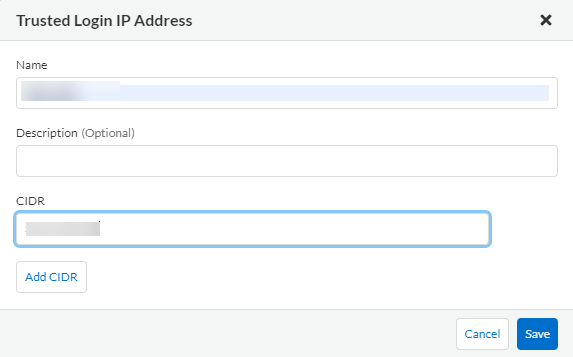
2. Enter a **Name** and, optionally a **Description**.
3. Enter the **CIDR** and **Save** the new login IP address entry. You can add additional CIDRs.
As an example, if you enter 199.167.52.5/32, only one IP address is allowed. If you enter 199.167.52.0/24, it allows all IP addresses within the range of 199.167.52.0 to 199.167.52.255.
When specifying a range of IP addresses, the last bit must be a 0. So, if you are logged in from the IP address 199.167.52.5, you can enter 199.167.52.5/32 or 199.167.52.0/24, but not 199.167.52.5/24.
4. Verify that the IP addresses for your users who access the Prisma Cloud administrative console are included in the list.
For the System Administrator role by default, Prisma Cloud checks that you are logged in from an IP address that is included within the CIDR range you have added, and you cannot delete your current IP address from the list. If the CIDR you entered does not include the IP addresses for all users who access the Prisma Cloud administrator console and API interface, they will be logged out as soon as you save your changes and will lose access to the Prisma Cloud administrator console and API interface.
5. **Enable** the IP address.
3. Add an IP Address to the **Anomaly Trusted List**.
1. Select **Setting > Anomalies > Anomaly Trusted List**.
You must have the correct role, such as the System Administrator role on Prisma Cloud to view or edit the Anomaly Settings page. See [Prisma Cloud Administrator Permissions](https://github.com/PaloAltoNetworks/pc-docs-md/tree/main/enterprise-edition/content-collections/administration/anomalies/prisma-cloud-admin-permissions.md) for the roles that have access.
2. Get your IP address.
Make sure that you know the IP address that you are logged in from and the CIDR range to which your IP address belongs.
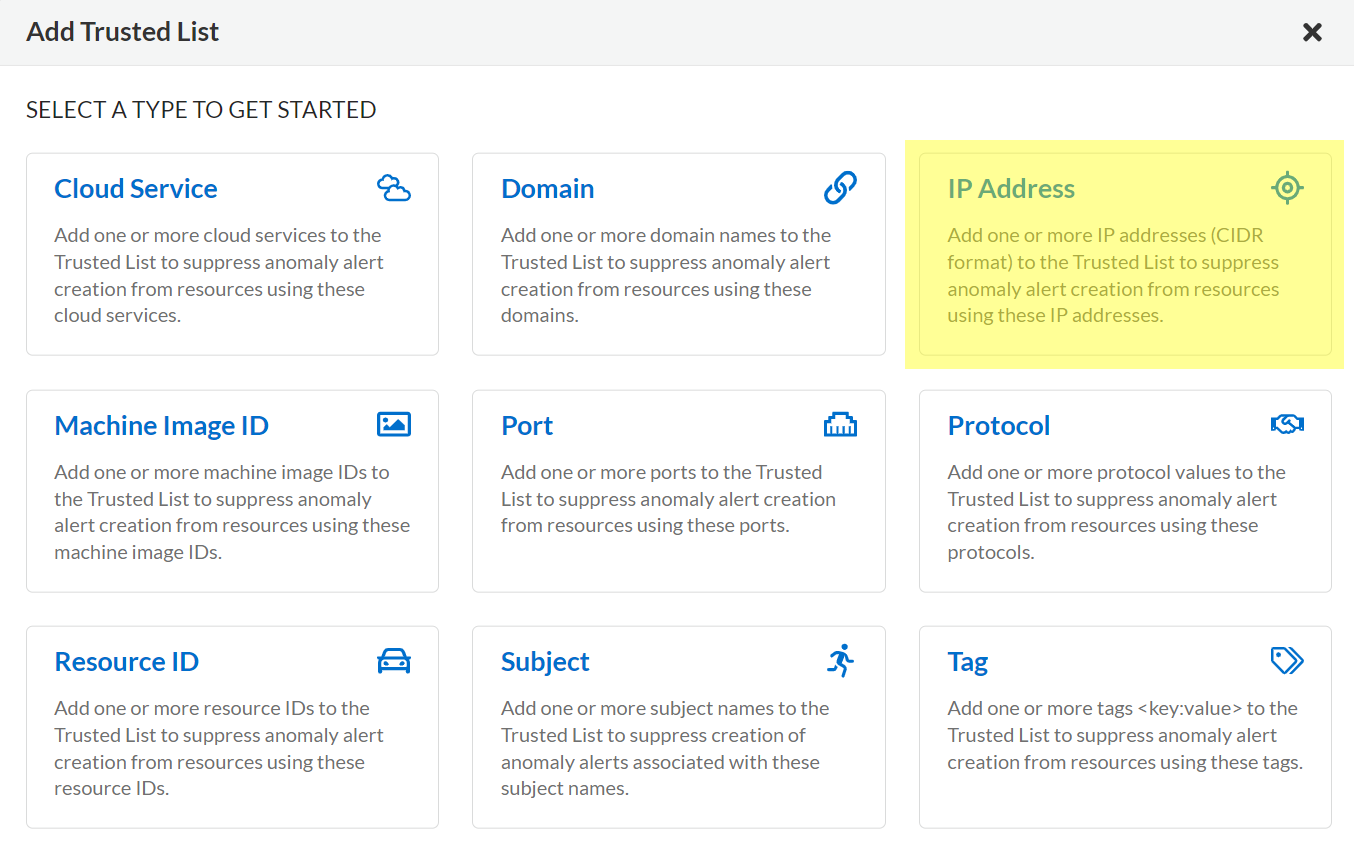
3. **Add Trusted List > IP Address**.
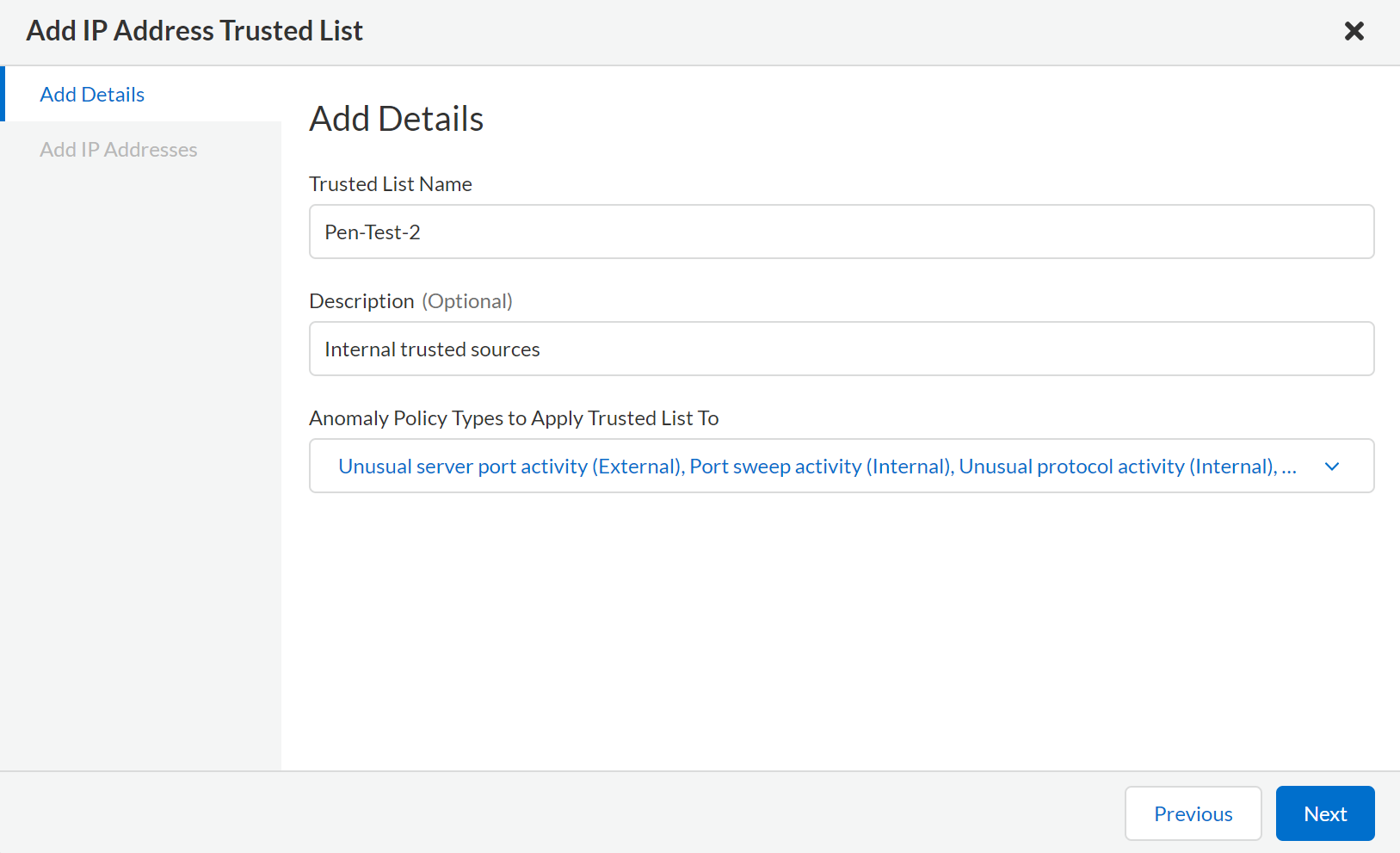
4. Enter a **Trusted List Name** and, optionally a **Description**.
5. Select the Anomaly Policies for which you do not want to generate alerts.
6. Click **Next**.
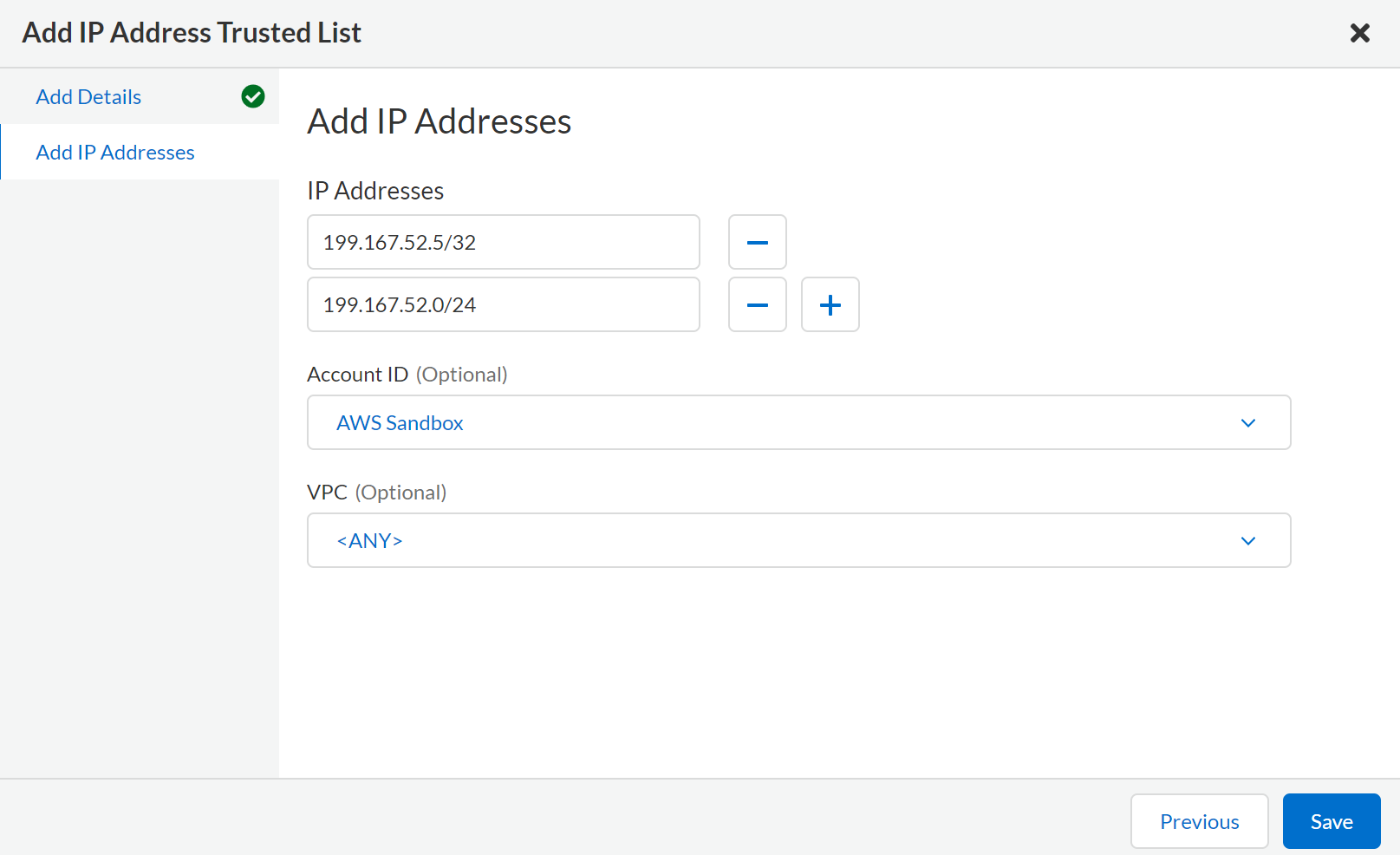
7. Enter the **IP Addresses**.
You can enter one or more IP addresses in the CIDR format, which means you also include the network address. For example, 199.167.52.5/32 to specify an IP address or 199.167.52.0/24 to include all addresses within the range of 199.167.52.0 to 199.167.52.255. By default, the IP addresses you add to the trusted list are excluded from generating alerts against any (all) cloud accounts that are onboarded to Prisma Cloud.
8. (tt:\[Optional]) Select an **Account ID** and **VPC ID** from the drop-down list.
You can select only one Account and VPC ID, or set it to **Any** to exclude any account that is added to Prisma Cloud.
9. **Save** the list.
When you save the list, for the selected anomaly policies that detect network issues such as network reconnaissance, network evasion, or resource misuse, Prisma Cloud will not generate alerts for the IP addresses included in this list.
Only the administrator who created the list can modify the name, description, Account ID and VPC ID; Other administrators with the correct role can add or delete IP address entries on the trusted list.
---
# Agent Instructions
This documentation is published with GitBook. GitBook is the documentation platform designed so that both humans and AI agents can read, navigate, and reason over technical content effectively. Learn more at gitbook.com.
## Querying This Documentation
If you need additional information that is not directly available in this page, you can query the documentation by asking a question.
Perform an HTTP GET request on the following URL with the `ask` and `goal` query parameters:
```
GET https://docs.prismacloud.io/content-collections/administration/anomalies/anomalies-trusted-ip-addresses-on-prisma-cloud.md?ask=&goal=
```
`ask` is the immediate question: it should be specific, self-contained, and written in natural language.
`goal` is what the user is ultimately trying to achieve, the reason they need the answer. Sharing it helps GitBook give you a better, more relevant answer. A goal is most helpful when it describes the outcome the user wants rather than restating the question. For example, with `ask=how do I create an API token`, a goal like `automate deployments from our CI pipeline` lets GitBook tailor the answer to that use case.
The response will contain a direct answer to the question and relevant excerpts and sources from the documentation.
Use this mechanism when the answer is not explicitly present in the current page, you need clarification or additional context, or you want to retrieve related documentation sections.