> For the complete documentation index, see [llms.txt](https://docs.prismacloud.io/llms.txt). Markdown versions of documentation pages are available by appending `.md` to page URLs; this page is available as [Markdown](https://docs.prismacloud.io/content-collections/administration/create-access-keys.md).
# Create and Manage Access Keys
Learn how to generate an access key and enable secure access to the Prisma Cloud API.
Access Keys are a secure way to enable programmatic access to the Prisma Cloud API, if you are setting up an external integration or automation. By default, only the System Admin has API access and can enable API access for other administrators.
You can enable API access either when you [Add Administrative Users On Prisma Cloud](/content-collections/administration/add-prisma-cloud-users.md#id2730a69c-eea8-4e00-a7f1-df3b046615bc), you can modify the user permissions to enable API access. If you have API access, you can create up to two access keys per role for most roles; some roles such the Build and Deploy Security role can generate one access key only. When you create an access key, the key is tied to the role with which you logged in and if you delete the role, the access key is automatically deleted.
Create an access key for a limited time period and regenerate your API keys periodically to minimize exposure and follow security best practices. On the **Settings > Audit Logs**, you can view a record of all access key related activities such as an update to extend its validity, deletion, or a revocation.
1. Select **Settings > Access Control > Access Keys** and select **Add > Access Key**.
If you do not see the option to add a new key, it means that you do not have the permissions to create access keys.
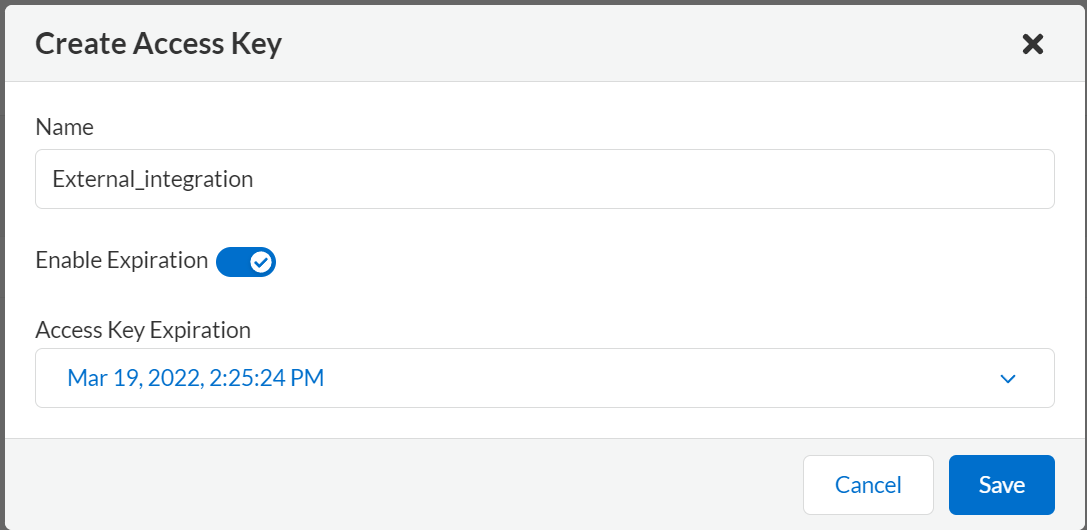
2. Enter a descriptive **Name** for the key.
3. Set the **Key Expiry** term.
Select the checkbox and specify a term—date and time for the key validity—that adheres to your corporate compliance standards. If you do not select key expiry, the key is set to never expire; if you select it, but do not specify a date, the key expires in a month. In the event a key is compromised, you can administratively disable (**Make Inactive**) the key.
4. **Create** the key.
If you have multiple roles, you must switch roles to create an access key for each role.
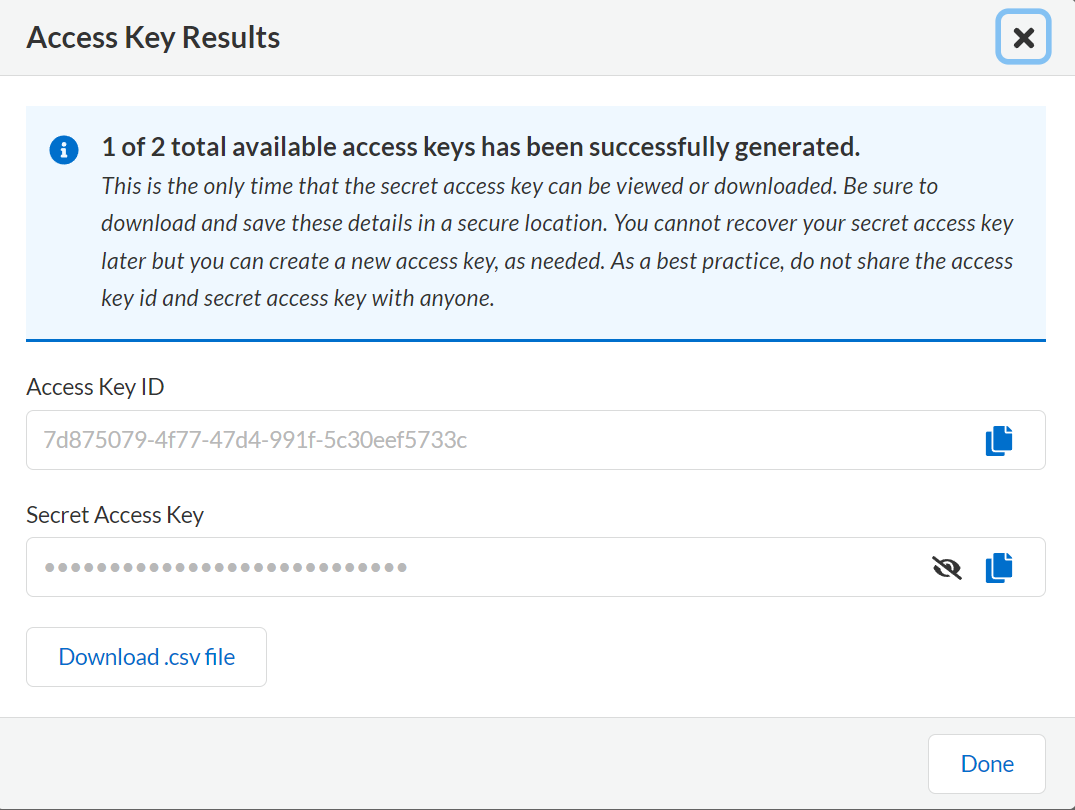
Copy or download the Access Key ID and the Secret Key as a CSV file. After you close the window, you cannot view the secret key again, and must delete the existing key and create a new key.
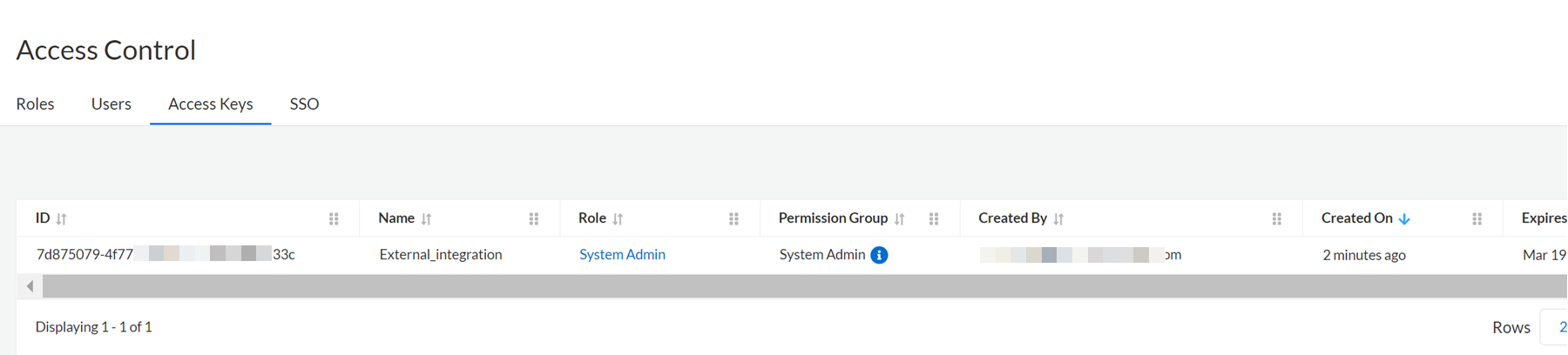
5. View the details for your keys.
You can verify the expiry date for the key and can update it here, review when it was last used and the status —Active or Expired.
If you have multiple roles, the access key details display only for the role with which you are logged in.
If you delete a role, the access keys associated with the role are automatically deleted, and any integrations that use the access key to make calls to Prisma Cloud will stop working.
---
# Agent Instructions
This documentation is published with GitBook. GitBook is the documentation platform designed so that both humans and AI agents can read, navigate, and reason over technical content effectively. Learn more at gitbook.com.
## Querying This Documentation
If you need additional information that is not directly available in this page, you can query the documentation by asking a question.
Perform an HTTP GET request on the following URL with the `ask` and `goal` query parameters:
```
GET https://docs.prismacloud.io/content-collections/administration/create-access-keys.md?ask=&goal=
```
`ask` is the immediate question: it should be specific, self-contained, and written in natural language.
`goal` is what the user is ultimately trying to achieve, the reason they need the answer. Sharing it helps GitBook give you a better, more relevant answer. A goal is most helpful when it describes the outcome the user wants rather than restating the question. For example, with `ask=how do I create an API token`, a goal like `automate deployments from our CI pipeline` lets GitBook tailor the answer to that use case.
The response will contain a direct answer to the question and relevant excerpts and sources from the documentation.
Use this mechanism when the answer is not explicitly present in the current page, you need clarification or additional context, or you want to retrieve related documentation sections.