> For the complete documentation index, see [llms.txt](https://docs.prismacloud.io/llms.txt). Markdown versions of documentation pages are available by appending `.md` to page URLs; this page is available as [Markdown](https://docs.prismacloud.io/content-collections/administration/create-prisma-cloud-roles.md).
# Create Prisma Cloud Roles
Create Prisma Cloud roles to restrict user access to cloud accounts within an account group.
Roles on Prisma Cloud enable you to specify what permissions an administrator has, and to which cloud accounts they have access, what policies they can apply, and how they interact with alerts and reports, for example.
When you create a cloud account, you can assign one or more cloud account to account group(s) and then attach the account group to the role you create. This flow allows you to ensure the user/administrator who has the role can access the information related to only the cloud account(s) to which you have authorized access.
1. Select **Settings > Access Control > Roles > Add > Role**.
2. Enter a name and a description for the role.
3. Select a permission group.
See [Prisma Cloud Administrator Roles](/content-collections/administration/prisma-cloud-administrator-roles.md#id437b5c4a-3dfa-4c70-8fc7-b6d074f5dffc) for a description of the following permission groups.
* Select **System Admin** to allow full access and control over all sections of Prisma Cloud including overall administration settings and permissions management. To limit access to the Compute capabilities and APIs that enable you to secure your host, serverless, and container deployments, select **Only for Compute capabilities**.
* Select **Account Group Admin** to allow full access over designated accounts including a subset of administration settings and permissions management for the designated **Account Groups** you specify. By default an Account Group Admin has the ability to dismiss, snooze, and resolve alerts that are generated against all policies included in an alert rule defined by the System Admin. You can, however, restrict the ability dismiss or resolve alerts.
* Select **Account ReadOnly** to allow read access to designated accounts across Prisma Cloud administrative console, excluding any administration settings and permissions management.
* Select **Account and Cloud Provisioning Admin**—to enable an administrator who is responsible for a line of business.With this role the permissions allow you to onboard cloud accounts, and access the dashboard, manage the security policies, investigate issues, view alerts and compliance details for the designated **Account Groups** you specify. By default an Account and Cloud Provisioning Admin has the ability to dismiss, snooze, and resolve alerts that are generated against all policies included in an alert rule defined by the System Admin. You can, however, restrict the ability dismiss or resolve alerts.
* Select **Cloud Provisioning Admin** to onboard and manage cloud accounts from the admin console and through APIs. They can also create and manage Account Groups. They do not have access to any other Prisma Cloud features.
* Select **Build and Deploy Security** to enable DevOps users who need access to a subset of **Compute** capabilities and/or API access to run IDE, SCM and CI/CD plugins for Infrastructure as Code and image vulnerabilities scans.
* Select **Developer** role to enable limited access to developers who use the Application Security scanning capabilities. The developers who are assigned this role can generate access keys, and view IaC scan results on **Application Security** including the ability to fix issues.
* Select **NetSecOps** to enable your users from your Network Security and Operations team to access the **Network Security** capabilities and enable identity-based microsegmentation for securing hosts and containers in any cloud.
(tt:\[Optional]) To restrict to read-only access, select **Read-only access to network security module**.
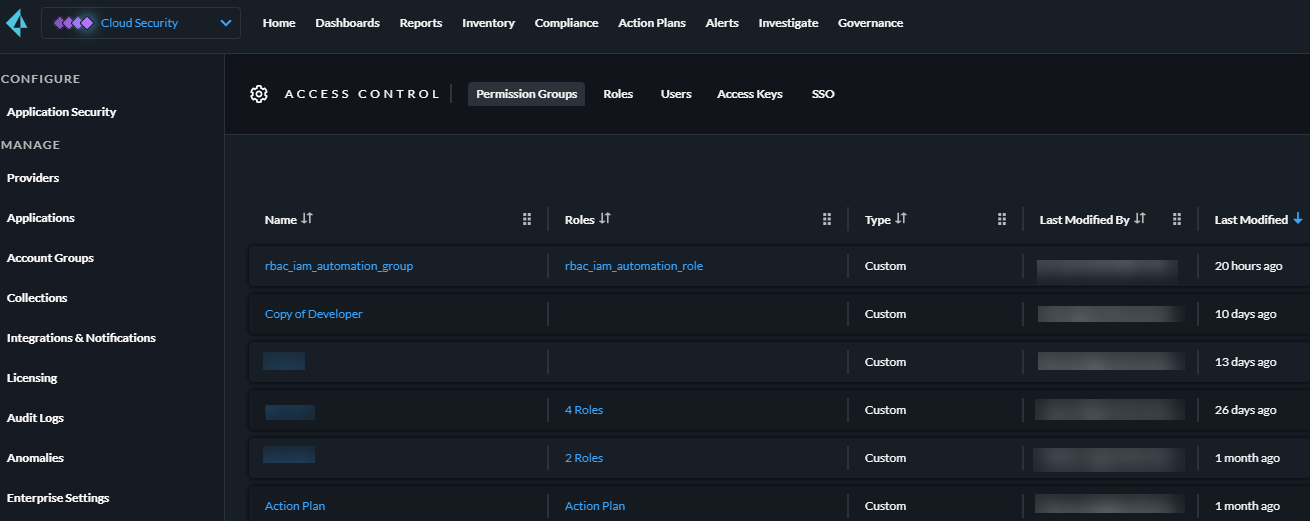
4. Click **Manage > Access Contol > Permission Groups** to see the permissions associated with individual groups. [Prisma Cloud Administrator Permissions](/content-collections/administration/prisma-cloud-admin-permissions.md#id6627ae5c-289c-4702-b2ec-b969eaf844b3) lists what permissions each group has within Prisma Cloud.
5. (tt:\[Optional]) Restrict the ability dismiss or resolve alerts.
If you would like to ensure that only the System Admin role can manage alerts associated with a policy defined by a system administrator, select **Restrict alert dismissal**. When enabled, an administrator with any other role such as Account Group Admin or Account and Cloud Provisioning Admin roles cannot dismiss or resolve alerts.
6. (tt:\[Optional]) Limit access the Prisma Cloud Compute capabilities only.
If you would like to ensure that permissions for the role is restricted to the Compute tab and the ability to generate Access Keys on the Prisma Cloud console, select **Only for Compute capabilities**. When enabled, for the assigned role, an administrator does not have access to the rest of the Prisma Cloud console.
7. (tt:\[Optional]) Enable access to data collected from scanned Compute resources such as images, hosts, or containers.
Select **On-prem/Other cloud providers**, if you would like to ensure that the roles—Account Group Admin, Account Group Read Only, and Account and Cloud Provisioning Admin—can view data sent from Prisma Cloud Defenders deployed on resources hosted on-premises or on cloud platforms deployed on private or public cloud platforms that are not being monitored by Prisma Cloud, such as on OpenShift, on-prem Kubernetes clusters, or AWS Fargate. When you enable this option, administrators who are assigned the role can view data collected from Defenders on the **Compute** tab.
8. (tt:\[Optional]) Select **Resource Lists**.
If you would like to ensure that the roles—Account Group Admin, Account Group Read Only, Account and Cloud Provisioning Admin, and Build and Deploy Security—can view scan results sent from Prisma Cloud plugins on the **DevOps Inventory**, select the resource list from the drop-down. Users who are assigned the role can review scan results that match the tags specified in the resource lists.
9. Select Account Groups that you want to associate with this role and click **Save**.
---
# Agent Instructions
This documentation is published with GitBook. GitBook is the documentation platform designed so that both humans and AI agents can read, navigate, and reason over technical content effectively. Learn more at gitbook.com.
## Querying This Documentation
If you need additional information that is not directly available in this page, you can query the documentation by asking a question.
Perform an HTTP GET request on the following URL with the `ask` and `goal` query parameters:
```
GET https://docs.prismacloud.io/content-collections/administration/create-prisma-cloud-roles.md?ask=&goal=
```
`ask` is the immediate question: it should be specific, self-contained, and written in natural language.
`goal` is what the user is ultimately trying to achieve, the reason they need the answer. Sharing it helps GitBook give you a better, more relevant answer. A goal is most helpful when it describes the outcome the user wants rather than restating the question. For example, with `ask=how do I create an API token`, a goal like `automate deployments from our CI pipeline` lets GitBook tailor the answer to that use case.
The response will contain a direct answer to the question and relevant excerpts and sources from the documentation.
Use this mechanism when the answer is not explicitly present in the current page, you need clarification or additional context, or you want to retrieve related documentation sections.