> For the complete documentation index, see [llms.txt](https://docs.prismacloud.io/llms.txt). Markdown versions of documentation pages are available by appending `.md` to page URLs; this page is available as [Markdown](https://docs.prismacloud.io/content-collections/administration/define-prisma-cloud-enterprise-settings.md).
# Define Enterprise and Anomaly Settings
Set the enterprise level settings to set up the browser timeout when inactive, user attribution for alerts, and build training models for anomalies and define thresholds for alerts.
Set the enterprise level settings to build standard training models for anomaly detection, alert disposition, and some other global settings such as the timeout before the user is locked out for inactivity, and user attribution for alerts.
* [Set Up Inactivity Timeout](#inactivity-timeout)
* [Set Up Global Settings for Policies](#global-settings)
* [Alert Dimissal and Attribution](#alert-dismissal-and-attribution)
* [Enable Alarms](#enable-alarms)
* [Set up Access Key Settings](#access-keys)
* [Enable Audit Log Forwarding](#audit-logs)
* [Unsubscribe from Prisma Cloud Chronicles](#unsubscribe-chronicles)
## Set Up Inactivity Timeout
Specify a timeout period after which an inactive administrative user will be automatically logged out of Prisma Cloud. An inactive user is one who does not interact with the UI using their keyboard and mouse within the specified time period, or a user who terminates their browser session.
1. Select **Settings > Enterprise Settings**.
2. **User Idle Timeout**
If you modify the timeout period, the new value is in effect for all administrative users who log in after you make the change; the previous timeout applies for all currently logged in users.
## Set Up Global Settings for Policies
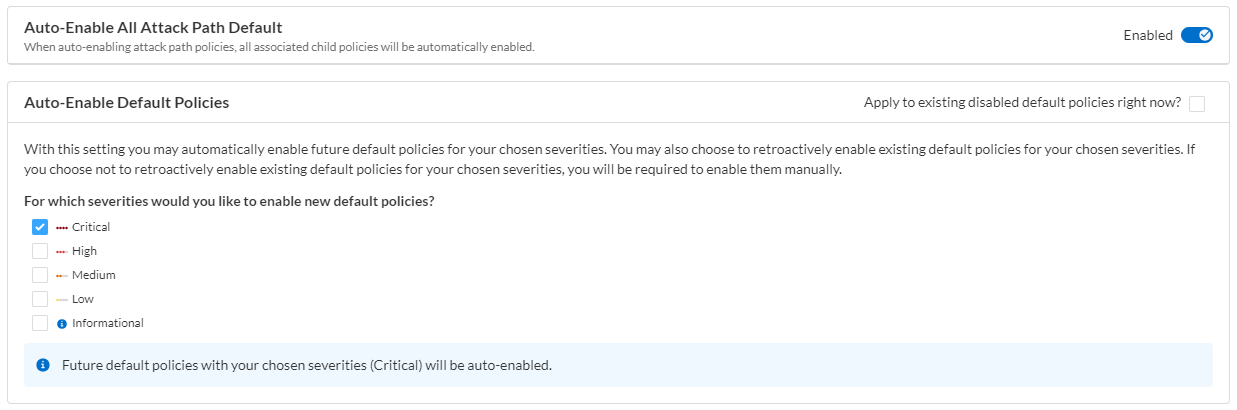
Prisma Cloud policy settings apply to all policies. While some high severity policies such as **Critical** are enabled to provide the best security outcomes, by default, policies of medium or low severity are in a disabled state. When you select the checkbox to auto enable policies of a specific severity, you can either retroactively enable all policies that match the severity or only enable policies that are added to Prisma Cloud going forward.
**Attack Path policies** are out-of-the-box policies that identify the confluence of issues which increase the likelihood of a security breach. We recommend that you **Auto-Enable all Attack Paths** to ensure that you get a comprehensive assessment of the security risks across your cloud assets. The following caveats apply when auto-enabling attack path policies:
* This action will also result in module policies being enabled.
* Enablement only impacts future attack path policies and associated module policies. An attack path can use existing module policies which were released earlier.
* Disabling this setting in future, will not disable the existing already enabled attack path policies.
Follow the steps below to **Auto Enable Default Policies**.
1. Select **Settings > Enterprise Settings**.
2. Granularly enable new **Default** policies of severity **Critical**, **High**, **Medium**, **Low** or **Informational**.
If you enable policies of a specific severity, when you then clear the checkbox, the policies that were enabled previously are not disabled; going forward, policies that match the severity you cleared are no longer automatically enabled to scan your cloud resources and generate alerts. If you want to disable the policies that are currently active, you must disable the status of each policy on the **Policies** page.
## Alert Dimissal and Attribution
1. Enable **Make Alert Dismissal Note Mandatory**, to mandate the users to dismiss alerts only after specifying a reason.
2. Enable **Populate User Attribution in Alerts Notifications**.
User attribution data provides you with context on who created or modified the resource that triggered the alert. Select this option to make sure that the alerts include user attribution data in the alert payload, so that it is sent as part of the JSON data to [notification channels](https://github.com/PaloAltoNetworks/pc-docs-md/tree/main/enterprise-edition/content-collections/administration/administration/configure-external-integrations-on-prisma-cloud/integrations-feature-support.md#ide75ce39a-81e2-4458-a23b-9a4e96b08f22) such as SQS or Splunk. Enabling this option can result in a delay of up to two hours in the generation of alerts because the relevant user information may not be instantly available from the cloud provider.
The policies that support user attribution in alert payload are:
1. AWS Security Group allows all traffic on RDP port (3389)
2. AWS EBS snapshots are accessible to public
3. AWS RDS snapshots are accessible to public
4. AWS RDS instance is not encrypted
5. AWS Security Group allows all traffic on SSH port (22)
6. AWS Security Group overly permissive to all traffic
7. AWS Amazon Machine Image (AMI) is publicly accessible
## Enable Alarms
Prisma Cloud generates health notifications called **Alarms** that notify you about system-level issues and errors. After you enable Alarms, Prisma Cloud automatically generates alarms related to external Integrations status and onboarded Cloud Accounts status. You can configure rules to receive email notifications for the generated alarms so that you do not need access to the Prisma Cloud console to know when an error or issue occurs.
1. Select **Settings > Enterprise Settings**.
You must have the System Administrator role on Prisma Cloud to view, enable, and disable Alarms.
2. Enable **Alarms Configuration**.
Later if you disable Alarms Configuration, all the alarms that were generated previously are deleted.
3. **Save**.
## Set up Access Key Settings
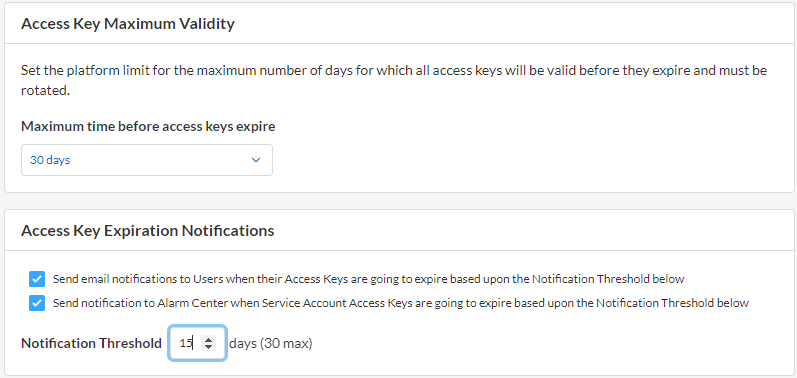
Prisma Cloud allows you to create and manage API keys to facilitate programmatic access to our features and functionality. Use the **Access Key Maximum Validity** settings to establish the platform limit for the maximum number of days for access key validity.
Select a value in the **Maximum time before access keys expire** drop-down to complete set up.
To ensure uninterrupted access to Prisma Cloud APIs, you can also set up the following **Access Key Expiration Notifications**:
* Email notifications for named user Access Keys
* Alarm Center notifications for Service Account Access Keys
Select a value under **Access Key Expiration Notifications > Notification Threshold** to set a notification threshold prior to access key expiration.
Updates to **Access Key Expiration Notifications** settings may take up to 24 hours to take effect.
## Enable Audit Log Forwarding
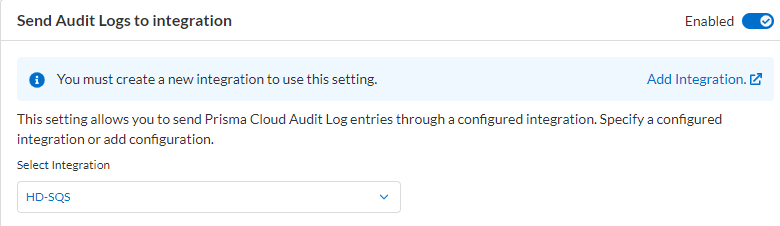
Prisma Cloud generates Audit logs to help prepare your organization for regular audits. All actions, with some exceptions, initiated by Prisma Cloud administrators are captured in the Audit logs. This data can be forwarded to any previously configured supported notification channel or external integration of your choice. Follow the steps below to enable Audit log forwarding:
To minimize "noise" and log flooding, Prisma Cloud does not forward "Successful login" type audit log messages to external integrations. All other audit log types can be sent to any supported external integration such as Webhook or SQS. For example, the following audit log message will not be forwarded. ''(with role 'System Admin':'System Admin') logged in via password.
1. Select **Settings > Enterprise Settings**.
You must have the System Administrator role on Prisma Cloud to enable, and disable Audit log forwarding.
2. Enable **Send Audit Logs to integration**
3. Select a supported integration (Webhook or SQS) from the drop-down menu. If you have not already set up one, click **Add Integration** to configure a new integration.
4. **Save**.
## Unsubscribe from Prisma Cloud Chronicles
Prisma Cloud Chronicles is the weekly email update that summarizes your team’s Prisma Cloud usage, informs you of release updates, and provides recommendation on how you can improve your security posture with adopting Prisma Cloud. If you have more than one Prisma Cloud tenant and want to unsubscribe all your administrators from receiving the newsletter you can disable globally.
1. Select **Settings > Enterprise Settings**.
2. Select **Opt out of receiving the Prisma Cloud Chronicles newsletter for all Prisma Cloud System Administrators**.
An email is sent to all administrators notifying them that a System Administrator has opted them out. Each administrator can edit their profile settings on Prisma Cloud to opt in and receive the newsletter, if they want to stay informed of the latest updates.
---
# Agent Instructions
This documentation is published with GitBook. GitBook is the documentation platform designed so that both humans and AI agents can read, navigate, and reason over technical content effectively. Learn more at gitbook.com.
## Querying This Documentation
If you need additional information that is not directly available in this page, you can query the documentation by asking a question.
Perform an HTTP GET request on the following URL with the `ask` and `goal` query parameters:
```
GET https://docs.prismacloud.io/content-collections/administration/define-prisma-cloud-enterprise-settings.md?ask=&goal=
```
`ask` is the immediate question: it should be specific, self-contained, and written in natural language.
`goal` is what the user is ultimately trying to achieve, the reason they need the answer. Sharing it helps GitBook give you a better, more relevant answer. A goal is most helpful when it describes the outcome the user wants rather than restating the question. For example, with `ask=how do I create an API token`, a goal like `automate deployments from our CI pipeline` lets GitBook tailor the answer to that use case.
The response will contain a direct answer to the question and relevant excerpts and sources from the documentation.
Use this mechanism when the answer is not explicitly present in the current page, you need clarification or additional context, or you want to retrieve related documentation sections.