> For the complete documentation index, see [llms.txt](https://docs.prismacloud.io/llms.txt). Markdown versions of documentation pages are available by appending `.md` to page URLs; this page is available as [Markdown](https://docs.prismacloud.io/content-collections/administration/manage-your-prisma-cloud-profile.md).
# Manage your Prisma Cloud Profile
Your Prisma Cloud profile is where you can set up your preferences such as the theme and language for the Prisma Cloud console, view and subscribe to the available subscriptions, update your default role. Your system time zone is also displayed on your profile.
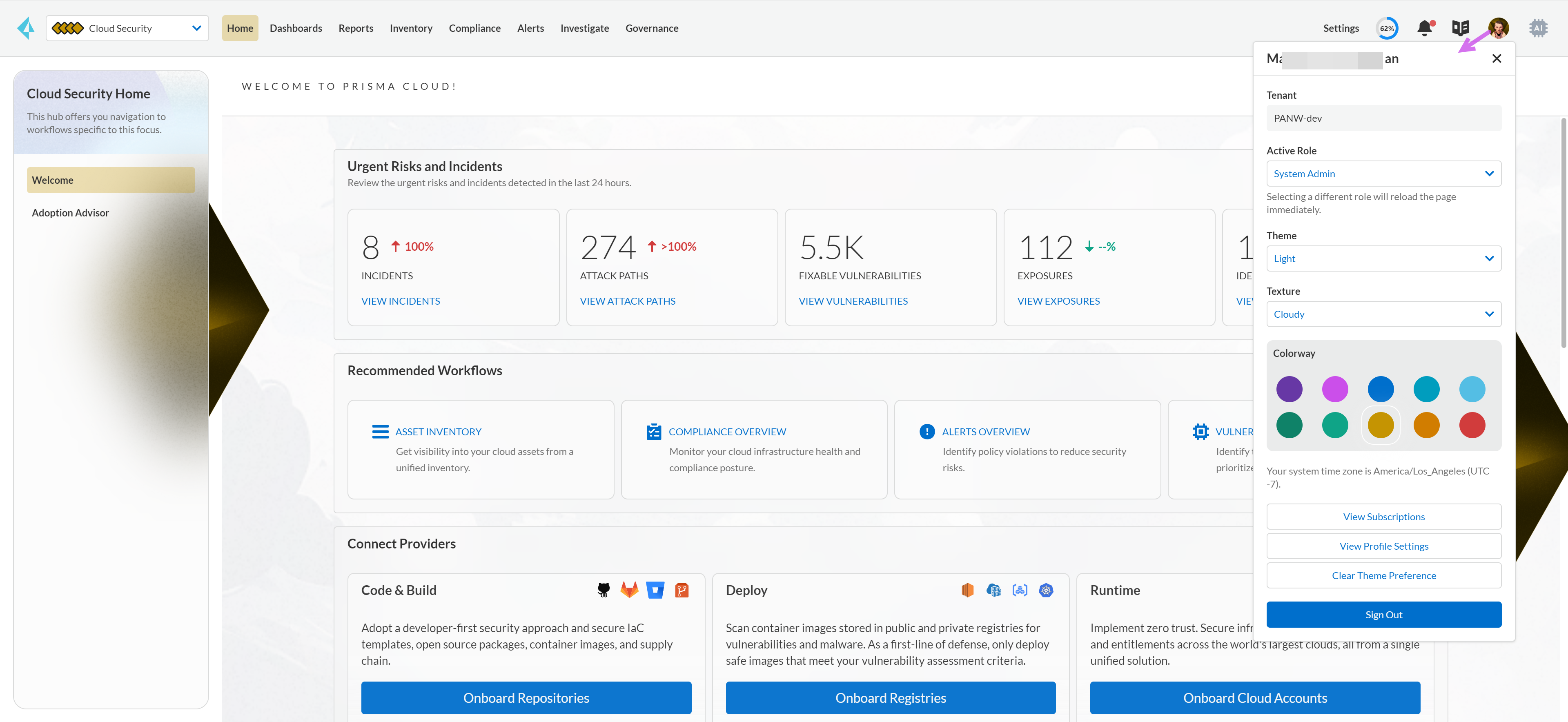
* Access your profile.
Select the avatar on the right-hand corner of the console.
* View the preferences you can update.
* Switch the **Active Role** — When you select a different role, the console reloads the page immediately. The role change is not saved, to save your default role preference, you must select **View Profile Settings**.
* Switch the **Theme** — Choose from Light, Dark, or inherit from your System default settings.
* Switch the **Texture** — Cloudy or Clear are the options for the background texture on the home page. This is a subtle change.
* Switch the **Colorway** — The color selection here sets the highlight color of your selection in the console, the color of the prism on the Prisma Cloud switcher and the prism on the Home page.
* View Subscriptions.
You can review the number of days remaining on your active Prisma Cloud license and renew. In addition, you subscribe to the add-on features to increase your code to cloud coverage with Prisma Cloud. You can also **Unsubscribe** using the links here.
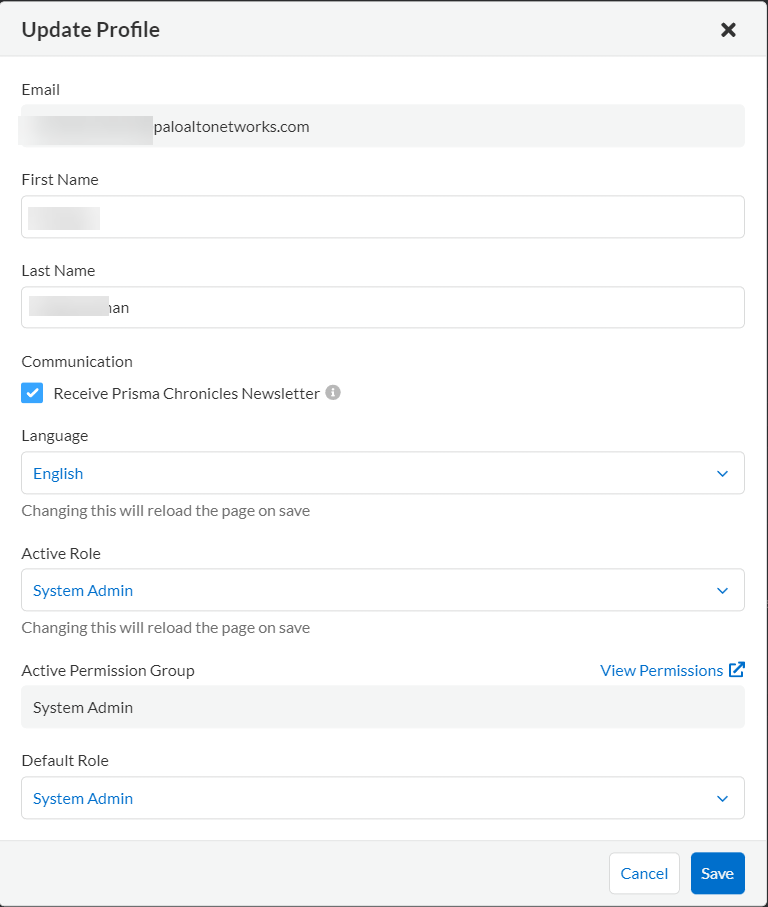
* View you profile settings.
1. Select **View Profile Settings** to edit your **First Name**, **Last Name**, **Language**, or **Default Role** (if you are assigned multiple roles), and click **Save**.
If you have the System Administrator role, you are automatically subscribed to receive the Prisma Cloud Chronicles. This is a weekly email newsletter that informs you of your team’s usage of Prisma Cloud, and summarizes the latest product improvements with links to the Release Notes.
If you have more than one Prisma Cloud tenant and want to opt out of receiving Prisma Cloud Chronicles for all the administrators across these tenants, you can **Unsubscribe From Prisma Cloud Chronicles** on **Settings > Enterprise Settings**.
* **Clear Theme Preferences** — This resets your focus for the Prisma Cloud switcher. Based on your selection — Cloud Security, Runtime Security, Application Security — the workflows and navigation on the console are adjusted for the security context. When you clear theme preferences, you have the ability to reset your avatar, theme, texture, and colorway preferences too.
---
# Agent Instructions
This documentation is published with GitBook. GitBook is the documentation platform designed so that both humans and AI agents can read, navigate, and reason over technical content effectively. Learn more at gitbook.com.
## Querying This Documentation
If you need additional information that is not directly available in this page, you can query the documentation by asking a question.
Perform an HTTP GET request on the following URL with the `ask` and `goal` query parameters:
```
GET https://docs.prismacloud.io/content-collections/administration/manage-your-prisma-cloud-profile.md?ask=&goal=
```
`ask` is the immediate question: it should be specific, self-contained, and written in natural language.
`goal` is what the user is ultimately trying to achieve, the reason they need the answer. Sharing it helps GitBook give you a better, more relevant answer. A goal is most helpful when it describes the outcome the user wants rather than restating the question. For example, with `ask=how do I create an API token`, a goal like `automate deployments from our CI pipeline` lets GitBook tailor the answer to that use case.
The response will contain a direct answer to the question and relevant excerpts and sources from the documentation.
Use this mechanism when the answer is not explicitly present in the current page, you need clarification or additional context, or you want to retrieve related documentation sections.