> For the complete documentation index, see [llms.txt](https://docs.prismacloud.io/llms.txt). Markdown versions of documentation pages are available by appending `.md` to page URLs; this page is available as [Markdown](https://docs.prismacloud.io/content-collections/administration/subscribe-to-cdem.md).
# Subscribe to Discovery and Exposure Management
You must perform the [pre-requisite tasks](#pre-req-for-cdem-aws) to secure your exposed AWS assets before [enabling the CDEM subscription](#enable-cdem-subscription) on Prisma Cloud.
The pre-requisite tasks are applicable only to AWS. For Azure and GCP, you can skip to [enable the CDEM subscription](#enable-cdem-subscription) on Prisma Cloud.
## Pre-requisites to Secure Exposed AWS Assets
To enable Cloud Discovery and Exposure Management (CDEM) to convert the unmanaged (shadow IT) to managed (secure) AWS assets, you must configure your AWS Organization account as follows:
1. **Create an Inline Policy**
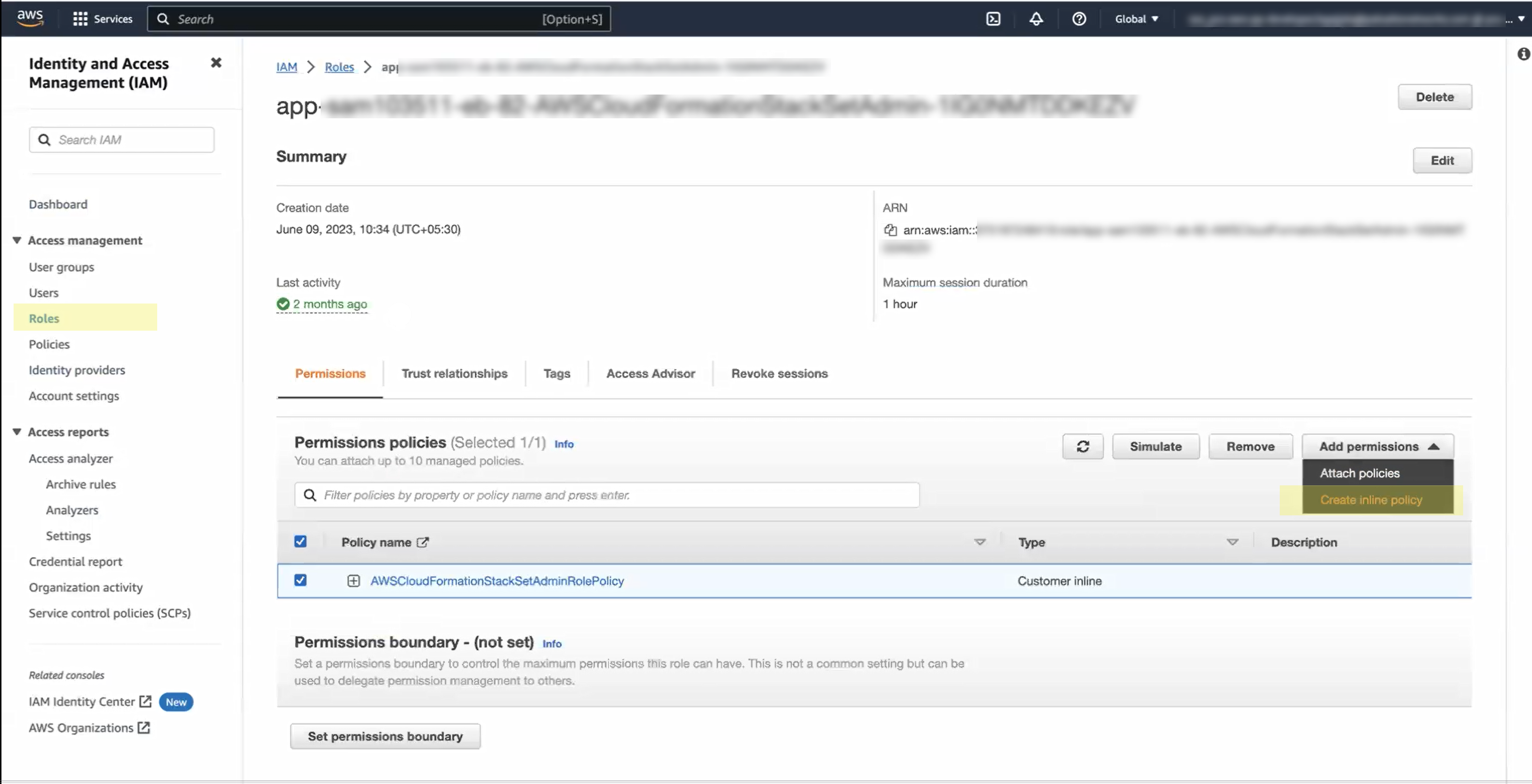
1. Select **IAM > Roles** in the AWS Management Console.
2. Locate and select the desired IAM role created while onboarding your AWS Organization account to Prisma Cloud, then attach the custom inline policy. Click the role’s name to access its details.
3. Within the role details page, navigate to the **Permissions** tab.
4. Select **Add permissions > Create Inline policy**.
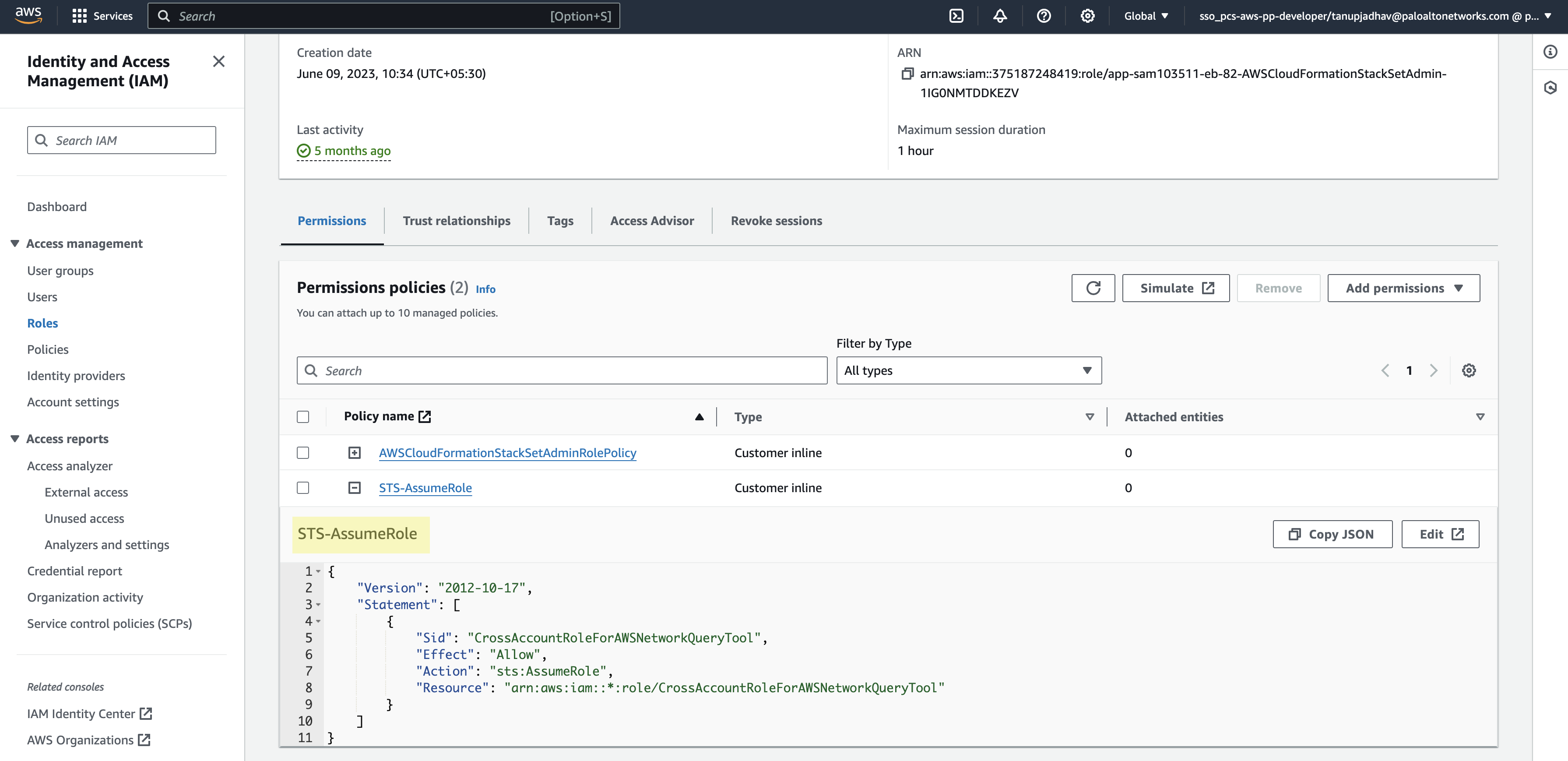
5. Select the **JSON** tab and paste the following code snippet and then **Next**.
```
{
"Version": "2012-10-17",
"Statement": [
{
"Sid": "CrossAccountRoleForAWSNetworkQueryTool",
"Effect": "Allow",
"Action": "sts:AssumeRole",
"Resource": "arn:aws:iam::*:role/CrossAccountRoleForAWSNetworkQueryTool"
}
]
}
```
6. Enter **Policy name** and select **Create Policy**.
2. **Create Stack Set for Member Accounts**
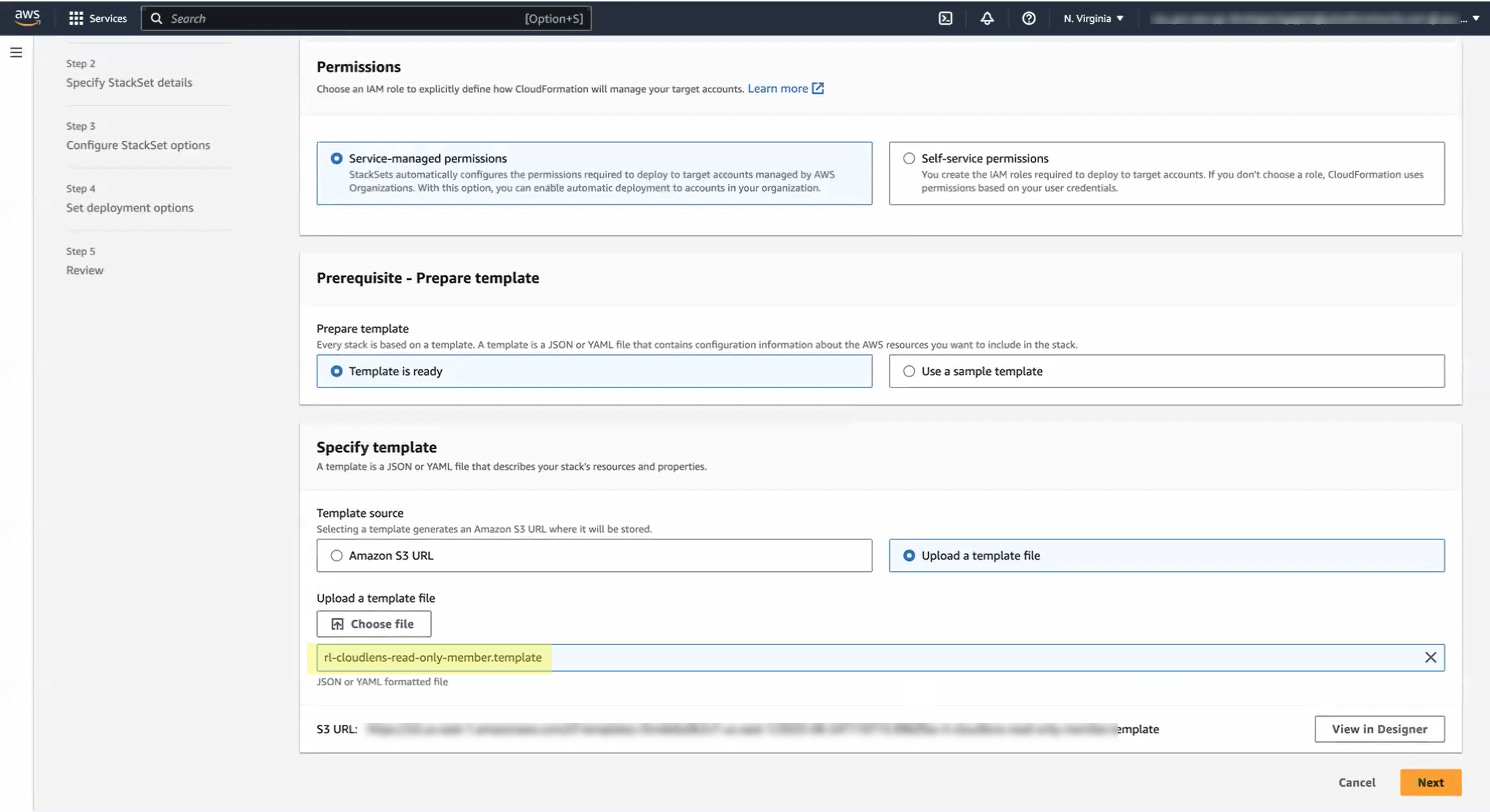
1. Download the [CloudFormation member template](https://redlock-public.s3.amazonaws.com/cft/rl-cloudlens-read-only-member.template).
2. Open the AWS Management Console and select **Services > CloudFormation > StackSets > Create StackSet** for the member account.
3. Upload the template file and select **Next**.
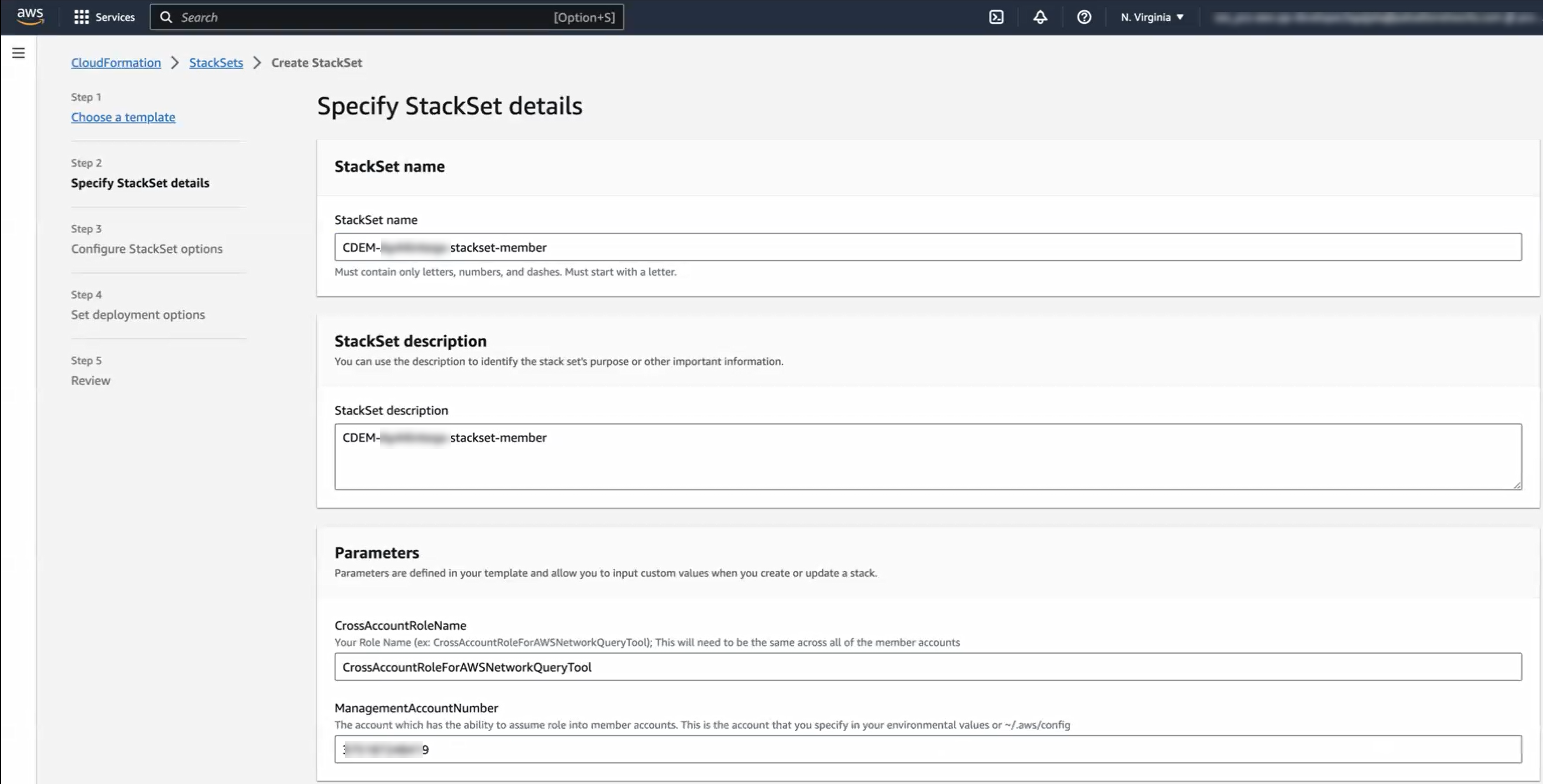
4. Enter a **StackSet Name** and optional **StackSet Description**.
5. Under **Parameters**:
1. The value for **CrossAccountRoleName** will be automatically filled. Do not edit the automatically populated value.
2. Enter the organization account ID value for **ManagementAccountNumber**.
6. For Execution configuration, choose **Active** or **Inactive**. For faster deployment, select **Active**.
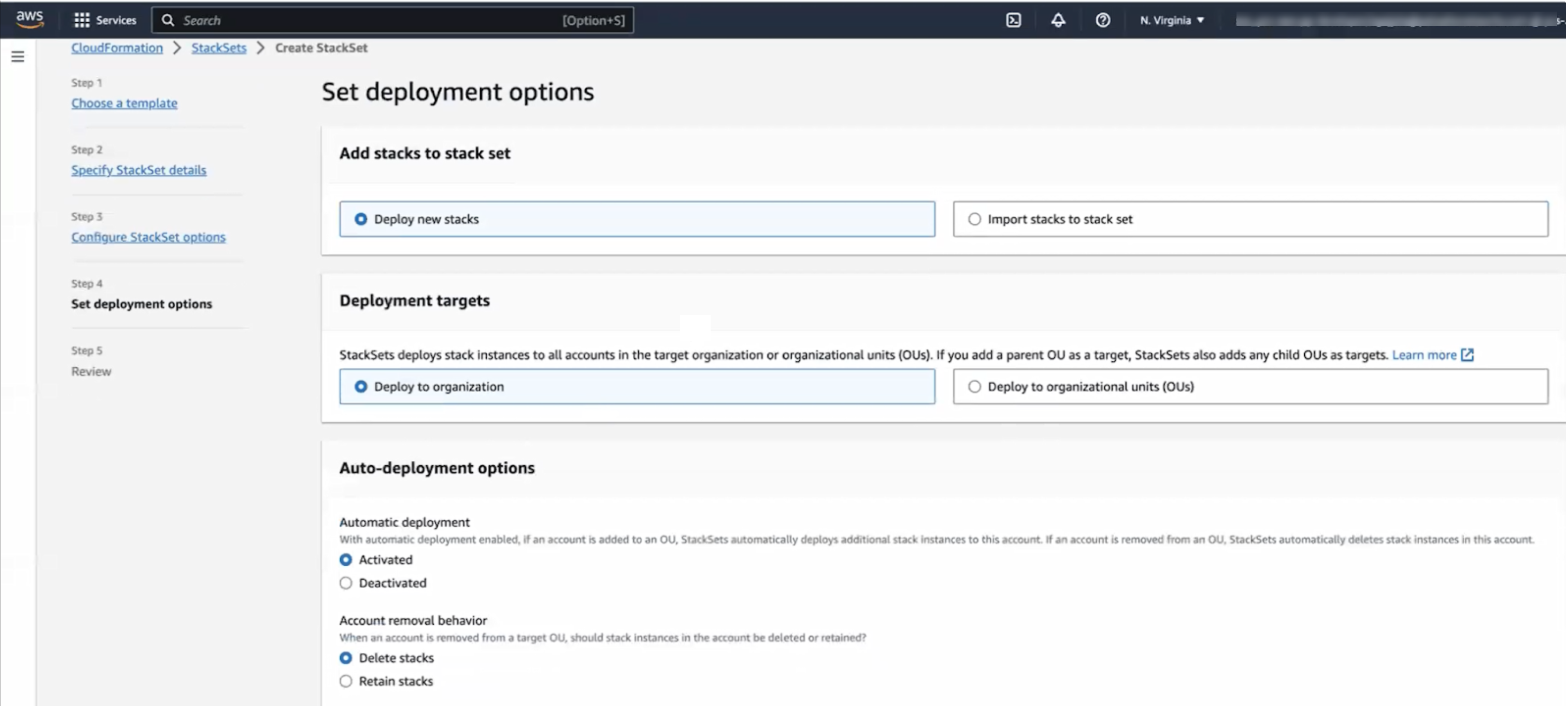
7. Under **Add stacks to stack set**, select **Deploy new stacks** option.
8. Under **Deployment targets**, select the **Deploy to organization** option.
9. In **Auto-deployment** Options:
1. Choose **Activated** for **Automatic deployment**.
2. Select **Delete Stacks** for **Account removal behavior**.
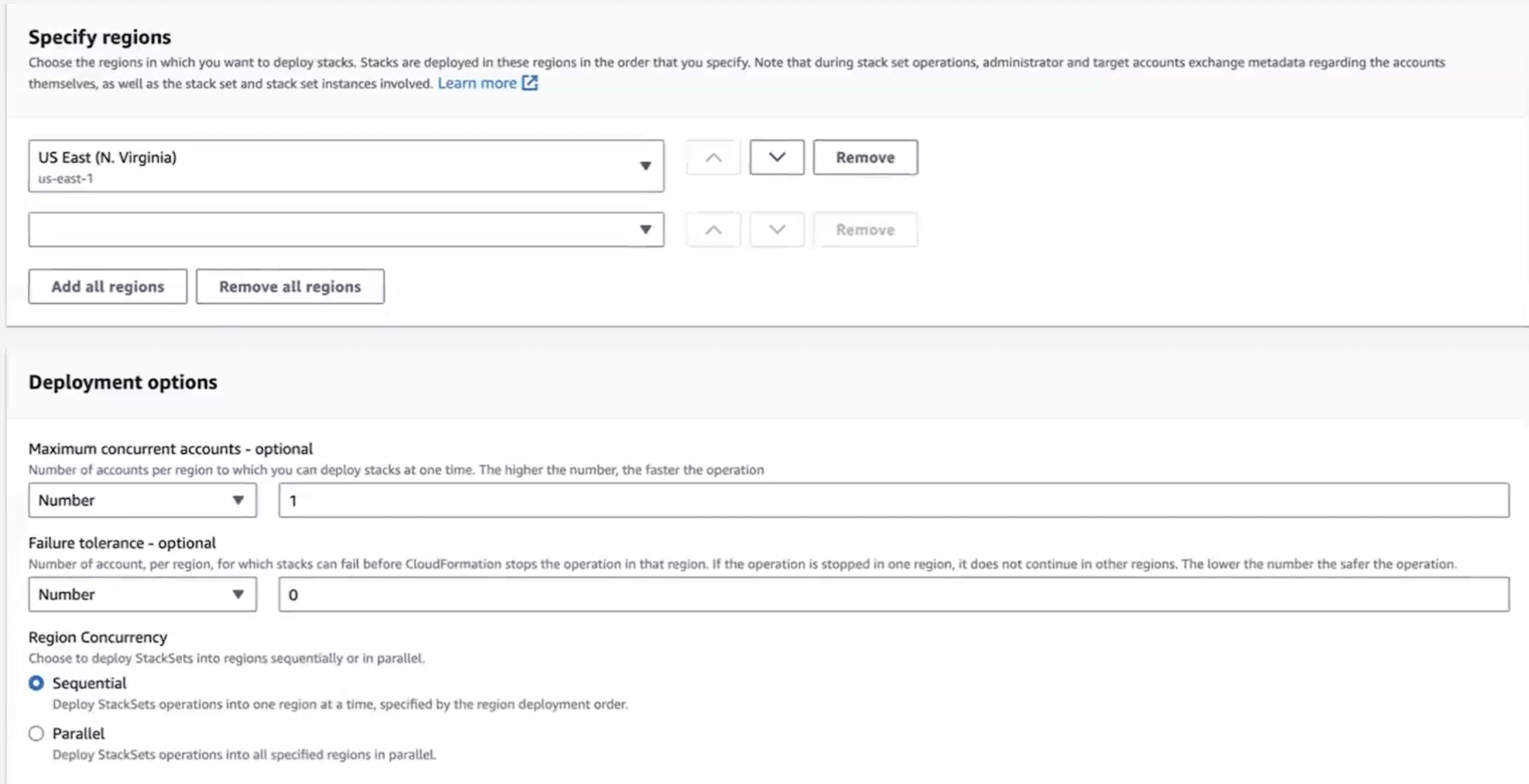
10. In **Specify regions**, select a single region from the list. Ensure that the region is enabled on all accounts in your AWS Organization. If you select a disabled region, the template will fail with errors because it cannot deploy resources within that region.
11. In **Deployment** Options:
1. Set Maximum concurrent accounts to 1.
2. Set Failure tolerance to 0.
3. Keep the default option of **Sequential** under Region Concurrency.
12. Select **Next** and review the configuration.
13. Select **I acknowledge that AWS CloudFormation might create IAM resources with custom names** and **Submit**.
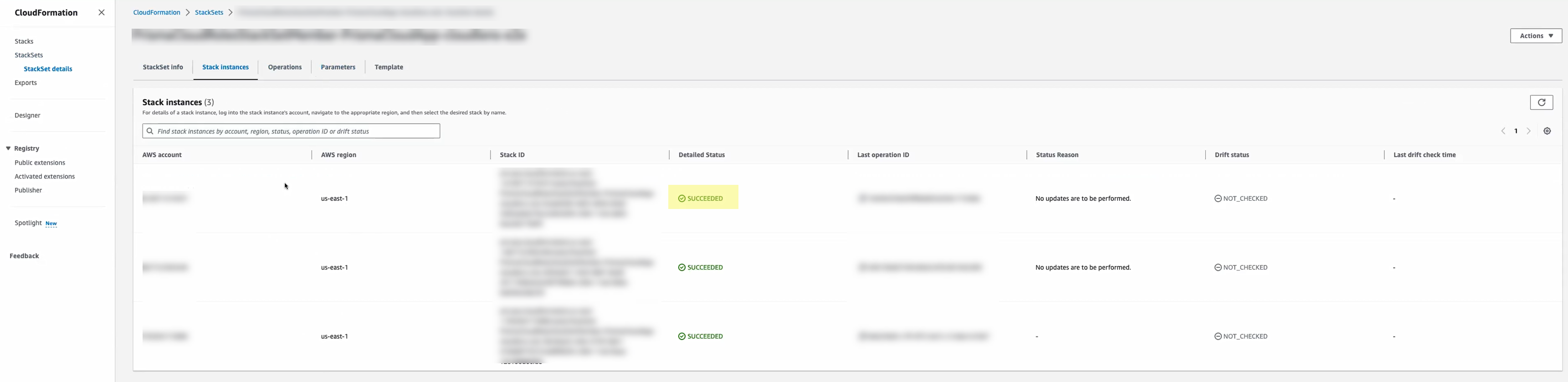
14. The StackSet creation process begins. Wait for the status to show "SUCCEEDED".
After completion, stacks are created for all the member accounts linked to the master account and listed under **Stack instances** in the AWS Management Console.
## Enable Discovery and Exposure Management Subscription
1. You can enable the Discovery and Exposure Management subscription as follows:
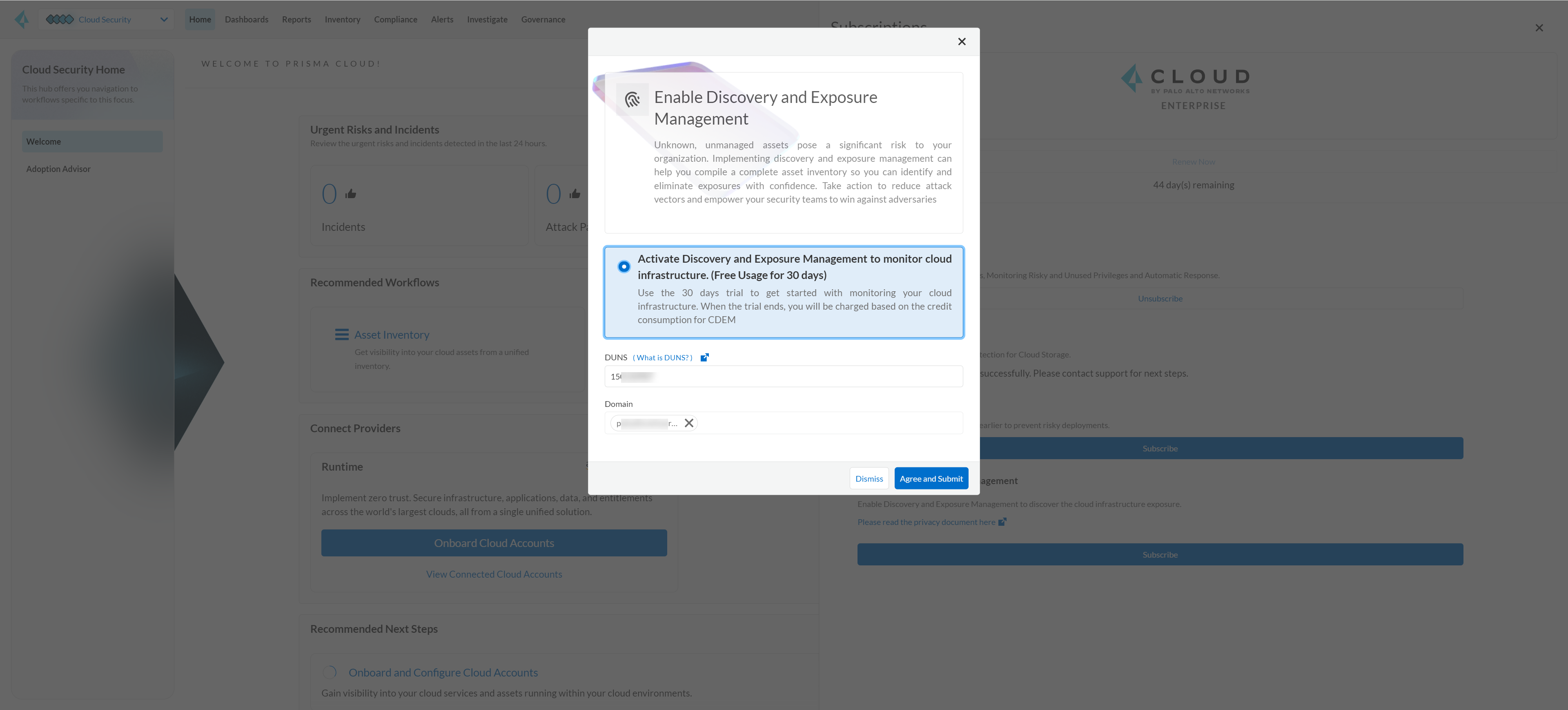
* Option 1: Navigate to your profile, select **View Subscriptions**.
1. Select **Subscribe** to enable your Discovery and Exposure Management subscription.
2. Verify if your **DUNS** number and the associated **Domains** are correct.
(tt:\[NOTE]) Ensure your DUNS number and associated domains are accurate. Confirm all the domains required for monitoring are available in the **Domain** field. You can manually enter details if the fields are not automatically populated (missing details) or to add more information. CDEM uses the details in the **DUNS** and **Domain** fields to scan for internet-exposed resources.
3. Select **Agree and Submit** to activate the subscription.
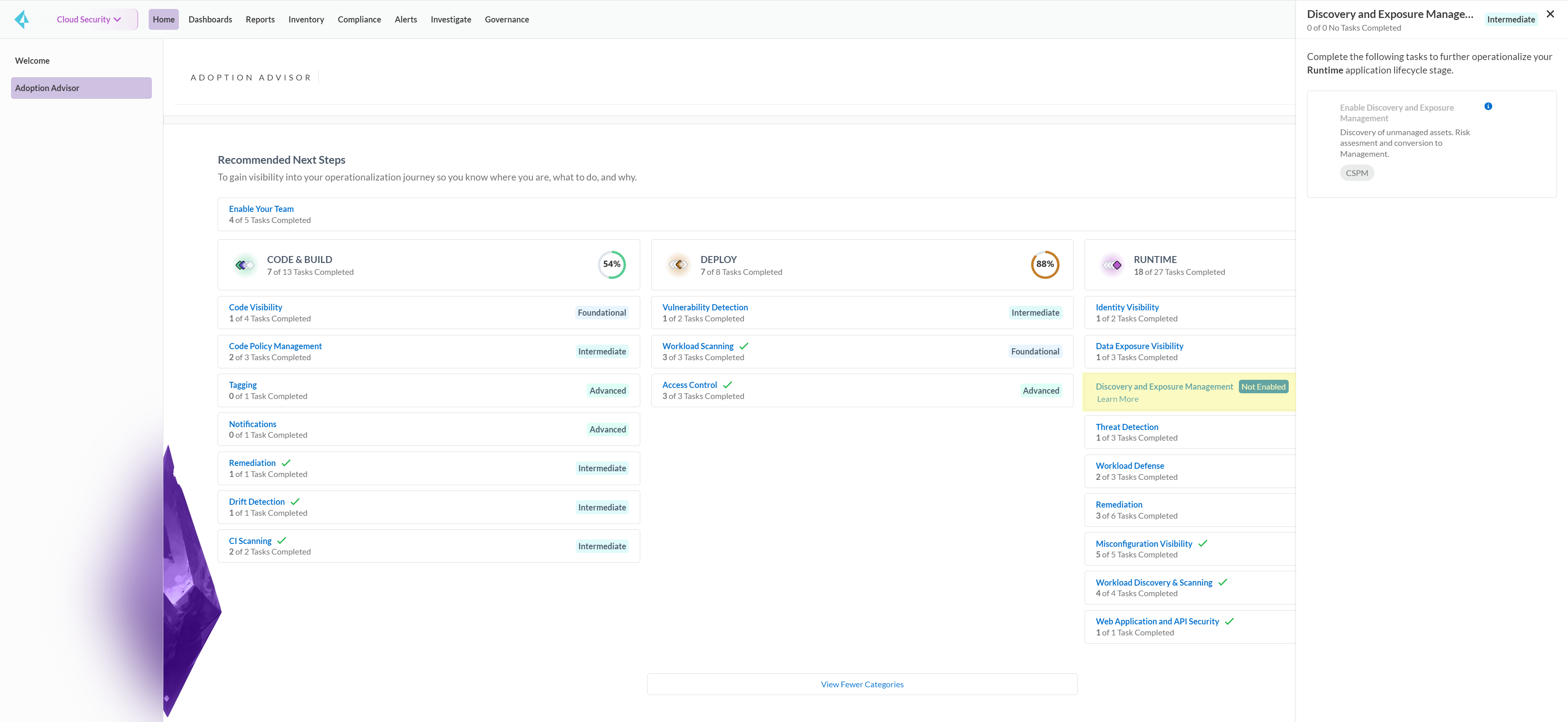
* Option 2: Navigate to **Adoption Advisor** and follow the instructions to enable **Discovery and Exposure Management** (CDEM).
2. Once the subscription is enabled, you will receive a 30-day trial. You will receive three email notifications during the trial period indicating the upcoming trial expiry and how to continue with your subscription. After the trial period ends, it automatically converts to a paid subscription and utilizes credits to maintain access to the service.
Alternatively, you can also subscribe directly to the paid version of CDEM during the trial period.
(tt:\[NOTE]) When you subscribe to the paid version of CDEM, you will be charged 25% of the credits consumed for CSPM (Visibility, Compliance, and Governance). For example, if Prisma Cloud monitors 800 VMs, then 200 credits will be charged. If the VM count is less than 400, a flat charge of 100 credits will be applied.
If you choose to unsubscribe from the paid version, a flat charge of 100 credits will be applied for a period of 12 months from the date you subscribe.
3. Upon subscription, Prisma Cloud initiates scans across the internet to identify your digital footprint.
(tt:\[NOTE]) The initial scanning process may take a few hours to complete, up to 24 hours depending on your cloud setup. After this, subsequent scans will happen automatically every 2 hours, ensuring your information is up-to-date.
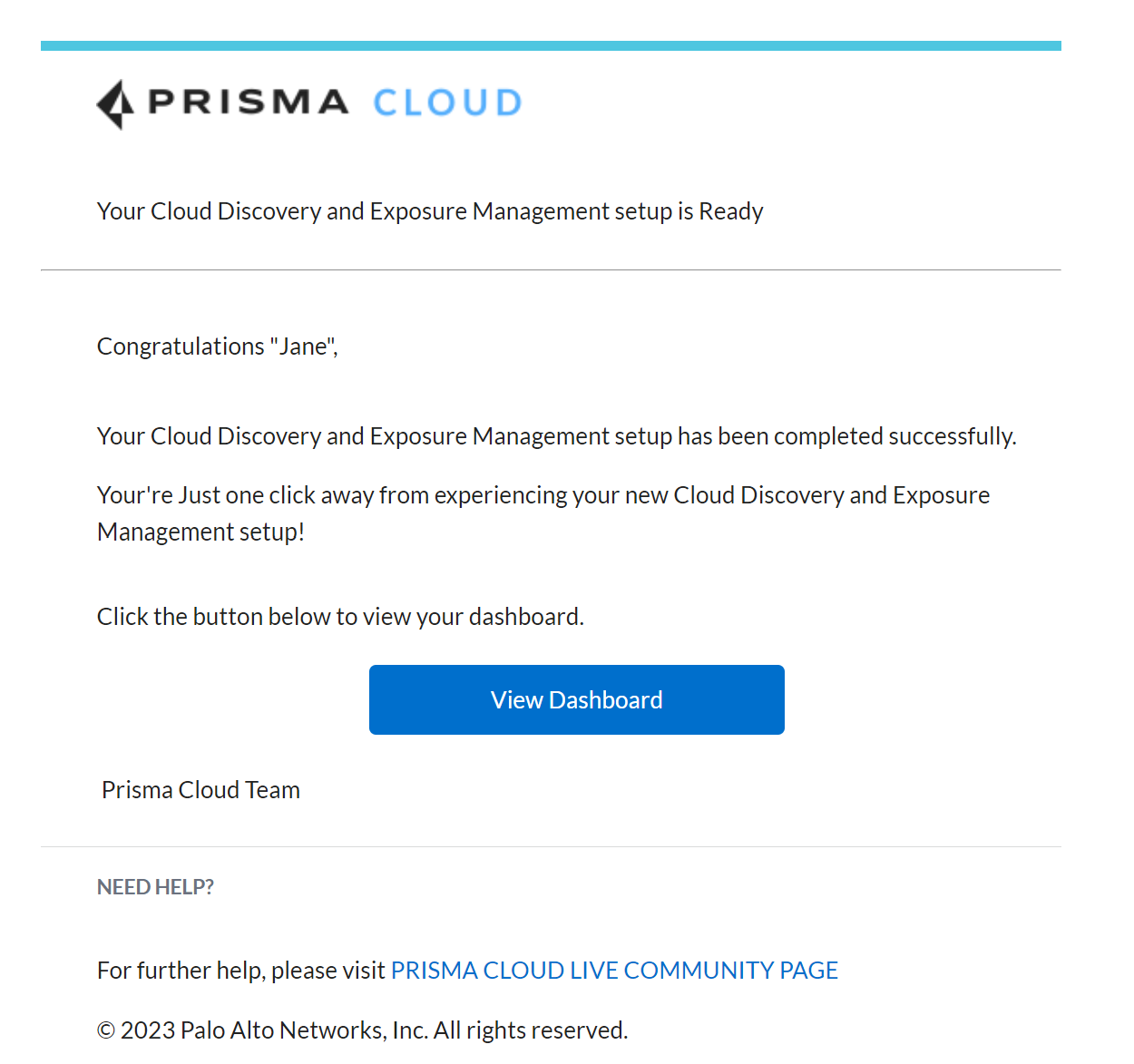
4. Once the initial data on your internet-exposed unmanaged (shadow IT) assets are available on Prisma Cloud, you will receive an email notification to your inbox. Select View Dashboard in the email to log into Prisma Cloud and access the [Discovery and Exposure Management (CDEM) dashboard](/content-collections/dashboards/dashboards-discovery-exposure-management.md) to view detailed information about your attack surface.
---
# Agent Instructions
This documentation is published with GitBook. GitBook is the documentation platform designed so that both humans and AI agents can read, navigate, and reason over technical content effectively. Learn more at gitbook.com.
## Querying This Documentation
If you need additional information that is not directly available in this page, you can query the documentation by asking a question.
Perform an HTTP GET request on the following URL with the `ask` and `goal` query parameters:
```
GET https://docs.prismacloud.io/content-collections/administration/subscribe-to-cdem.md?ask=&goal=
```
`ask` is the immediate question: it should be specific, self-contained, and written in natural language.
`goal` is what the user is ultimately trying to achieve, the reason they need the answer. Sharing it helps GitBook give you a better, more relevant answer. A goal is most helpful when it describes the outcome the user wants rather than restating the question. For example, with `ask=how do I create an API token`, a goal like `automate deployments from our CI pipeline` lets GitBook tailor the answer to that use case.
The response will contain a direct answer to the question and relevant excerpts and sources from the documentation.
Use this mechanism when the answer is not explicitly present in the current page, you need clarification or additional context, or you want to retrieve related documentation sections.