> For the complete documentation index, see [llms.txt](https://docs.prismacloud.io/llms.txt). Markdown versions of documentation pages are available by appending `.md` to page URLs; this page is available as [Markdown](https://docs.prismacloud.io/content-collections/alerts/create-an-alert-rule-cloud-infrastructure.md).
# Create an Alert Rule for Cloud Infrastructure
Prisma® Cloud starts monitoring your cloud environments as soon as you onboard your cloud account. A default alert rule is included out-of-the-box (OOTB), with a default account group attached to it that includes only the Prisma Cloud recommended OOTB policies. To view this list of policies, filter the policies with the **Prisma\_Cloud** label. For example, you can define different alert rules and notification flows for your production and development cloud environments. You can also set up different alert rules for sending specific alerts to your existing SOC visibility tools, such as send one set of alerts to your security information and event management (SIEM) system and another set to Jira for automated ticketing.
If you [configure external integrations on Prisma Cloud](https://github.com/PaloAltoNetworks/pc-docs-md/tree/main/enterprise-edition/content-collections/administration/configure-external-integrations-on-prisma-cloud/configure-external-integrations-on-prisma-cloud.md) with third-party tools, defining granular alert rules enables you to send only the alerts you need to enhance your existing operational, ticketing, notification, and escalation workflows with the addition of Prisma Cloud alerts on policy violations in all your cloud environments. To see any existing integrations, select **Settings > Integrations & Notifications**.
To create an alert rule for workload protection, see [Workload Protection](/content-collections/governance/workload-protection-policies.md#create-alert-workload-policy).
1. Select **Alerts > View Alert Rules > Add Alert Rule**.
2. In **Add Details**, enter a **Name** for the alert rule and optionally, a **Description** to communicate the purpose of the rule.
1. You can enable any of the following optional settings. If enabled, additional configuration steps will appear during the alert rule creation process:
* **Auto-Actions—** Enabling this option allows automatic actions such as auto-dismissal of alerts on assigned targets when a policy violation occurs. Additional steps to **Configure Auto-actions** will be displayed when creating alert rules. When adding an alert rule under the **Assign Policies** step, ensure you do not enable the **Select All Policies** option, as it is not supported.
* **Alert Notifications—** Enabling this option allows you to receive notifications through one or more notification channels when a policy violation occurs. Additional steps to **Configure Notifications** will be displayed when creating alert rules.
* **Auto-Remediation—** Enabling this option allows for the automatic remediation of all alerts, regardless of their creation date. When adding an alert rule under the **Assign Policies** step, only the **Remediable** policies will be available for selection to be alerted.
2. Select **Next**.
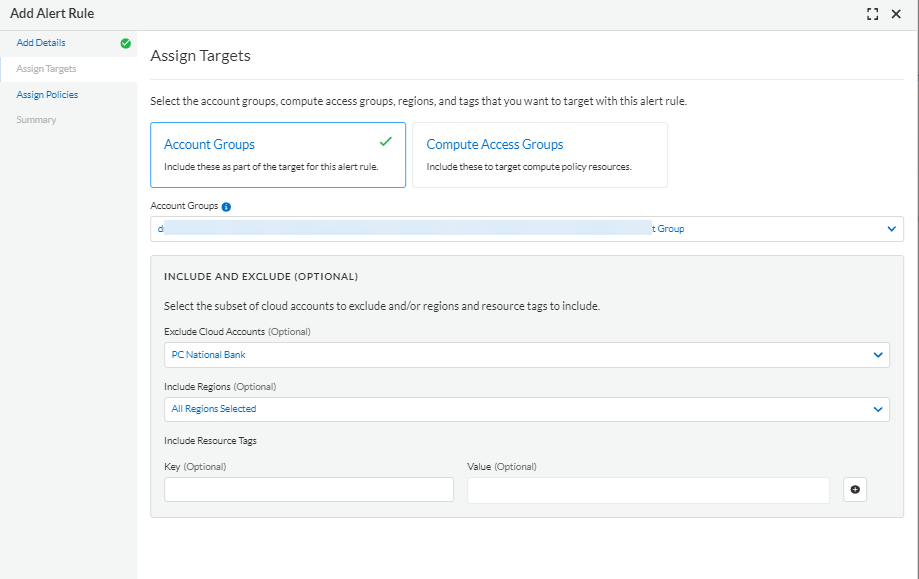
3. **Assign Targets** to add more granularity for which cloud resources trigger alerts for this alert rule, and then provide more criteria as needed:
1. Select the **Account Groups** to which you want this alert rule to apply.
2. **Exclude Cloud Accounts and Regions** from your selected Account Group—If there are some cloud accounts and regions in the selected account groups for which you do not want to trigger alerts, select the accounts and regions from the list.
3. Select **Include Resource Tags** to manage or identify the type of your resources—To trigger alerts only for specific resources in the selected cloud accounts, enter the **Key** and **Value** of the resource tag you created for the resource in your cloud environment. Tags apply to **Config**, **Network**, and **IAM** policies. When you add multiple asset tags, it uses the boolean logical OR operator.
tt:\[NOTE:] Only specified tags are populated in the Alert Payload. If not configured the Alert payload will not have Tag information.
4. After defining the target cloud resources, select **Next**.
4. Select the policies for which you want this alert rule to trigger alerts and, optionally, [automatically remediate alerts](/content-collections/alerts/view-respond-to-prisma-cloud-alerts.md).
1. Either **Select All Policies** or select the specific policies that match the filter criteria for which you want to trigger alerts on this alert rule. Selecting **All Policies** will create a large volume of alerts. It is recommended that you use granular filtered selection for more relevant and targeted alerts specific to your requirement.
2. **Add Filter** to further define the policies you would like to filter on. Filter options include, **Policy Severity**, **Cloud Type**, **Compliance Standard**, and **Policy Label**. Table results are refreshed automatically, as you select the Filters. Select **Reset Filters** to remove a filter selection.
**Include new policies matching filter criteria** is enabled when you select at least one of the filters and then select all rows in the table by selecting the top checkbox in the first column of the table. When enabled, new policies that match the filter criteria will be automatically included and used to scan your cloud accounts.
tt:\[IMPORTANT] When you add an alert rule policy filter, keep in mind that filters follow **AND** logic not **OR**. For instance, if you create an alert rule by selecting `policy label='Prisma Cloud'` with `Compliance standard='CIS v2'`, an AND rule is applied. Scans will return results with policies that have both the Prisma Cloud label and the CIS v2 compliance standard.
3. To find a specific group of policies for which you want this rule to alert:
* **Filter Results**—Enter a **Search** term to filter the list of policies to those with specific keywords.
* **Column Picker**—Click **Edit** () to modify which columns to display.
* **Sort**—Click the corresponding **Sort** icon () to sort on a specific column.
* **Fullscreen**—Click **View in Fullscreen mode** ()to see an expanded view of the table.
4. **Next**.
5. (tt:\[Optional]) You can automatically dismiss alerts that have specific tags as defined on the resource and added to the Resource Lists on Prisma Cloud. The details of the reason for dismissal is included in the alert rule L2 view. If you enabled **Auto-Actions** in the **Add Details** screen, when you update an alert rule, all existing alerts with matching tags are auto dismissed. When an alert has been dismissed and you update the alert rule, the alert will continue to stay dismissed. If you are interested, please reach out to Prisma Cloud Customer Support and submit a request to enable this feature on your tenant. The team will promptly review your request and inform you about your tenant’s eligibility for LGA access.
Add a Reason, Requestor, and Approver for the automatic dismissal and click **Next**.
6. (tt:\[Optional]) [Send Prisma Cloud Alert Notifications to Third-Party Tools](/content-collections/alerts/send-prisma-cloud-alert-notifications-to-third-party-tools.md#idcda01586-a091-497d-87b5-03f514c70b08).
By default, all alerts triggered by the alert rule display on the **Alerts** page. If you [Configure External Integrations on Prisma Cloud](https://github.com/PaloAltoNetworks/pc-docs-md/tree/main/enterprise-edition/content-collections/administration/configure-external-integrations-on-prisma-cloud/configure-external-integrations-on-prisma-cloud.md#id24911ff9-c9ec-4503-bb3a-6cfce792a70d), you can also send Prisma Cloud alerts triggered by this alert rule to third-party tools. For example, you can send to [Amazon SQS](/content-collections/alerts/send-prisma-cloud-alert-notifications-to-third-party-tools.md#id84f16f30-a2d0-44b7-85b2-4beaaef2f5bc) or [Jira](/content-collections/alerts/send-prisma-cloud-alert-notifications-to-third-party-tools.md#id728ba82c-c17b-4e3e-baf2-131e292ec074).
If you want to delay the alert notifications for Config alerts, you can configure the Prisma Cloud to **Trigger notification for config alert only after the alert is open for** a specific number of minutes.
The alert notifications delay that you configure for Config alerts does not affect the timing of any remediation that might occur with this alert. The maximum value accepted is `999` minutes. An error occurs if you enter a higher number.
7. (tt:\[Optional]) **Configure Notifications** to enable alert notifications for all states.
If you want to receive external notifications for when an existing alert status has changed, you can configure Prisma Cloud to generate alerts when an existing alert is **Dismissed**, **Snoozed**, or **Ignored**. The options for configuring the notification settings:
* **Notify when alert is**—Select this dialog box to configure the alert states; the **Open** state is enabled by default. After selecting the alert states, select the integration services that you want to generate alerts for.
* **Trigger notification for config alert only after the alert is open for**—Specify the length of time (in minutes) for which you want to wait before sending notifications after an alert is generated. This value does not apply for recurring (or scheduled) notifications.
The ability to send notifications for all states is limited GA. If you are interested, please reach out to Prisma Cloud Customer Support and submit a request to enable this feature on your tenant. The team will review your request and inform you about your tenant’s eligibility for LGA access. No alerts will be generated for the Jira and Cortex XSOAR integrations.
8. View the **Summary** of all the alert rule. **Edit** if you want to change any setting and **Save** the alert rule.
9. Verify that the alert rule you created is triggering alert notifications.
As soon as you save your alert rule, any policy violation for which you enabled alerts results in an alert notification on **Alerts**, as well as in any third-party integrations designated in the alert rule.
Assets with the `global` region, for example, AWS IAM, are matched, even if a specific cloud region is selected in the alert rule.
---
# Agent Instructions
This documentation is published with GitBook. GitBook is the documentation platform designed so that both humans and AI agents can read, navigate, and reason over technical content effectively. Learn more at gitbook.com.
## Querying This Documentation
If you need additional information that is not directly available in this page, you can query the documentation by asking a question.
Perform an HTTP GET request on the following URL with the `ask` and `goal` query parameters:
```
GET https://docs.prismacloud.io/content-collections/alerts/create-an-alert-rule-cloud-infrastructure.md?ask=&goal=
```
`ask` is the immediate question: it should be specific, self-contained, and written in natural language.
`goal` is what the user is ultimately trying to achieve, the reason they need the answer. Sharing it helps GitBook give you a better, more relevant answer. A goal is most helpful when it describes the outcome the user wants rather than restating the question. For example, with `ask=how do I create an API token`, a goal like `automate deployments from our CI pipeline` lets GitBook tailor the answer to that use case.
The response will contain a direct answer to the question and relevant excerpts and sources from the documentation.
Use this mechanism when the answer is not explicitly present in the current page, you need clarification or additional context, or you want to retrieve related documentation sections.