> For the complete documentation index, see [llms.txt](https://docs.prismacloud.io/llms.txt). Markdown versions of documentation pages are available by appending `.md` to page URLs; this page is available as [Markdown](https://docs.prismacloud.io/content-collections/alerts/send-prisma-cloud-alert-notifications-to-third-party-tools.md).
# Send Prisma Cloud Alert Notifications to Third-Party Tools
Learn how to send Prisma® Cloud alert notifications to your existing tools so that you can incorporate cloud security into your existing operational procedures.
Alert rules define which policy violations trigger an alert in a selected set of cloud accounts. When you create an alert rule for [cloud infrastructure assets](/content-collections/alerts/create-an-alert-rule-cloud-infrastructure.md), you can also configure the rule to send the [Alert Payload](https://github.com/PaloAltoNetworks/pc-docs-md/tree/main/enterprise-edition/content-collections/alerts/alert-payload.md#id3c6bcc08-6631-4704-a442-94f544f323e6) that the rule triggers to one or more third-party tools. For all channels except email, to enable notification of policy violations in your cloud environments in your existing operational workflows, you must [Configure External Integrations on Prisma Cloud](https://github.com/PaloAltoNetworks/pc-docs-md/tree/main/enterprise-edition/content-collections/administration/configure-external-integrations-on-prisma-cloud/configure-external-integrations-on-prisma-cloud.md). You can either set up an integration before you create the alert rule or use the inline link in the alert rule creation process to set up the integration when you need it.
On some integrations, such as Google CSCC, AWS Security Hub, PagerDuty, and ServiceNow, Prisma Cloud can send a state-change notification to resolve an incident when the issue that generated the alert is resolved manually or if the resource was updated in the cloud environment and the service learns that the violation is fixed.
Refer to the following topics to enable an alert notification channel with third-party tools:
* [Send Alert Notifications to Amazon SQS](#id84f16f30-a2d0-44b7-85b2-4beaaef2f5bc)
* [Send Alert Notifications to Azure Service Bus Queue](#id2fae8293-c6fa-4a83-90e6-ec4c92bb2afd)
* [Send Alert Notifications Through Email](#id14fc2c3e-ce2a-4ff2-acb5-af764e49a838)
* [Send Alert Notifications to a Slack Channel](#id5813ca2f-759a-4464-a561-c995e99779ed)
* [Send Alert Notifications to Splunk](#iddf5e64a0-630d-4dbd-8cbb-0c9d785f3c25)
* [Send Alert Notifications to Jira](#id728ba82c-c17b-4e3e-baf2-131e292ec074)
* [Send Alert Notifications to Google Cloud SCC](#idd57f95ff-7246-48c9-85d0-4eae0185b827)
* [Send Alert Notifications to ServiceNow](#idf658ff58-050e-4eb5-b998-1ef1e89aa001)
* [Send Alert Notifications to Webhooks](#id408f7a0a-fcb6-4847-81a1-eca436daa986)
* [Send Alert Notifications to PagerDuty](#idecf7e98c-435e-44ae-a97d-21bd047ff372)
* [Send Alert Notifications to AWS Security Hub](#idc8014659-a348-4cf7-b655-5f864c3962b4)
* [Send Alert Notifications to Microsoft Teams](#id09effce5-3030-43da-aecc-86e86ff88e78)
* [Send Alert Notifications to Cortex XSOAR](#id90a4c3cd-b459-4946-b041-a6b864064797)
## Send Alert Notifications to Amazon SQS
You can send Prisma Cloud alert notifications to Amazon Simple Queue Service (SQS).
1. [Integrate Prisma Cloud with Amazon SQS](/content-collections/administration/configure-external-integrations-on-prisma-cloud/integrate-prisma-cloud-with-amazon-sqs.md).
2. Select **Alerts > View Alert Rules**.
Either [Create an Alert Rule for Cloud Infrastructure](/content-collections/alerts/create-an-alert-rule-cloud-infrastructure.md) or [Create an Alert Rule for Cloud Workloads](/content-collections/alerts/create-an-alert-rule-cloud-workloads.md), or select an existing rule to edit.
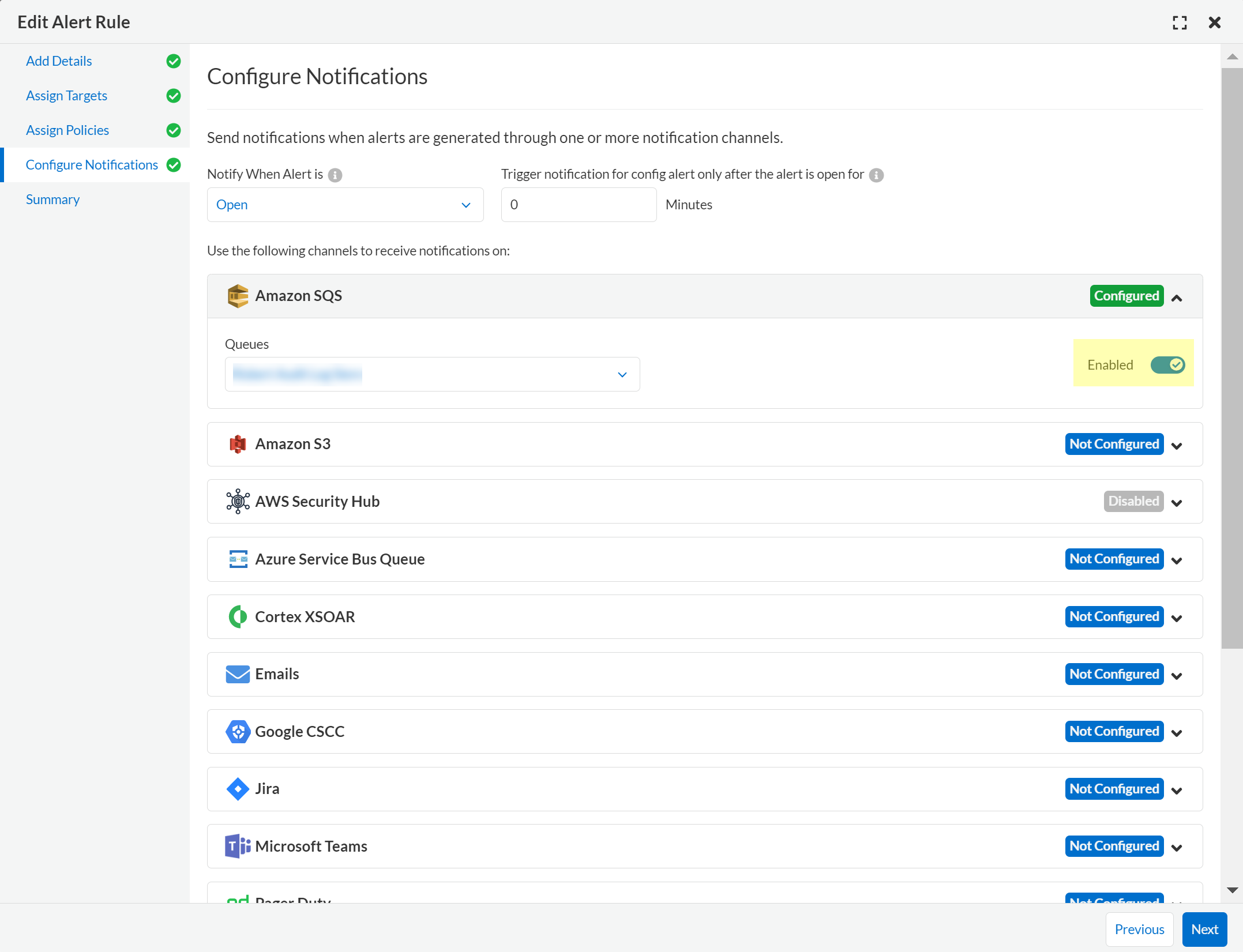
3. Navigate to **Configure Notifications > Amazon SQS**.
4. Select the SQS **Queues** to which you want to send alerts triggered by this alert rule.
5. Set the toggle to **Enabled** to send notifications and **Next**.
6. Review the **Summary** and **Save** the new alert rule or your changes to an existing alert rule.
## Send Alert Notifications to Azure Service Bus Queue
You can send Prisma Cloud alert notifications to an Azure Service Bus queue.
1. [Integrate Prisma Cloud with Azure Service Bus Queue](/content-collections/administration/configure-external-integrations-on-prisma-cloud/integrate-prisma-cloud-with-azure-service-bus-queue.md).
2. Select **Alerts > View Alert Rules**.
Either [Create an Alert Rule for Cloud Infrastructure](/content-collections/alerts/create-an-alert-rule-cloud-infrastructure.md) or [Create an Alert Rule for Cloud Workloads](/content-collections/alerts/create-an-alert-rule-cloud-workloads.md), or select an existing rule to edit.
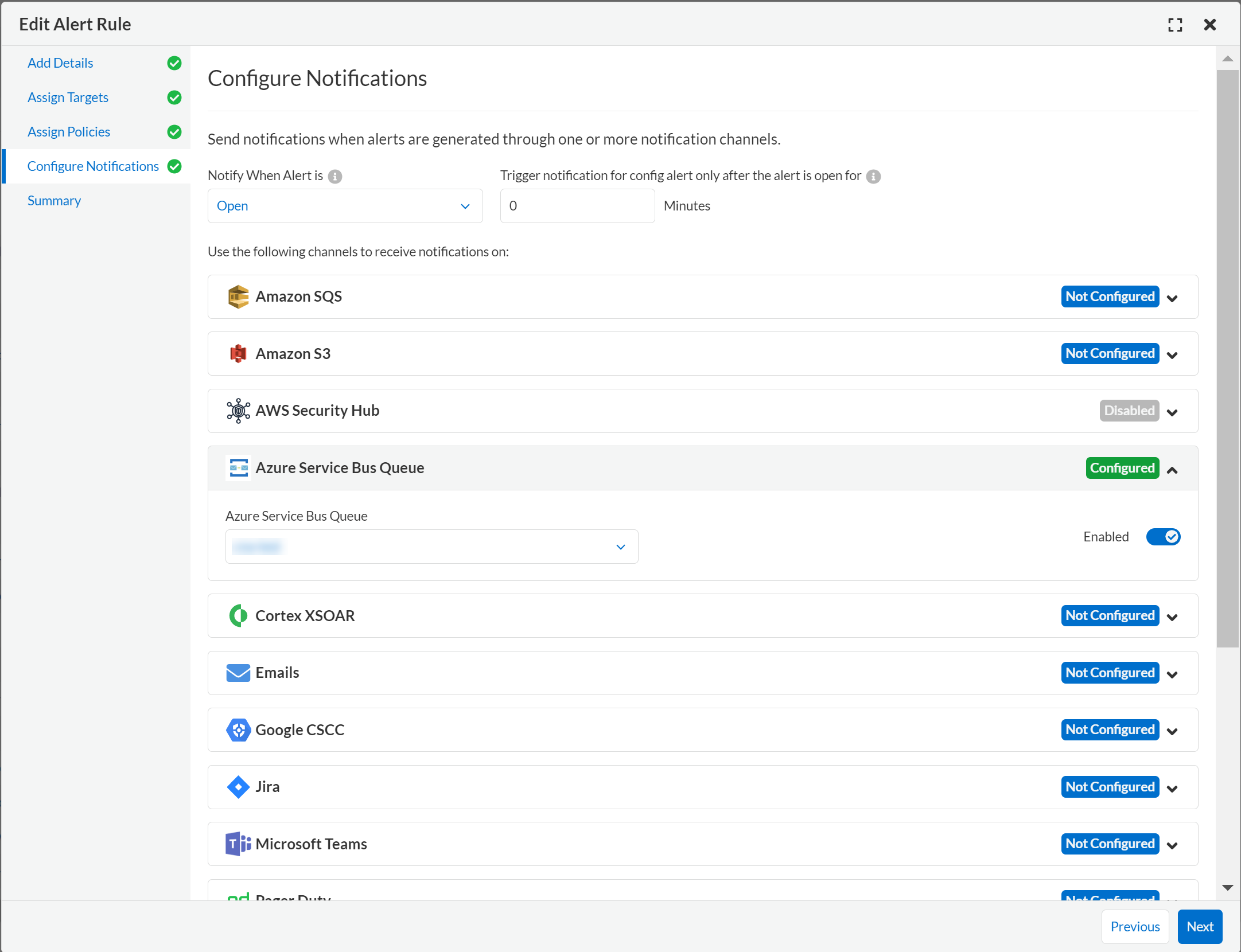
3. Navigate to **Configure Notifications > Azure Service Bus Queue**.
4. Select the **Azure Service Bus Queue** to which you want to send alerts triggered by this alert rule.
5. Set the toggle to **Enabled** to send notifications and **Next**.
6. Review the **Summary** and **Save** the new alert rule or your changes to an existing alert rule.
## Send Alert Notifications Through Email
To send email notifications for alerts triggered by an alert rule, Prisma Cloud provides a default email notification template. You can customize the message in the template using the in-app rich text editor and attach the template to an alert rule. In the alert notification, you can configure Prisma Cloud to send the alert details as an uncompressed CSV file or as a compressed zip file, of 9 MB maximum attachment size.
All email notifications from Prisma Cloud include the domain name to support Domain-based Message Authentication, Reporting & Conformance (DMARC), and the email address used is .
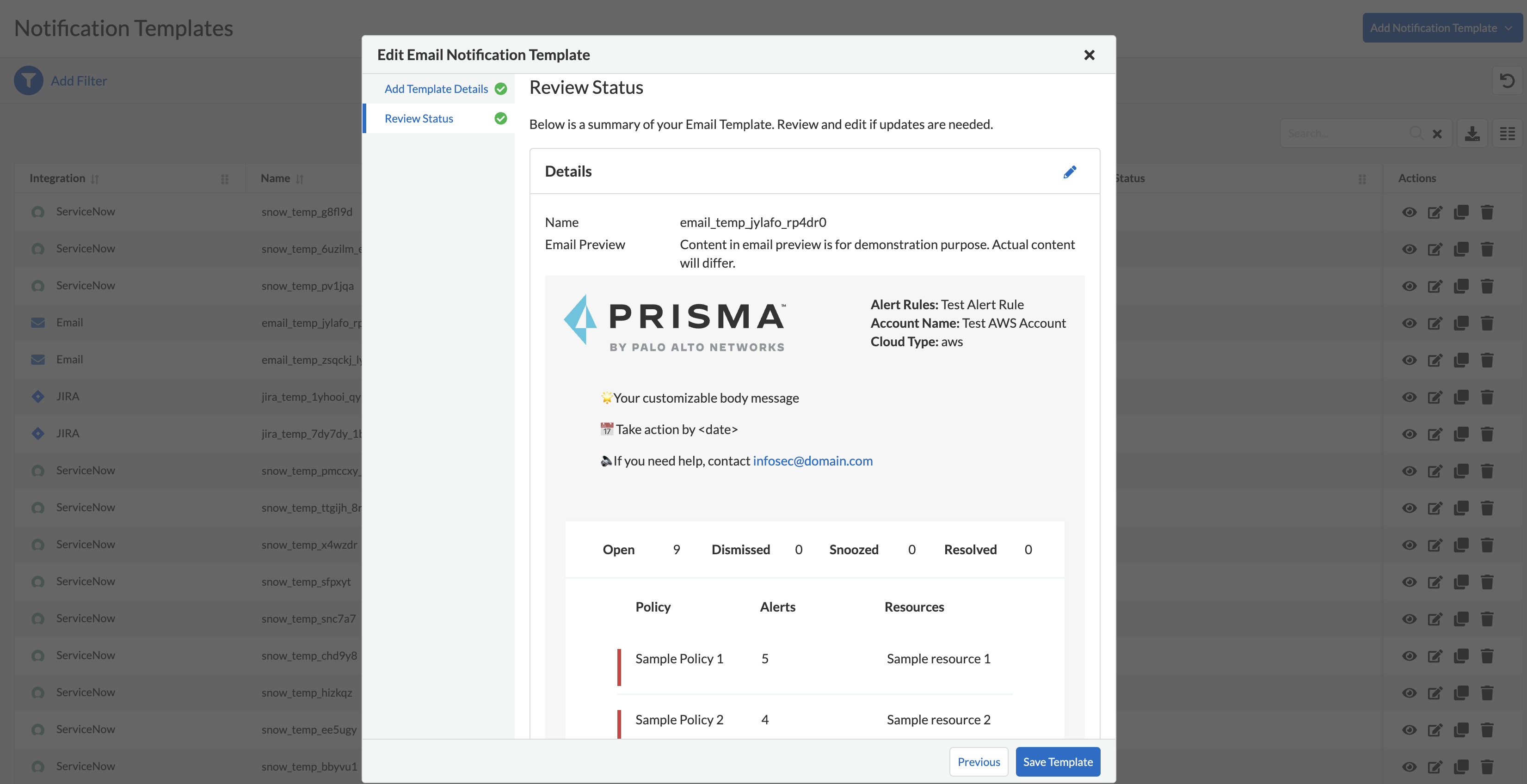
1. (tt:\[Optional]) Set up a custom message for your email notification template.
Prisma Cloud provides a default email template for your convenience, and you can customize the lead-in message within the body of the email using the rich-text editor.
1. Select **Settings > Notification Templates** and **Add Notification Template**.
2. Select the **Email** Notification template from the list.
3. Enter a **Template Name**.
The total length of the template name can be up to 99 characters and should not include special ASCII characters: (‘<’, ‘>’, ‘!’, ‘=’, ‘\n’, ‘\r’).
If you had previously created a template that includes the unsupported characters and you try to update the template, an error message will indicate that the template name is invalid.
4. Enter a **Custom Note** and select **Next**.
The preview on the right gives you an idea of how your content will look.
5. **Review Status** and **Save Template**.
2. Select **Alerts > View Alert Rules**.
Either [Create an Alert Rule for Cloud Infrastructure](/content-collections/alerts/create-an-alert-rule-cloud-infrastructure.md) or [Create an Alert Rule for Cloud Workloads](/content-collections/alerts/create-an-alert-rule-cloud-workloads.md), or select an existing rule to edit.
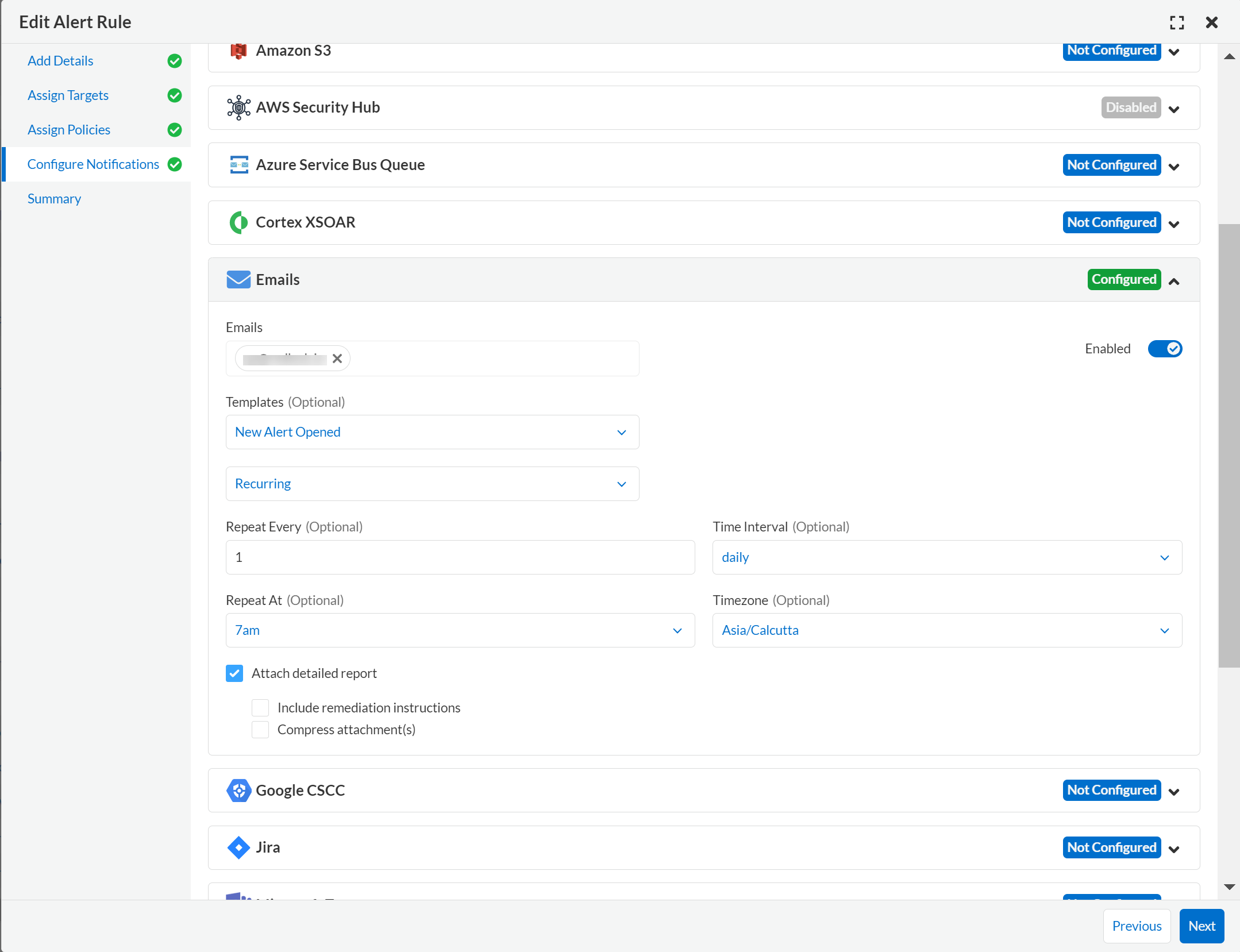
3. Navigate to **Configure Notifications > Email**.
4. Enter or select the **Emails** for which to send the alert notifications.
You can include multiple email addresses and can send email notifications to email addresses in your domain and to guests external to your organization.
5. Set the toggle to **Enabled** to send alert notifications and **Next**.
6. (tt:\[Optional]) Select your custom email **Template**, if you have one.
7. Set the **Frequency** at which to send email notifications.
* **Instantly**—Sends an email to the recipient list each time the alert rule triggers an alert.
* **Recurring**—You can select the time interval as Daily, Weekly, or Monthly. Prisma Cloud sends a single email to the recipient list that lists all alerts triggered by the alert rule on that day, during that week, or the month.
8. Specify whether to include an attachment to the email.
Including an attachment provides a way for you to include information on the alerts generated and the remediation steps required to fix the violating resource. When you select **Attach detailed report**, you can choose whether to **Include remediation instructions** to fix the root cause for the policy that triggered each alert, and opt to send it as a zip file (**Compress attachment(s)**).
Each email can include up to 10 attachments. An attachment in the zip file format can have 60000 rows, while a CSV file can have 900 rows. If the number of alerts exceeds the maximum number of attachments, the alerts with the older timestamps are omitted.
9. Review the **Summary** and **Save** the new alert rule or changes to an existing alert rule.
10. Verify the alert notification emails.
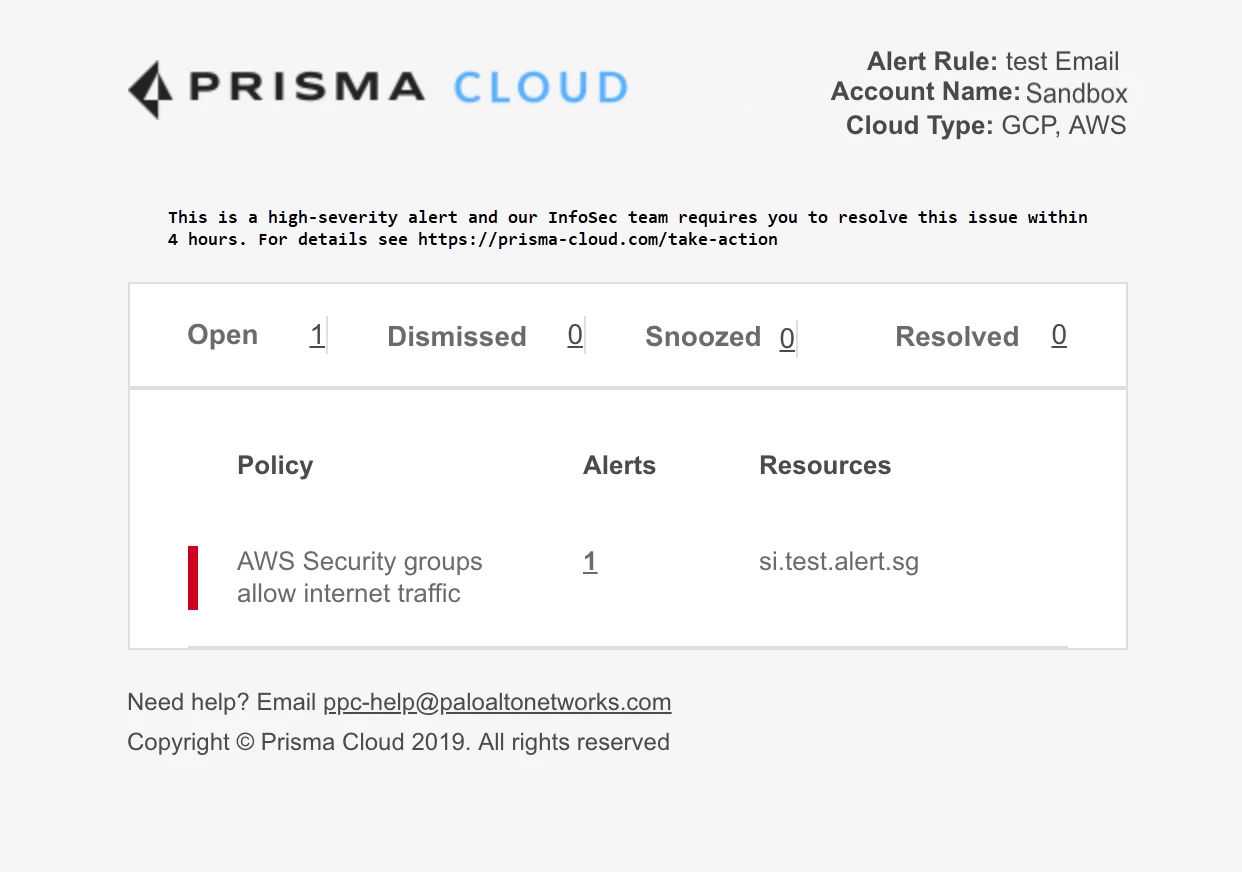
The email alert notification specifies the alert rule, account name, cloud type, policies that were violated, the number of alerts each policy violated, and the affected resources. Click the **\** of alerts to view the Prisma Cloud **Alerts > Overview** page.
## Send Alert Notifications to a Slack Channel
You can send alert notifications associated with an alert rule to a Slack channel.
1. [Integrate Prisma Cloud with Slack](/content-collections/administration/configure-external-integrations-on-prisma-cloud/integrate-prisma-cloud-with-slack.md).
2. Select **Alerts > View Alert Rules**.
Either [Create an Alert Rule for Cloud Infrastructure](/content-collections/alerts/create-an-alert-rule-cloud-infrastructure.md) or [Create an Alert Rule for Cloud Workloads](/content-collections/alerts/create-an-alert-rule-cloud-workloads.md), or select an existing rule to edit.
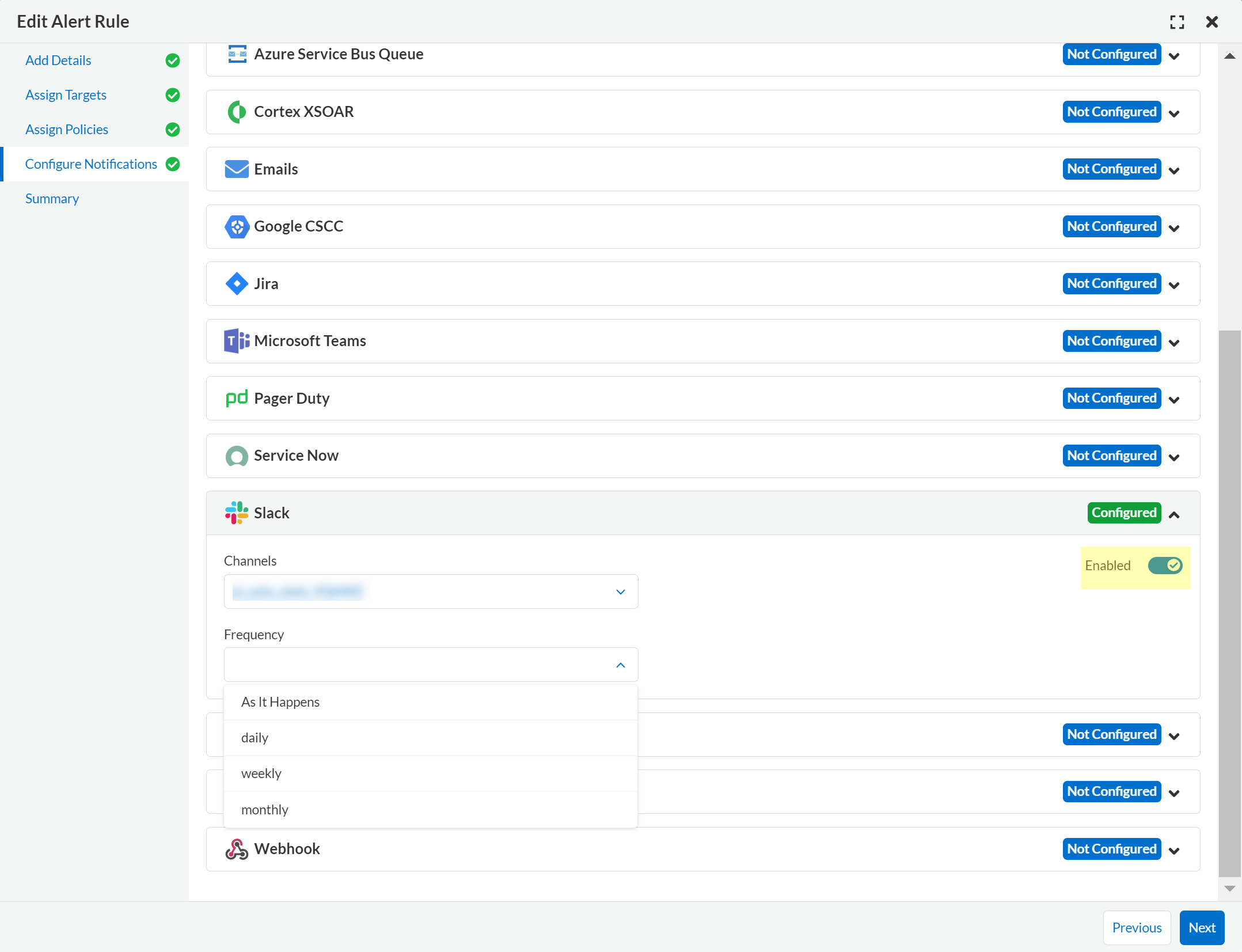
3. Navigate to **Configure Notifications > Slack**.
4. Select the Slack **Channels** to which you want to send alerts triggered by this alert rule.
5. Set the **Frequency** at which to send email notifications.
* **As it Happens**—Sends a notification to the selected slack channels each time the alert rule triggers an alert.
* **Daily**—Sends a single notification to the selected Slack channels once each day that lists all alerts triggered by the alert rule on that day.
* **Weekly**—Sends a single notification to the selected Slack channels once each week that lists all alerts triggered by the alert rule during that weekly interval.
* **Monthly**—Sends a single notification to the selected Slack channels once each month that lists all alerts triggered by the alert rule monthly interval.
6. Set the toggle to **Enabled** to send alert notifications and **Next**.
7. Review the **Summary** and **Save** the new alert rule or changes to an existing alert rule.
## Send Alert Notifications to Splunk
You can send alert notifications associated with an alert rule to a Splunk event collector.
1. [Integrate Prisma Cloud with Splunk](/content-collections/administration/configure-external-integrations-on-prisma-cloud/integrate-prisma-cloud-with-splunk.md).
2. Select **Alerts > View Alert Rules**.
Either [Create an Alert Rule for Cloud Infrastructure](/content-collections/alerts/create-an-alert-rule-cloud-infrastructure.md) or [Create an Alert Rule for Cloud Workloads](/content-collections/alerts/create-an-alert-rule-cloud-workloads.md), or select an existing rule to edit.
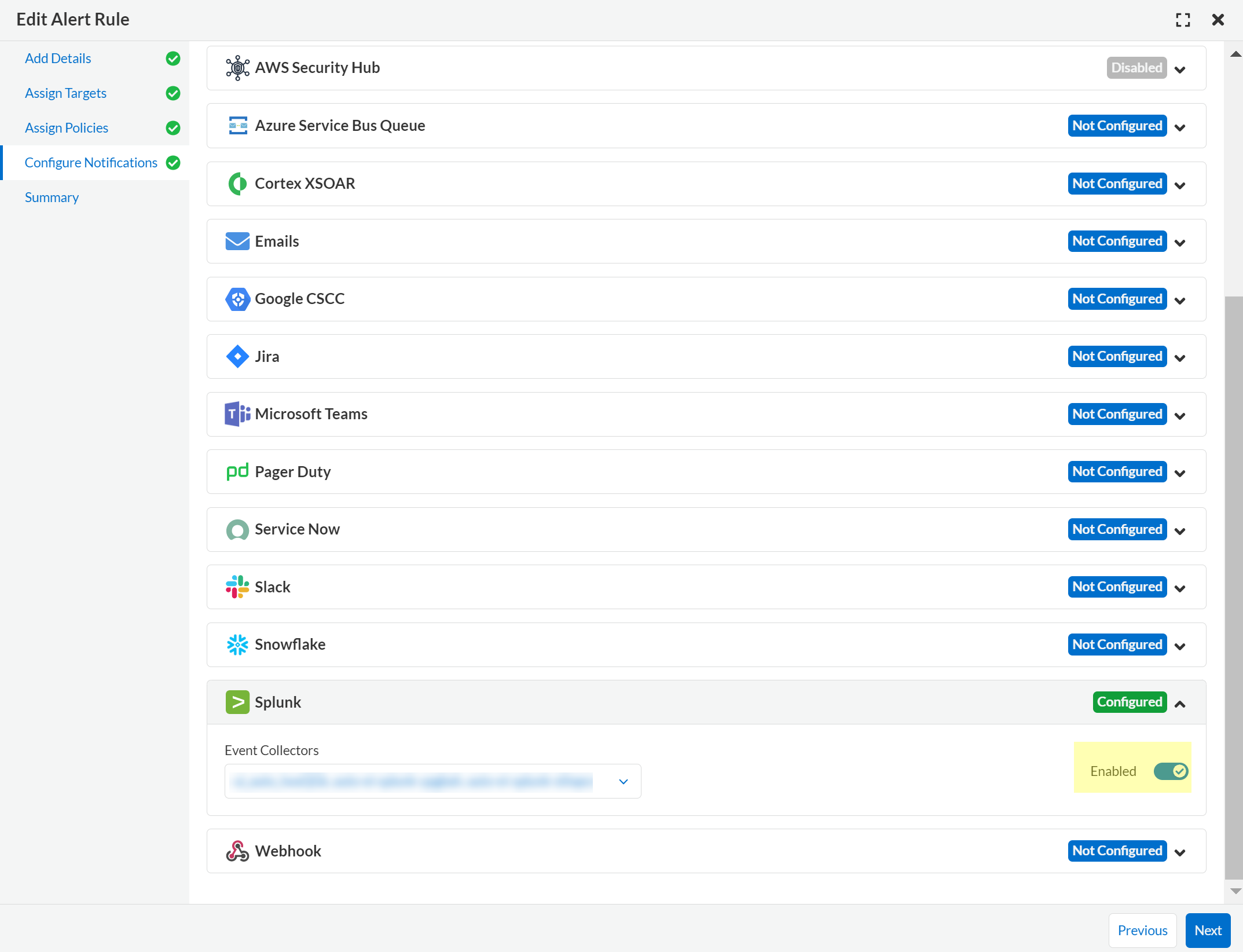
3. Navigate to **Configure Notifications > Splunk**.
4. (tt:\[Optional]) Select the Splunk **Event Collectors** to which you want to send alerts from this alert rule.
5. Set the toggle to **Enabled** to send notifications and **Next**.
6. Review the **Summary** and **Save** the new alert rule or your changes to an existing alert rule.
## Send Alert Notifications to Jira
You can configure alert notifications triggered by an alert rule to create Jira tickets.
1. [Integrate Prisma Cloud with Jira](/content-collections/administration/configure-external-integrations-on-prisma-cloud/integrate-prisma-cloud-with-jira.md).
2. Select **Alerts > View Alert Rules**.
Either [Create an Alert Rule for Cloud Infrastructure](/content-collections/alerts/create-an-alert-rule-cloud-infrastructure.md) or [Create an Alert Rule for Cloud Workloads](/content-collections/alerts/create-an-alert-rule-cloud-workloads.md), or select an existing rule to edit.
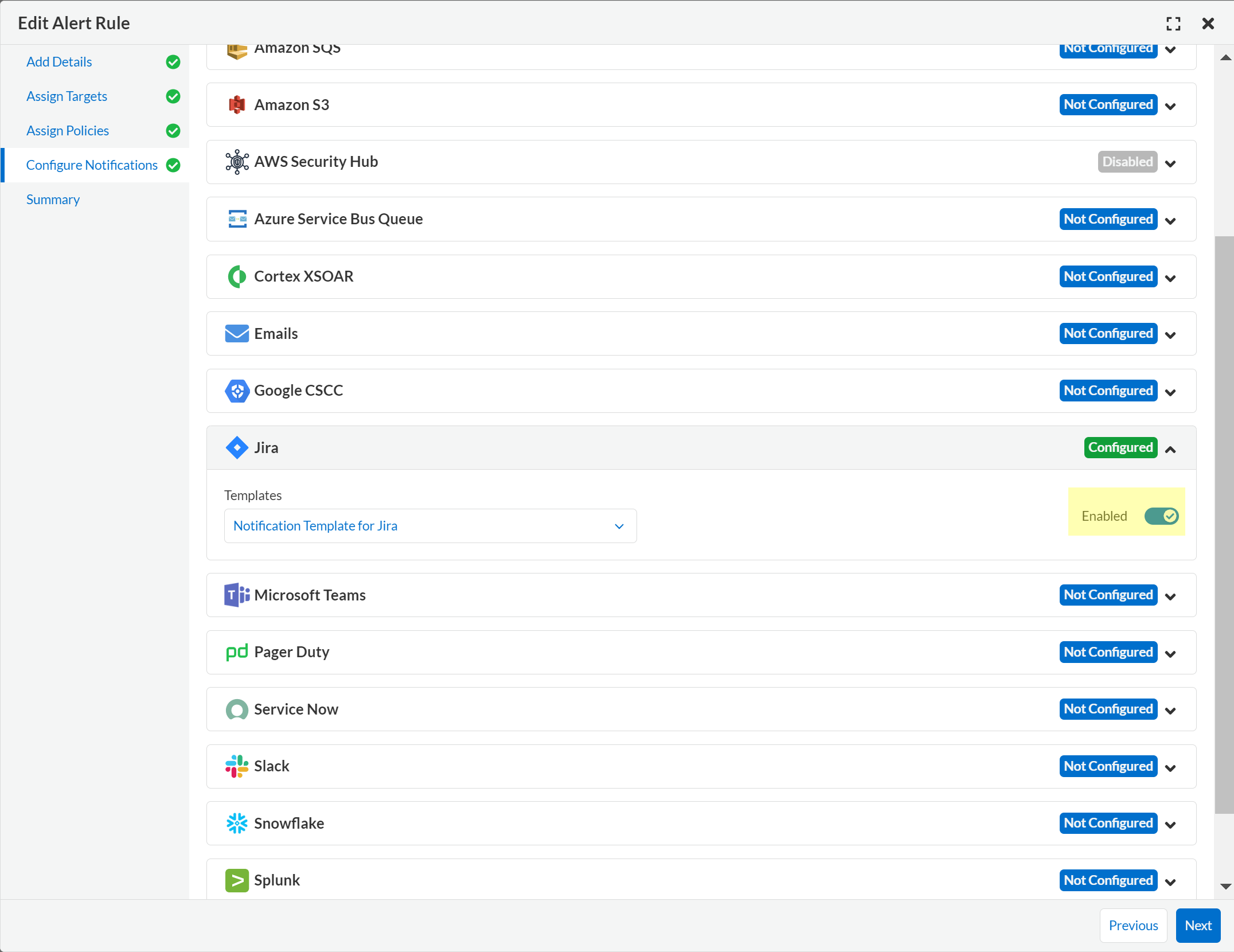
3. Navigate to **Configure Notifications > Jira**.
4. Select the Jira **Templates** to use for creating tickets based on the alert payload data for alerts that are triggered by this alert rule.
5. Set the toggle to **Enabled** to send notifications and **Next**.
6. Review the **Summary** and **Save** the new alert rule or your changes to an existing alert rule.
If the user who set up your Jira integration is no longer with your organization, you have to create a new [Jira integration](/content-collections/administration/configure-external-integrations-on-prisma-cloud/integrate-prisma-cloud-with-jira.md).
## Send Alert Notifications to Google Cloud SCC
You can send alert notifications to Google Cloud Security Command Center (SCC).
1. [Integrate Prisma Cloud with Google Cloud Security Command Center (SCC)](/content-collections/administration/configure-external-integrations-on-prisma-cloud/integrate-prisma-cloud-with-google-cloud-security-command-center.md).
2. Select **Alerts > View Alert Rules**.
Either [Create an Alert Rule for Cloud Infrastructure](/content-collections/alerts/create-an-alert-rule-cloud-infrastructure.md) or [Create an Alert Rule for Cloud Workloads](/content-collections/alerts/create-an-alert-rule-cloud-workloads.md), or select an existing rule to edit.
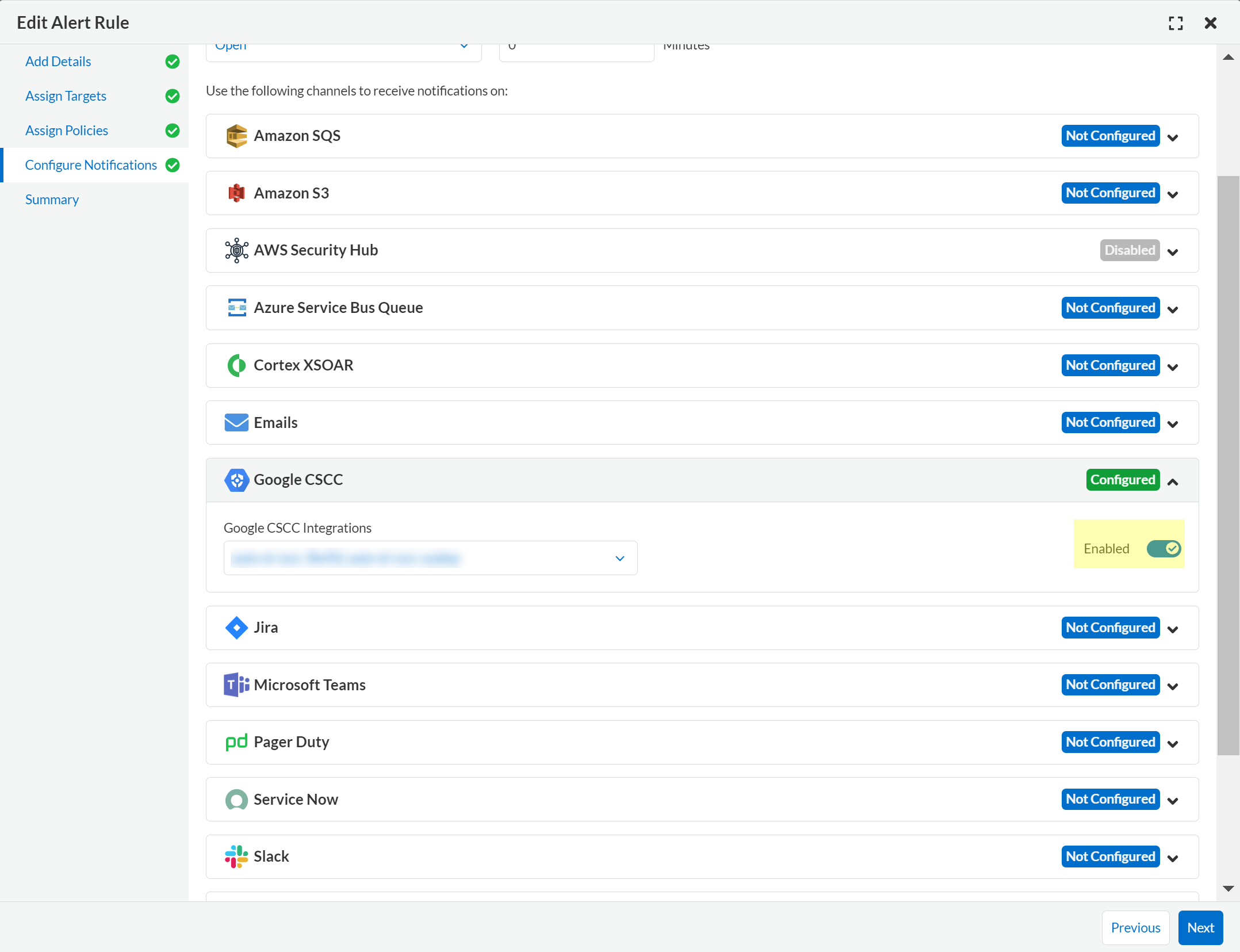
3. Navigate to **Configure Notifications > Google CSCC**.
4. Select the **Google CSCC Integrations** that you want to use to send notifications of alerts triggered by this alert rule.
5. Set the toggle to **Enabled** to send notifications and **Next**.
6. Review the **Summary** and **Save** the new alert rule or your changes to an existing alert rule.
## Send Alert Notifications to ServiceNow
You can send alert notifications to ServiceNow.
1. [Integrate Prisma Cloud with ServiceNow](/content-collections/administration/configure-external-integrations-on-prisma-cloud/integrate-prisma-cloud-with-servicenow.md).
2. Select **Alerts > View Alert Rules**.
Either [Create an Alert Rule for Cloud Infrastructure](/content-collections/alerts/create-an-alert-rule-cloud-infrastructure.md) or [Create an Alert Rule for Cloud Workloads](/content-collections/alerts/create-an-alert-rule-cloud-workloads.md), or select an existing rule to edit.
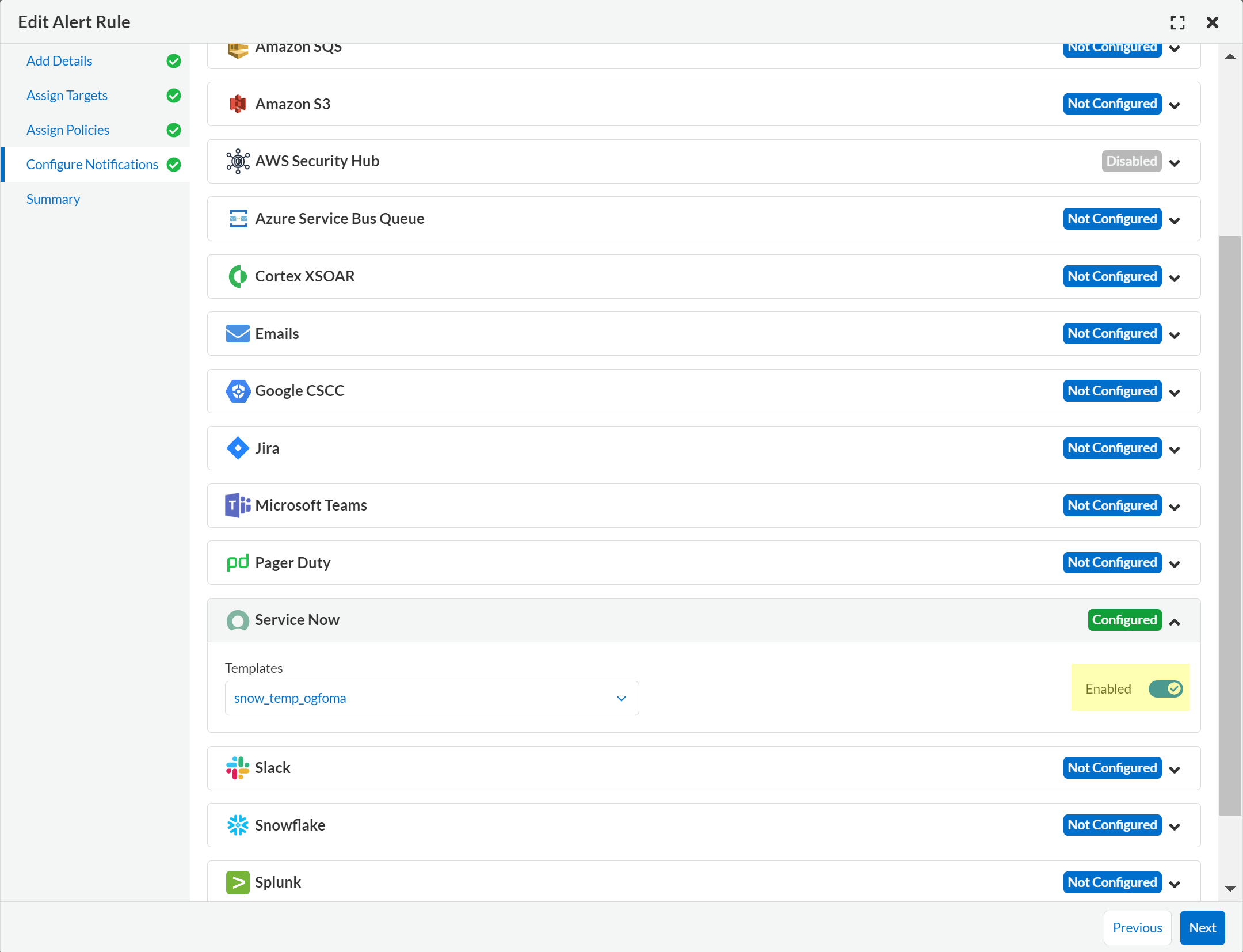
3. Navigate to **Configure Notifications > Service Now**.
4. Select the ServiceNow **Templates** that you want to use to send notifications of alerts triggered by this alert rule.
5. Set the toggle to **Enabled** to send notifications and **Next**.
6. Review the **Summary** and **Save** the new alert rule or your changes to an existing alert rule.
## Send Alert Notifications to Webhooks
You can send alert notifications to Webhooks.
1. [Integrate Prisma Cloud with Webhooks](/content-collections/administration/configure-external-integrations-on-prisma-cloud/integrate-prisma-cloud-with-webhooks.md).
2. Select **Alerts > View Alert Rules**.
Either [Create an Alert Rule for Cloud Infrastructure](/content-collections/alerts/create-an-alert-rule-cloud-infrastructure.md) or [Create an Alert Rule for Cloud Workloads](/content-collections/alerts/create-an-alert-rule-cloud-workloads.md), or select an existing rule to edit.
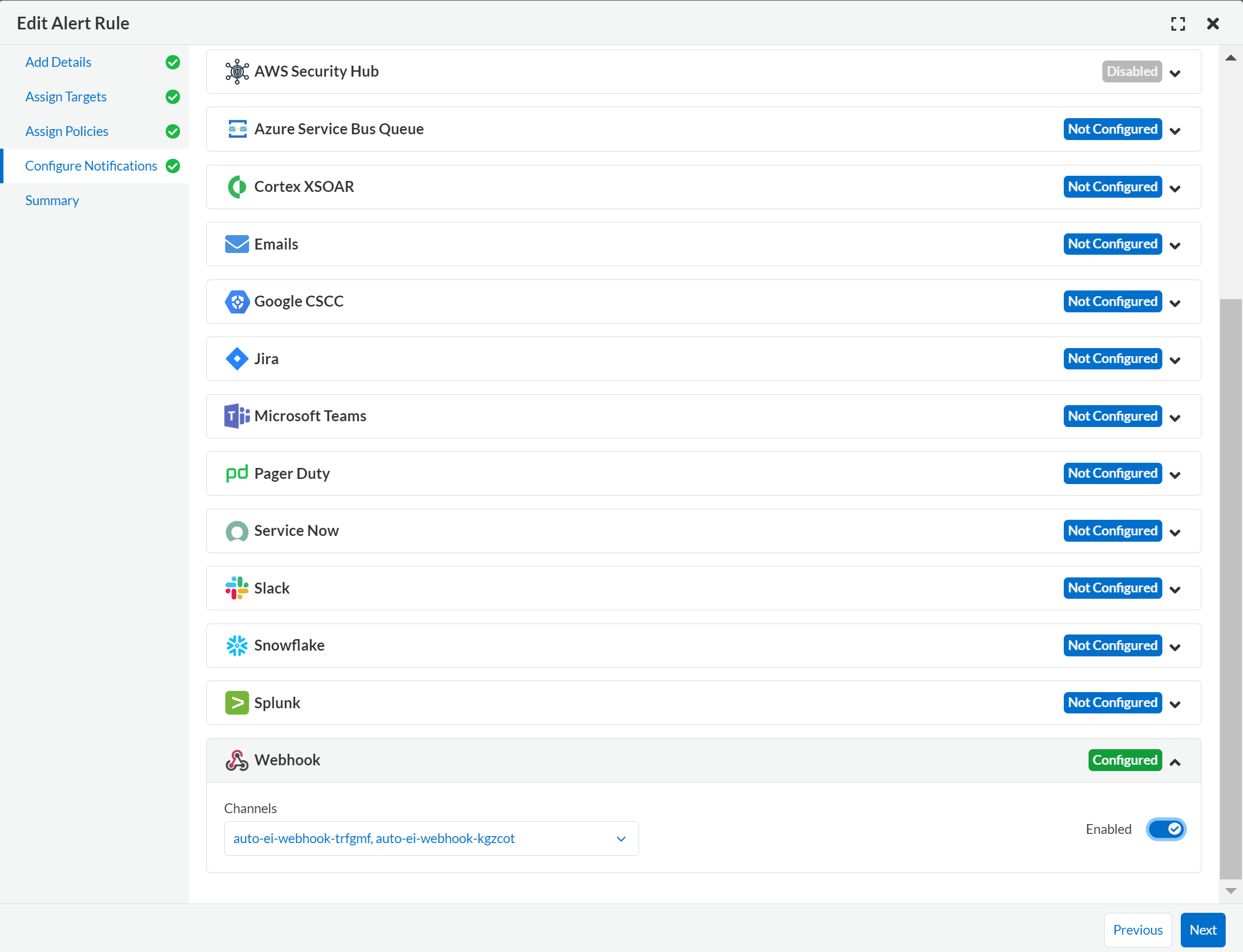
3. Navigate to **Configure Notifications > Webhook**.
4. (tt:\[Optional]) Select the webhook **Channels** that you want to use to send notifications of alerts triggered by this alert rule.
A webhook notification is delivered as soon as the alert is generated.
5. Set the toggle to **Enabled** to send notifications and **Next**.
6. Review the **Summary** and **Save** the new alert rule or your changes to an existing alert rule.
## Send Alert Notifications to PagerDuty
You can send alert notifications to PagerDuty.
1. [Integrate Prisma Cloud with PagerDuty](/content-collections/administration/configure-external-integrations-on-prisma-cloud/integrate-prisma-cloud-with-pagerduty.md).
2. Select **Alerts > View Alert Rules**.
Either [Create an Alert Rule for Cloud Infrastructure](/content-collections/alerts/create-an-alert-rule-cloud-infrastructure.md) or [Create an Alert Rule for Cloud Workloads](/content-collections/alerts/create-an-alert-rule-cloud-workloads.md), or select an existing rule to edit.
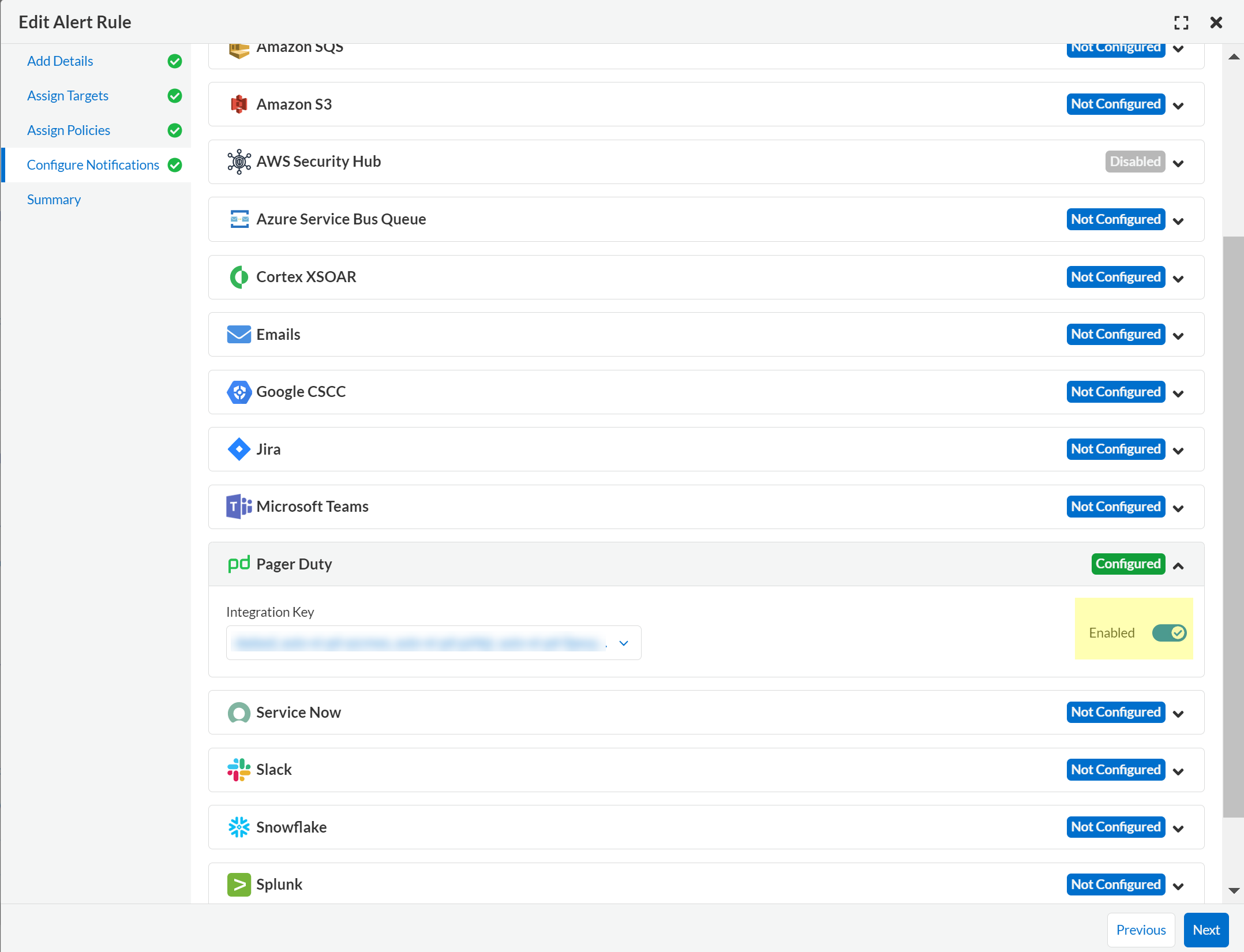
3. Navigate to **Configure Notifications > Pager Duty**.
4. Select the **Integration Key**.
5. Set the toggle to **Enabled** to send notifications and **Next**.
6. Review the **Summary** and **Save** the new alert rule or your changes to an existing alert rule.
## Send Alert Notifications to AWS Security Hub
You can send alert notifications to AWS Security Hub.
1. [Integrate Prisma Cloud with AWS Security Hub](/content-collections/administration/configure-external-integrations-on-prisma-cloud/integrate-prisma-cloud-with-aws-security-hub.md).
2. Select **Alerts > View Alert Rules**.
Either [Create an Alert Rule for Cloud Infrastructure](/content-collections/alerts/create-an-alert-rule-cloud-infrastructure.md) or [Create an Alert Rule for Cloud Workloads](/content-collections/alerts/create-an-alert-rule-cloud-workloads.md), or select an existing rule to edit.
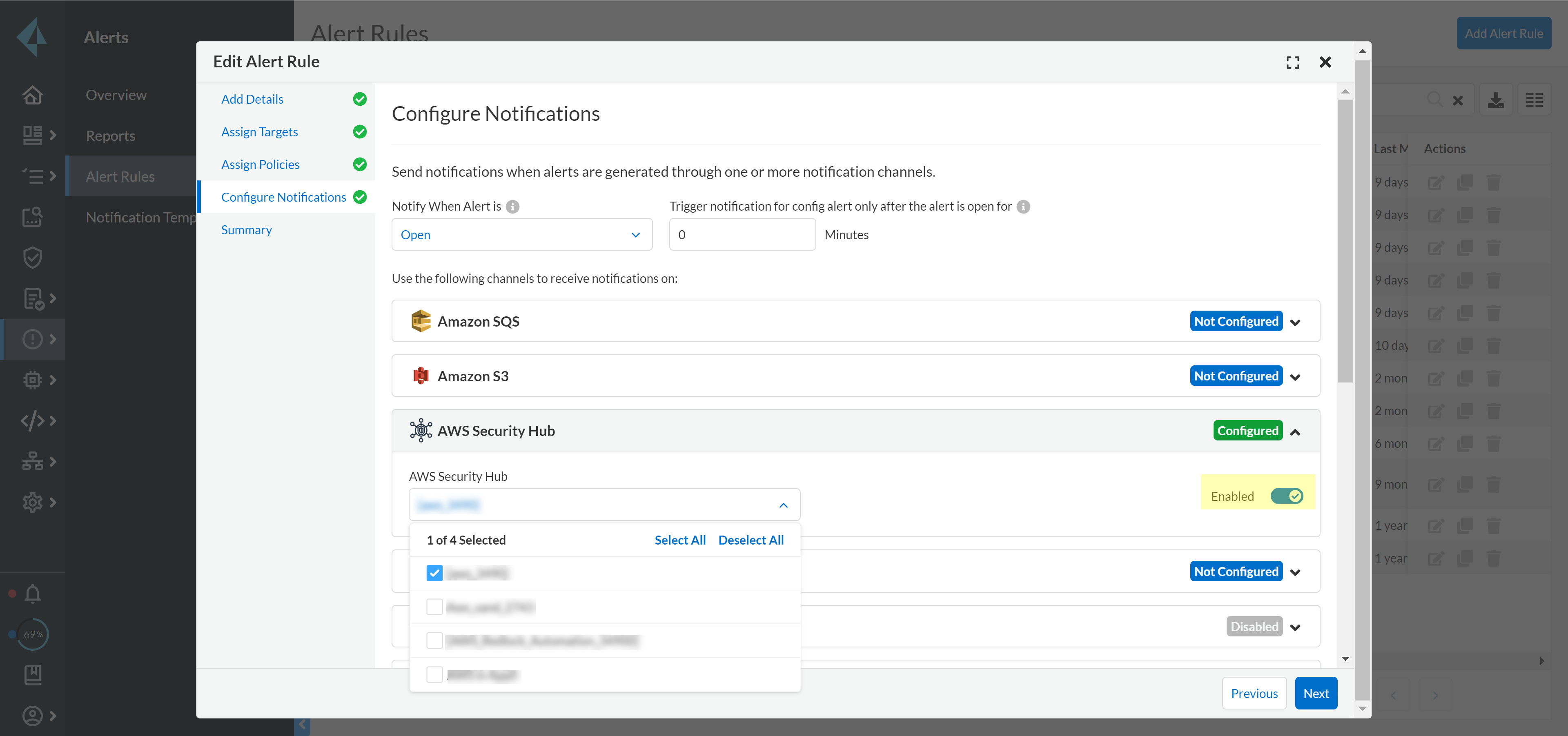
3. Navigate to **Configure Notifications > AWS Security Hub**.
4. (tt:\[Optional]) Select your account from the **AWS Security Hub** drop-down list.
5. Set the toggle to **Enabled** to send notifications and **Next**.
6. Review the **Summary** and **Save** the new alert rule or your changes to an existing alert rule.
## Send Alert Notifications to Microsoft Teams
You can send alert notifications to Microsoft Teams.
1. [Integrate Prisma Cloud with Microsoft Teams](/content-collections/administration/configure-external-integrations-on-prisma-cloud/integrate-prisma-cloud-with-microsoft-teams.md).
2. Select **Alerts > View Alert Rules**.
Either [Create an Alert Rule for Cloud Infrastructure](/content-collections/alerts/create-an-alert-rule-cloud-infrastructure.md) or [Create an Alert Rule for Cloud Workloads](/content-collections/alerts/create-an-alert-rule-cloud-workloads.md), or select an existing rule to edit.
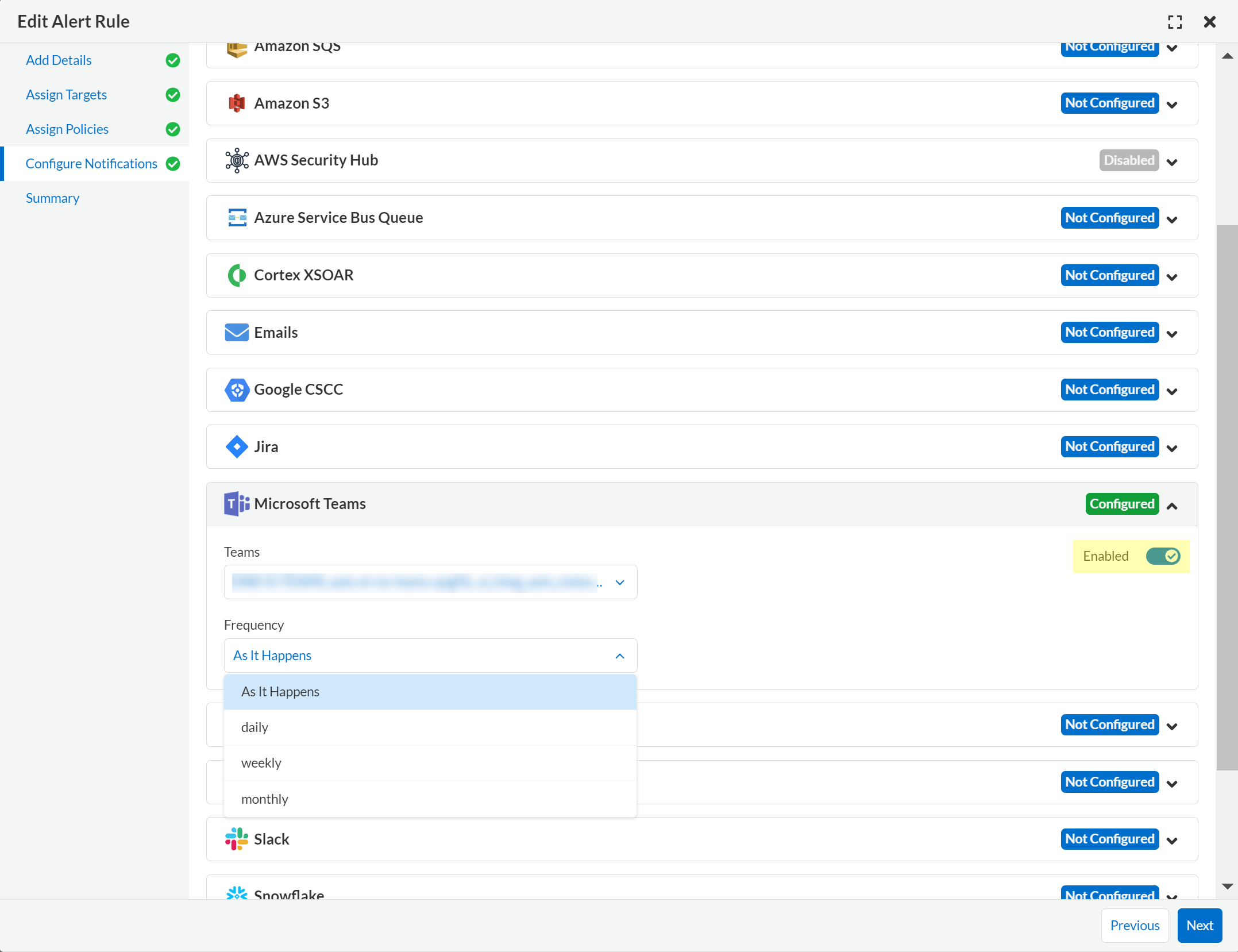
3. Navigate to **Configure Notifications > Microsoft Teams**.
4. Select the **Teams** channels that you want to use to send notifications for alerts triggered by this alert rule.
5. Set the **Frequency** at which to send POST notifications.
* **As it Happens**—Sends a notification to the selected channels each time the alert rule triggers an alert.
* **Daily**—Sends a single notification to the selected channels once each day that lists all alerts triggered by the alert rule on that day.
* **Weekly**—Sends a single notification to the selected channels once each week that lists all alerts triggered by the alert rule during that weekly interval.
* **Monthly**—Sends a single notification to the selected channels once each month that lists all alerts triggered by the alert rule monthly interval.
6. Set the toggle to **Enabled** to send alert notifications and **Next**.
7. Review the **Summary** and **Save** the new alert rule or changes to an existing alert rule.
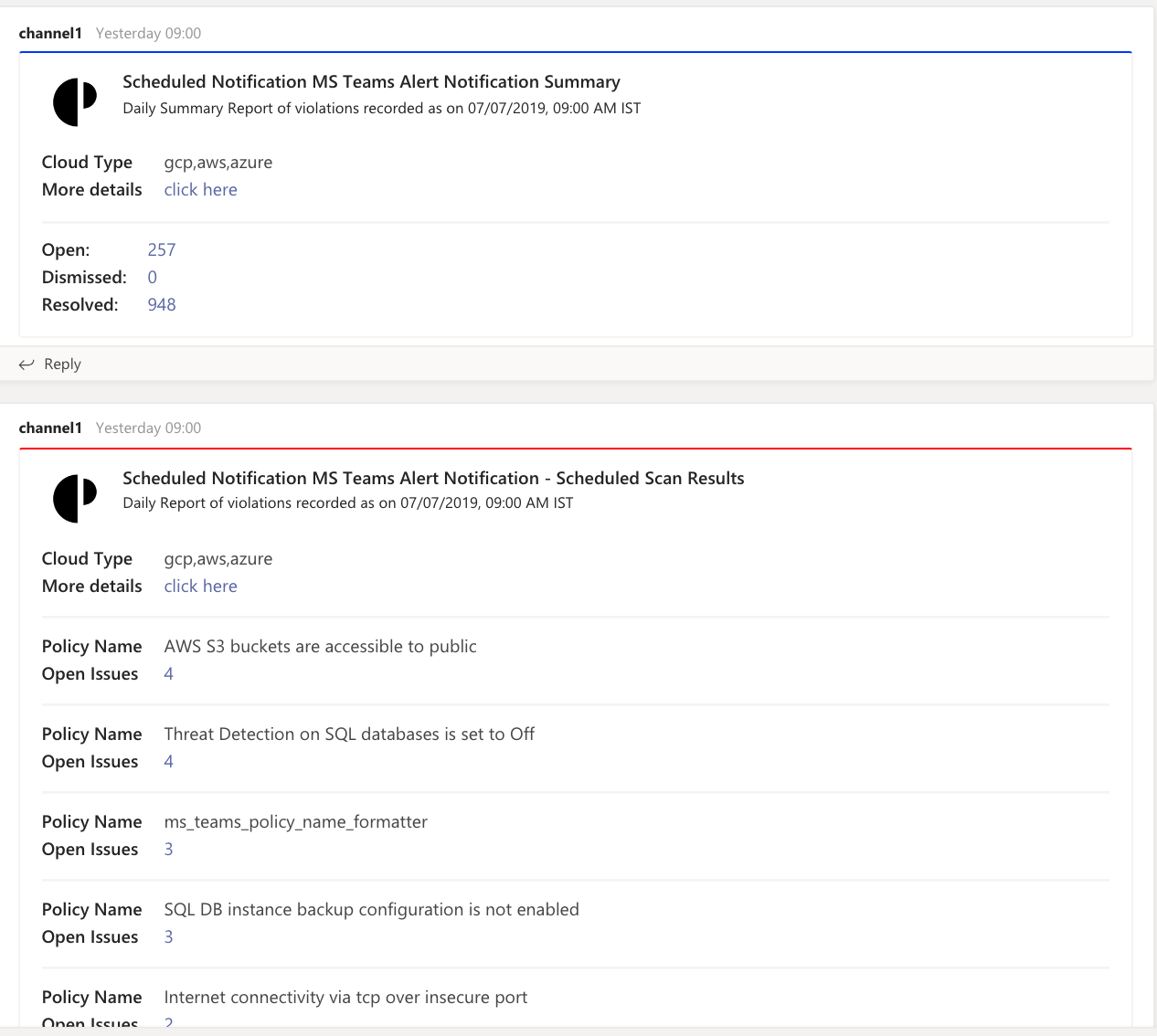
When a policy rule is violated, a message card displays on the Microsoft teams conversation. The message card is formatted with a red (high), yellow (medium), or gray (low) line to indicate the severity of the alert. For example, the following screenshot is a daily notification summary.
## Send Alert Notifications to Cortex XSOAR
You can send alert notifications associated with an alert rule to a Cortex XSOAR instance.
1. [Integrate Prisma Cloud with Cortex XSOAR](/content-collections/administration/configure-external-integrations-on-prisma-cloud/integrate-prisma-cloud-with-cortex-xsoar.md).
2. Select **Alerts > View Alert Rules**.
Either [Create an Alert Rule for Cloud Infrastructure](/content-collections/alerts/create-an-alert-rule-cloud-infrastructure.md) or [Create an Alert Rule for Cloud Workloads](/content-collections/alerts/create-an-alert-rule-cloud-workloads.md), or select an existing rule to edit.
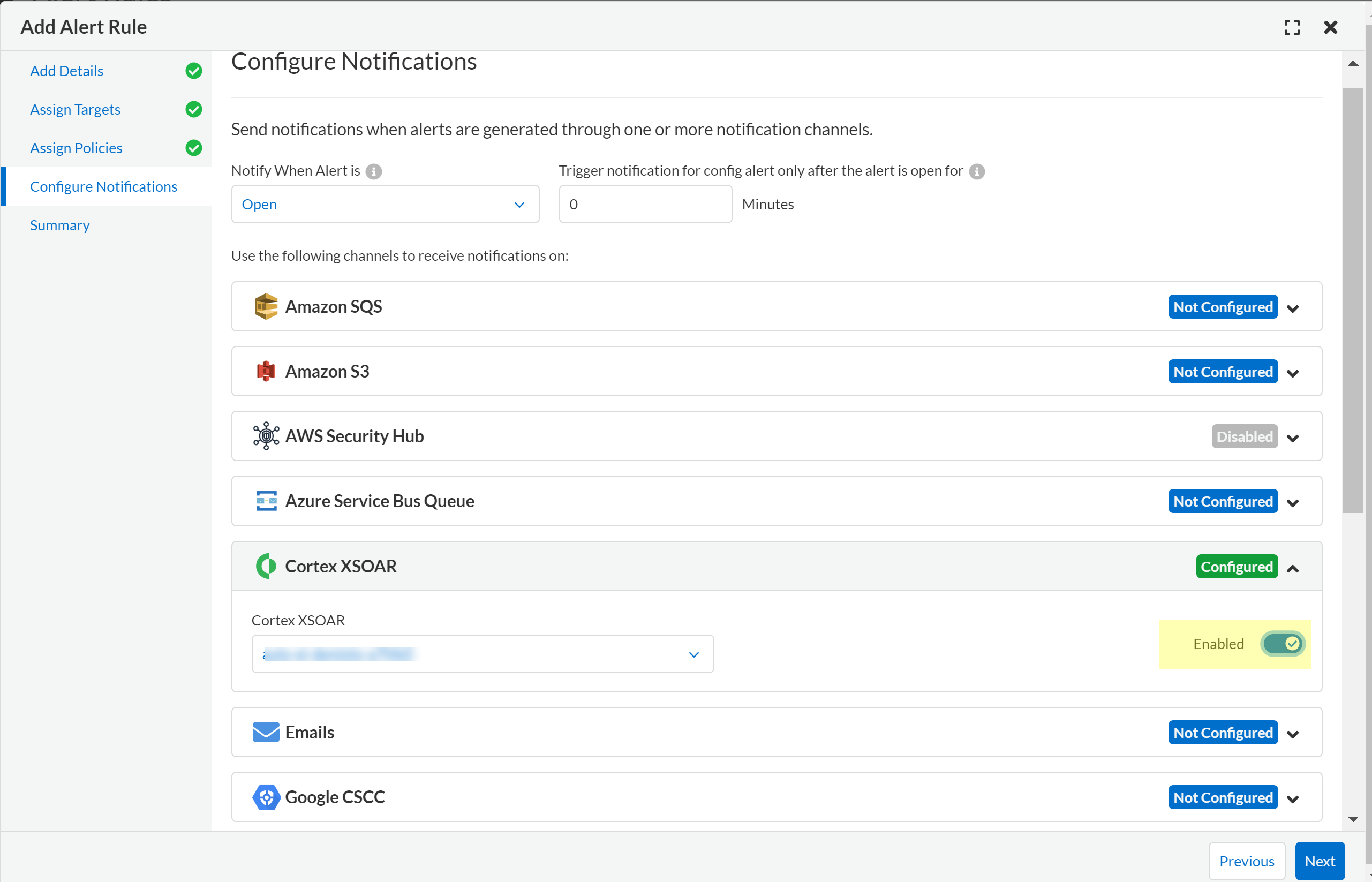
3. Navigate to **Configure Notifications > Cortex XSOAR**.
4. (tt:\[Optional]) Select your account from the **Cortex XSOAR** drop-down list.
5. Set the toggle to **Enabled** to send notifications and **Next**.
6. Review the **Summary** and **Save** the new alert rule or your changes to an existing alert rule.
---
# Agent Instructions
This documentation is published with GitBook. GitBook is the documentation platform designed so that both humans and AI agents can read, navigate, and reason over technical content effectively. Learn more at gitbook.com.
## Querying This Documentation
If you need additional information that is not directly available in this page, you can query the documentation by asking a question.
Perform an HTTP GET request on the following URL with the `ask` and `goal` query parameters:
```
GET https://docs.prismacloud.io/content-collections/alerts/send-prisma-cloud-alert-notifications-to-third-party-tools.md?ask=&goal=
```
`ask` is the immediate question: it should be specific, self-contained, and written in natural language.
`goal` is what the user is ultimately trying to achieve, the reason they need the answer. Sharing it helps GitBook give you a better, more relevant answer. A goal is most helpful when it describes the outcome the user wants rather than restating the question. For example, with `ask=how do I create an API token`, a goal like `automate deployments from our CI pipeline` lets GitBook tailor the answer to that use case.
The response will contain a direct answer to the question and relevant excerpts and sources from the documentation.
Use this mechanism when the answer is not explicitly present in the current page, you need clarification or additional context, or you want to retrieve related documentation sections.