> For the complete documentation index, see [llms.txt](https://docs.prismacloud.io/llms.txt). Markdown versions of documentation pages are available by appending `.md` to page URLs; this page is available as [Markdown](https://docs.prismacloud.io/content-collections/application-security/get-started/connect-code-and-build-providers/ci-cd-systems/add-circleci-cicd-system.md).
# CircleCI
Integrate CircleCI CI/CD systems (CircleCI) with Prisma Cloud to gain visibility into and monitor CircleCI and all systems, technologies and processes in your environment connected to CircleCI. This integration allows Prisma Cloud to scan your CircleCI environment and provide the results of the scan, allowing you to understand and fix issues as soon as they are detected.
1. Before you begin.
1. Add the Prisma Cloud IP addresses and hostname for Application Security to an [allow list](/content-collections/get-started/console-prerequisites.md) to enable access to the Prisma Cloud Console.
2. **Permissions**: To enable Prisma Cloud visibility for all CircleCI projects, a version control system (VCS) user must be authorized to grant access. This is because the CircleCI user base is integrated with the (VCS), and inherits permissions granted to VCS users.
3. Create a dedicated VCS user to integrate CircleCI with Prisma Cloud, to prevent the integration breaking if the user leaves the organization.
4. Verify that the dedicated user follows all the organization’s projects in CircleCI.
5. Create a personal API token (see **step 2** below). The main reason that Prisma Cloud requires personal API tokens is to allow reading the configurations from CircleCI for all the projects that a user tracks.
2. Generate a personal API token in CircleCI.
1. Login to your CircleCI instance with VCS user credentials.
CircleCI utilizes the VCS user visibility. For example, if a GitHub user has access to specific organizations and repositories, these entities are visible and available in CircleCI.
2. [Create and save a personal API token in CircleCI](https://circleci.com/docs/managing-api-tokens/#creating-a-personal-api-token).
3. On Prisma Cloud.
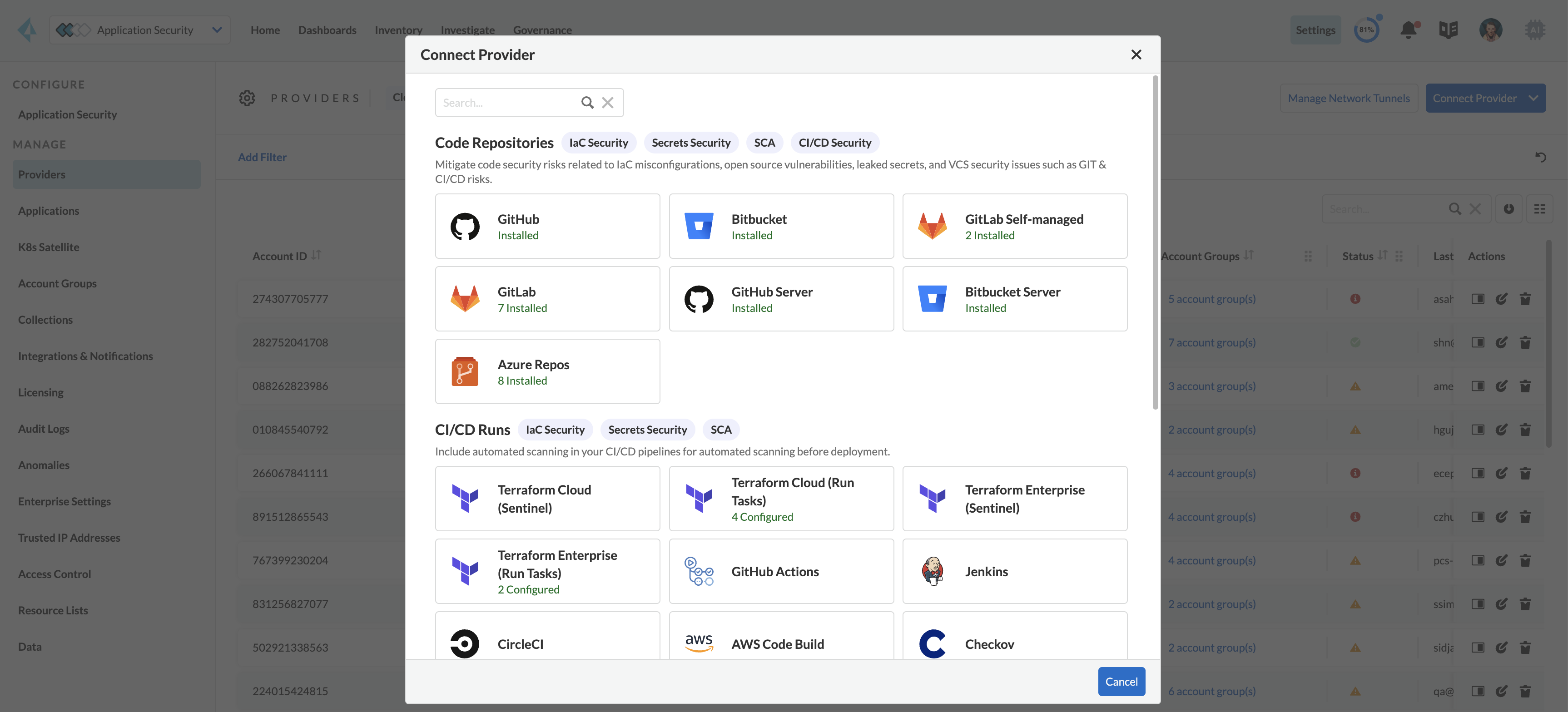
1. In Application Security, select **Home** > **Settings** > **Connect Provider** > **Code & Build Providers**.
2. Select **CircleCI** (under CI/CD Systems) in the catalog that is displayed.
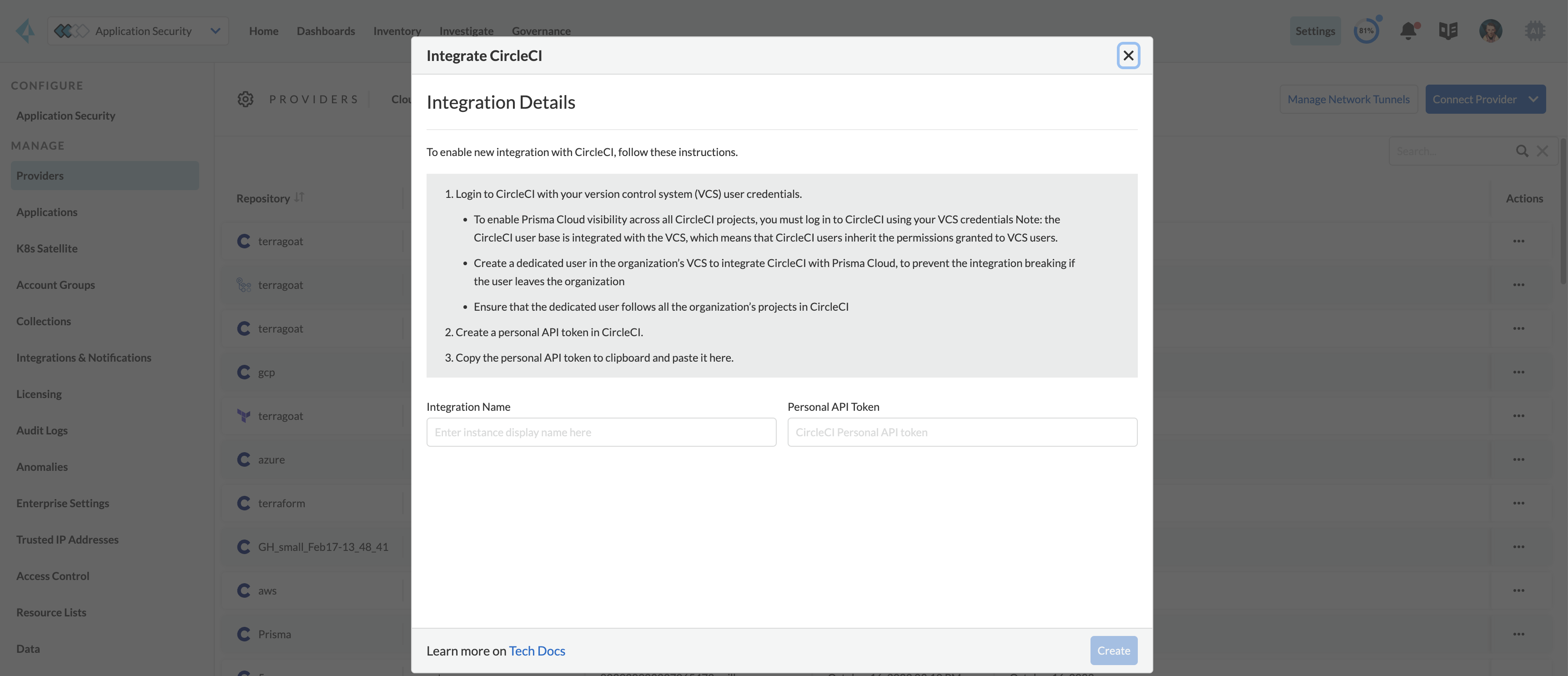
The CircleCI integration wizard is displayed.
3. Fill in the following details in the provided fields of the wizard.
* **Integration Name**: An alias allowing you to identify the integration
* **Personal API Token**: The personal API token generated in *step 2* above
4. Select **Create**.
The Prisma Cloud Application Security module is integrated with your CircleCI system.
4. Verify integration.
1. In **Application Security**, select **Home** > **Settings** > **CI/CD Systems** tab.
2. Confirm that the status of the **CircleCI** instance displays **Active** under **Status**.
It may take up to 3 minutes for the integration status to be updated.
5. Next step: Monitor and manage scan results.
The next scan of your CircleCI systems will include the new integration, and the results will be displayed in [Repositories](/content-collections/application-security/visibility/repositories.md).
## Support for Multiple Integrations
Prisma Cloud supports multiple integrations for CircleCI instances.
Multiple integrations from a single Prisma Cloud account enables you to:
* View a list of integrations on a single console
* Delete an existing integration
1. In Application Security, select **Home** > **Settings** > **Connect Provider** > **Code & Build Providers** > **CircelCI** (under CI/CD SYstems).
2. Select **Add integration** in the wizard.
3. Repeat the integration process above.
The new integration is displayed on the landing page of the integration wizard. To view scan results, see the integration process above.
## Manage Integrations
Manage integrations from the integration wizard.
1. Access the CircleCi integration wizard - see **step 1** of [Support for Multiple Integrations](#multi-integrate) above > select the menu under **Actions**.
From *Actions* you can:
* Remove integrations
* Edit integrations
---
# Agent Instructions
This documentation is published with GitBook. GitBook is the documentation platform designed so that both humans and AI agents can read, navigate, and reason over technical content effectively. Learn more at gitbook.com.
## Querying This Documentation
If you need additional information that is not directly available in this page, you can query the documentation by asking a question.
Perform an HTTP GET request on the following URL with the `ask` and `goal` query parameters:
```
GET https://docs.prismacloud.io/content-collections/application-security/get-started/connect-code-and-build-providers/ci-cd-systems/add-circleci-cicd-system.md?ask=&goal=
```
`ask` is the immediate question: it should be specific, self-contained, and written in natural language.
`goal` is what the user is ultimately trying to achieve, the reason they need the answer. Sharing it helps GitBook give you a better, more relevant answer. A goal is most helpful when it describes the outcome the user wants rather than restating the question. For example, with `ask=how do I create an API token`, a goal like `automate deployments from our CI pipeline` lets GitBook tailor the answer to that use case.
The response will contain a direct answer to the question and relevant excerpts and sources from the documentation.
Use this mechanism when the answer is not explicitly present in the current page, you need clarification or additional context, or you want to retrieve related documentation sections.