> For the complete documentation index, see [llms.txt](https://docs.prismacloud.io/llms.txt). Markdown versions of documentation pages are available by appending `.md` to page URLs; this page is available as [Markdown](https://docs.prismacloud.io/content-collections/application-security/get-started/connect-code-and-build-providers/code-repositories/add-aws-codecommit.md).
# AWS CodeCommit
Integrate Prisma Cloud with your AWS CodeCommit version control system (VCS) to gain visibility into, and monitor the systems, technologies, configurations, and pipelines that make up the AWS CodeCommit platform. This integration enables security scans to identify Infrastructure-as-Code (IaC) misconfigurations, Software Composition Analysis (SCA) vulnerabilities, license non-compliance, exposed secrets and CI/CD pipeline risks in your AWS CodeCommit platform, allowing you to contextualize, prioritize and mitigate issues as soon as they are detected, resulting in an enhanced security posture for your organization.
## Authorization Process Overview
During integration, Prisma Cloud provides you with a CloudFormation (CFN) template for deploying your AWS account. Once deployed, the CFN template will establish the following components in your environment:
* An IAM role configured with access to AWS CodeCommit
* An Simple Notification Service (SNS) topic with an HTTP subscription to the Prisma Cloud webhook URL
Subsequently, every CloudFormation event occurring in your account, including 'Creation', 'Update' and 'Deletion', will trigger an SNS event. This event will be sent to the Prisma Cloud AWS account.
1. Before you begin.
1. Grant the Prisma Cloud user the necessary permissions for integrating Prisma Cloud with your AWS CodeCommit VCS, as specified in [User Permissions](#user-permissions) below.
2. Add the Prisma Cloud IP addresses and hostname for Application Security to an [allow list](/content-collections/get-started/console-prerequisites.md) to enable access to the Prisma Cloud Console.
3. Due to CloudFormation’s constraints, SNS events for creations, deletions and other actions must reside in the same region as the stack. To accommodate situations where a customer’s Prisma Cloud account and stack are in different regions, an SNS topic must be generated for each accessible region.
In the context of AWS, a 'stack' refers to a collection of AWS resources that are created, updated, and deleted together as a single unit. This allows for the management of related resources as a cohesive unit, making it easier to provision and manage complex infrastructure deployments.
2. On the Prisma Cloud console.
1. In **Application Security**, select **Settings** > **Connect Provider** > **Code & Build Providers**.
2. Select **AWS CodeCommit** (under Code Repositories) in the catalog that is displayed.
The **AWS CodeCommit** integration wizard is displayed, providing instructions to perform the next integration steps in your AWS console.
3. Create a stack on the **AWS** console.
1. Open [CloudFormation](https://console.aws.amazon.com/cloudformation/home?#/stacks/create/review?templateURL=https%3A%2F%2Fs3.us-east-1.amazonaws.com%2Fcas-cf-template-469330042197-prod%2Faws_code_commit_template.json\¶m_ExternalID=U2FsdGVkX1%2FU4ziNj65RoiKB%2FFDuP1IyMwam8eOuMq9%2FW2NMAzmq%2BI%2B8LTS32A0q) or copy and send the link to your administrator.
A stack template pre-prepared by Prisma Cloud is displayed.
2. Provide the stack name.
The **Resource Name Prefix** and **ExternalID** fields are pre-populated. You can modify the **Resource Name Prefix**, but **DO NOT** change the **ExternalID**!
3. Select **Create Stack**.
4. Verify successful integration with Prisma Cloud. There are two options.
* Option 1: On Prisma Cloud. Access the wizard: In **Application Security**, select **Home** > **Settings** > **Connect Provider** > **Code & Build Providers** > **AWS CodeCommit**.
Confirm that the integration is displayed.
* Option 2: On AWS. Open **Cloudformation** > **Stacks**. Verify in the list that that the integration is displayed with a success status.
5. Select the repositories to be scanned from the Prisma Cloud console.
1. Navigate to **Settings** > **Connect Provider** > **Code & Build Providers** > **AWS CodeCommit**.
2. Click **Select repositories** in the menu under the integration’s **Actions** column.
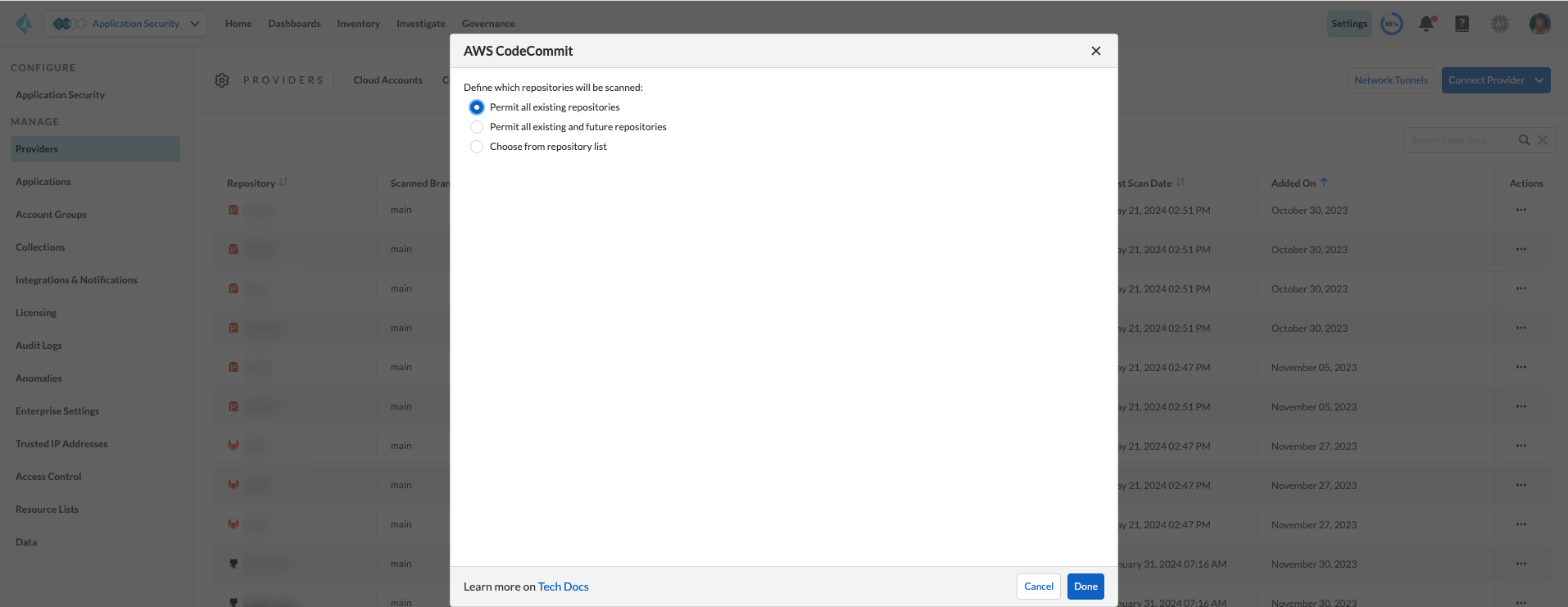
The **Add Repositories** step of the integration wizard is displayed.
3. Select an option:
* **Permit all existing repositories**
* **Permit all existing and future repositories**. This is the recommended option to ensure complete coverage and successful operation of all features.
* **Choose from repository list** > Select repositories
6. Select **Done** to complete the integration.
7. Next step: Monitor and manage scan results.
* View your selected AWS CodeCommit repositories on the **Repositories** page. The next AWS CodeCommit scan will include these repositories
* View scan results and resolve issues in the **Projects** page: In **Application Security** select **Home** > **Projects**. See [Monitor and Manage Code Build Issues](https://github.com/PaloAltoNetworks/pc-docs-md/tree/main/enterprise-edition/content-collections/application-security/risk-management/monitor-and-manage-code-build/monitor-and-manage-code-build.md) for more information about mitigating issues
## Support for Multiple Integrations
Prisma Cloud supports multiple integrations for multiple AWS CodeCommit accounts.
Multiple integrations from a single Prisma Cloud account enables you to:
* View a list of integrations on a single console
* Add additional integrations
* Delete an existing integration
Selecting a repository for a specific integration will restrict you from selecting the same repository in another integration.
1. In **Application Security**, select **Home** > **Settings** > **Connect Provider** > **Code & Build Providers** > **AWS CodeCommit** (under Code Repositories).
2. Select **Add Integration** in the wizard.
3. Execute the AWS CodeCommit integration process above.
4. Next step: Monitor and manage scan results - see **step 7** of the integration process above.
## Manage Integrations
You can reselect repositories or delete an integration.
1. In **Application Security**, select **Settings** > **Code & Build Providers** > **AWS CodeCommit**.
2. Select the menu under the 'Actions' column of the required integration.
3. Perform an action:
* **Reselect repositories**: Access and modify the list of repositories to be scanned
* **Delete integration**: Delete an integration
## User Permissions
Authorize the user integrating Prisma Cloud with your AWS CodeCommit instance with the following permissions.
**CodeCommit Permissions**
These permissions pertain to various actions and operations within AWS CodeCommit.
* **codecommit:GitPull**: Allows users to pull Git repository changes
* **codecommit:ListBranches**: Grants the ability to list branches within a repository
* **codecommit:GetBranch**: Required to get details about a branch in a repository
* **codecommit:GetPullRequest**: Enables fetching details of a specific pull request
* **codecommit:GetFolder**: Required to view the contents of a specified folder in a repository from the CodeCommit console
* **codecommit:GetFile**: Required to view the encoded content of an individual file and its metadata in a repository from the CodeCommit console
* **codecommit:GetBlob**: Allows fetching of an object (such as a file) from a repository
* **codecommit:GetCommitsFromMergeBase**: Grants access to commits from the merge base of a branch
* **codecommit:GetCommentsForPullRequest**: Allows retrieval of comments associated with a pull request
* **codecommit:PostCommentReply**: Required to create a reply to a comment on a comparison between commits or on a pull request
* **codecommit:UpdateComment**: Allows updating of comments on pull requests
* **codecommit:PostCommentForPullRequest**: Required to post a comment on a pull request in a repository
* **codecommit:GetComment**: Permits retrieval of a specific comment on a pull request
* **codecommit:GetCommit**: Allows fetching details of a specific commit
* **codecommit:GetDifferences**: Grants access to differences (changes) between commits, branches, and so on
* **codecommit:BatchGetRepositories**: Enables batch retrieval of repository details
* **codecommit:GetRepository**: Permits fetching details of a specific repository
* **codecommit:ListRepositories**: Grants the ability to list repositories within an account
* **codecommit:GetRepositoryTriggers**: Allows fetching of triggers configured for a repository
* **codecommit:PutRepositoryTriggers**: Enables configuration of repository triggers
* **codecommit:TestRepositoryTriggers**: Allows testing of repository triggers
* **codecommit:GetTree**: Required to view the contents of a specified tree in a repository from the CodeCommit console. This is an IAM policy permission only, not an API action that you can call
* **codecommit:GetReferences**: Permits fetching of references (branches, tags, etc.) in a repository
* **codecommit:GetObjectIdentifier**: Grants access to object identifiers within a repository
* **codecommit:GetCommitHistory**: Allows fetching of commit history for a repository
* **codecommit:BatchGetPullRequests**: Required to return information about one or more pull requests in a repository. This is an IAM policy permission only, not an API action that you can call
* **codecommit:BatchGetCommits**: Enables batch retrieval of commit details
* **codecommit:GetCommentsForComparedCommit**: Required to return information about comments made on the comparison between two commits in a repository
* **codecommit:PostCommentForComparedCommit**: Required to create a comment on the comparison between two commits in a repository
* **codecommit:PostCommentReply**: Enables posting replies to comments on pull requests
* **codecommit:ListPullRequests**: Required to return information about the pull requests for a repository
* **codecommit:DeleteCommentContent**: Required to delete the content of a comment made on a change, file, or commit in a repository. Comments cannot be deleted, but the content of a comment can be removed if the user has this permission
* **codecommit:CreateBranch**: Permits creation of branches within a repository
* **codecommit:GetBranch**: Permits retrieval of branch details
* **codecommit:CreateCommit**: Allows creation of commits in a repository
* **codecommit:CreatePullRequest**: Enables creation of pull requests in a repository
* **codecommit:PutFile**: Required to add a new or modified file to a repository from the CodeCommit console, CodeCommit API, or the AWS CLI
* **codecommit:ListAssociatedApprovalRuleTemplatesForRepository**: Grants access to associated approval rule templates for a repository
* **codecommit:ListApprovalRuleTemplates**: Allows listing of approval rule templates
* **codecommit:GetApprovalRuleTemplate**:Required to return information about an approval rule template in an Amazon Web Services account
* **codecommit:ListRepositoriesForApprovalRuleTemplate**: Permits listing of repositories associated with an approval rule template
### CI/CD Module Permissions
These permissions are essential for the CI/CD module in order to manage access control, user permissions, and organizational policies within the AWS environment through IAM.
* **iam:ListPolicies**: Allows listing of IAM policies within the AWS account
* **iam:ListGroupPolicies**: Permits listing of group policies attached to IAM groups
* **iam:ListPoliciesGrantingServiceAccess**: Enables listing of policies granting access to specific AWS services
* **organizations:ListPolicies**: Grants access to listing of policies within AWS Organizations
* **organizations:ListDelegatedAdministrators**: Allows listing of delegated administrators within AWS Organizations
* **organizations:ListAccounts**: Permits listing of member accounts within AWS Organizations
* **iam:ListRoles**: Enables listing of IAM roles within the AWS account
* **iam:ListGroupsForUser**: Allows listing of IAM groups that a specified user belongs to
* **iam:ListUsers**: Permits listing of IAM users within the AWS account
* **iam:ListGroups**: Grants access to listing of IAM groups within the AWS account
* **iam:ListRolePolicies**: Allows listing of policies attached to IAM roles
* **iam:GetAccountAuthorizationDetails**: Permits fetching of details related to account authorization within IAM
---
# Agent Instructions
This documentation is published with GitBook. GitBook is the documentation platform designed so that both humans and AI agents can read, navigate, and reason over technical content effectively. Learn more at gitbook.com.
## Querying This Documentation
If you need additional information that is not directly available in this page, you can query the documentation by asking a question.
Perform an HTTP GET request on the following URL with the `ask` and `goal` query parameters:
```
GET https://docs.prismacloud.io/content-collections/application-security/get-started/connect-code-and-build-providers/code-repositories/add-aws-codecommit.md?ask=&goal=
```
`ask` is the immediate question: it should be specific, self-contained, and written in natural language.
`goal` is what the user is ultimately trying to achieve, the reason they need the answer. Sharing it helps GitBook give you a better, more relevant answer. A goal is most helpful when it describes the outcome the user wants rather than restating the question. For example, with `ask=how do I create an API token`, a goal like `automate deployments from our CI pipeline` lets GitBook tailor the answer to that use case.
The response will contain a direct answer to the question and relevant excerpts and sources from the documentation.
Use this mechanism when the answer is not explicitly present in the current page, you need clarification or additional context, or you want to retrieve related documentation sections.