> For the complete documentation index, see [llms.txt](https://docs.prismacloud.io/llms.txt). Markdown versions of documentation pages are available by appending `.md` to page URLs; this page is available as [Markdown](https://docs.prismacloud.io/content-collections/application-security/get-started/connect-code-and-build-providers/code-repositories/add-bitbucket-server.md).
# Bitbucket Data Center/Server
Integrate Prisma Cloud with your Bitbucket Data Center or Bitbucket Server version control systems (VCS) to gain visibility into, and monitor the systems, technologies, configurations, and pipelines that make up your Bitbucket Data Center/Bitbucket Server platforms.
This integration enables security scans to identify Infrastructure-as-Code (IaC) misconfigurations, Software Composition Analysis (SCA) vulnerabilities, exposed secrets, license mis-compliance and CI/CD pipeline risks in your Bitbucket environment, allowing you to understand and fix issues as soon as they are detected, resulting in an enhanced security posture for your organization.
The integration with Bitbucket Data Center/Bitbucket Server creates a webhook that triggers periodic scans of your code. These scans run on all pull requests (PRs), and their results are displayed in both the PR comments and reports.
Refer to [Subscribed Events](#subscribed-events) below for a list of events to which the integration is subscribed.
## Supported Versions
* Integrating with Bitbucket Data Center or Bitbucket Server extends support for Bitbucket Data Center and Data Center Server version 8 and later
* The CI/CD Security module is compatible with Bitbucket Data Center and Bitbucket Server versions 8 and later
## Prerequisites
1. Grant the Prisma Cloud user the necessary permissions for integrating Prisma Cloud with your Bitbucket Data Center or Bitbucket Server, as specified in [User Permissions](#user-permissions) below.
2. Add the Prisma Cloud IP addresses and hostname for Application Security to an [allow list](/content-collections/get-started/console-prerequisites.md) to enable access to the Prisma Cloud Console.
3. Ensure that the provided hostname or IP address is resolvable on public DNS servers.
4. Ensure the use of the default port 443 for the integration.
5. On **Bitbucket Server**, create and copy a **Personal Access Token** (PAT).
1. Access **Bitbucket Server** > **Manage account** > **Account settings** > **Personal access tokens**.
2. Provide a **Token name**.
3. Select the **Permissions** scope.
* For Projects: **Read** permissions. If you require for CI/CD scanning capabilities, select **Administrator** permissions
* For Repositories: **Administrator** permissions
Providing read and write permissions to the necessary repositories enables Prisma Cloud to copy files for scanning, and access repository settings. This, in turn, facilitates the ability to subscribe to pull request (PR) webhooks, allowing for the initiation of fix PRs and comments on open PRs.
By default,the permissions of the access token are set according to your current access level. It is essential to define two levels of permissions, **Project** and **Repository** permissions. The Repository permissions inherit from Project permissions, requiring Repository permissions to match or exceed Project permissions.
4. Select the **Expire automatically** option.
For additional security, it is recommended to set an expiry automatically. The expiry date of a token cannot be changed after it is created. You can see the expiry dates for all your tokens on **Profile picture** > **Manage account** > **Personal access tokens**.
5. Select **Create**.
6. Copy the generated token from the dialog.
Always refer to the [Bitbucket](https://confluence.atlassian.com/bitbucketserver072/personal-access-tokens-1005335924.html) documentation for information relating to creating a PAT.
## Integration
1. On the Prisma Cloud Application Security console.
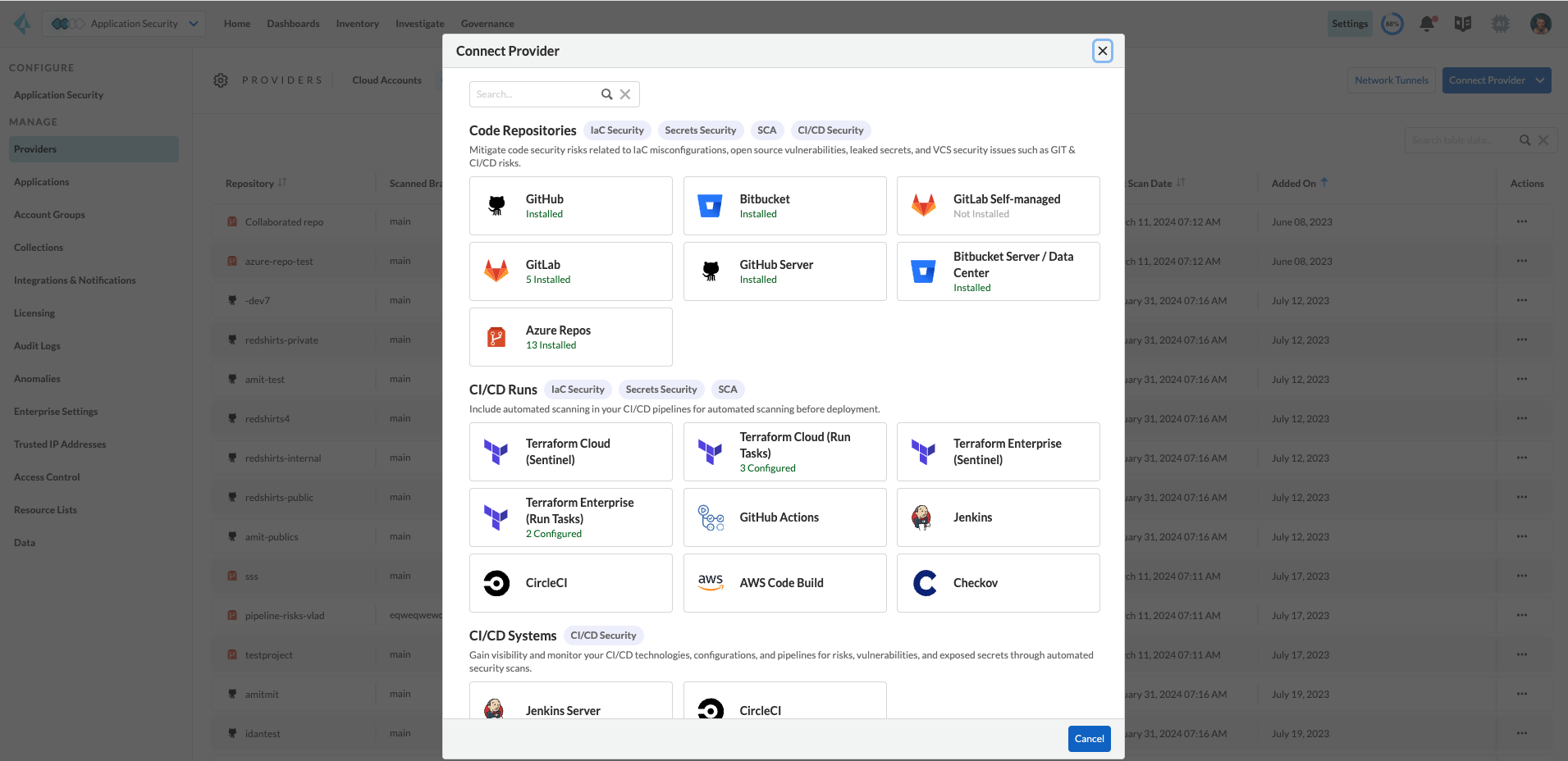
1. Select **Settings** > **Connect Provider** > **Code & Build Providers**.
2. Select **Bitbucket Server/Data Center** (under Code Repositories) in the catalog that is displayed.
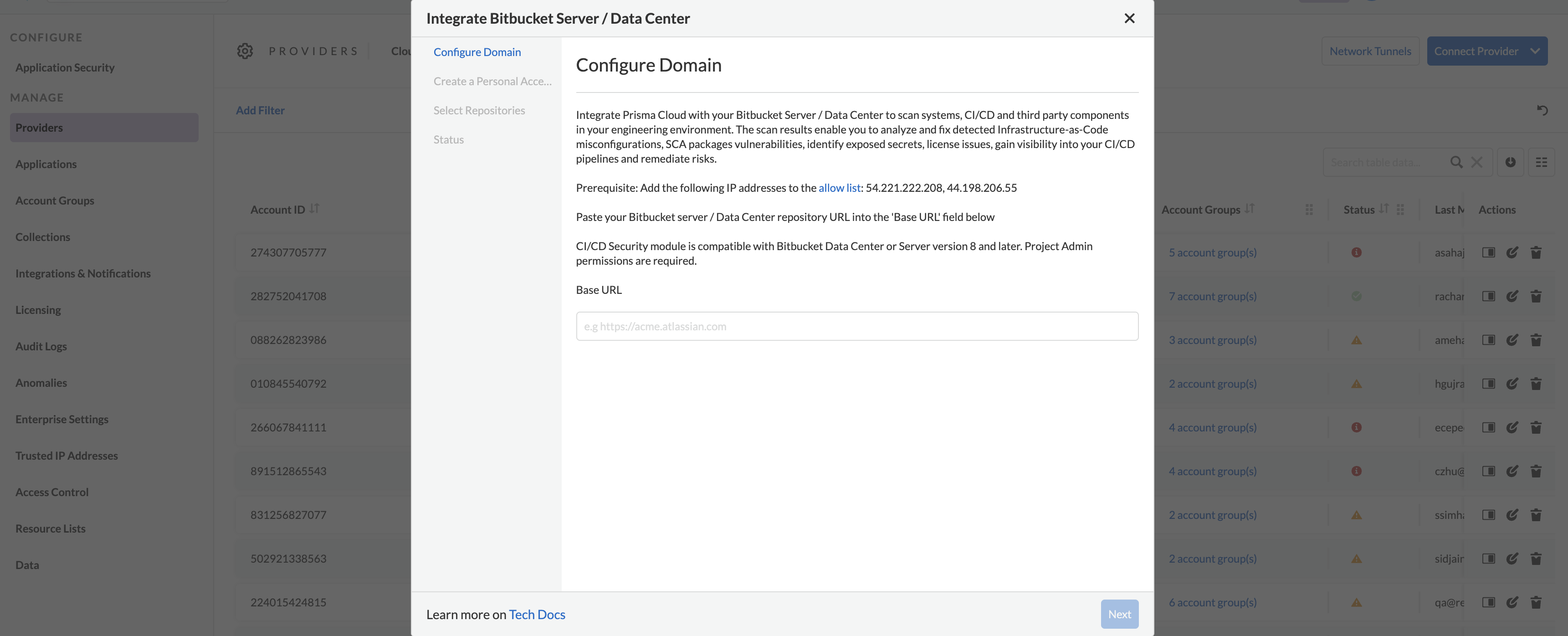
The **Configure Domain** step of the installation wizard (wizard) is displayed.
3. Paste the URL of your Bitbucket Data Center/Server repository into the **Base Url** field > **Next**.
The **Base URL** must include the **"HTTPS://"** prefix.
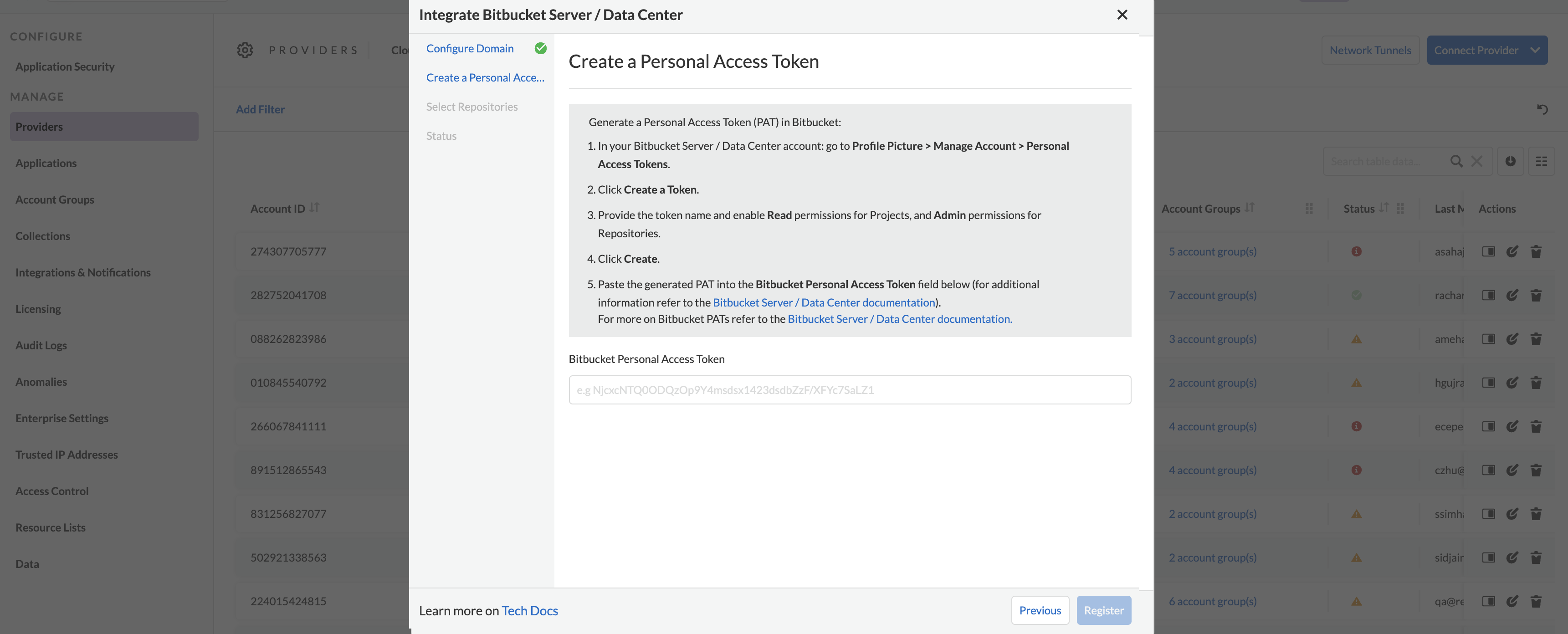
The **Create a Personal Access Token** step of the wizard is displayed.
2. Paste the Bitbucket PAT generated in *step 5* of the prerequisites above in the **Bitbucket Personal Access Token** field > **Register**.
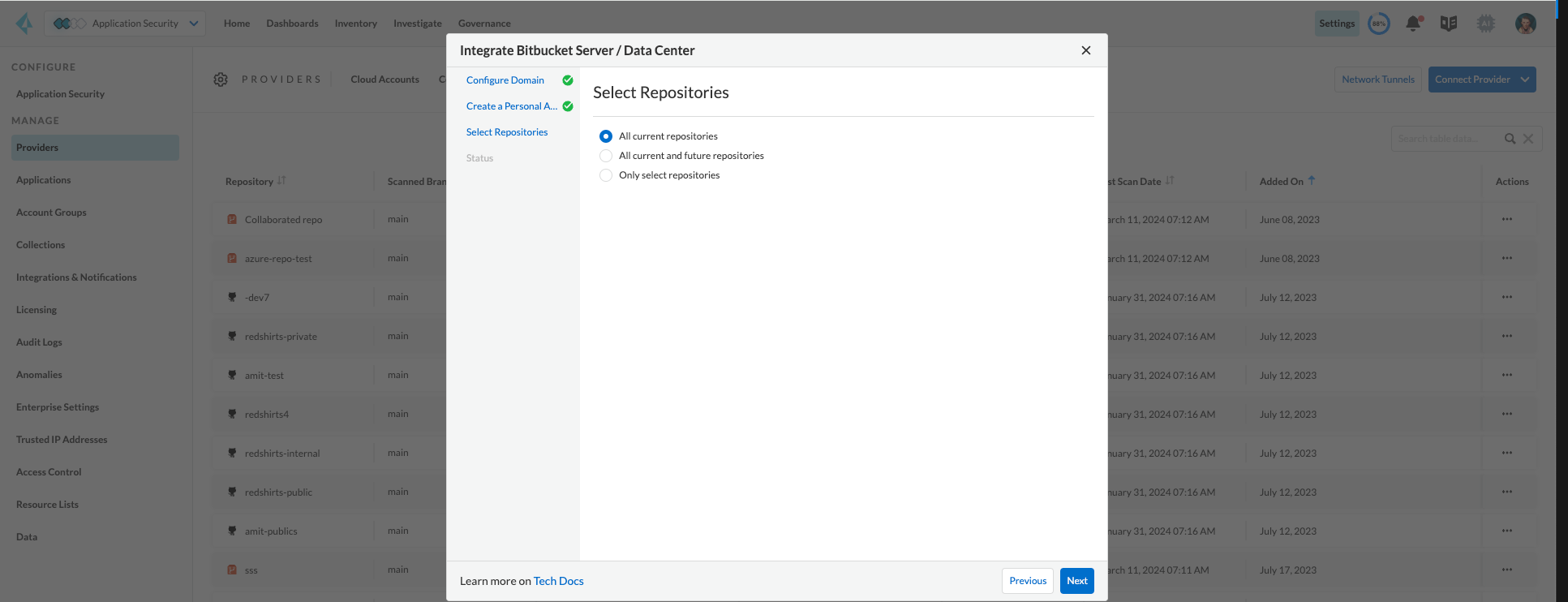
The **Select Repositories** step of the wizard is displayed.
3. Select which repositories will be scanned.
* **Permit all existing repositories**
* **Permit all existing and future repositories**. This is the recommended option to ensure complete coverage and successful operation of all features
* **Choose from repository list** > Select repositories The selected repositories associated with the PAT will be scanned
4. Select **Next** > **Done** in the **Status** step of the wizard to complete the integration.
5. Verify integration.
1. In **Application Security**, select **Home** > **Settings** > **Code & Build Providers** tab.
2. Confirm that the status of the integrated **Bitbucket Server/ Data Center** repositories displays **Connected** under **Status**.
It may take up to 3 minutes for the integration status to be updated.
6. Next step: Monitor and manage scan results.
To view scan results and resolve issues, in **Application Security** select **Home** > **Projects**. See [Monitor and Manage Code Build Issues](https://github.com/PaloAltoNetworks/pc-docs-md/tree/main/enterprise-edition/content-collections/application-security/risk-management/monitor-and-manage-code-build/monitor-and-manage-code-build.md) for more information.
## Support for Multiple Integrations
Prisma Cloud supports multiple integrations with Bitbucket Data Center/Server instances. Once you’ve initially integrated with Prisma Cloud, you can add more integrations using either the existing user or team token, if the current server has additional repositories requiring integration. Integrating with a new domain or server, such as a different Bitbucket Data Center/Server instance, will require a new integration process and token.
Leveraging multiple integrations from a single Prisma Cloud account allows you to:
* View a list of integrations on a single console
* Add additional integrations
* Delete an existing integration
Selecting a repository for a specific integration will restrict you from selecting the same repository for another integration.
1. In **Application Security**, select **Settings** > **Connect Provider** > **Code & Build Providers** > **Bitbucket Server/Data Center** (under Code Repositories) in the catalog that is displayed.
A popup with a list of Bitbucket Data Center/Server integrations is displayed.
2. Select **Add Integration**.
The Configure Domain step of the integration wizard is displayed.
3. Execute the [Integration](#integration) steps above, starting from step 1.3.
4. Next step: See [Monitor and Manage Code Build Issues](https://github.com/PaloAltoNetworks/pc-docs-md/tree/main/enterprise-edition/content-collections/application-security/risk-management/monitor-and-manage-code-build/monitor-and-manage-code-build.md).
## Manage Integrations
Manage integrations from the integration wizard.
1. Access the list of Bitbucket Data Center/ Server integrations - see **steps 1,2** of [Support for Multiple Integrations](#multi-integrate) above.
2. Choose the corresponding option from the menu located under the **Actions** column.
1. Select **Reselect repositories** to add or remove repositories
2. Select **Delete Integration** to delete integrations
## Rotate Integration Tokens
Rotate integration tokens to enhance security and prevent unauthorized access.
Create a **PUT** request: `PUT /code/api/v1/integration/token/` with the following body:
```json
{
"token": "new token"
}
```
To find your \:
1. In **Application Security**, select **Settings** > **Connect Provider** > **Code & Build Providers** > **Bitbucket Server/Data Center** (under Code Repositories) in the catalog that is displayed.
2. Select the menu under the **Actions** column of an account.
3. Click **Reselect repositories**.
The integration ID is displayed in the URL bar on the **Select Repositories** step of the integration wizard.
## User Permissions
Authorize the user integrating Prisma Cloud with your Bitbucket Server/Data Center instance with the following permissions.
* **Organization owner** permissions
* **Read** permissions for projects
* **Administrator** permissions for repositories
### CI/CD Module Permissions
* **Administrator** permissions for projects
* **Administrator** permissions for repositories
### CI/CD Module Subscribed Events
Below is a list of events specific to the CI/CD module to which Prisma Cloud is subscribed. These events encompass various actions and changes occurring within your CI/CD environment that trigger notifications and integrations with Prisma Cloud.
**Project**
* **proj:modified**: This event occurs when a project undergoes modifications, such as changes to its name, description, or configuration settings
**Repository**
* **repo:refs\_changed**: This event occurs when a push operation is performed, typically resulting in changes to the repository’s references
* **repo:forked**: This event occurs when a repository is forked, creating a separate copy of the repository under a different user or organization
* **repo:repo:modified**: This event occurs when the repository itself undergoes modifications, such as changes to its settings or configuration
* **repo:comment:added**: This event occurs when a new comment is added to a commit within the repository
* **repo:comment:edited**: This event occurs when an existing comment on a commit is edited within the repository
* **repo:comment:deleted**: This event occurs when a comment on a commit is deleted within the repository
**Pull Request**
* **pr:opened**: This event occurs when a pull request is opened, indicating the initiation of a request to merge changes into the repository
* **pr:from\_ref\_updated**: This event occurs when the source branch of a pull request is updated with new changes
* **pr:to\_ref\_updated**: This event occurs when the target branch of a pull request is updated with new changes
* **pr:modified**: This event occurs when a pull request undergoes modifications, such as changes to its title, description, or metadata
* **pr:reviewer:updated**: This event occurs when the list of reviewers assigned to a pull request is updated
* **pr:reviewer:approved**: This event occurs when a reviewer approves a pull request
* **pr:reviewer:unapproved**: This event occurs when a previously approved review on a pull request is revoked
* **pr:reviewer:needs**: This event occurs when a reviewer requests changes to be made to a pull request before it can be approved
* **pr:merged**: This event occurs when a pull request is successfully merged into the repository
* **pr:declined**: This event occurs when a pull request is declined or rejected, typically due to not meeting certain criteria or requirements
* **pr:deleted**: This event occurs when a pull request is deleted, either intentionally by a user or automatically due to certain conditions
* **pr:comment:added**: This event occurs when a new comment is added to a pull request
* **pr:comment:edited**: This event occurs when an existing comment on a pull request is edited
* **pr:comment:deleted**: This event occurs when a comment on a pull request is deleted
## Subscribed Events
Below is a comprehensive list of events to which Prisma Cloud is subscribed, excluding those related to the CI/CD module. These events encompass various actions and changes occurring within your Bitbucket Server/Data Center environment that trigger notifications and integrations with Prisma Cloud.
* **pr:merged**: This event occurs when a pull request is successfully merged into the repository
* **pr:reviewer:updated**: This event happens when the reviewer list for a pull request is updated
* **pr:opened**: This event occurs when a new pull request is opened
* **repo:comment:added**: This event happens when a comment is added to the repository
* **repo:forked**: This event occurs when a repository is forked
* **repo:refs\_changed**: This event happens when references in the repository are changed
* **repo:comment:edited**: This event occurs when a comment in the repository is edited
* **pr:declined**: This event occurs when a pull request is declined
* **pr:deleted**: This event happens when a pull request is deleted
* **pr:comment:deleted**: This event occurs when a comment on a pull request is deleted
* **repo:comment:deleted**: This event happens when a comment in the repository is deleted
* **pr:comment:edited**: This event occurs when a comment on a pull request is edited
* **pr:reviewer:unapproved**: This event happens when a reviewer unapproves a pull request
* **pr:modified**: This event occurs when a pull request is modified
* **mirror:repo\_synchronized**: This event occurs when a mirrored repository is synchronized
* **pr:reviewer:needs\_work**: This event happens when a reviewer marks a pull request as needing work
* **pr:reviewer:approved**: This event occurs when a reviewer approves a pull request
* **repo:modified**: This event occurs when the repository is modified
* **pr:comment:added**: This event occurs when a comment is added to a pull request
---
# Agent Instructions
This documentation is published with GitBook. GitBook is the documentation platform designed so that both humans and AI agents can read, navigate, and reason over technical content effectively. Learn more at gitbook.com.
## Querying This Documentation
If you need additional information that is not directly available in this page, you can query the documentation by asking a question.
Perform an HTTP GET request on the following URL with the `ask` and `goal` query parameters:
```
GET https://docs.prismacloud.io/content-collections/application-security/get-started/connect-code-and-build-providers/code-repositories/add-bitbucket-server.md?ask=&goal=
```
`ask` is the immediate question: it should be specific, self-contained, and written in natural language.
`goal` is what the user is ultimately trying to achieve, the reason they need the answer. Sharing it helps GitBook give you a better, more relevant answer. A goal is most helpful when it describes the outcome the user wants rather than restating the question. For example, with `ask=how do I create an API token`, a goal like `automate deployments from our CI pipeline` lets GitBook tailor the answer to that use case.
The response will contain a direct answer to the question and relevant excerpts and sources from the documentation.
Use this mechanism when the answer is not explicitly present in the current page, you need clarification or additional context, or you want to retrieve related documentation sections.