> For the complete documentation index, see [llms.txt](https://docs.prismacloud.io/llms.txt). Markdown versions of documentation pages are available by appending `.md` to page URLs; this page is available as [Markdown](https://docs.prismacloud.io/content-collections/application-security/get-started/connect-code-and-build-providers/code-repositories/add-github.md).
# GitHub
Integrate Prisma Cloud with your GitHub version control system (VCS) to gain visibility into, and monitor the systems, technologies, configurations, and pipelines that make up the GitHub platform.
This integration enables security scans to identify Infrastructure-as-Code (IaC) misconfigurations, Software Composition Analysis (SCA) vulnerabilities, exposed secrets, license mis-compliance and CI/CD pipeline risks in your GitHub environment, allowing you to understand and fix issues as soon as they are detected, resulting in an enhanced security posture for your organization.
The GitHub integration creates a webhook that triggers periodic scans of your code. These scans run on all pull requests (PRs), and their results are displayed in both the PR comments and reports.
Refer to [Subscribed Events](#subscribed-events) below for a list of subscribed events for which the integration is subscribed to.
1. Before you begin.
1. Grant the Prisma Cloud user the necessary permissions for integrating Prisma Cloud with your GitHub VCS, as specified in [User Permissions](#user-permissions) below.
2. Add the Prisma Cloud IP addresses and hostname for Application Security to an [allow list](/content-collections/get-started/console-prerequisites.md) to enable access to the Prisma Cloud Console.
2. On the Prisma Cloud Application Security console.
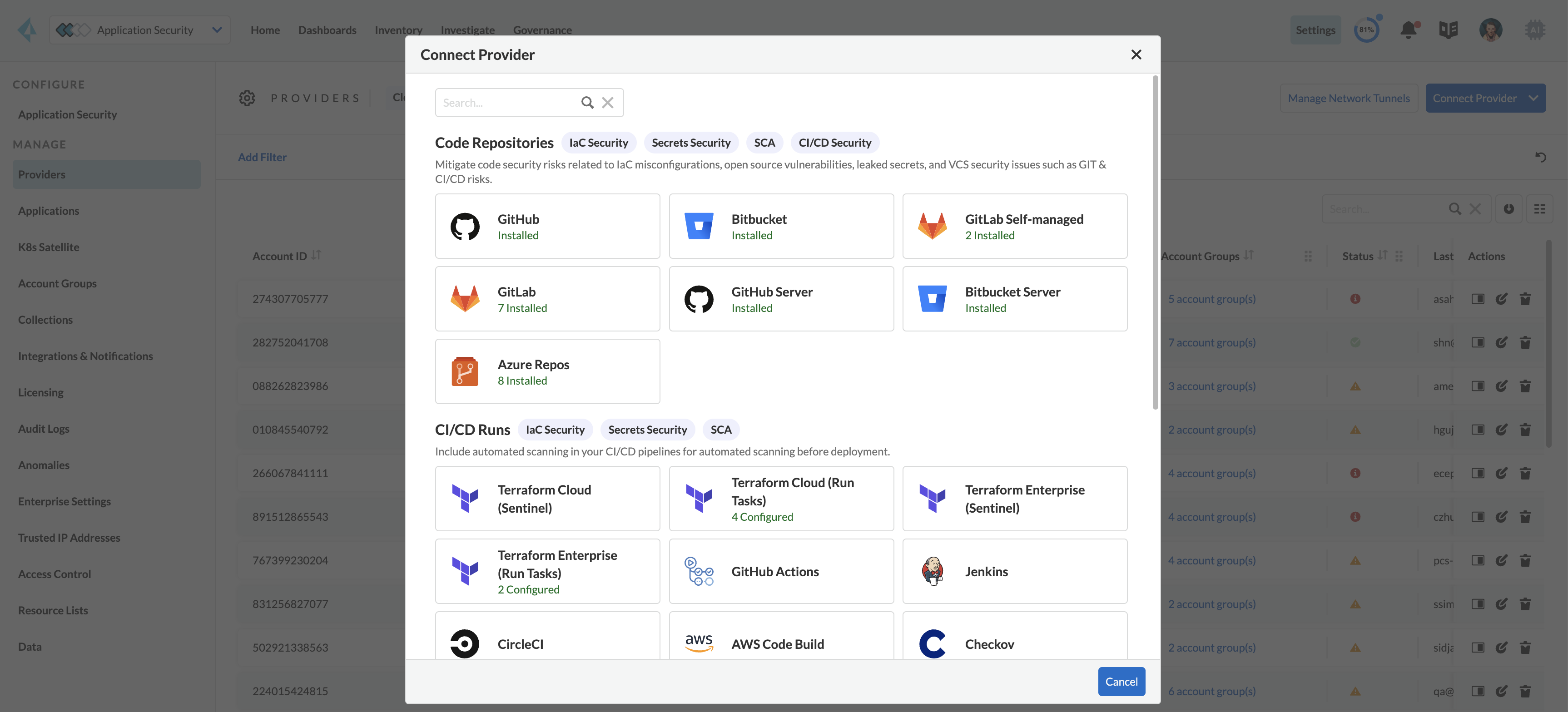
1. In Application Security, select **Home** > **Settings** > **Connect Provider** > **Code & Build Providers**.
2. Select **GitHub** (under Code Repositories) in the catalog that is displayed.
3. Select **Authorize** in the **Configure Account** step of the integration wizard that is displayed.
You are redirected to GitHub to authorize Prisma Cloud access.
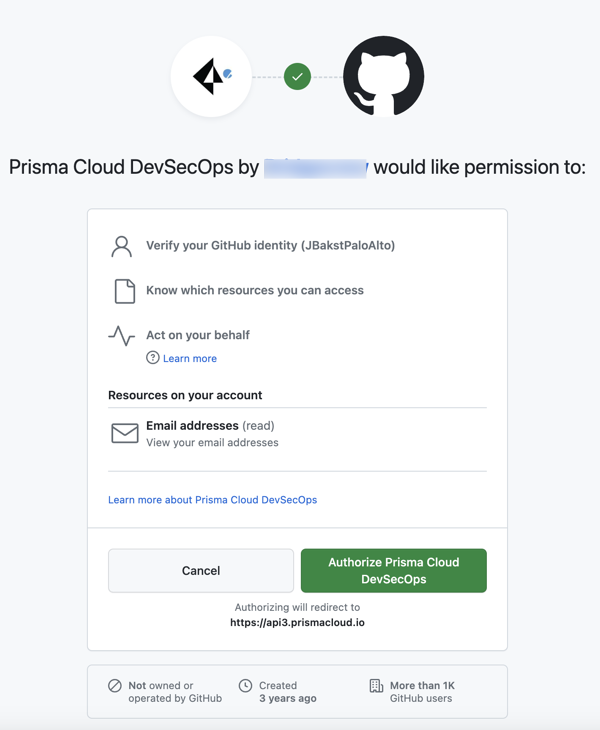
3. Authorize Prisma Cloud on GitHub.
1. Select **Authorize** to authenticate your account through your SSO provider > complete the required process.
2. Select **Authorize Prisma Cloud DevOps**.
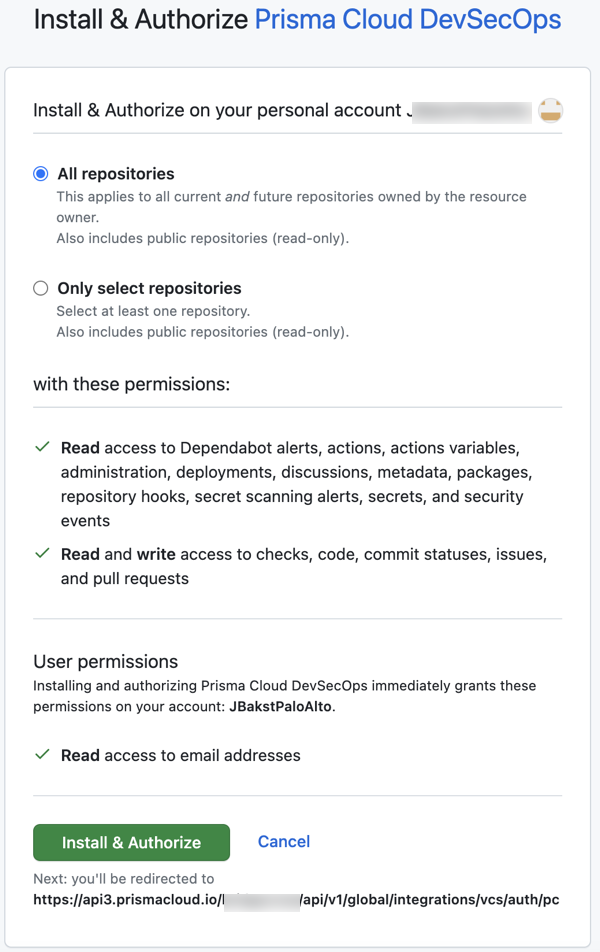
3. Select the organization on which Prisma Cloud will be installed.
4. Select the repositories to be authorized.
* **All repositories** applies to all current and future repositories owned by the resource owner
This is the recommended option to ensure complete coverage and successful operation of all features.
* **Only select repositories** > **Select repositories** allows you to authorize selected repositories from the menu
Review the permissions granted when authorizing Prisma Cloud on GitHub.
5. Select **Install & Authorize**.
You are redirected to the **Select Repositories** step of the GitHub installation wizard on the Prisma Cloud console.
Refer to the [GitHub Documentation](https://docs.github.com/en/apps/using-github-apps/installing-a-github-app-from-a-third-party) for more on authorizing and installing GitHub Apps.
4. On the Prisma Cloud console.
1. Select an option to determine which repositories will be scanned.
* **Permit all existing repositories**
* **Permit all existing and future repositories**
This is the recommended option to ensure complete coverage and successful operation of all features.
* **Choose from repository list** > select repositories
2. Select **Next** > **Done** in the **Status** step of the wizard to complete the integration.
5. Verify integration.
1. In **Application Security**, select **Home** > **Settings** > **Code & Build Providers** tab.
2. Confirm that the status of the integrated **GitHub** repositories displays **Connected** under **Status**.
It may take up to 3 minutes for the integration status to be updated.
6. Next step: Monitor and manage scan results.
* View your selected GitHub repositories on the **Repositories** page. The next GitHub scan will include these repositories
* To view scan results and resolve issues, in **Application Security** select **Home** > **Projects**. See [Monitor and Manage Code Build Issues](https://github.com/PaloAltoNetworks/pc-docs-md/tree/main/enterprise-edition/content-collections/application-security/risk-management/monitor-and-manage-code-build/monitor-and-manage-code-build.md) for more information
## User Permissions
Authorize the user integrating Prisma Cloud with your GitHub instance with the following permissions.
* **Read** access to Dependabot alerts, actions, actions variables, administration, deployments, discussions, metadata, packages, repository hooks, secret scanning alerts, secrets, and security events
* **Read and write access** to checks, code, commit statuses, issues, and pull requests
In contrast to GitLab, GitLab Enterprise, and Azure, there is no individual record of each token used for authentication on the integrations page. This might give the impression to users that they are overriding the integration. However, Prisma Cloud retains previous tokens and utilize them to perform necessary actions. If a user removes the integration, all associated tokens will be removed along with it.
## Subscribed Events
Below is a comprehensive list of events to which Prisma Cloud is subscribed. These events encompass various actions and changes occurring within your GitHub environment that trigger notifications and integrations with Prisma Cloud:
* **Create**: Indicates the creation of a branch or tag
* **Commit comment**: Refers to comments made on a commit or a 'diff' comment, which compares changes within a commit
* **Issues**: Includes a wide range of actions such as opening, editing, deleting, transferring, pinning, unpinning, closing, reopening, assigning, unassigning, labeling, unlabeling, milestone management (milestoned, demilestoned), and locking or unlocking an issue
* **Public**: Denotes changes made to a repository from private to public
* **Pull request**: Represents actions related to pull requests, including assignment, enabling or disabling auto merge, closing, conversion to draft, demilestoning, dequeuing, editing, enqueuing, labeling, locking, milestone assignment, opening, readiness for review, reopening, removal of review requests, request for review, synchronization, unassignment, unlabeling, and unlocking
* **Pull request review comment**: Indicates the creation, editing, or deletion of a comment on a pull request’s diff
* **Push**: Refers to a Git push operation performed on a repository
* **Repository**: Includes actions such as creation, deletion, archiving, unarchiving, publicizing, privatizing, editing, renaming, or transferring of a repository
---
# Agent Instructions
This documentation is published with GitBook. GitBook is the documentation platform designed so that both humans and AI agents can read, navigate, and reason over technical content effectively. Learn more at gitbook.com.
## Querying This Documentation
If you need additional information that is not directly available in this page, you can query the documentation by asking a question.
Perform an HTTP GET request on the following URL with the `ask` and `goal` query parameters:
```
GET https://docs.prismacloud.io/content-collections/application-security/get-started/connect-code-and-build-providers/code-repositories/add-github.md?ask=&goal=
```
`ask` is the immediate question: it should be specific, self-contained, and written in natural language.
`goal` is what the user is ultimately trying to achieve, the reason they need the answer. Sharing it helps GitBook give you a better, more relevant answer. A goal is most helpful when it describes the outcome the user wants rather than restating the question. For example, with `ask=how do I create an API token`, a goal like `automate deployments from our CI pipeline` lets GitBook tailor the answer to that use case.
The response will contain a direct answer to the question and relevant excerpts and sources from the documentation.
Use this mechanism when the answer is not explicitly present in the current page, you need clarification or additional context, or you want to retrieve related documentation sections.