> For the complete documentation index, see [llms.txt](https://docs.prismacloud.io/llms.txt). Markdown versions of documentation pages are available by appending `.md` to page URLs; this page is available as [Markdown](https://docs.prismacloud.io/content-collections/application-security/get-started/connect-code-and-build-providers/code-repositories/add-gitlab-selfmanaged.md).
# Gitlab Self-managed
Integrate Prisma Cloud with your GitLab Self-managed version control system (VCS) to gain visibility into, and monitor the systems, technologies, configurations, and pipelines that make up the GitLab self-managed platform.
This integration enables security scans to identify Infrastructure-as-Code (IaC) misconfigurations, Software Composition Analysis (SCA) vulnerabilities, exposed secrets, license mis-compliance and CI/CD pipeline risks in your GitLab environment, allowing you to understand and fix issues as soon as they are detected, resulting in an enhanced security posture for your organization.
The GitLab Self-managed integration creates a webhook that triggers periodic scans of your code. These scans run on all pull requests (PRs), and their results are displayed in both the PR comments and reports.
Refer to [Subscribed Events](#subscribed-events) below for a list of subscribed events for which the integration is subscribed to.
1. Before you begin.
1. Grant the Prisma Cloud user the necessary permissions for integrating Prisma Cloud with your GitLab Self-managed VCS, as specified in [User Permissions](#user-permissions) below.
2. Add the Prisma Cloud IP addresses and hostname for Application Security to an [allow list](/content-collections/get-started/console-prerequisites.md) to enable access to the Prisma Cloud Console.
3. Ensure the use of the default port 443 for the integration.
4. Provide a hostname or IP address that can be resolved on the public DNS.
2. On the Prisma Cloud Application Security console.
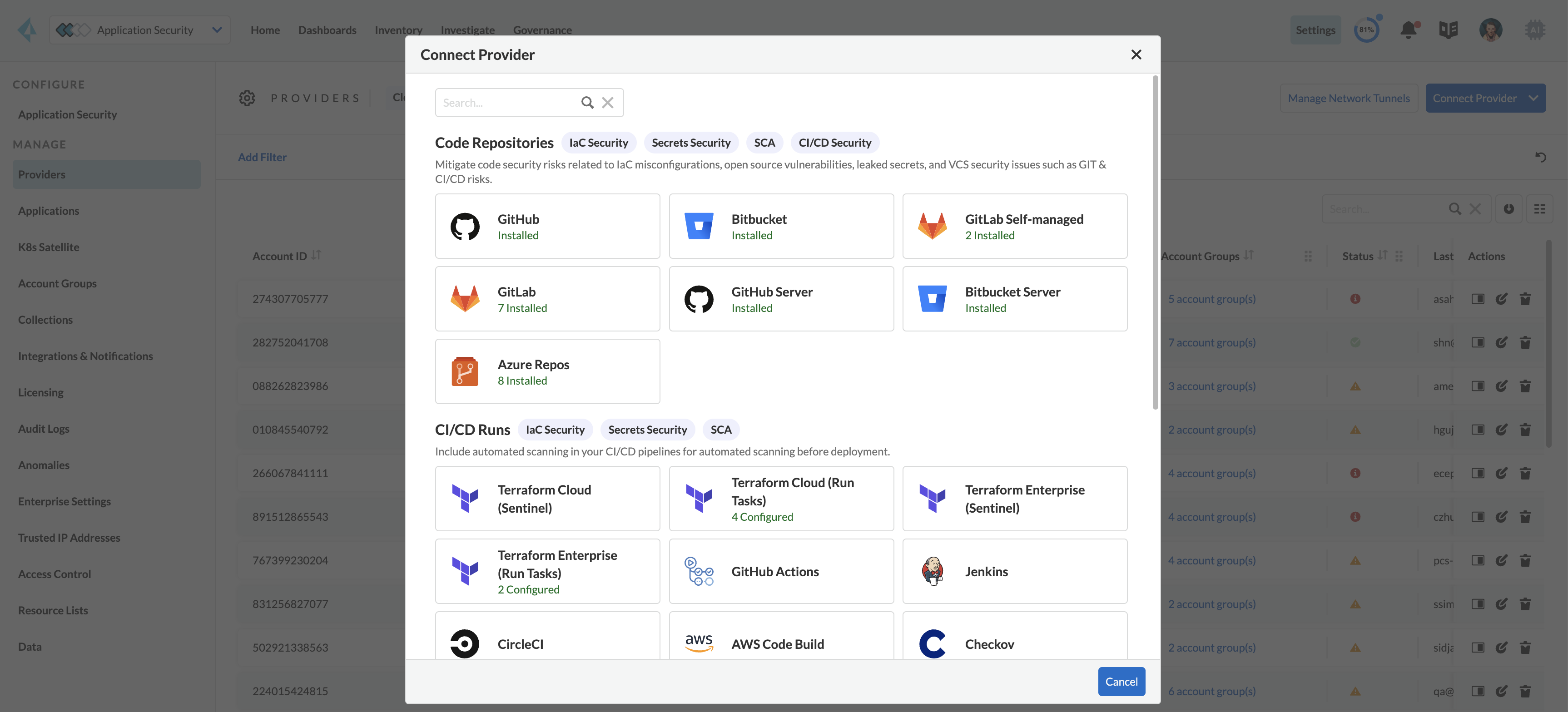
1. In **Application Security**, select **Home** > **Settings** > **Connect Provider** > **Code & Build Providers**.
2. Select **GitLab Self-managed** (under Code Repositories) in the catalog that is displayed.
The **Configure Domain** step of the integration wizard (wizard) is displayed.
3. Enter your domain or IP address in the **Configure Domain** step of the installation wizard> **Register**.
The domain is the hostname associated with your self-hosted GitLab instance.
The **Register OAUTH app** step of the wizard is displayed.
4. Copy the values **Application Name** and **Redirect URL** fields > **Next**.
You are redirected to your GitLab Self-managed instance.
3. On the GitLab Self-managed console.
1. Create an application.
* Access **GitLab Self-Managed > User Settings > Applications**.
* Paste the copied **Application Name** and **Redirect URL** in their respective fields.
2. Select **api** as the application scope > **Save application**.
3. Copy the generated **Application ID** and **Secret** values that are displayed after the application is created.
4. In the **Set Client ID and Secret** step of the Prisma Cloud integration wizard.
1. Paste the generated **Application ID** and **Secret** values that you copied above > click **Authorize**.
The **Select Repositories** step of the wizard is displayed.
5. Select which repositories will be scanned.
* **Permit all existing repositories**
* **Permit all existing and future repositories**. This is the recommended option to ensure complete coverage and successful operation of all features
* **Choose from repository list** > Select repositories
6. Select **Next** > **Done** in the **Status** step of the wizard to complete the integration.
7. Verify integration.
1. In **Application Security**, select **Settings** > **Code & Build Providers**.
2. Confirm that the status of the integrated **GitLab** repositories displays **Connected** under **Status**.
It may take up to 3 minutes for the integration status to be updated.
8. Next step: Monitor and manage scan results.
* View your selected GitLab Self-managed repositories on the **Repositories** page. The next GitLab Self-managed scan will include these repositories
* To view scan results and resolve issues, in **Application Security** select **Home** > **Projects**. See [Monitor and Manage Code Build Issues](https://github.com/PaloAltoNetworks/pc-docs-md/tree/main/enterprise-edition/content-collections/application-security/risk-management/monitor-and-manage-code-build/monitor-and-manage-code-build.md) for more information
## Support for Multiple Integrations
Prisma Cloud supports multiple integrations for GitLab Self-Managed. After the initial integration with Prisma Cloud, you can continue to add additional organizations and workspaces using a different or the same user or team token.
Multiple integrations from a single Prisma Cloud account enables you to:
* View a list of integrations on a single console
* Add additional integrations
* Delete an existing integration
Selecting a repository for a specific integration will restrict you from selecting the same repository in another integration.
1. Add additional integrations to a configured GitLab Self-Managed account.
2. In Application Security, select **Settings** > **Connect Provider** > **Code & Build Providers** > **GitLab Self-managed** (under Code Repositories).
1. Select **Add Integration** in the wizard.
2. Execute the installation steps above.
3. Next step: Monitor and manage scan results - see *step 6* of the integration procedure above.
## Manage Integrations
Manage integrations from the integration wizard.
1. Access the GitLab Self-Managed integration wizard - see **step 1** of [Support for Multiple Integrations](#multi-integrate) above.
2. Select the menu under **Actions**.
1. Select **Reselect repositories** to add or remove repositories
2. Select **Delete Integration** to delete integrations
## User Permissions
Authorize the user integrating Prisma Cloud with your GitLab Self-managed instance with the following permissions.
* **Maintainer** permissions. Grants sufficient permissions to configure external integrations, manage repository access, and adjust CI/CD settings
* **api**: Grants full **read** and **write** access to the API, including all groups and projects, as well as permissions to interact with the container registry, the dependency proxy, and the package registry
* **Administrator repository permissions**: In order to scan pull requests (PRs), the user performing the integration must have administrative privileges for the repositories. This enables Prisma Cloud to set up subscription webhooks for the selected repositories
A repository can only be integrated with a single integration at a time. The first integration that connects with the repository will be the one it is assigned to. This means that if multiple integrations attempt to connect to the same repository, only the first integration to establish the connection will be associated with that repository.
## Subscribed Events
Below is a comprehensive list of events to which Prisma Cloud is subscribed. These events encompass various actions and changes occurring within your GitLab Self-managed environment that trigger notifications and integrations with Prisma Cloud:
**Projects**:
* **merge\_requests\_events**: This event is triggered when merge or pull requests are created, updated, merged, closed, or have changes made to them
* **push\_events**: This event occurs whenever code changes are pushed to a repository, indicating new commits being added to the version control history
* **tag\_push\_events**: This event is triggered when new tags are pushed to a repository
* **note\_events**: This event is generated when comments or notes are added to various objects within GitLab, such as issues, merge requests, or commits
* **confidential\_note\_events**: Similar to `note_events`, but specifically for confidential comments or notes that are restricted to certain users or groups
* **issues\_events**: This event is triggered when issues are created, updated, closed, or have changes made to them
* **confidential\_issues\_events**: Similar to `issues_events`, but specifically for confidential issues that are restricted to certain users or groups
* **job\_events**: This event occurs when jobs defined in CI/CD pipelines are created, updated, started, finished, or have changes made to them
* **pipeline\_events**: This event is generated when pipelines are created, updated, started, finished, or have changes made to them
* **wiki\_page\_events**: This event occurs when changes are made to wiki pages within GitLab, including creation, updates, and deletions
* **deployment\_events**: This event is triggered when deployments are created, updated, started, finished, or have changes made to them
* **releases\_events**: This event occurs when releases are created, updated, published, or have changes made to them
**Groups**:
* **subgroup\_events**: This event is specific to GitLab groups and occurs when changes are made to subgroups within a group hierarchy
**System**:
* **repository\_update\_events**: This event occurs whenever there are updates or changes made to a GitLab repository, including actions such as new commits, branch operations, tag updates, and modifications to repository settings
---
# Agent Instructions
This documentation is published with GitBook. GitBook is the documentation platform designed so that both humans and AI agents can read, navigate, and reason over technical content effectively. Learn more at gitbook.com.
## Querying This Documentation
If you need additional information that is not directly available in this page, you can query the documentation by asking a question.
Perform an HTTP GET request on the following URL with the `ask` and `goal` query parameters:
```
GET https://docs.prismacloud.io/content-collections/application-security/get-started/connect-code-and-build-providers/code-repositories/add-gitlab-selfmanaged.md?ask=&goal=
```
`ask` is the immediate question: it should be specific, self-contained, and written in natural language.
`goal` is what the user is ultimately trying to achieve, the reason they need the answer. Sharing it helps GitBook give you a better, more relevant answer. A goal is most helpful when it describes the outcome the user wants rather than restating the question. For example, with `ask=how do I create an API token`, a goal like `automate deployments from our CI pipeline` lets GitBook tailor the answer to that use case.
The response will contain a direct answer to the question and relevant excerpts and sources from the documentation.
Use this mechanism when the answer is not explicitly present in the current page, you need clarification or additional context, or you want to retrieve related documentation sections.