> For the complete documentation index, see [llms.txt](https://docs.prismacloud.io/llms.txt). Markdown versions of documentation pages are available by appending `.md` to page URLs; this page is available as [Markdown](https://docs.prismacloud.io/content-collections/application-security/manage-network-tunnel.md).
# Manage Transporter (Network Tunnels)
The Prisma Cloud Transporter (Transporter) acts as a secure intermediary between your on-premises environment and Prisma Cloud. This setup allows Prisma Cloud to scan your code without exposing your data to the internet. The Transporter operates as a communication proxy or broker, establishing a secure communication channel between Prisma Cloud and self-hosted providers such as version control systems **(VCS)**, **Terraform Enterprise (Run Tasks)** and more, that restrict incoming network traffic. The Transporter’s outbound-only operation ensures that sensitive data remains within the customer network or DMZ.
To create a network tunnel, Transporter requires the following components:
* **Prisma Cloud Transporter Client**: A Docker container running in your environment with access to VCS/Terraform Enterprise (Run Tasks), isolated from inbound network traffic
* **Prisma Cloud Transporter Server**: Pre-enabled access to the server.
Transporter is not meant to act as a tool for air-gapped environments, that is, environments that do not allow access to the internet.
## Requirements
Before deploying the Transporter, fulfill the following requirements.
These requirements apply to both Docker and Kubernetes setups. Requirements specific to Docker or Kubernetes setups are specified in the relevant documentation.
* **Permissions**: The least possible user privileges. Note that when using a [Service Account token (Key/Secret)](https://docs.prismacloud.io/en/enterprise-edition/content-collections/administration/add-service-account-prisma-cloud), you will need System Administrator to create the token, but the token itself should be restricted to the bare minimum functionality
* **Select a Deployment Method**: Choose between deploying the Transporter as a **Docker Container** or as a **Kubernetes** service
* [Generate and copy a Prisma Cloud access key](/content-collections/administration/create-access-keys.md) to enable access to Prisma Cloud. The access key includes a Key ID and secret
* **Set Up internal DNS Resolution**: Create an internal naming resolution to direct traffic to the VM hosting the Docker Container or the Kubernetes (k8s) service
There is no justification for creating publicly accessible DNS records. The name serves the purpose of facilitating communication between the VCS/Terraform Enterprise (Run Tasks) and the Transporter and validating its certificate, which is associated with the name.
* **Generate an TLS Certificate and Key**: To establish a secure webhook connection to your provider, including Version Control Systems (VCS), private registries, Terraform Enterprise (Run Tasks) and so on, generate a TLS certificate and key for the Transporter URL. Define the certificate storage path and key to ensure secure communication over HTTPS. Self-signed certificates are supported.
For more information on certificates for Docker Container environments, refer to [Self-signed Certificates](/content-collections/application-security/manage-network-tunnel/deploy-transporter-docker.md#self-signed-certificates). For more information on certificates for Kubernetes environments see [Helm Charts](/content-collections/application-security/manage-network-tunnel/deploy-transporter-helmcharts.md).
* **Network Access**
* **Allow egress network traffic**: Add the Prisma Cloud IP addresses and hostname for Application Security to an allow list and configure your firewall or proxy to allow egress network access for the specified IP addresses, in order to allow access to the Prisma Cloud Console. For a list of available whitelisted Transporter IP addresses, refer to [Whitelist IP Addresses](#whitelist-ip-addresses-) below
* **Proxy**: Establishing connectivity through a proxy with Transporter enhances both security and network efficiency as it establishes a secure and isolated communication channel between the Prisma Cloud service and your self-hosted version control system (VCS)/Terraform Enterprise (Run Tasks). Proxies can be configured when setting up Transporter through both Docker and Kubernetes. For more on proxy configuration, refer to [Proxy Connectivity](/content-collections/application-security/manage-network-tunnel/transporter-connectivity-overview.md#proxy-connectivity)
* **Browser network access requirements**: To facilitate the Prisma Cloud Transporter integration, the browser performing the setup must meet specific network access conditions. For detailed information on browser requirements, refer to [Browser Connectivity](/content-collections/application-security/manage-network-tunnel/transporter-connectivity-overview.md#browser-connectivity)
* The Transporter container operates on port 8080 internally, but is exposed externally on port 8000 for accessibility. If you modify the default port values, such as changing the internal port from 8080 to another port, you should also adjust the external port accordingly.
* **Transporter Protocol**: The Transporter client communicates with the Prisma Cloud platform using the WebSocket protocol over TCP port 443. Ensure that your proxy/firewall supports WebSocket and has the necessary network permissions
* **Hardware resources**:
* For environments where the total size of all scanned repositories is under 4 GB, use a machine with 2 CPUs and 8 GB of RAM (tested on m5.large EC2 instance)
* For environments where the total size of all scanned repositories is over 4 GB, use a machine with 4 CPUs and 16 GB of RAM (tested on m5.xlarge EC2 instance)
## Guidelines
Follow these guidelines when configuring IP addresses for your Transporter:
* Recommended: Avoid specifying a public IP address for the Transporter. Utilize a hide-NAT IP address on the firewall
* If not encrypting traffic from a provider to the Transporter client, using an IP address is possible but discouraged, due to security concerns and IP address dependency
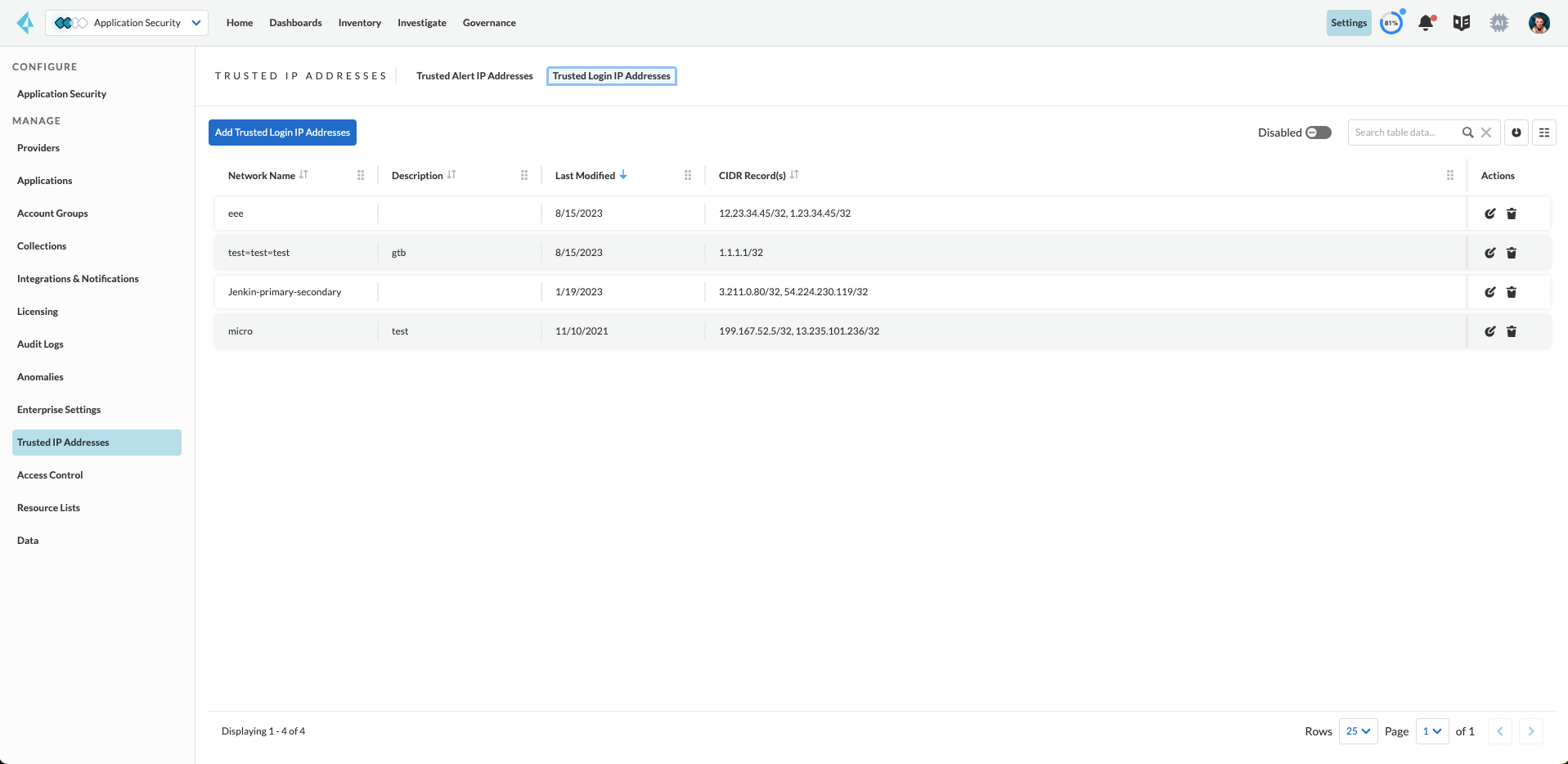
* If you have defined a "Trusted Login IP Address" whitelist, ensure that the public IP address for the Transporter is included in the list: In **Application Security** > select **Settings** > **Trusted IP Addresses** in the left navigation panel > click the **Trusted IP Login Addresses** tab > **Add Trusted Login IP Addresses** button > fill in the provided fields > **Save**.
For more on trusted IP addresses, refer to [Trusted IP Addresses on Prisma Cloud](/content-collections/administration/anomalies/anomalies-trusted-ip-addresses-on-prisma-cloud.md).
## Transporter Setup Options
Connect your environment and Prisma Cloud through the Transporter using **Docker Containers** or **Kubernetes**. This includes connectivity through a proxy. For more information refer to:
* [Set Up Transporter Network Tunnels using Docker Containers](/content-collections/application-security/manage-network-tunnel/deploy-transporter-docker.md)
* [Set Up Transporter Network Tunnels using Helm Charts](/content-collections/application-security/manage-network-tunnel/deploy-transporter-helmcharts.md)
## Whitelist Transporter IP Addresses
If you select Transporter as the connectivity option when integrating your VCS or Terraform Enterprise (Run Tasks) with Prisma Cloud, you will automatically be assigned two dedicated IP addresses specifically for Transporter functionality. These IP addresses differ from the two IP addresses specified during the VCS integration without Transporter connectivity.
The list of whitelisted Transporter IP addresses provided below is for planning purposes. Only the two relevant IP addresses associated with your tenant will be displayed during the actual configuration process.
| **Tenant** | **IP Address** |
| ---------- | ---------------------------------------------------------- |
| app | 99.83.152.127, 75.2.127.6 |
| app-ca | 15.197.228.87, 3.33.234.166 |
| app-eu | 52.223.19.46, 35.71.174.180 |
| app-uk | 76.223.7.222, 13.248.138.98 |
| app0 | 15.197.168.68, 3.33.171.190 |
| app2-eu | 3.33.224.209, 15.197.231.169 |
| app2 | 99.83.160.95, 75.2.43.50 |
| app4 | 15.197.223.116, 3.33.218.120 |
| app3 | 99.83.173.121, 75.2.26.238 |
| app-anz | 13.248.219.139, 76.223.67.156 |
| app-jp | 99.83.194.145, 75.2.28.135 |
| app-fr | 99.83.174.135, 75.2.92.48 |
| app-ind | 76.223.40.41, 13.248.170.138, 65.0.226.192, 13.127.213.101 |
| app-stage | 15.197.223.22, 3.33.205.33 |
| app-sg | 3.33.154.240, 15.197.156.167 |
| app-id | 13.248.253.230, 3.33.202.249 |
## Whitelist WSS Protocol for WebSocket Access
In addition to whitelisting the required IP addresses, you should also ensure that the wss protocol is whitelisted on firewalls/security groups to prevent blocking of websockets. This step is crucial for enabling WebSocket communication between your applications and the designated services without any interruptions.
---
# Agent Instructions
This documentation is published with GitBook. GitBook is the documentation platform designed so that both humans and AI agents can read, navigate, and reason over technical content effectively. Learn more at gitbook.com.
## Querying This Documentation
If you need additional information that is not directly available in this page, you can query the documentation by asking a question.
Perform an HTTP GET request on the following URL with the `ask` and `goal` query parameters:
```
GET https://docs.prismacloud.io/content-collections/application-security/manage-network-tunnel.md?ask=&goal=
```
`ask` is the immediate question: it should be specific, self-contained, and written in natural language.
`goal` is what the user is ultimately trying to achieve, the reason they need the answer. Sharing it helps GitBook give you a better, more relevant answer. A goal is most helpful when it describes the outcome the user wants rather than restating the question. For example, with `ask=how do I create an API token`, a goal like `automate deployments from our CI pipeline` lets GitBook tailor the answer to that use case.
The response will contain a direct answer to the question and relevant excerpts and sources from the documentation.
Use this mechanism when the answer is not explicitly present in the current page, you need clarification or additional context, or you want to retrieve related documentation sections.