> For the complete documentation index, see [llms.txt](https://docs.prismacloud.io/llms.txt). Markdown versions of documentation pages are available by appending `.md` to page URLs; this page is available as [Markdown](https://docs.prismacloud.io/content-collections/application-security/visibility/repositories.md).
# Repositories
The **Repositories** page provides a comprehensive repository-centric view of your engineering environment. This consolidated view helps you:
* Identify and analyze the technologies used across your projects, such as code repositories and their associated infrastructure including programming languages, frameworks and CI files, as well as your paths to production
* Gain insights into security posture. 'Repositories' maps your organization’s security posture, allowing you to understand the high and critical risks in your repositories
* Leverage the [Application Graph](#app-graph), which visually maps your repositories and their connections, providing deeper insights into your environment. This visual representation helps you identify potential issues and dependencies that may not be observable by a single-repository view
The repositories displayed in the inventory are limited to those selected during VCS onboarding. To ensure complete visibility, it is recommended to select all repositories during VCS onboarding. Users will only see repositories to which they have been granted access, based on their designated roles and permissions.
## User Repository CI/CD Scan Limitation
Prisma Cloud’s CI/CD scan capabilities differ between organization repositories and user repositories. Unlike organization repositories, Prisma Cloud’s CI/CD security for user repositories offers limited functionality, as scans are limited to fetching **Workspace** data (members, collaborators information and commit history) and **Repository** data (collaborators, repository contributors and repository commits history). Advanced CI/CD security scan features are not supported for user repositories.
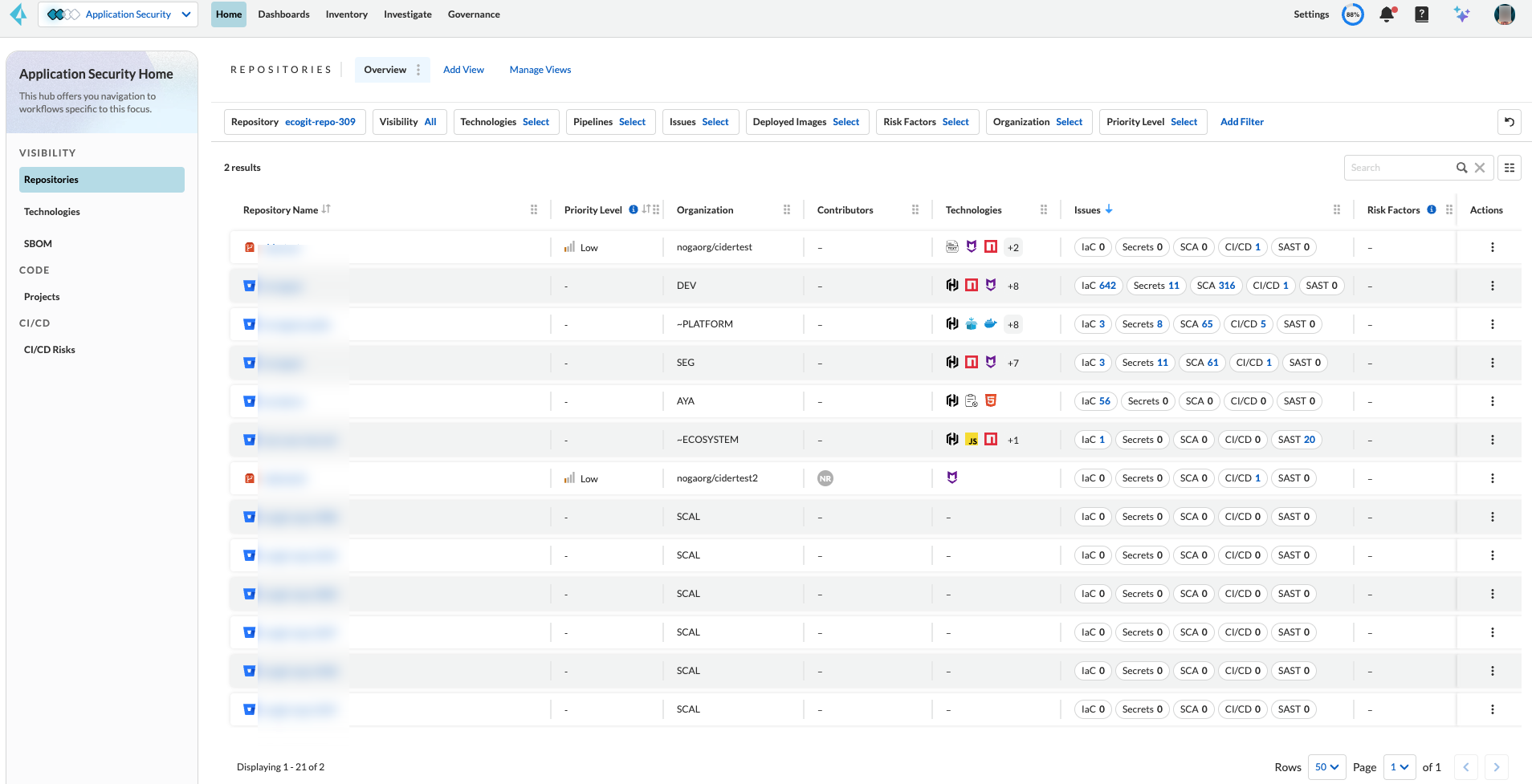
To access **Repositories**, in **Application Security** select **Home** > **Repositories**. An inventory of your repositories in your organization is displayed.
Each repository in the list displays the following details:
* **Version control system** (VCS) platform: An icon represents the VCS hosting the repository
* **Repository Name**
* **Organization**: The organization that owns the repository
* **Contributors**: A list of contributors to the repository. Clicking on a number displayed in the column opens a pop-up with more details about the contributors. Additional information about the contributors can also be found by selecting a repository which opens the resource explorer, as described below
* **Technologies**: Displays the most frequently used languages and frameworks detected in the repository. Hover over a technology to its frequency of usage in the pipeline. Selecting the number displayed in the column displays a popup, with information about additional technologies detected in the repository
* **Priority Level**: The repository’s relative importance. Refer to [Repository Importance Priority Score](#repo-importance-score) below for more information
* **Pipelines**: The CI/CD pipeline systems such as Jenkins and GitHub Actions that are connected to the repository. Clicking on the number next to a pipeline opens a pop-up displaying details about the pipelines. Note that you must integrate your CI systems in order to view connected pipelines
* **Issues**: The number of IaC, Secrets, SCA and CI/CD issues detected in the master branch of a repository. Clicking on a link redirects to the relevant issue page. IaC, Secrets and SCA issues redirect to the 'Projects' page, while CI/CD issues redirect to the 'CI/CD Risks' page
* **Risk Factors**: Indicates whether the repository deploys images to live systems
* **Deployed Images**: Allows you to identify container images in a running environment
For more information on 'Risk Factors' and 'Deployed Images', refer to [Risk Indicators](/content-collections/application-security/risk-management/risk-indicators.md).
* **Actions**: Selecting the menu under the 'Actions' column displays the **Application Graph**, a graphical representation of the repository’s path to production (See [Application Graph](#app-graph) below for more information) and **Edit Priority Level** (Refer to [Custom Repository Importance Scores](#custom-repo-importance) below for more information)
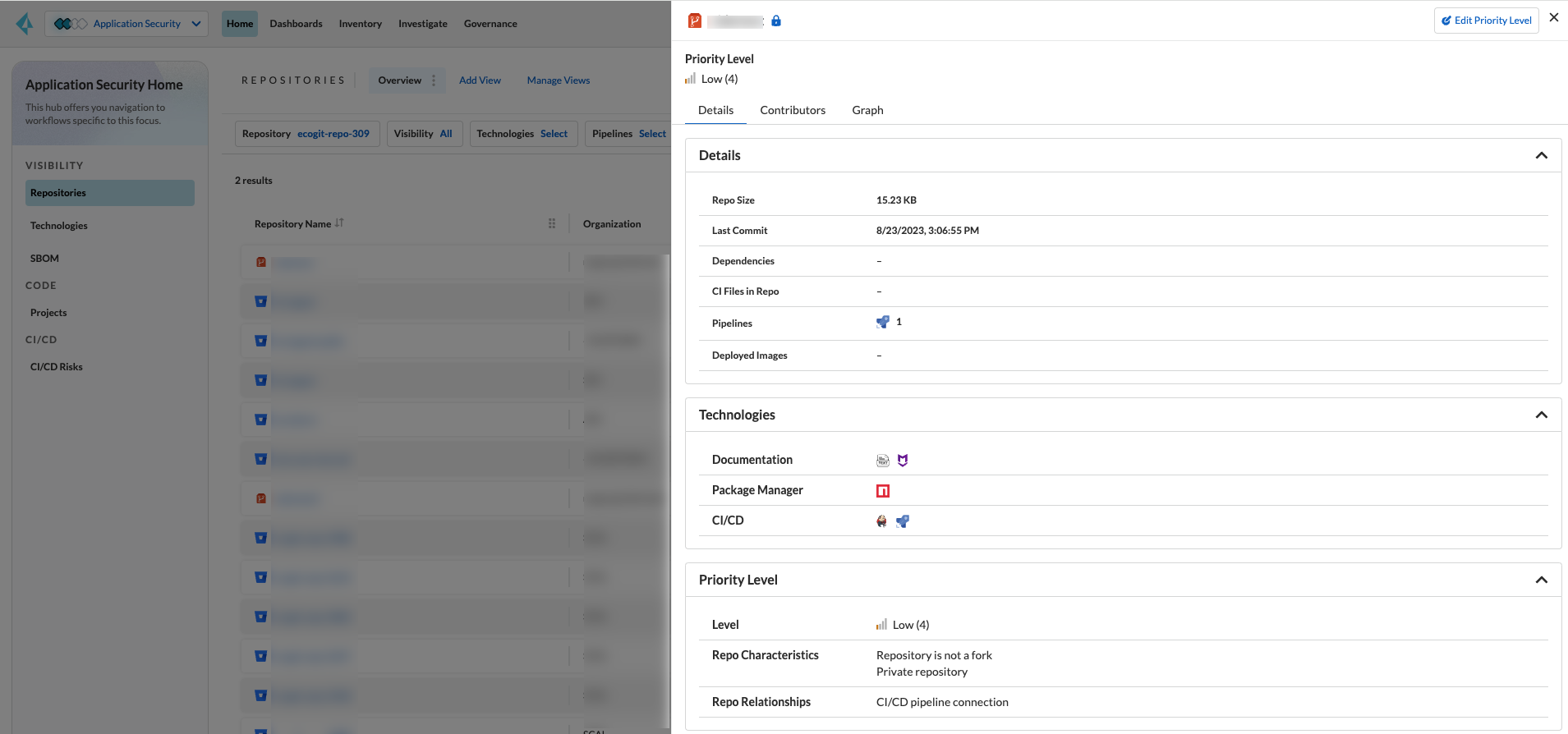
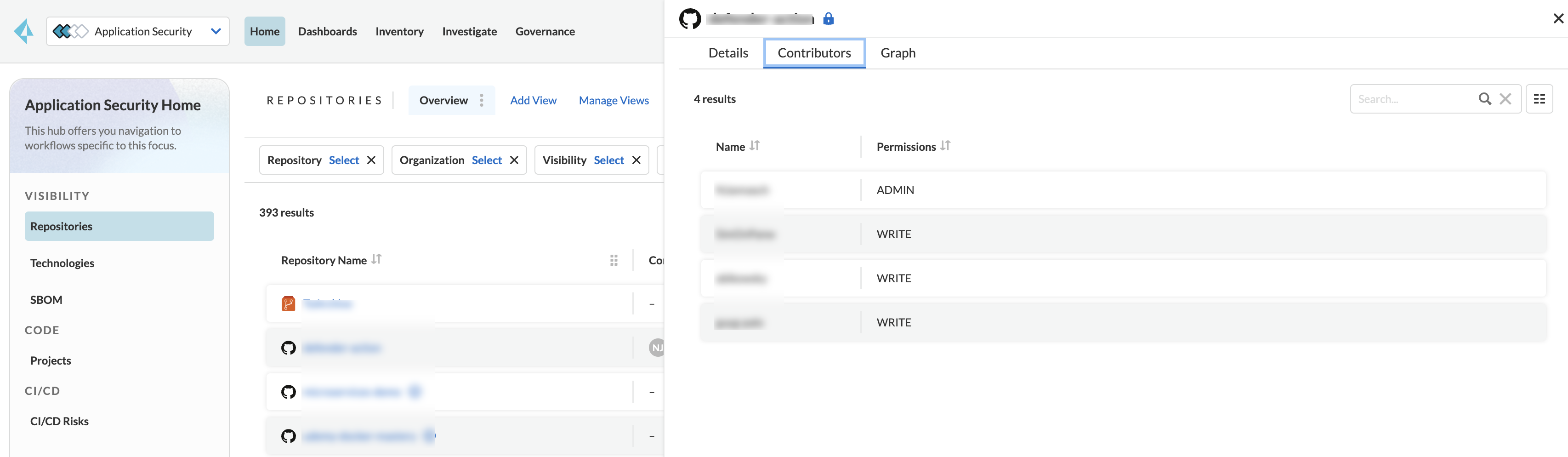
Selecting a repository in the inventory table opens the **Resource Explorer** sidecar, displaying additional information.
* The **Details** tab opens opens by default, displaying **metadata** such as visibility, size, last commit date, dependencies, CI files, pipelines and deployed images. The **Technologies** section displays detected programming languages and frameworks and CI/CD systems. The **Priority Level** section provides details about the repository’s priority level. Click the **Edit Priority Level** button to customize the priority level. See [Custom Repository Importance Scores](#custom-repo-importance) below for more information
* The **Contributors** tab includes details about the contributors and their permissions to the repository
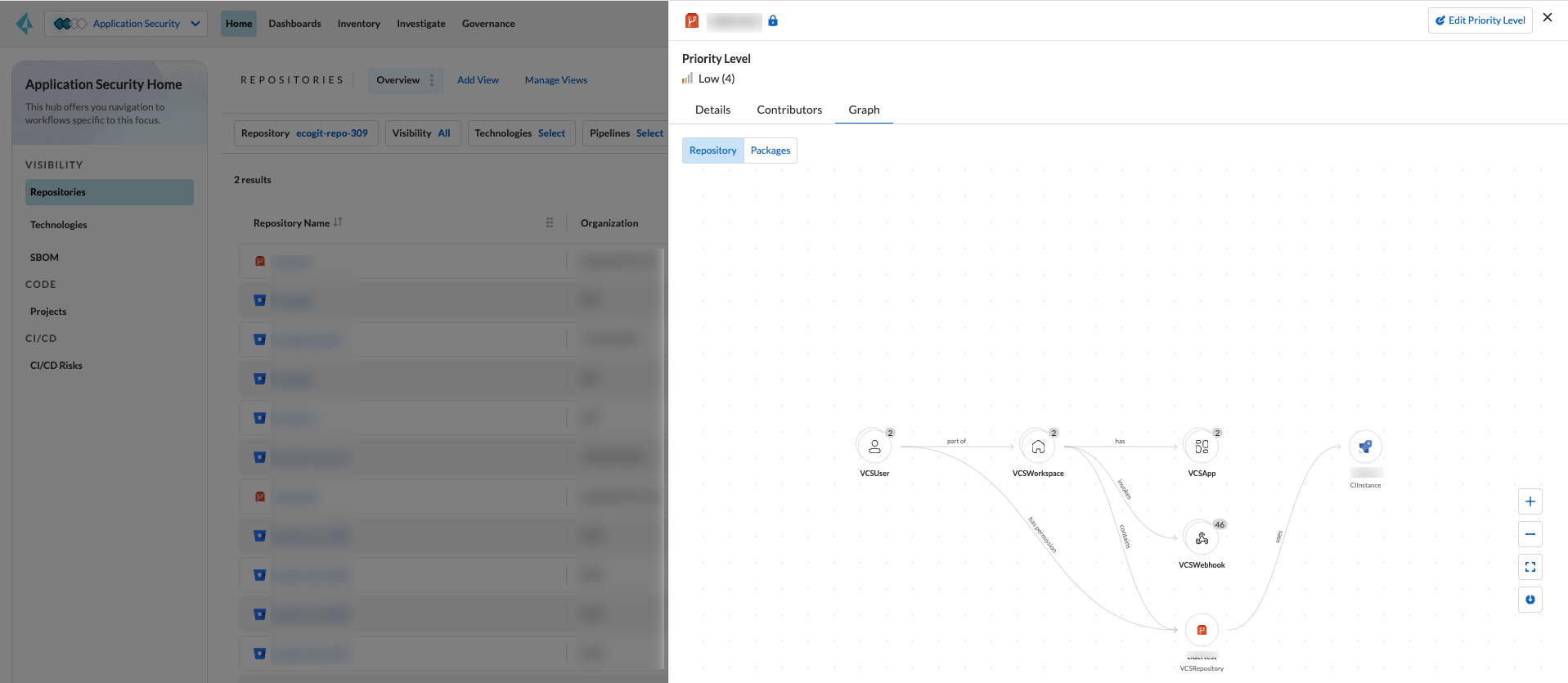
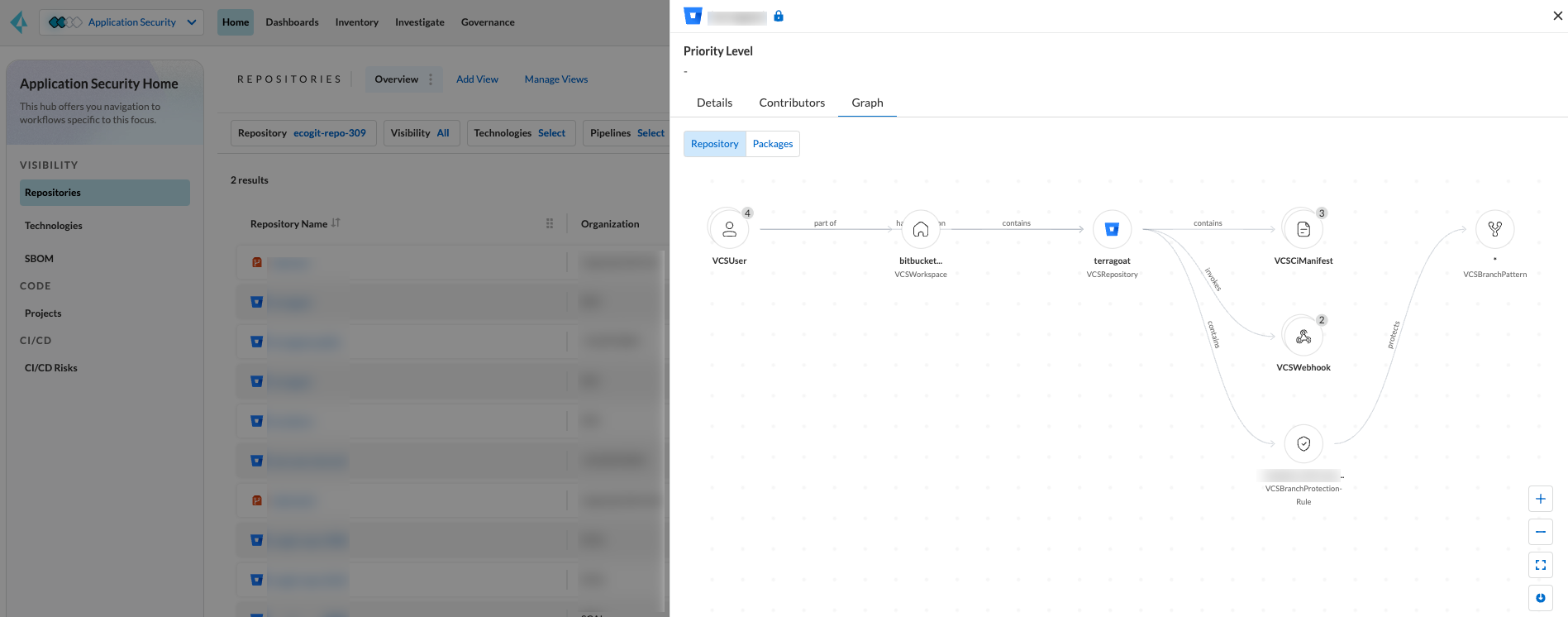
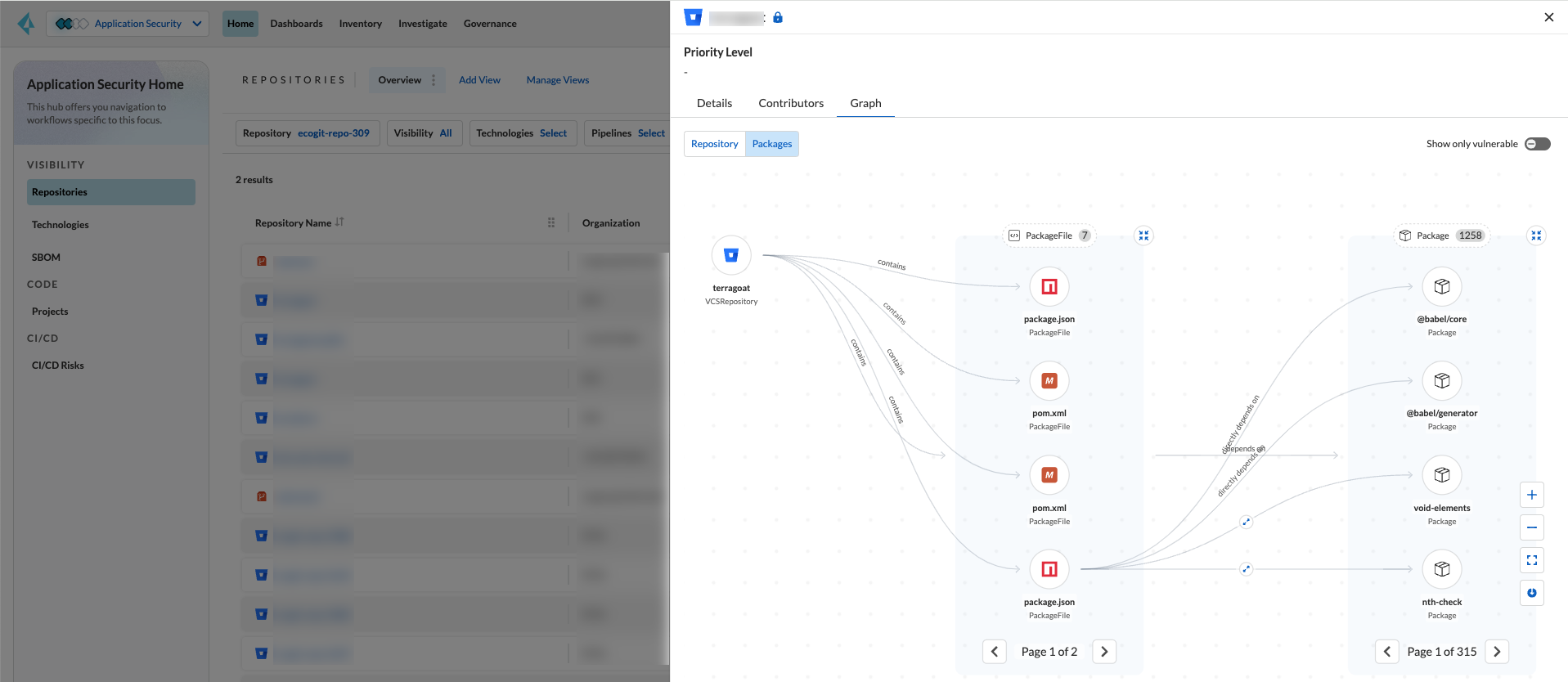
* The **Graph** tab provides graphical representation of the repository. By default, this tab opens the repository view. Additionally, the **Packages** tab visualizes the packages in the repository as a graphical representation.
For more information about the **Application Graph**, refer to the [Application Graph](#app-graph) below. For information about the Package graph, see [Application Graph - Package Visualization](#graph-package) below.
You can also access a repository’s graph from **Actions** in the Repository table.
## Filters
'Repositories' features default filters for quick data analysis. Additionally, you can add or remove filters to further refine your results by selecting the filter. Available filters include:
* **Repository**: Filter by repository
* **Visibility**: Filter by type of repository. Values: 'Private', 'Public'
* **Technologies**: Filter by programming languages and frameworks detected in the infrastructure, listed by category to find technologies such as Python, GitHub Actions, Terraform and more. Values: 'Programming', 'Package Manager', 'Data Files', 'Devops'
* **Pipelines**: Filter by pipelines detected in the infrastructure
* **Issues**: Filter by type of issue. Values: 'IaC', 'Secrets', 'SCA', 'CI/CD'
* **Deployed Images**: Filter repositories by container images in a running environment
* **Risk Factors**: Filter by deployed repository
* **Organization**: Filter by organization of a version controlled system
* **Priority Level**: Filter repositories by **Repository Importance Score**. For more information refer to [Repository Importance Priority Score](#repo-importance-score) below
* **VCS**: Filter type of version control system detected in the environment (To view this filter, select **Add Filter**)
* **Archived**: Filter repositories by archived/un-archived status (To view this filter, select **Add Filter**)
## Application Graph
The Application Graph visualizes your repository’s components and their connections, including both the overall development flow and detailed package relationships. In addition, the Application Graph visualizes all packages in your repository. See [Application Graph - Package Visualization](#graph-package) below for more information.
### Application Graph - Repository Visualization
You can view the repository as a graphical representation, allowing you to explore, better understand and analyze the repository assets and connections. This will allow you to get a better understanding of your technology stack, attack vectors and security posture. The development path from version control system to deployment including the different technologies, systems and configurations in the engineering environment are presented as nodes on a graph, while edges provide details of the relationship between the nodes.
The Application Graph currently supports the following systems:
* VCS platforms: GitHub, GitLab, Bitbucket
* Continuous integration (CI) systems: Jenkins, CircleCI, GitHub Actions
To view a repository as a graph:
* Select a repository in the inventory table > **Graph** tab or:
* Select the Graph View icon located in the 'Actions' column of a repository in the inventory table
The **Application Graph** representing the repository is displayed by default.
The Application Graph includes the following components:
* [Nodes](#nodes-): The assets of a repository. Can include entities
* [Edges](#edges-): The connections between nodes
* **Export**: Download graph data as a png image or JSON file
* **Controls**: Include zoom and reset
### Nodes
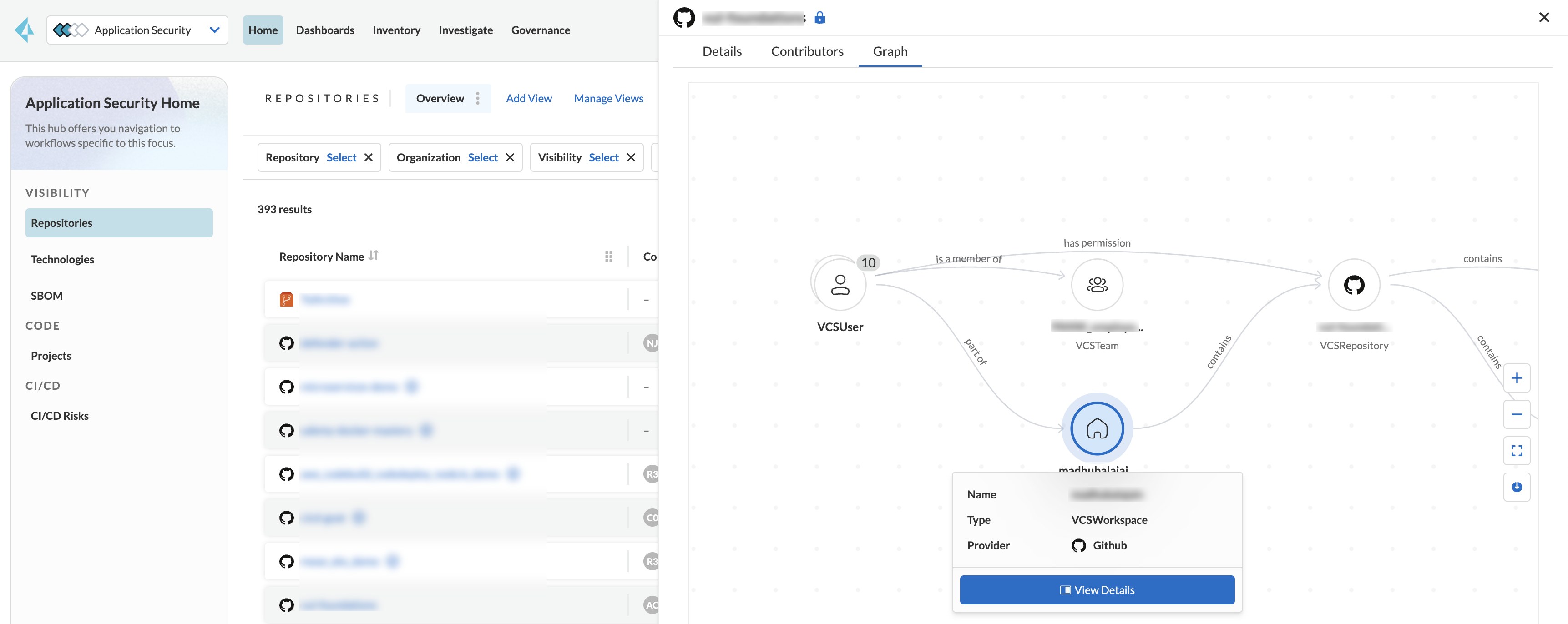
To view a node’s details:
1. Select the node on the graph to display the node details.
2. To view additional details, click **View Details**.
The Details panel opens, displaying the node’s details.
#### Node Entities
Nodes of the same type are grouped and displayed under a single group node as entities of the node. A number indicates the number of entities in the node. Click on the group node to expand and view the entities. Details of an entity can be viewed by clicking on **View Details** in the same manner as nodes.
You can collapse the entities back into the group node by hovering over the entities and selecting the collapse icon.
#### Edges
Edges are the connections that display the relationships between nodes. The path arrow indicates the direction between the source and target node.
### Application Graph - Package Visualization
The Application Graph now visualizes all packages in your repository, including the number of package files, direct and indirect dependencies, as well as whether they are vulnerable. This visual representation helps you identify potential dependency conflicts and manage package relationships effectively. You can also filter to display vulnerable packages only through the **Show only vulnerable** tab.
* Select the **PackageFile** node to see all associated package files and their connections in the repository
* Click on the **Packages** node to view all packages in the repository, including their relationship to the package files
* Click on a single package to view the package details
## Repository Importance Priority Score
The 'Repository Importance Score' provides a data-driven approach to prioritize security efforts across multiple code repositories by quantifying each repository’s significance. Repository scores are calculated based on various factors, including codebase characteristics and path-to-production environments. These factors include, but are not limited to:
* **Repository commits**: The frequency of code changes indicates potential areas of ongoing development and potential security risks
* **Number of issues**: The presence of vulnerabilities (SCA), weaknesses (SAST), and secrets identified within the repository
* **Repository characteristics**: Whether the repository is private, part of the organization or only a user repository, and more
* **Number of releases**: Repositories with frequent releases might have a higher impact on production environments. The last release date indicates activity
* **Number of contributors**: A larger contributor base suggests broader code ownership and potentially greater attack surface
* **Repository relationships**: Includes all collaborators, CI files, connected pipelines (including whether they build an image), and whether the repository is associated with a container (repo > pipeline > image > container)
Additionally, this score can be customized to accommodate your organization’s specific security priorities, allowing you to weigh these factors differently based on your unique security needs. For more information refer to [Custom Repository Importance Scores](#custom-repo-importance) below.
By leveraging this scoring system, teams can understand the relative importance of repositories. This enables them to effectively allocate security resources and prioritize addressing issues in the most critical repositories first, safeguarding the safety of business-critical functionalities. You can view the Repository Importance Score under the **Priority Level** column.
### View Repository Importance Score
You can view the 'Repository Importance Score' in the **Priority Level** column. Use the **Priority Level** filter to filter repositories based on their importance score. Values: 'High', Medium', 'Low'.
### Understanding Repository Importance Scores
Hover over a repository’s importance score or click on a repository to open the sidecar **Details** tab to display additional details, such as repository characteristics and relationships. This allows you to analyze the factors contributing to the Repository Importance Score and understand how it is calculated.
### Custom Repository Importance Scores
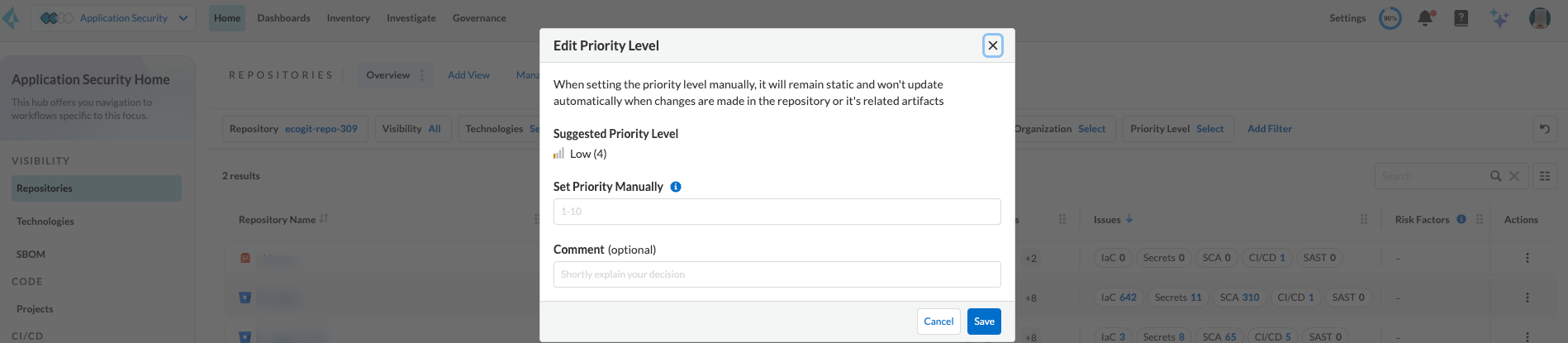
You can customize the Importance Score of a repository to align with your organization’s priorities. After manual configuration, Prisma Cloud will stop the automatic calculation and use your defined score instead.
You can reset any manually set scores for code repositories. Upon resetting, Prisma Cloud will resume the automatic calculation of the repository’s score and remove any associated user comments.
1. Open the **Edit Priority Level** popup.
Option #1: Select the menu in the **Actions** column > **Edit Priority Level**.
Option #2: Select a repository > click **Edit Priority Level** in the repository sidecar.
2. Set the priority level in the **Set Priority Manually** field. Values: 'Low': 1-4, 'Medium': 5-7, 'High': 8-10.
3. Add a comment (optional).
4. Select **Save**.
Setting a custom repository importance score adds a "manual" label to the priority level details.
To restore the default repository importance score, clear the **Set Priority Manually** field > **Save**.
## Manage Repository Importance Scores via REST API
The Repository Importance Score API empowers you to automate workflows and manage Importance Scores for your code repositories programmatically. This API supports both fetching and setting scores, allowing for bulk operations to streamline your security posture management.
**Key Functionalities**
* **Retrieve Importance Scores**: Utilize the API to efficiently retrieve the importance score(s) for one or more repositories. This functionality is ideal for integrating importance scores into existing workflows or dashboards
* **Set Scores**: Programmatically set the importance score for one or more repositories. You can optionally include a comment to explain the rationale behind the score adjustment. This comment will be displayed alongside the score for future reference
* **Bulk Operations**: Both retrieval and update functionalities support bulk operations, allowing you to efficiently manage the importance scores for a large number of repositories simultaneously
**Limitation**: The request handles a maximum of 5000 repositories.
For more information, refer to the [GET Repositories Page](https://pan.dev/prisma-cloud/api/code/get-vcs-repository-page/) API documentation.
## Investigate Repositories
The CAS Application Graph enables you to investigate repositories in graph view. Use the **Simple Mode Query Builder** in **Investigate** to filter repositories based on their assigned repository importance score, enabling you to prioritize and focus your investigation efforts on critical repositories that potentially impact your most business-critical applications.
### Build a Repository Importance Score Query
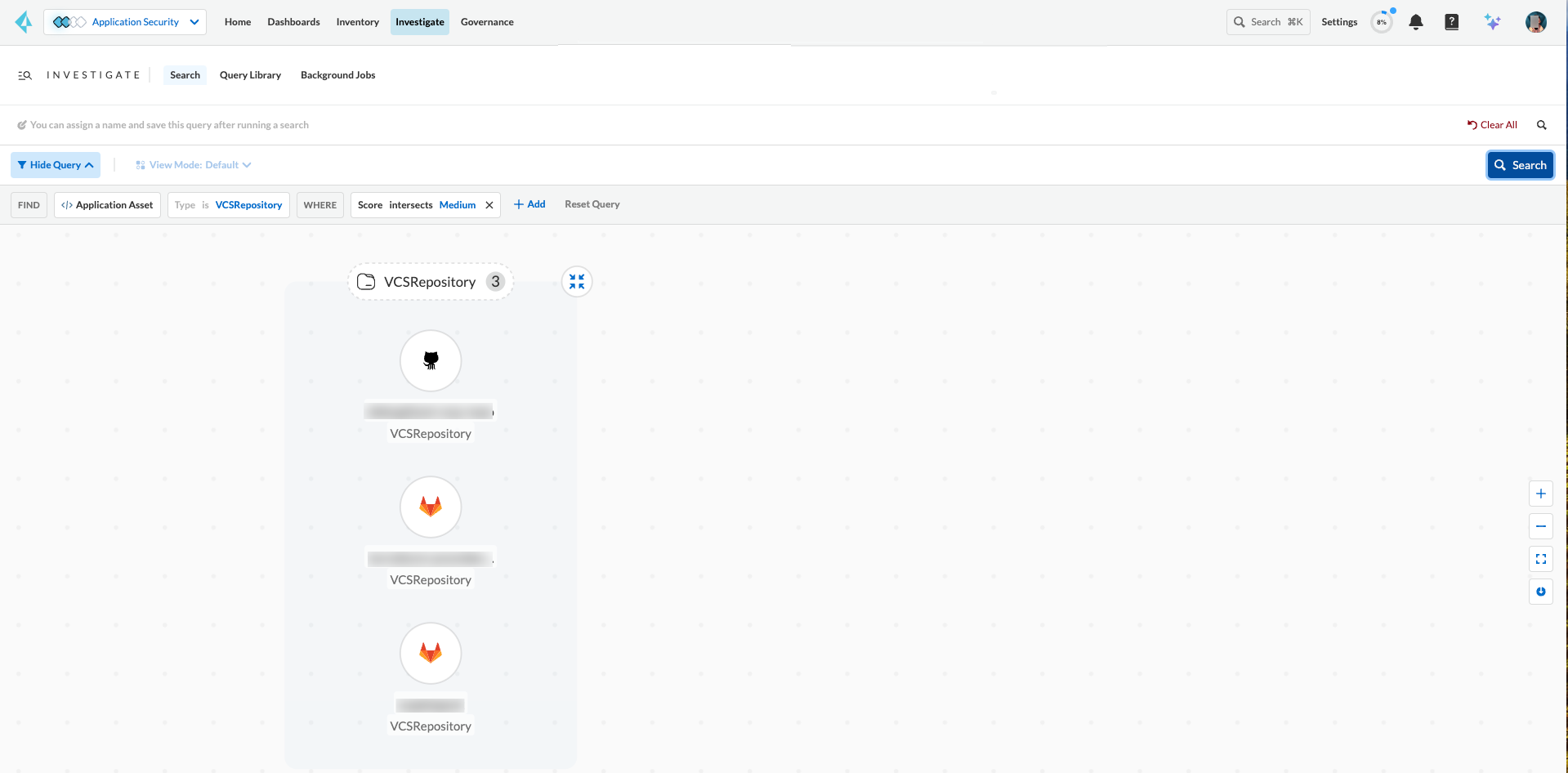
You can build a query to prioritize repositories based on their Repository Importance Score through the **Investigate Simple Mode Query Builder**.
1. In **Application Security**, select the **Investigate** tab.
2. Click **Select a Query Type** > **Application Asset**.
3. For **Type is**, select **VCS Repository**.
4. In the WHERE clause, select **Score** > **Intersects** operator > Select a value: High, Medium, Low.
The repositories matching your criteria are displayed in graph mode.
For more information on viewing your software development life cycle (SLDC) as a graphical representation that allows you to explore assets and connections, refer to [Application Asset Queries](https://github.com/PaloAltoNetworks/pc-docs-md/tree/main/enterprise-edition/content-collections/search-and-investigate/application-asset-queries/application-asset-queries.md).
---
# Agent Instructions
This documentation is published with GitBook. GitBook is the documentation platform designed so that both humans and AI agents can read, navigate, and reason over technical content effectively. Learn more at gitbook.com.
## Querying This Documentation
If you need additional information that is not directly available in this page, you can query the documentation by asking a question.
Perform an HTTP GET request on the following URL with the `ask` and `goal` query parameters:
```
GET https://docs.prismacloud.io/content-collections/application-security/visibility/repositories.md?ask=&goal=
```
`ask` is the immediate question: it should be specific, self-contained, and written in natural language.
`goal` is what the user is ultimately trying to achieve, the reason they need the answer. Sharing it helps GitBook give you a better, more relevant answer. A goal is most helpful when it describes the outcome the user wants rather than restating the question. For example, with `ask=how do I create an API token`, a goal like `automate deployments from our CI pipeline` lets GitBook tailor the answer to that use case.
The response will contain a direct answer to the question and relevant excerpts and sources from the documentation.
Use this mechanism when the answer is not explicitly present in the current page, you need clarification or additional context, or you want to retrieve related documentation sections.