> For the complete documentation index, see [llms.txt](https://docs.prismacloud.io/llms.txt). Markdown versions of documentation pages are available by appending `.md` to page URLs; this page is available as [Markdown](https://docs.prismacloud.io/content-collections/cloud-and-software-inventory/asset-inventory.md).
# Asset Inventory
Use the Asset Inventory dashboard to see up-to-date information on all cloud assets that you are using Prisma Cloud to monitor and secure.
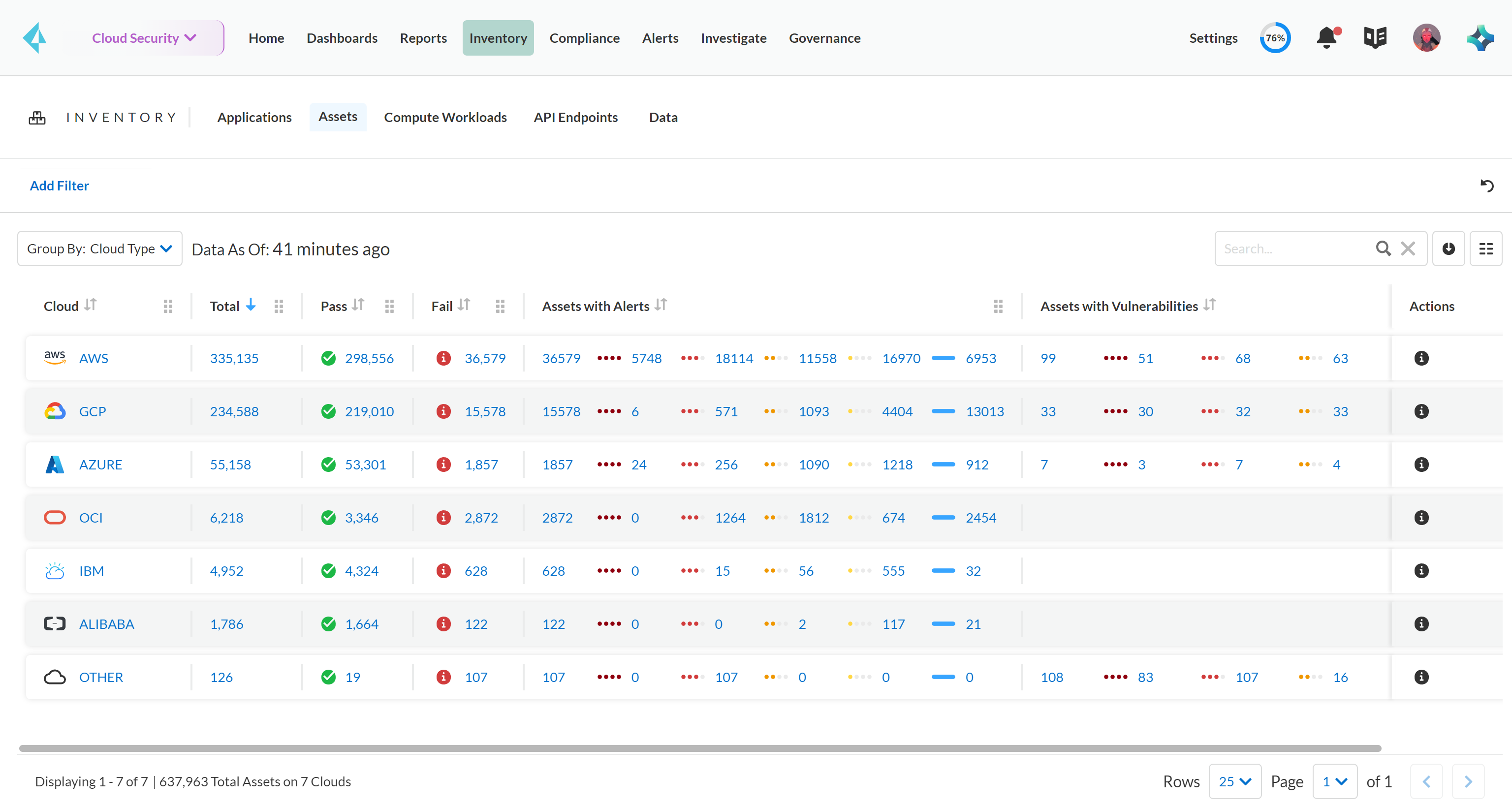
On the Asset Inventory (**Inventory > Assets**), the Asset Trend visualization displays 90-days trend information at all times, and the Asset History provides a historical view into the assets within the inventory.
Each row displays the service name with details on the cloud type, assets with alerts, assets with vulnerabilities, and the percentage of assets that pass policy checks to which you want to adhere. The links in each column help you explore and gain the additional context you may need to take action. The **Data as of:** value indicates the freshness of the snapshot of the data.
The service level agreement (SLA) for asset inventory refresh is **within 24 hours**. In many cases, refreshes may occur sooner, however the actual timing can vary based on various factors such as, resource change frequency.
By default, every AWS account contains a single [ECR registry](https://docs.aws.amazon.com/AmazonECR/latest/public/public-registries.html), which is scoped to your AWS account and region. Hence, when you onboard your AWS account to Prisma Cloud, the Asset Inventory displays Amazon ECR assets although they do not exist in the cloud account.
The **Assets with Alerts** column displays the total number of assets by alert severity for a specified group of assets and the **Assets with Vulnerabilities** column displays the total number of assets by vulnerability severity for a specified group of assets. You can filter to view the inventory based on Cloud Type, Azure Resource Group, Compliance Requirement, Compliance Standard, Asset Type, Compliance Section, Account Group, Cloud Account, Cloud Region, Alert Severity, and Vulnerability Severity.
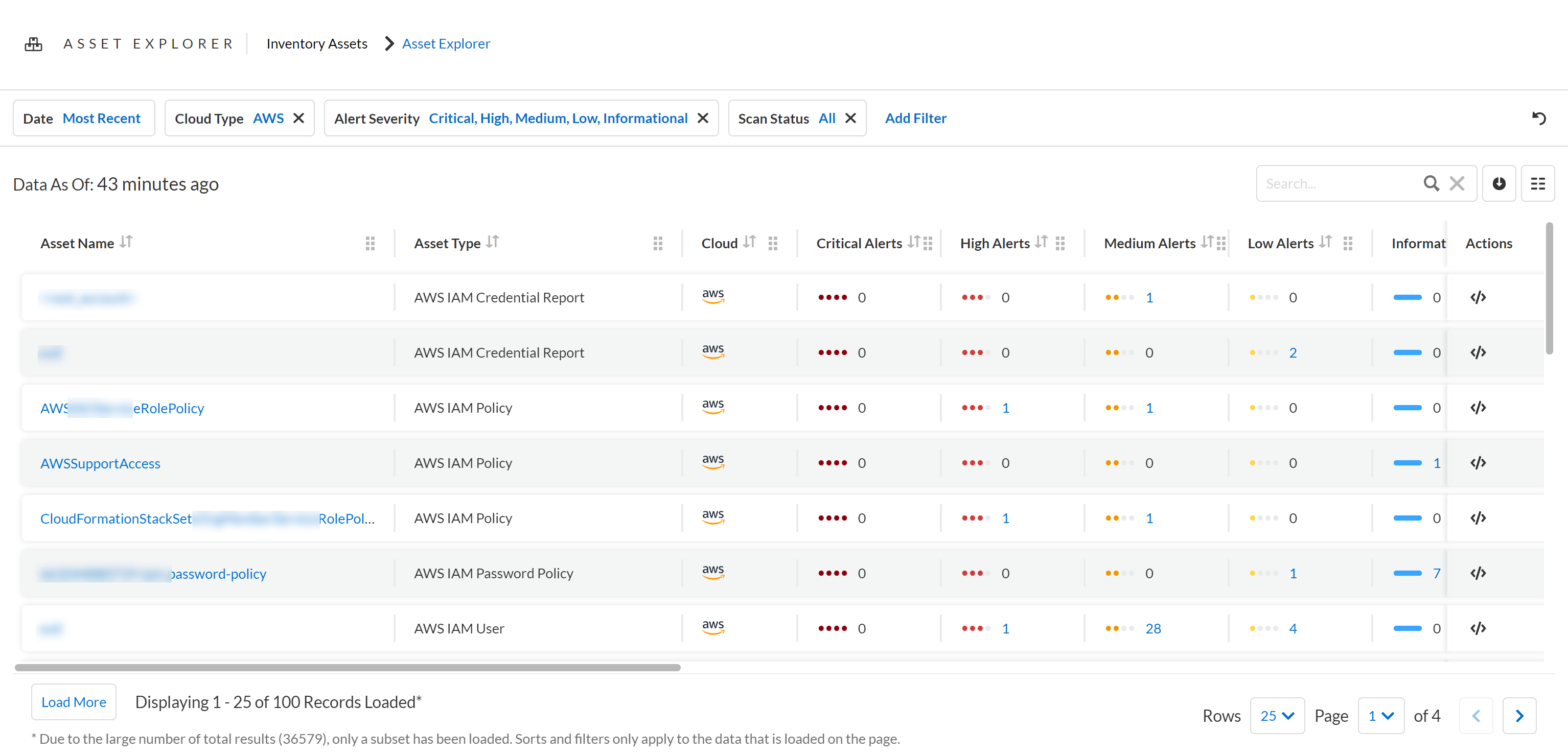
You can view the **Asset Explorer** by selecting a filterable subset of assets from the Asset Inventory. You can then select an asset from the Explorer view to access the Asset Detail view. Vulnerability Severity displays assets with known software vulnerabilities of a specific severity while Alert Severity displays assets with open alerts of a specific severity. You can use the Column Picker to show or hide columns.
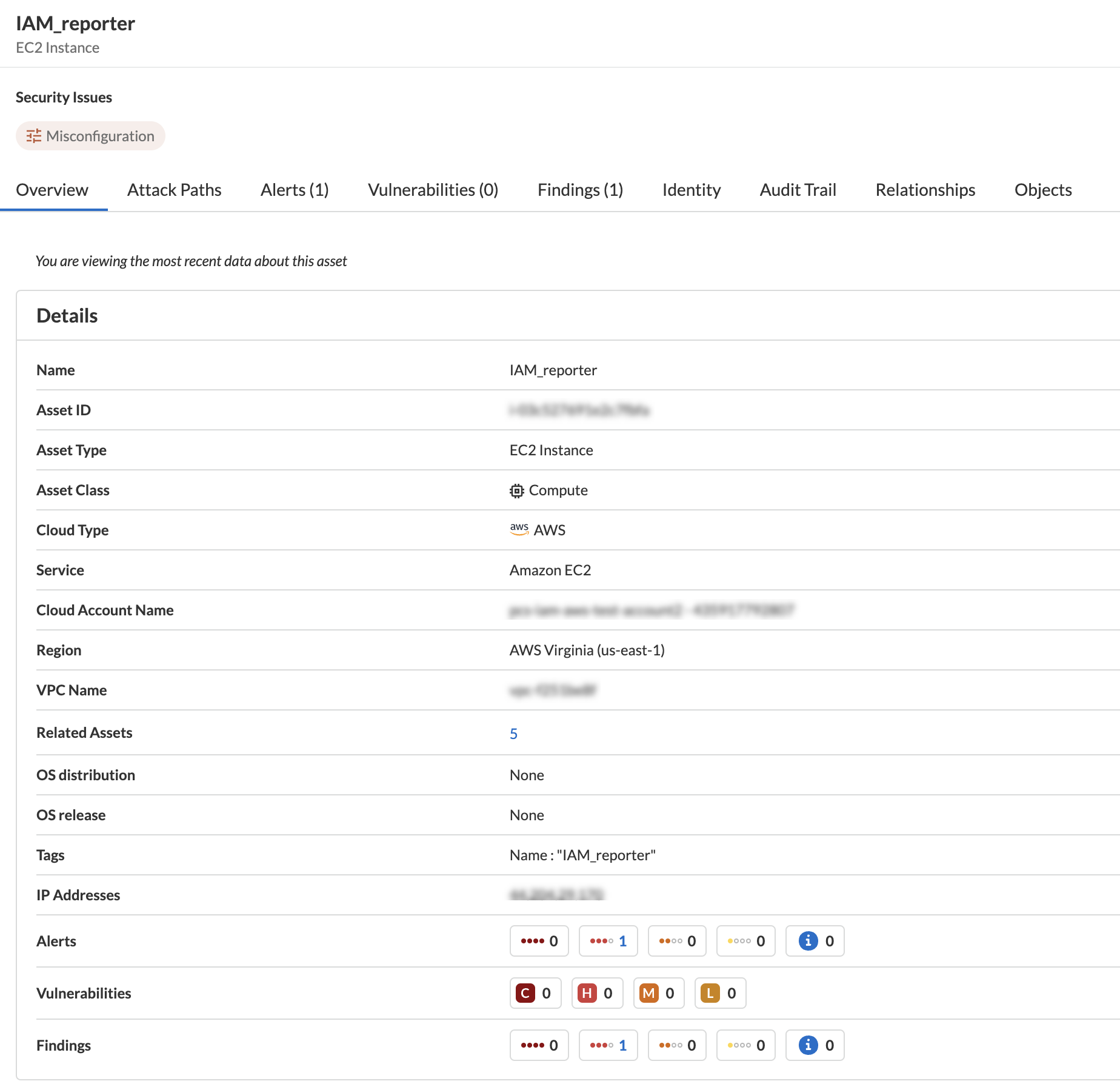
The **Asset Detail View** allows you to deep dive into asset details to explore the security context uncovered by Prisma Cloud. It provides you with a focused view of the following asset details:
* **Header**
* **Asset Name** is displayed at the top of the header.
* **View Config** reveals the raw asset configuration JSON of the asset.
* **Finding Types** lists the different threats or security issues associated with the asset.
* **Tabs**
* **Overview**—Is the default tab and includes primary asset attributes. The "You are viewing the most recent data about this asset" text indicates that this is the most recent data for the asset regardless of the data roll-up time and it may be more up to date than the latest snapshot.
* **Attack Paths**—Identifies asset vulnerabilities that may correlate to a potential Attack Path.
* **Alerts**—Displays open alerts for the asset.
* **Vulnerabilities**—Displays Prisma Cloud and third-party vulnerabilities for the asset.
* **Findings**—Displays Prisma Cloud findings along with third-party non-vulnerability findings for the asset.
* **Identity**—Displays [effective permissions](/content-collections/administration/configure-iam-security/aws-cloud-identity-inventory.md) for the assets.
* **Audit Trail**—Includes discovery, configuration changes, and alert and vulnerability events.
* **Relationships**—Displays tabular representation of related assets.
* **Objects**—Displays data objects within applicable assets.
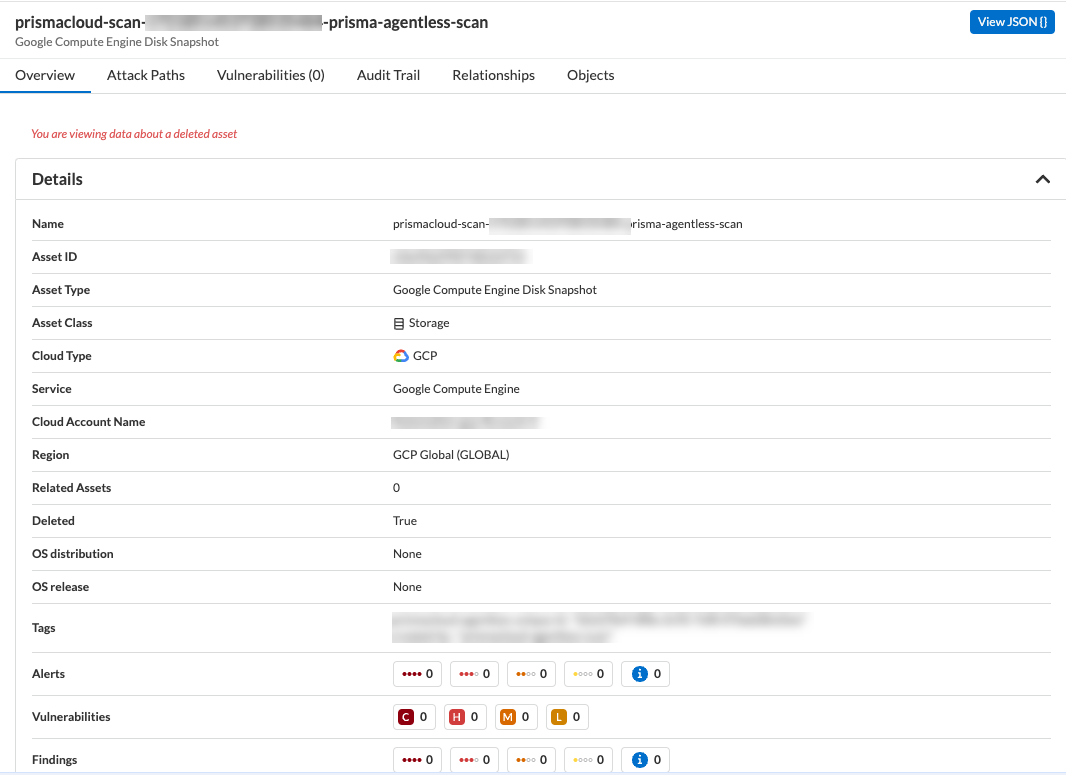
The `You are viewing data about a deleted asset` message indicates that you are viewing an asset which has been deleted from your cloud environment.
---
# Agent Instructions
This documentation is published with GitBook. GitBook is the documentation platform designed so that both humans and AI agents can read, navigate, and reason over technical content effectively. Learn more at gitbook.com.
## Querying This Documentation
If you need additional information that is not directly available in this page, you can query the documentation by asking a question.
Perform an HTTP GET request on the following URL with the `ask` and `goal` query parameters:
```
GET https://docs.prismacloud.io/content-collections/cloud-and-software-inventory/asset-inventory.md?ask=&goal=
```
`ask` is the immediate question: it should be specific, self-contained, and written in natural language.
`goal` is what the user is ultimately trying to achieve, the reason they need the answer. Sharing it helps GitBook give you a better, more relevant answer. A goal is most helpful when it describes the outcome the user wants rather than restating the question. For example, with `ask=how do I create an API token`, a goal like `automate deployments from our CI pipeline` lets GitBook tailor the answer to that use case.
The response will contain a direct answer to the question and relevant excerpts and sources from the documentation.
Use this mechanism when the answer is not explicitly present in the current page, you need clarification or additional context, or you want to retrieve related documentation sections.