> For the complete documentation index, see [llms.txt](https://docs.prismacloud.io/llms.txt). Markdown versions of documentation pages are available by appending `.md` to page URLs; this page is available as [Markdown](https://docs.prismacloud.io/content-collections/cloud-and-software-inventory/data-inventory.md).
# Data Inventory
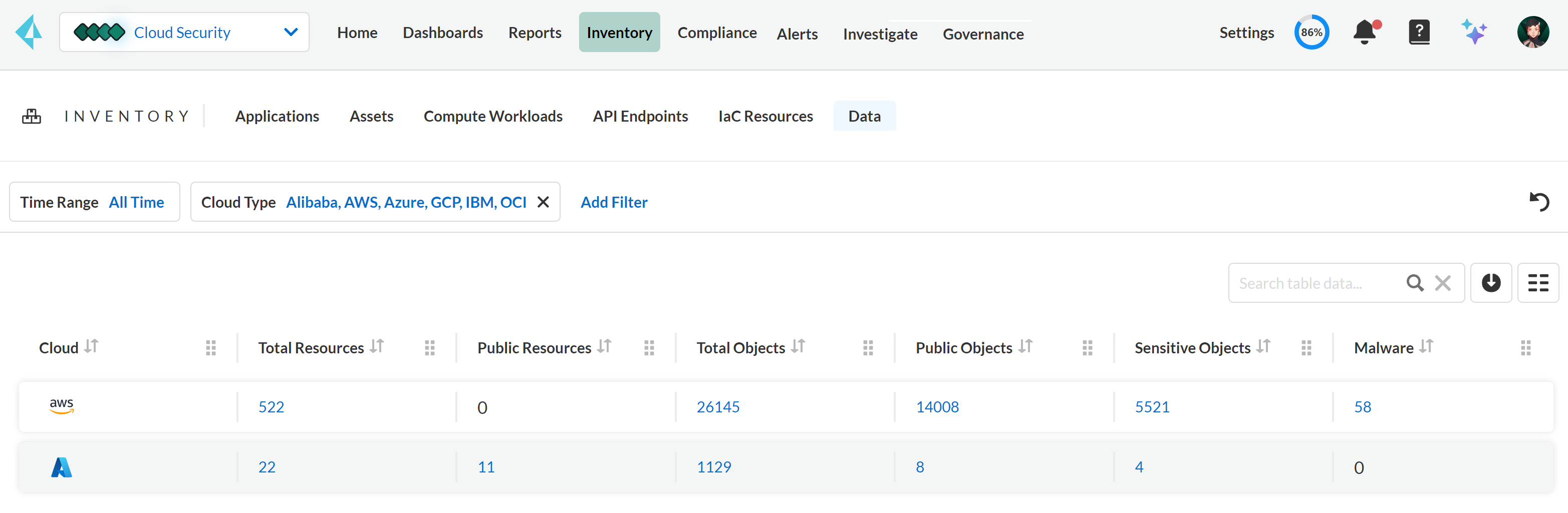
The Data Inventory (navigate to **Inventory > Data**) provides comprehensive insights into the assets being monitored, including a summary of data cards that display the exposure status of various objects, such as public, sensitive, or flagged for malware. It also offers a detailed inventory view of objects organized by accounts, account groups, assets, objects, and regions. Multiple filters such as Time Range, Asset Name, Asset Exposure, Object Profile, and Object Pattern are available to help you locate specific assets or objects of interest.
## Data Cards
The Data Inventory page displays six key data cards:
* **Total Assets**—Total number of assets discovered in AWS (excluding empty assets).
* **Public Assets**—Total number of assets identified as public based on exposure.
* **Total Objects**—Total number of files discovered within the assets.
* **Public Objects**—Total number of objects with exposure public.
* **Sensitive Objects**—Total number of objects containing sensitive data, such as Financial Information, Healthcare, Personally Identifiable Information (PII), and Intellectual Property (IP).
* **Malware**—Total number of objects identified as Malware by Wildfire.
## Hierarchical View
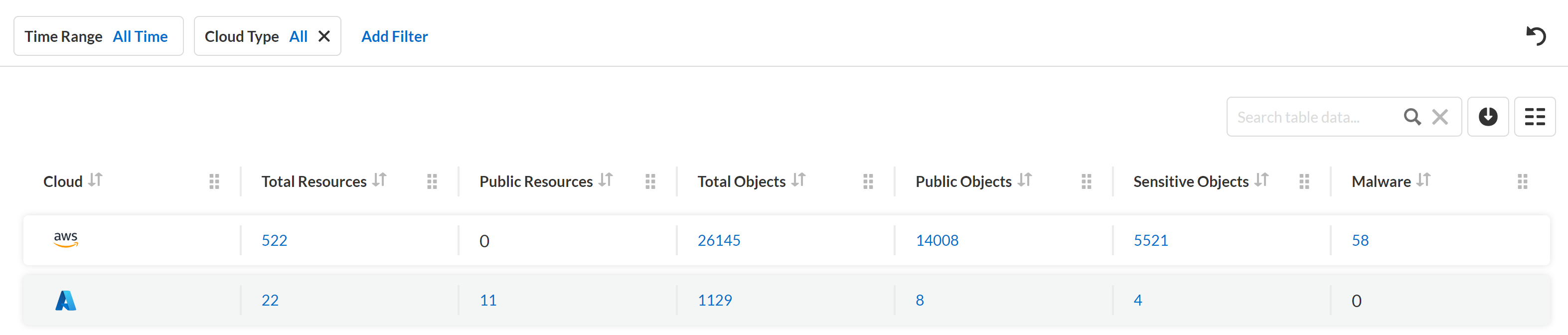
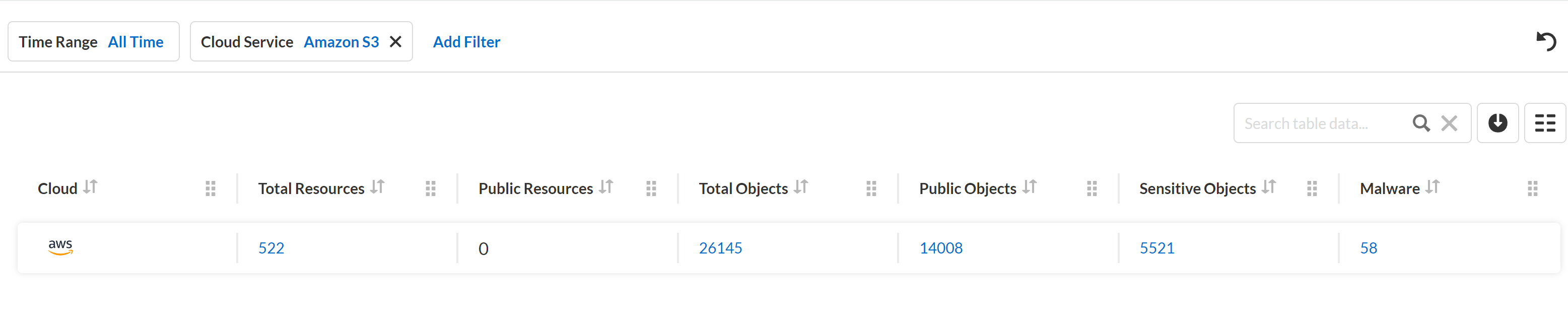
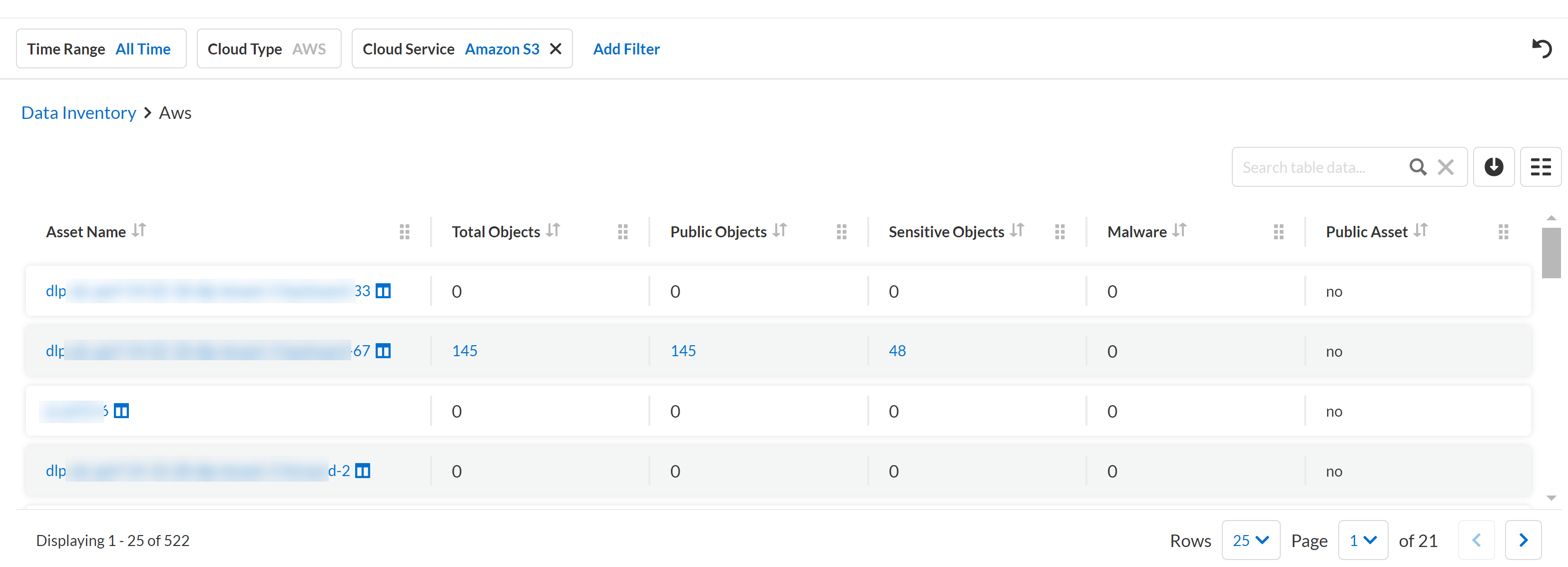
The **Inventory** table represents a hierarchical view of data grouped by account name, service name, and region name. There are four views available:
* **Cloud Type View** (default view)
* **Service View**
* **Asset View**
* **Object View**
## **Object View Details**
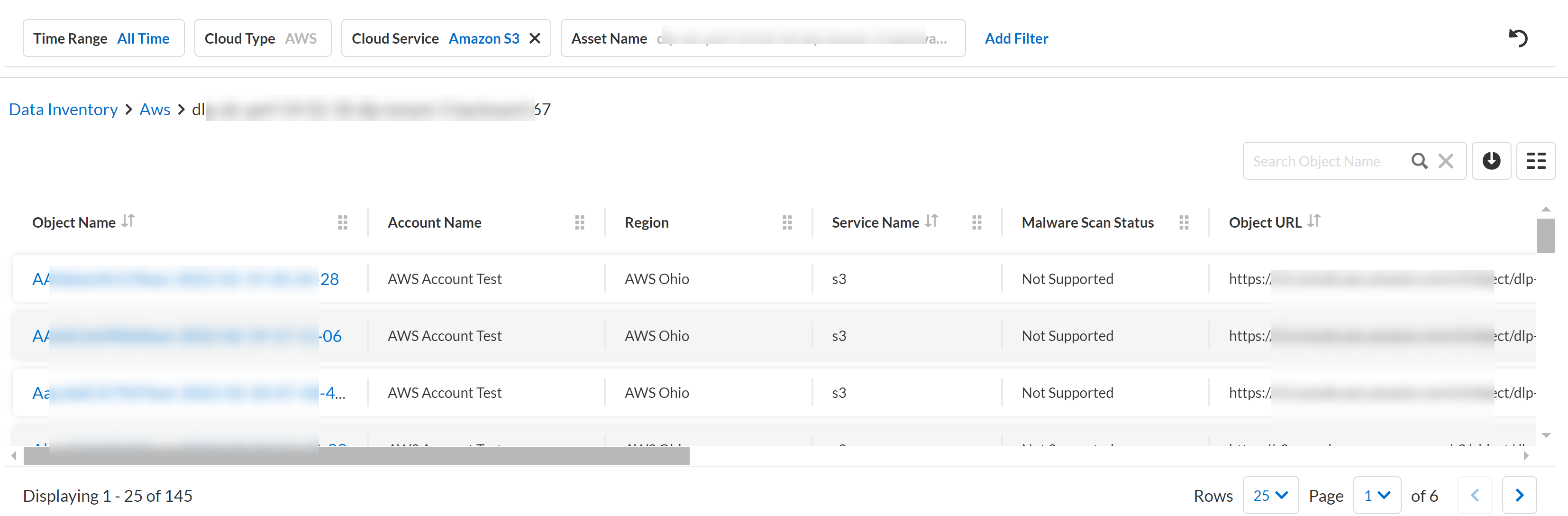
The Object View provides the following information for each object:
* **Object Name**—Name of the file as discovered in the asset.
* **Object Exposure**—Indicates whether the object is Private, Public, or Conditional.
* **Data Profile**—Scanned content is classified under one of the following profiles: Financial Information, Healthcare, PII, or IP. Objects belonging to any of these categories are identified as sensitive data.
* **Scan Status**
* **Scanning**—Object submitted successfully.
* **Failed**—Object could not be submitted for scanning.
* **Not Sensitive**—Object does not contain sensitive information as per the scanned profiles.
* **Not Supported**—File type is not supported for scanning.
* **Too Large**—File size exceeds 20MB.
* **Data Patterns**—Each data profile includes one or more data patterns. For example, a PII data profile can include patterns, such as Driver’s License number, SSN, or Tax Identification Number.
* **Snippet Status**—Displays the current state of your snippet scan. In order to view the masked data your Snippet Status must be **Available**.
* **Not Available**—The **Snippet Masking** option has not been applied. Click **Generate Snippets** to apply the mask.
* **In Progress**—The **Snippet Masking** option is currently being applied.
* **Available**—Masked data is ready to view. Click **Available** to access it.
* **Snippet Last Scanned**—Indicates when the scan last occurred.
* **Malware Information**
The Object View includes the following information for malware detection:
* **Malware Scan Timestamp**—Time when Prisma Cloud received the verdict from WildFire.
* **Malware Scan Status**
* **Scanning**—Object submitted successfully.
* **Failed**—Object could not be submitted for scanning.
* **Not Supported**—File type is not supported for scanning.
* **Too Large**—File size exceeds 20MB.
* **Scanned-Malware**—Object identified as Malware.
* **Scanned-Not Malware**—Object is benign.
* **User**—Owner of the object.
* **Asset Name**—Name of the asset that the object belongs to.
* **Account Name**—Name of the account containing the object.
* **Region Name**—Name of the region where the object is stored.
* **Service Name**—Name of the cloud storage service, such as S3.
* **Last Modified**—Timestamp for when the object was created or last updated.
---
# Agent Instructions
This documentation is published with GitBook. GitBook is the documentation platform designed so that both humans and AI agents can read, navigate, and reason over technical content effectively. Learn more at gitbook.com.
## Querying This Documentation
If you need additional information that is not directly available in this page, you can query the documentation by asking a question.
Perform an HTTP GET request on the following URL with the `ask` and `goal` query parameters:
```
GET https://docs.prismacloud.io/content-collections/cloud-and-software-inventory/data-inventory.md?ask=&goal=
```
`ask` is the immediate question: it should be specific, self-contained, and written in natural language.
`goal` is what the user is ultimately trying to achieve, the reason they need the answer. Sharing it helps GitBook give you a better, more relevant answer. A goal is most helpful when it describes the outcome the user wants rather than restating the question. For example, with `ask=how do I create an API token`, a goal like `automate deployments from our CI pipeline` lets GitBook tailor the answer to that use case.
The response will contain a direct answer to the question and relevant excerpts and sources from the documentation.
Use this mechanism when the answer is not explicitly present in the current page, you need clarification or additional context, or you want to retrieve related documentation sections.