> For the complete documentation index, see [llms.txt](https://docs.prismacloud.io/llms.txt). Markdown versions of documentation pages are available by appending `.md` to page URLs; this page is available as [Markdown](https://docs.prismacloud.io/content-collections/connect/connect-cloud-accounts/onboard-aws/update-aws-org.md).
# Update an Onboarded AWS Organization
In addition to updating the CFT stack for enabling permissions for new services, you can use this workflow to update the account groups that are secured with Prisma Cloud, update the security capabilities and permissions, and redeploy the Prisma Cloud role in member accounts. You can opt to onboard all member accounts under Organizations hierarchy, or selectively add the OUs whose member accounts you want to onboard on Prisma Cloud.
1. Edit the AWS organization you previously onboarded.
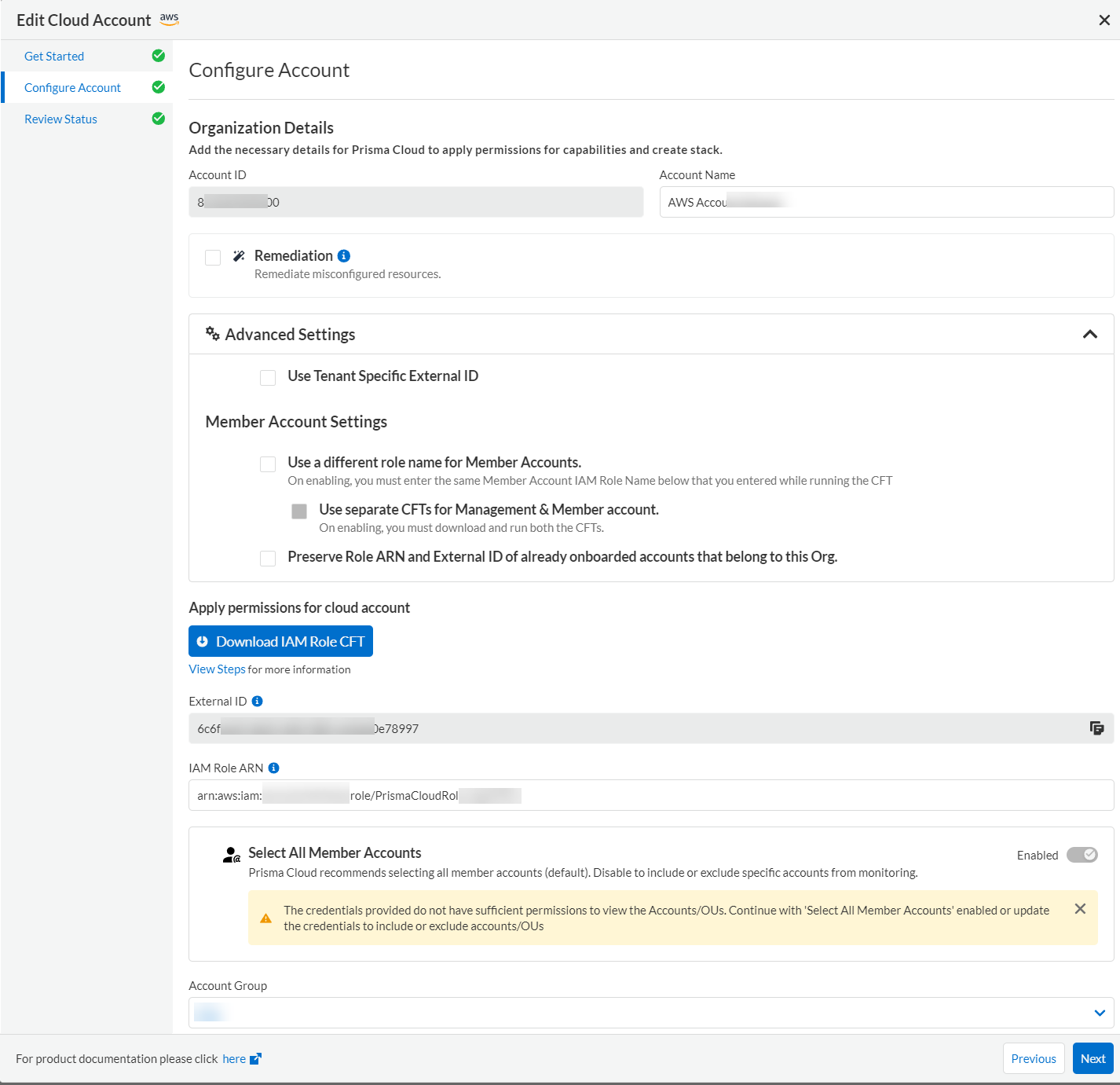
1. Select **Settings > Providers > Cloud Accounts** and click the **Edit** icon for the AWS organization from the list of cloud accounts.
2. On **Configure Account**, under **Advanced Settings** if you select the **Use Tenant Specific External ID** (optional) checkbox, the downloaded CFT will include a **tenant level external ID**.
* To have a custom member role name, select the **Use a different role name for Member Accounts** checkbox.
* After you **Download IAM Role CFT**, make sure you create a new cloud formation stack in the AWS console for new role ARN creation.
* When you run the IAM CFT on your AWS console, enter a custom name for Member Role Name and enter the same name in the Prisma Cloud Member IAM Role Name field.
* Make sure to enter the new role ARN in the **IAM Role ARN** field in the Prisma Cloud console.
* To have separate CFTs for Organization management account and Organization members, you must enter a custom role name for members. Select the **Use a different role name for Member Accounts** checkbox and then select **Use separate CFTs for Management & Member account** before you continue with **Download IAM Role CFT**.
2. Provision the Prisma Cloud role on the AWS master account.
1. Log in to your master account on the AWS management console.
2. Select **Services > CloudFormation > Stacks**.
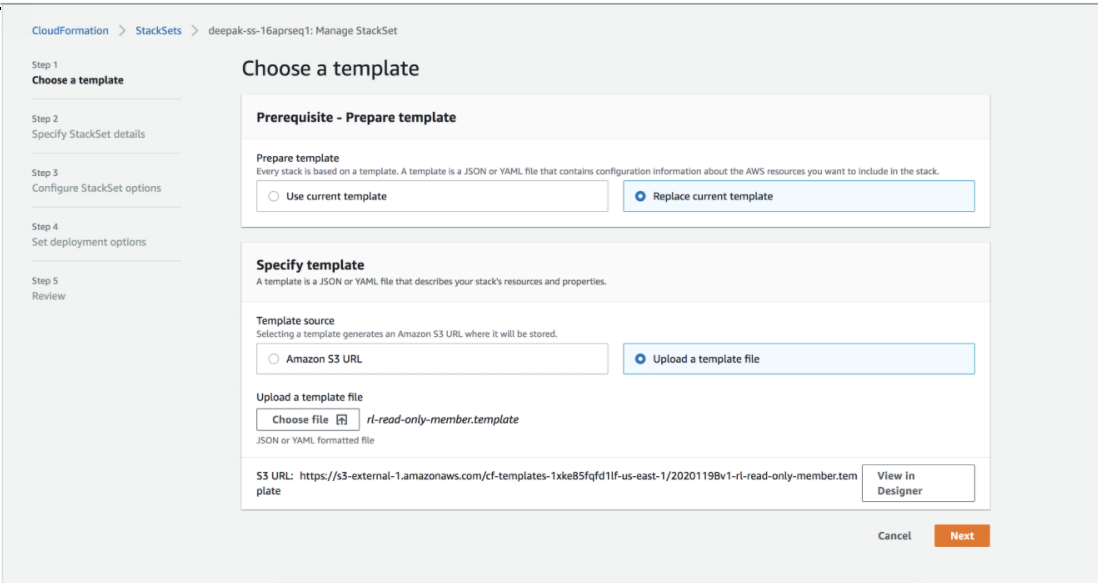
3. Select **PrismaCloudApp** stack and click **Update Stack**.
4. Replace the existing template with the template (CFT) you downloaded in Step 1.
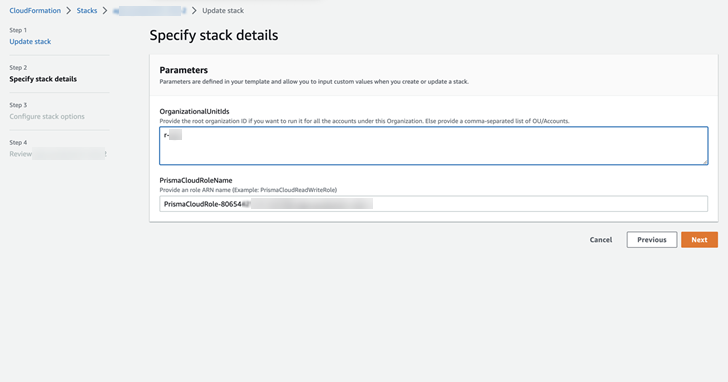
5. Click **Next** to review the configuration.
Make sure that you have entered the correct [OrganizationalUnitIds](https://docs.aws.amazon.com/organizations/latest/userguide/orgs_manage_org_details.html#orgs_view_root). Provide the organizational root OU ID (prefix r-) to run it for all the accounts under the Organization or provide a comma-separated list of OU IDs (prefix ou-).
6. Select **I acknowledge that AWS CloudFormation might create IAM resources with custom names**.
7. Click **Submit**.
3. Paste the **IAM Role ARN** in your Prisma Cloud console.
4. Select the **Member Accounts** you want to add to Prisma Cloud.
You can selectively assign AWS member accounts to different account groups on Prisma Cloud.
1. Select the subsets to include or exclude. Depending on the OUs you select, Prisma Cloud fetches and onboards the member accounts under each OU.
You can choose:
* **All** (default) to monitor current and future OUs and member accounts included within the organization hierarchy.
* **Include a subset** to only monitor selected OUs and member accounts.
* **Exclude a subset** to monitor all current and future OUs and member accounts except the selected OUs and member accounts.
Select the relevant tab and choose the member accounts to include or exclude. When you select an OU, all existing member accounts within that OU are onboarded to Prisma Cloud. The periodic sync also checks for any new OUs and member accounts that you subsequently add on AWS and adds them to Prisma Cloud.
For example, if there are 10 member accounts under an OU, Prisma Cloud starts monitoring those 10 accounts as soon as you save the setup. Later, if you add additional member accounts to this OU, those will be automatically onboarded and Prisma Cloud will start monitoring those accounts also within 24 hours. Similarly, if you delete a member account, after 24 hours it will be removed completely from Prisma Cloud.
You cannot select **Root** to be included or excluded from onboarding, you can either select all or a specific OU or member account.
2. **Load more in Root** to view more OUs and member accounts. By default, Prisma Cloud initially displays 20 OUs and 40 member accounts.
3. Resolve any missing permissions or errors.
A **Warning** displays if the OU or member account does not have adequate permissions.
5. (tt:\[Optional]) Select a different [account group](/content-collections/administration/create-manage-account-groups.md) and click **Next**.
During initial onboarding, you must assign all the member cloud accounts with the organization hierarchy to one account group.
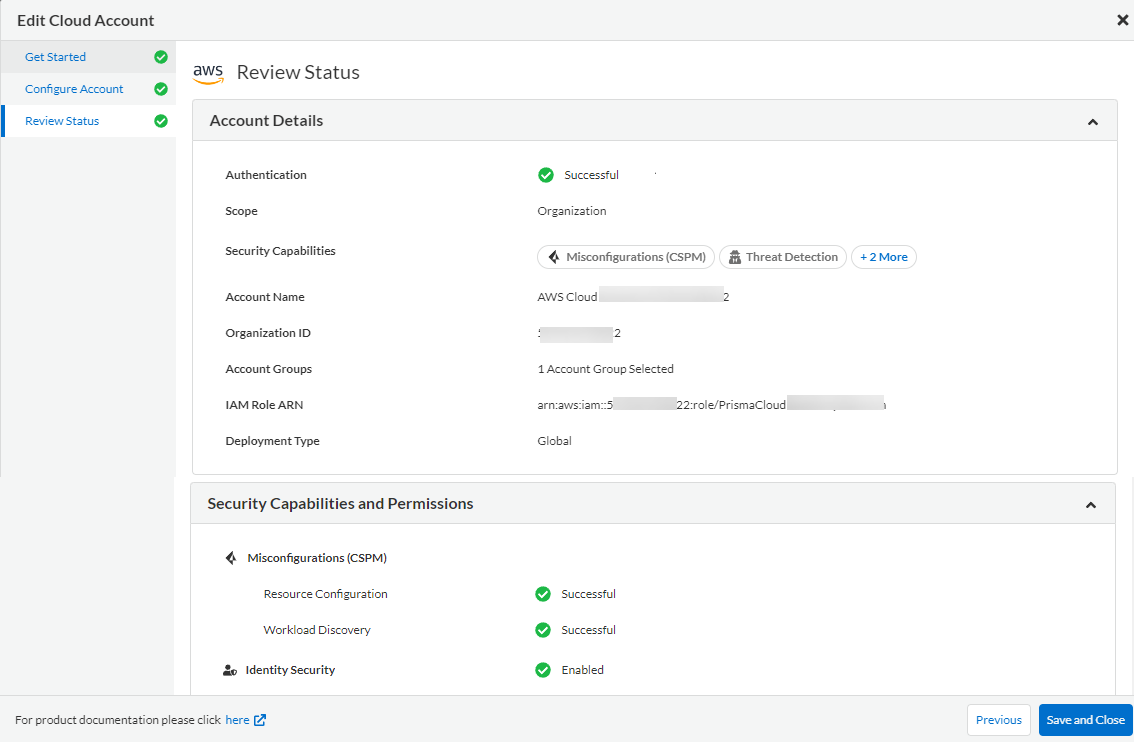
6. **Review Status** of your AWS organization on Prisma Cloud.
The status check verifies that the newly selected capabilities are enabled.
7. Click **Save and Close**.
---
# Agent Instructions
This documentation is published with GitBook. GitBook is the documentation platform designed so that both humans and AI agents can read, navigate, and reason over technical content effectively. Learn more at gitbook.com.
## Querying This Documentation
If you need additional information that is not directly available in this page, you can query the documentation by asking a question.
Perform an HTTP GET request on the following URL with the `ask` and `goal` query parameters:
```
GET https://docs.prismacloud.io/content-collections/connect/connect-cloud-accounts/onboard-aws/update-aws-org.md?ask=&goal=
```
`ask` is the immediate question: it should be specific, self-contained, and written in natural language.
`goal` is what the user is ultimately trying to achieve, the reason they need the answer. Sharing it helps GitBook give you a better, more relevant answer. A goal is most helpful when it describes the outcome the user wants rather than restating the question. For example, with `ask=how do I create an API token`, a goal like `automate deployments from our CI pipeline` lets GitBook tailor the answer to that use case.
The response will contain a direct answer to the question and relevant excerpts and sources from the documentation.
Use this mechanism when the answer is not explicitly present in the current page, you need clarification or additional context, or you want to retrieve related documentation sections.