> For the complete documentation index, see [llms.txt](https://docs.prismacloud.io/llms.txt). Markdown versions of documentation pages are available by appending `.md` to page URLs; this page is available as [Markdown](https://docs.prismacloud.io/content-collections/connect/connect-cloud-accounts/onboard-your-azure-account/connect-azure-account.md).
# Connect your Azure Account
Effectively monitor your Azure cloud resources and ensure compliance by onboarding your Azure cloud account on Prisma® Cloud.
Learn how to add your Azure cloud resources to Prisma® Cloud for threat detection, monitoring and compliance. Choose from one of the options outlined below, based on where you are in your journey with Prisma Cloud:
| **What do you want to do?** | **Start Here** |
| --------------------------- | --------------------------------------------------------------------------------------------------------------------------------------------------------------------------------------------------------------------------------------------------------------------------------------------------------------------------------------------------------------------------------------------------------------------------------------------------------------------------------------------------------------------------------------------------------------------------------------------------------------------------------------------------------------------------------- |
| Initial Onboarding |
|
## Onboarding Options
Use one of the following three options to onboard your Azure cloud account on Prisma Cloud:
* **Azure Tenant** (Connects all your Azure resources, accounts with Management Groups, Subscriptions and Active Directory to Prisma Cloud)
* [Commercial](/content-collections/connect/connect-cloud-accounts/onboard-your-azure-account/connect-azure-tenant.md#commercial)
* [Government](/content-collections/connect/connect-cloud-accounts/onboard-your-azure-account/connect-azure-tenant.md#government)
* [China](/content-collections/connect/connect-cloud-accounts/onboard-your-azure-account/connect-azure-tenant.md#china)
* **Azure Subscription** (Connects a single subscription)
* [Commercial](/content-collections/connect/connect-cloud-accounts/onboard-your-azure-account/connect-azure-subscription.md#commercial)
* [Government](/content-collections/connect/connect-cloud-accounts/onboard-your-azure-account/connect-azure-subscription.md#government)
* [China](/content-collections/connect/connect-cloud-accounts/onboard-your-azure-account/connect-azure-subscription.md#china)
* **Azure Active Directory** (Connects the IAM module at root tenant level)
* [Commercial](https://github.com/PaloAltoNetworks/pc-docs-md/tree/main/enterprise-edition/content-collections/connect/connect-cloud-accounts/onboard-your-azure-account/connect-azure-active-directory.md#commercial)
* [Government](https://github.com/PaloAltoNetworks/pc-docs-md/tree/main/enterprise-edition/content-collections/connect/connect-cloud-accounts/onboard-your-azure-account/connect-azure-active-directory.md#government)
* [China](https://github.com/PaloAltoNetworks/pc-docs-md/tree/main/enterprise-edition/content-collections/connect/connect-cloud-accounts/onboard-your-azure-account/connect-azure-active-directory.md#china)
Using Azure’s APIs, Prisma Cloud ingests and processes data from your cloud environment and initiates resource monitoring. During the built-in onboarding process you have the option of using one of the following three methods to create the required Azure resources to authorize Prisma Cloud to access Azure APIs:
* [Terraform](/content-collections/connect/connect-cloud-accounts/onboard-your-azure-account/authorize-prisma-cloud.md#terraform) (Recommended) This workflow automates the process of setting up the Prisma Cloud application on Azure Active Directory and enables read-only or read-write access to your Azure subscription.
Azure China workflows do not support the use of Terraform templates. Use the Manual or Custom Role JSON method to onboard Azure China.
* [Using Custom Role JSON](/content-collections/connect/connect-cloud-accounts/onboard-your-azure-account/authorize-prisma-cloud.md#json) Using a manually created Custom Role you also have the option to enforce least access privilege to restrict access. To achieve this you will need to manually set up the Prisma Cloud application on Active Directory and Create a Custom Role to authorize access to Azure APIs.
* [Manually Authorizing Prisma Cloud](/content-collections/connect/connect-cloud-accounts/onboard-your-azure-account/authorize-prisma-cloud.md#manual) If your organization restricts the use of Terraform scripts, you can choose to manually create the required resources for Prisma Cloud to call the Azure APIs.
The status of your Azure subscription may impact Prisma Cloud’s ability to ingest and onboard your account. Reference the list below to review the impact of your subscription status on ingestion:
* Active/Enabled - Ingestion and Auto Remediation is possible.
* Expired - Ingestion and Auto Remediation is possible.
* Past Due - Ingestion and Auto Remediation is possible.
* Deleted - Ingestion is not possible.
* Disabled - Ingestion is not possible.
* Warned - Ingestion is possible, however the Azure portal shows the Subscription as disabled, since it can be deactivated at anytime during the 90 day grace period.
## Prerequisites
To successfully onboard and monitor the resources within your Azure subscription, ensure that you have completed the following prerequisites:
1. Get your Azure Subscription ID from the Azure portal.
1. Confirm that you have Account Owner or Contributor privileges to add your Prisma Cloud created application on your Azure Active Directory.
2. To onboard your Azure subscription on Prisma Cloud, set up an Active Directory application object (Application Client ID) and an Enterprise Application Object ID that together enable API access.
3. The process of setting up Prisma Cloud on Azure Active Directory provides you with the keys and IDs required to establish an identity for sign-in and access to resources in your Azure subscription.
4. The Enterprise Application Object ID defines the permissions and scope assumed by Prisma Cloud.
2. Enable Prisma Cloud access to Azure users and groups by elevating access levels in accordance with your Azure environment as outlined below. This step is required only during initial Azure account onboarding, for ingesting resources associated with subscriptions and management groups. You can disable this option after onboarding is complete.
* **Tenant Onboarding**
* Active Directory role - Global Administrator
* Tenant scope - User Access Administrator / Management Group Contributor
* **Subscription Onboarding**
* Active Directory role - Application Administrator
* Subscription scope - Owner
* **Active Directory Onboarding**
* Active Directory role - Global Administrator
tt:\[NOTE:] Active Directory level permission (Application Administrator) is required to create application registration. This permission level is sufficient to run the Terraform script for Active Directory and Tenant accounts. However, to grant consent to Prisma to ingest users, groups, and policies Global Administrator permission is required.
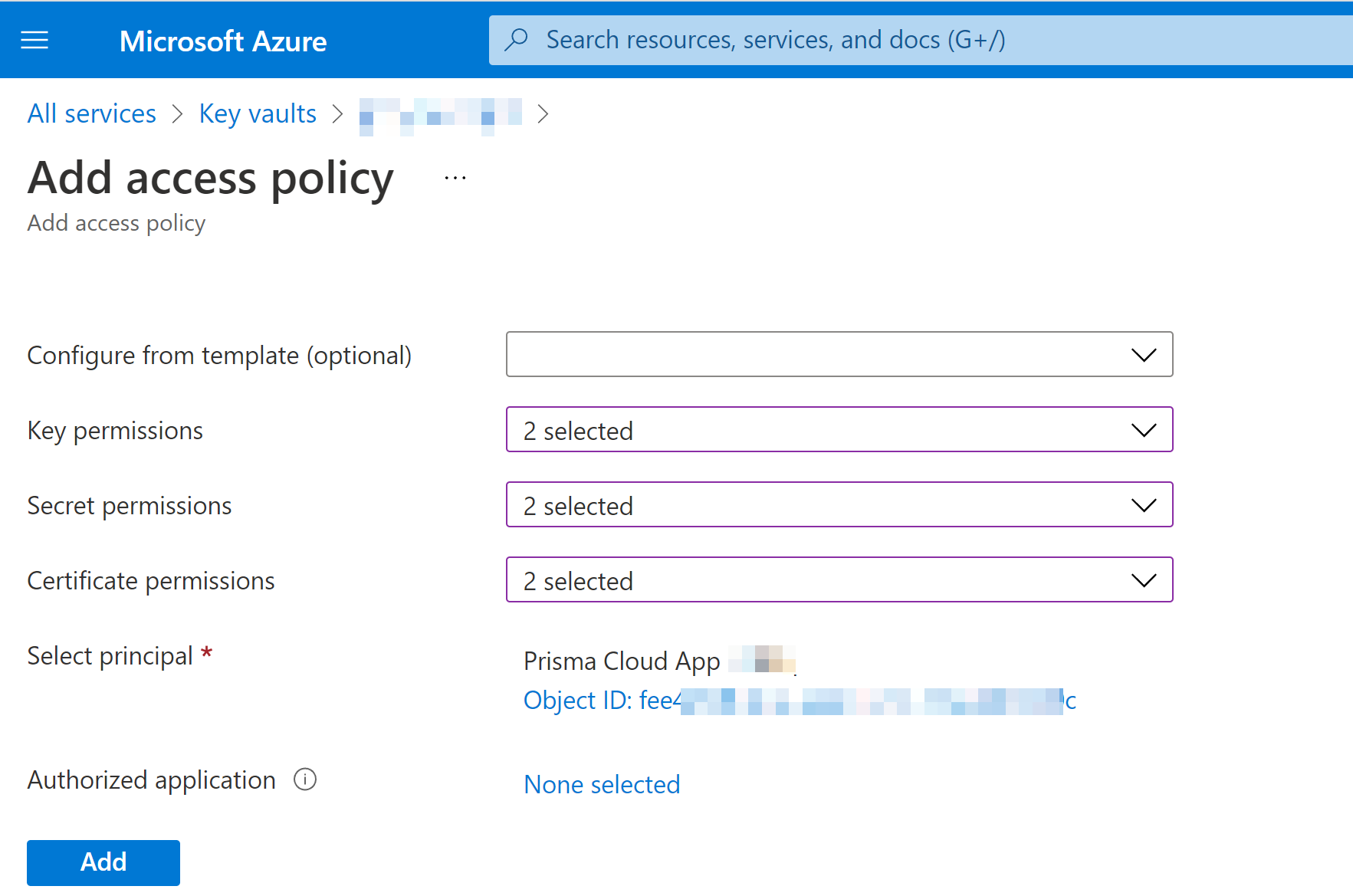
3. Enable Prisma Cloud to ingest Azure Key Vault resources. This step is required only if you are using the Azure Tenant or Subscription workflow.
The following Azure resources need to have the **Get** and **List** permissions enabled in the Key Management Operations on Azure Portal for Prisma Cloud to ingest them:
* azure-key-vault-list
* azure-key-vault-certificate
Select **All services > Key vaults > (key vault name) > Access policies > + Add Access Policy**. For **Key permissions**, **Secret permissions**, and **Certificate permissions**, add the **Get** and **List** Key Management Operations.
tt:\[NOTE:] Get is required to support policies based on Azure Key Vault. Prisma Cloud requires this to ingest Key Vault Data. Keys or secrets are not ingested. Ingestion is limited to IDs and other metadata. Get is required to allow the creation of policies on RSA key strength, EC curve algorithm etc.
4. Authorize Prisma Cloud to ingest storage accounts. On the Azure portal, access your account and select **Configuration**. Enable the **Allow storage account keys** option and complete access key setup. Learn more about [managing storage account keys](https://learn.microsoft.com/en-us/azure/storage/common/storage-account-keys-manage?tabs=azure-portal).
5. On the Azure portal, you also have the option to authenticate using Microsoft Entra ID. Complete the steps below on the Azure portal to configure Azure Flowlogs using Entra ID.
**NOTE:** Keep the following caveats in mind:\
\* For Flat Namespace (FNS) based storage accounts, Entra ID works only when soft delete is disabled. For more information, reference [Microsoft documentation](https://learn.microsoft.com/en-us/fabric/data-factory/connector-troubleshoot-azure-data-lake-storage#error-code-adlsgen2operationfailed).\
\* Entra ID authentication for Azure flowlogs is only supported for GPV2 [storage accounts](https://learn.microsoft.com/en-us/azure/storage/common/storage-account-create?tabs=azure-portal). Legacy GPV1 accounts are not supported.\
\* Grant Storage Blob permissions at the tenant level, to ensure proper data ingestion. You will encounter a missing permissions error if you provide storage account/blob level access without tenant-level permissions. Authentication may show an error, however storage blobs will continue to ingest if permission is provided at the Storage Blob level.
1. Access your account and select **Configuration**. Disable the **Allow storage account keys** option. This initiates the Prisma Cloud Entra ID configuration flow.
2. Navigate to **Home > Access Control IAM > Role Assignments** and ensure that the Storage Blob Data Reader role is added to your application. If you encounter an error when adding the role, download the Terraform file once again to re-onboard your account as mentioned in the steps above.
6. On the Azure portal, setup Virtual Network flow logs [VNet flow logs](https://learn.microsoft.com/en-us/azure/network-watcher/vnet-flow-logs-overview?tabs=Americas) to ensure Prisma Cloud’s Service Principal has access to the storage account.
VNet flow logs, a feature of Network Watcher, allow you to view ingress and egress IP traffic information through a virtual network. This step is required only if you are using the Azure Tenant or Subscription workflow, or if you would optionally like to ingest flow logs.
**NOTE:** You can also opt to ingest Network Security Group (NSG) flow logs instead of VNet flow logs. However, Microsoft will retire Network Security Group (NSG) flow logs on September 30, 2027. As a result, you will no longer be able to create new NSG flow logs after June 30, 2025. We recommend [disabling NSG flow logs](https://learn.microsoft.com/en-us/azure/network-watcher/vnet-flow-logs-overview?tabs=Americas) before migrating to VNet flow logs to avoid duplicate alerts, notifications, and added costs. Keep in mind that the option to ingest VNet flow logs is not available for Azure China tenants.
1. On the Azure portal, create one or more virtual networks if you have none.
2. Create Storage Accounts to collect flow logs. Prisma Cloud can ingest flow logs only when:
1. The subscriptions belongs to the same Azure AD or Root Management Group (for example, Azure Org).
2. The Service Principal that you use to onboard the subscription on Prisma Cloud must be assigned the Storage Blob Data Reader role and must also have access to read the contents of the storage account.
3. Add the [NAT GatewayIP addresses](/content-collections/get-started/console-prerequisites.md) for your Prisma Cloud instance to the Storage Account created in the step above. For example, if your instance is on `app.prismacloud.io` use the IP addresses associated with that.
4. Create Azure [Network Watcher instances](https://docs.microsoft.com/en-us/azure/network-watcher/network-watcher-create) for the virtual networks in every region where you collect flow logs. Network Watcher enables you to monitor, diagnose, and view metrics to enable and disable logs for resources in an Azure virtual network.
5. From the Network Watcher console, navigate to **Flow logs > Create +** to create a flow log.
1. On the **Basics** tab of the Create a flow log workflow, complete the steps below:
1. Select the Azure subscription of the virtual network that you want to log.
2. Select **Virtual network > Select +**.
3. Select a target resource such as (Virtual network, Subnet, and/or Network interface). Select the resources that you want to obtain flow logs for, and **Confirm** your selection.
4. Enter a name for the flow log or leave the default name. Azure portal uses {ResourceName}-{ResourceGroupName}-flowlog as a default name for the flow log.
5. Select the storage account that you want to save the flow logs to. If you want to create a new storage account, select **Create a new storage account**.
6. Enter a retention time for the logs. This option is only available with standard general-purpose v2 storage accounts.
6. Optionally, you can view and download VNet flow logs. To view VNet flowlogs complete the following steps on the Azure portal:
1. Go to storage account previously created and opt to store the logs.
2. Select **Data Storage > Containers**.
3. Select the `insights-logs-flowlogflowevent` container.
4. In the container, navigate the folder hierarchy until you get to the `PT1H.json` flow logs file. Download the file to view flow log events.
If **Public Network Access** is set to **Disabled** Prisma Cloud will not be able to ingest the `publicContainersList` field and calculate the `totalPublicContainers` for the Azure Storage account.
To optionally configure your Azure Storage account settings to identify internet exposed public containers, do the following:
* Option 1 (Recommended): On the Azure portal, set Public Network Access to **Enabled from selected virtual networks and IP addresses**. Add the IP addresses and NAT Gateway source and directory IPs listed [here](/content-collections/get-started/access-prisma-cloud.md) to the firewall configuration.
* Option 2: On the Azure portal, set Public Network Access to **Enabled from all networks**.
## Required Roles and Permissions
To successfully connect your account to Prisma Cloud you will need to provide the required permissions for both Foundational and Advanced security capabilities. Reference the information below to make sure that you have assigned the appropriate permissions to Prisma Cloud.
* [Permissions for Security Capabilities](/content-collections/connect/connect-cloud-accounts/onboard-your-azure-account/microsoft-azure-apis-ingested-by-prisma-cloud.md)
Reference Azure documentation to learn more about [Reader](https://learn.microsoft.com/en-us/azure/role-based-access-control/built-in-roles#reader), [Reader and Data Access](https://learn.microsoft.com/en-us/azure/role-based-access-control/built-in-roles#reader-and-data-access), [Network Contributor](https://learn.microsoft.com/en-us/azure/role-based-access-control/built-in-roles#network-contributor), [Storage Blob Data Reader](https://learn.microsoft.com/en-us/azure/role-based-access-control/built-in-roles#storage-blob-data-reader), and [Storage Account Contributor](https://learn.microsoft.com/en-us/azure/role-based-access-control/built-in-roles#storage-account-contributor) roles.
## Next: Onboard your Azure Account
* Azure Tenant (Connects all your Azure resources to Prisma Cloud including Accounts with Management Groups, Subscriptions and Active Directory)
* [Commercial](/content-collections/connect/connect-cloud-accounts/onboard-your-azure-account/connect-azure-tenant.md#commercial)
* [Government](/content-collections/connect/connect-cloud-accounts/onboard-your-azure-account/connect-azure-tenant.md#government)
* [China](/content-collections/connect/connect-cloud-accounts/onboard-your-azure-account/connect-azure-tenant.md#china)
* Azure Subscription (Connects a single subscription)
* [Commercial](/content-collections/connect/connect-cloud-accounts/onboard-your-azure-account/connect-azure-subscription.md#commercial)
* [Government](/content-collections/connect/connect-cloud-accounts/onboard-your-azure-account/connect-azure-subscription.md#government)
* [China](/content-collections/connect/connect-cloud-accounts/onboard-your-azure-account/connect-azure-subscription.md#china)
* Azure Active Directory (Connects an Active Directory)
* [Commercial](https://github.com/PaloAltoNetworks/pc-docs-md/tree/main/enterprise-edition/content-collections/connect/connect-cloud-accounts/onboard-your-azure-account/connect-azure-active-directory.md#commercial)
* [Government](https://github.com/PaloAltoNetworks/pc-docs-md/tree/main/enterprise-edition/content-collections/connect/connect-cloud-accounts/onboard-your-azure-account/connect-azure-active-directory.md#government)
* [China](https://github.com/PaloAltoNetworks/pc-docs-md/tree/main/enterprise-edition/content-collections/connect/connect-cloud-accounts/onboard-your-azure-account/connect-azure-active-directory.md#china)
---
# Agent Instructions
This documentation is published with GitBook. GitBook is the documentation platform designed so that both humans and AI agents can read, navigate, and reason over technical content effectively. Learn more at gitbook.com.
## Querying This Documentation
If you need additional information that is not directly available in this page, you can query the documentation by asking a question.
Perform an HTTP GET request on the following URL with the `ask` and `goal` query parameters:
```
GET https://docs.prismacloud.io/content-collections/connect/connect-cloud-accounts/onboard-your-azure-account/connect-azure-account.md?ask=&goal=
```
`ask` is the immediate question: it should be specific, self-contained, and written in natural language.
`goal` is what the user is ultimately trying to achieve, the reason they need the answer. Sharing it helps GitBook give you a better, more relevant answer. A goal is most helpful when it describes the outcome the user wants rather than restating the question. For example, with `ask=how do I create an API token`, a goal like `automate deployments from our CI pipeline` lets GitBook tailor the answer to that use case.
The response will contain a direct answer to the question and relevant excerpts and sources from the documentation.
Use this mechanism when the answer is not explicitly present in the current page, you need clarification or additional context, or you want to retrieve related documentation sections.