> For the complete documentation index, see [llms.txt](https://docs.prismacloud.io/llms.txt). Markdown versions of documentation pages are available by appending `.md` to page URLs; this page is available as [Markdown](https://docs.prismacloud.io/content-collections/get-started/adoption-advisor.md).
# Adoption Advisor
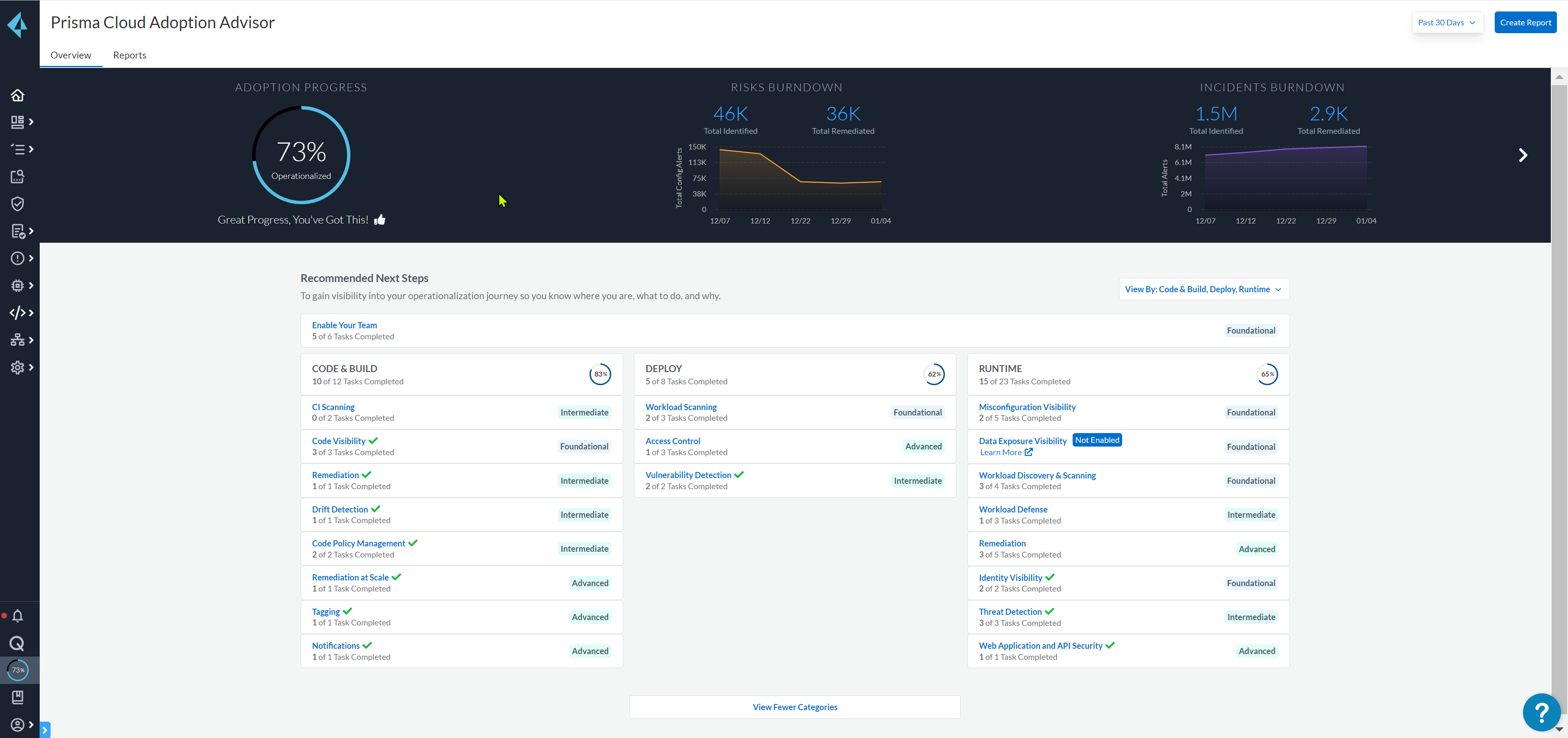
Adoption Advisor provides guidance through the three stages of the code to cloud application lifecycle: Code & Build, Deploy, and Run. It helps you navigate and adopt the Foundational, Intermediate, and Advanced security capabilities at each stage of the application lifecycle, at your own pace. Use the Adoption Advisor console to generate and manage PDF reports for adoption progress and widget data from the previous 30, 60, or 90 days.
The checks in the Code & Build, Deploy, and Run phases of the application offer:
* Visibility and control within your Code & Build processes is critical to identify vulnerabilities and compliance violations before progressing to the next phase of the application’s lifecycle.
In this phase, you are responsible for the secure operation of your cloud services. For example, you use Infrastructure as code (IaC) templates to deploy, maintain, and remove cloud services such as VMs, and storage buckets. Visibility and control at this stage enables your developers to proactively harden open source dependencies and IaC by identifying vulnerabilities, compliance violations, and secrets before they are compiled into applications or deployed as insecure cloud services.
You may also have Continuous Integration (CI) practices to rapidly and continuously develop, update, and maintain your cloud-based applications. The assembly and testing of your code into usable software packages are automated by CI systems such as Jenkins and CircleCI, which integrate with various code repositories and package management systems. These CI systems generate deployable artifacts such as Infrastructure as Code (IaC), VM images, Docker images, and Serverless images. These artifacts are essential for release processes, enabling frequent deployments and supporting agile development practices.
* Ability to identify vulnerability and compliance issues within the Deploy phase when applications that are staged for deployment in your continuous cycle of development, testing, and release, or Continous Development pipelines. At this stage, you can enforce policies to ensure only trusted applications are allowed to launch within the cloud runtime environment.
* Predictive and threat-based protections to secure your Runtime environments. In this stage, you can detect and remediate overly permissive cloud access roles that present opportunities for attackers, identify expected patterns/behavior in runtime actions of applications and resources and prevents anomalous activity.
The **Adoption Advisor** includes all the security capabilties available from the different subscriptions that include Visibility, Compliance, Governance for Cloud Security Posture Management (CSPM), Cloud Workload Protection (CWP), and Cloud Application Security (CAS), Cloud Identity and Access Management (CIEM), and Data Security capabilities on Prisma Cloud. For completing some of these checks, the subscription must be activated first.
Adoption Advisor tasks are grouped into the following:
* Foundational – Your organization has started its cloud adoption journey. You are presented with the challenge of effectively managing assets within the cloud and on-premises. Prisma Cloud Enterprise Edition provides your organization with the visibility, tools, and knowledge to develop a strong and secure cloud adoption foundation.
* Intermediate – As you progress with understanding and adopting cloud-based technologies beyond the traditional infrastructure as a service (IaaS) architecture, Prisma Cloud enables you to effectively manage the vulnerabilities and compliance of your cloud resources.
* Advanced – In this phase, your organization is innovating its business with the cloud, and this is supported by the industry-leading capabilities of Prisma Cloud Enterprise Edition. Use Prisma Cloud to proactively control your cloud operations, and identify and remediate issues before they manifest within your runtime environments.
Adoption Advisor access is limited to customers with an Enterprise edition license. Business license holders do not have access to Adoption Advisor functionality.
For more information about Adoption Advisor, see the following sections.
* [How do I Use the Adoption Advisor](#use-adoption-advisor)
* [Adoption Advisor Widgets](#id0356c4cc-e4f1-43e2-8848-3f6cd7e4cd60)
* [Create and Manage Adoption Advisor Reports](#create-manage-aa-report)
## How do I Use the Adoption Advisor
Use the Adoption Advisor for visibility on how much of the security capabilities your organization has adopted, uncover security capabilities that you have not yet explored so that you can make the most of your investment, and for guidance on where to take action for maintaining good security hygiene in a particular area and managing risk as you adopt the cloud for critical infrastructure. As your teams complete the recommended tasks, the **Adoption Progress** indicator depicts your progress as a percentage.
1. Select **Adoption Advisor** on the left-hand pane.
The System Admin role can perform all the actions on this page, and can generate or view Reports. For all other Prisma Cloud roles, based on your role and the access privileges, you can view a list of items and widgets that provide visibility into your operationalization journey, and guidance on the next steps.
2. Select a phase and a task on the dashboard to take action.
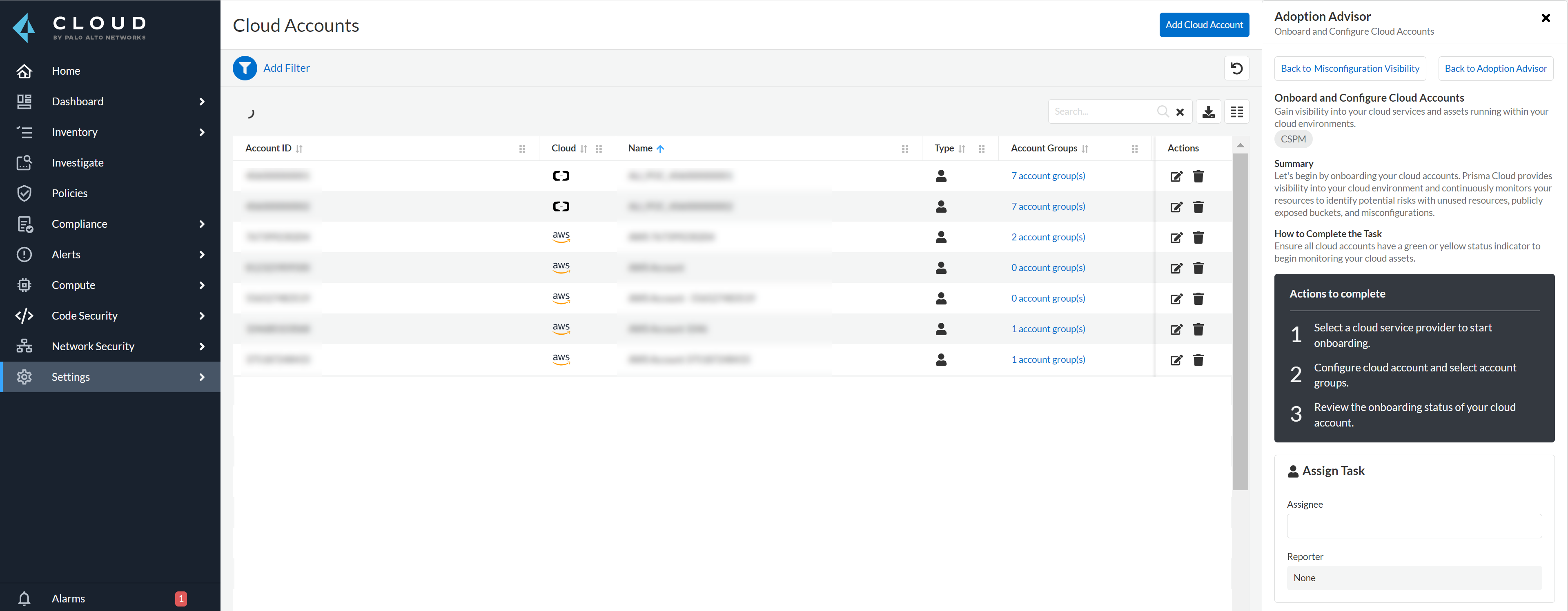
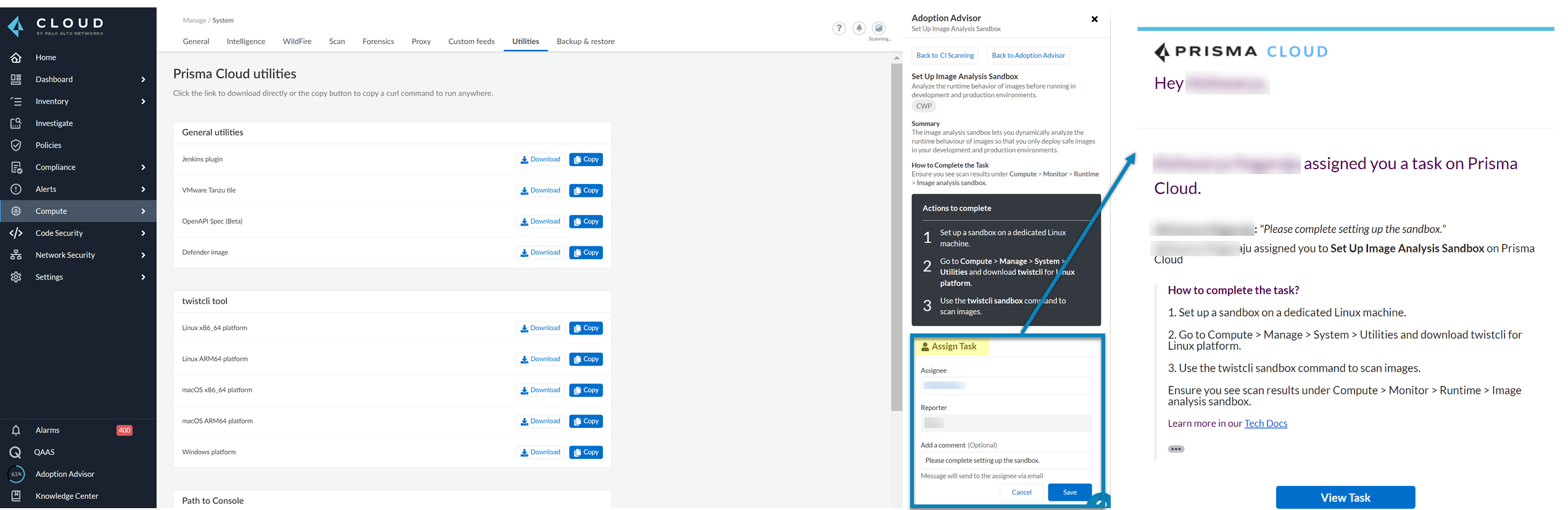
You can either review the details in the **Actions to complete** and complete the tasks or **Assign Task** to make progress.
1. Review the details in **Actions to complete** and perform the tasks.
For example, select Code & Build to view the list of tasks. Then select a task and review the details in the **Actions to complete** where you have a three-step summary of each task. Complete the task to make progress.
2. **Assign Task** to a user.
1. Select the **Assignee** to whom you want to assign the task from the drop-down.
2. tt:\[Optional] Add a comment.
3. **Save** the task.
When you save the task, the Assignee will receive an email notification containing the task assignment details.
Initially, only the System Admin can assign a task to a user. However, the Assignee can re-assign the task to another user if needed. When re-assigned, the current Assignee becomes the Reporter, and the new Assignee will receive an email notification containing the task assignment details.
3. Review the progress with issue burndown.
For each widget, refer to the [Adoption Advisor Widgets](#id0356c4cc-e4f1-43e2-8848-3f6cd7e4cd60) to review how your security posture is being managed through better alert handling.
For sharing your progress, [**Generate Report**](#create-manage-aa-report) to download your Cloud Security Report for the last 30, 60, or 90 days.
## Adoption Advisor Widgets
| NAME | DESCRIPTION |
| ----------------------------------- | ------------------------------------------------------------------------------------------------------------------------------------------------------------------------------------------------------------------------------------------------------------------------------------------------------------------------------------------------------------ |
| **Adoption Progress** | Depicts how well your team has been using the full complement of Prisma Cloud capabilities. This percentage is a ratio of the number of tasks completed divided by the total number of tasks available to you. As your cloud footprint grows, use the Adoption Advisor to identify where to focus on your journey to strengthen your cloud security posture. |
| **Anomalous Threats Detected** | Anomalous Threats Detected are organized by UEBA and Network-based anomaly alerts and policies. The top row displays the number of threats detected for UEBA and Network for the past 30/60/90 days. The bottom row displays the number of enabled vs. possible policies. |
| **Discovered vs Secured Resources** | Displays the extent to which the Defender is currently protecting your cloud environment. It shows the number of resources detected by Cloud Discovery as well as the number of Secured resources protected by deployed Defenders over a period of time. |
| **Assets with Urgent Alerts** | Displays the count of critical and high severity risks detected for all policy violations such as Network, Anomaly, Audit Event, and Config policies by a tenant and the assets producing these alerts over a period of time. It also shows you the Alert Remediation count that includes remediation action states of resolve, dismiss or snooze. |
| **Incident Burndown** | Displays the critical and high severity alerts generated from Network, Anomaly, and Audit Event against the assets across your monitored cloud environments and your team’s progress on remediating these incidents. The remediation actions include the states of resolve, dismiss or snooze. |
| **Risk Burndown** | Displays the number of critical and high severity risks detected using the Configuration policies on Prisma Cloud and your team’s progress on addressing these risks. The addressed actions include the states of resolve, dismiss or snooze. |
| **Regulatory Compliance Achieved** | Displays the compliance posture for the top 3 compliance standards from the list of compliance reports you have generated. The top 3 compliance standards are shown by first prioritizing scheduled reports, then one-time reports. |
| **Top Custom Alerts Generated** | Displays the top three custom policies by open alert count. |
| **Vulnerability Trends** | Displays the vulnerabilities discovered and resolved over time across images, hosts, containers, and functions for the impacted resources. |
## Create and Manage Adoption Advisor Reports
Adoption Advisor analyzes your deployment to generate a report that considers your position on the cloud security maturity model. With this report, you can show your stakeholders how adoption progress is currently going in terms of security capabilities at each stage of the application lifecycle, Code & Build, Deploy, and Run, in a visual format.
Prisma Cloud administrators with the System Admin role can on-demand download Adoption Advisor PDF report containing a summary of the adoption progress along with a metrics overview of data for the last 30, 60, or 90 days. They can also set up recurring reports to generate at a specified interval.
1. Create a report
1. Log in to Prisma Cloud.
2. Create a new report.
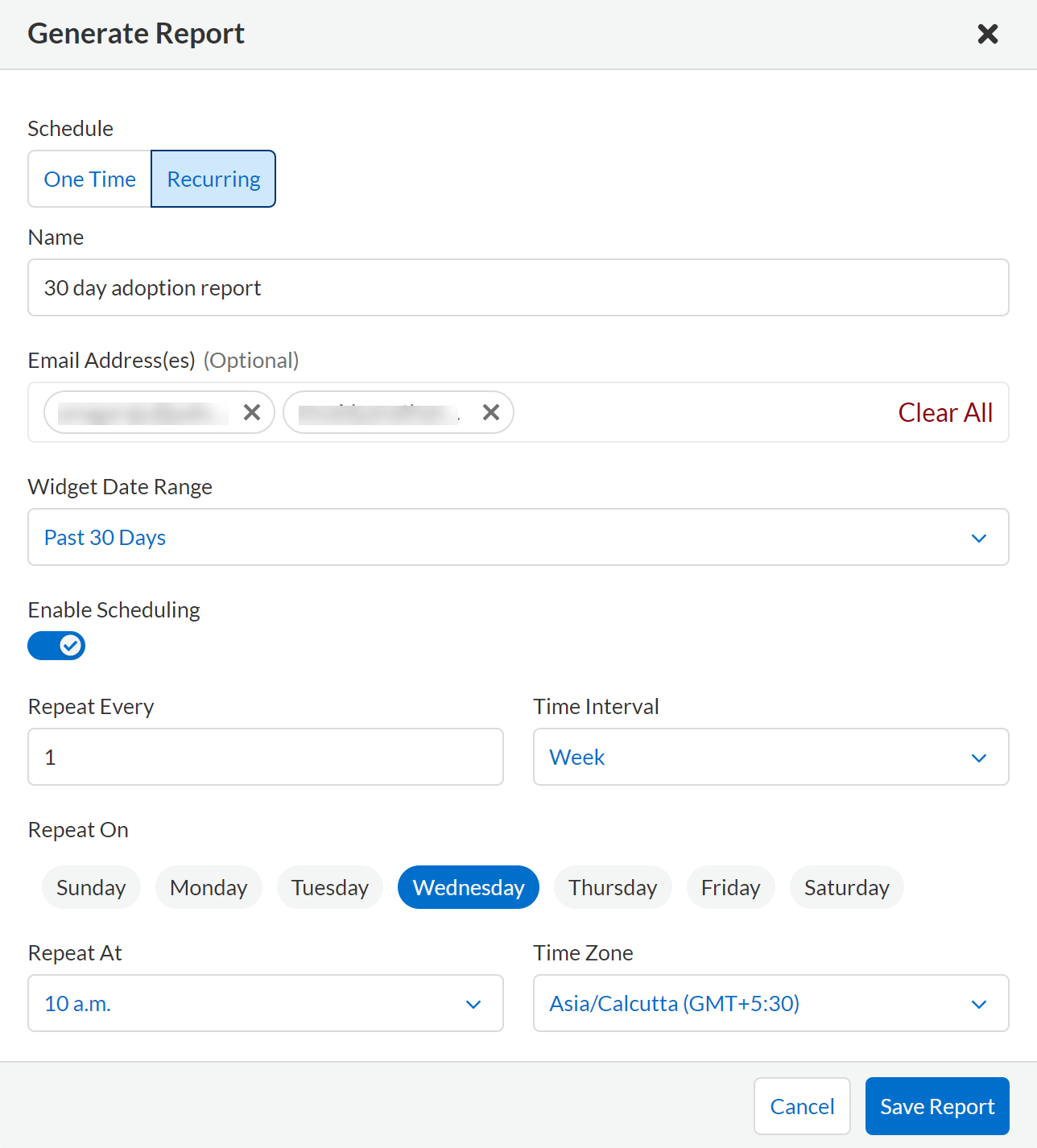
1. Select **Adoption Advisor > Create Report**.
2. Select the **Schedule** frequency, **One Time** or **Recurring**.
If you select **Recurring** specify how often and when you want the report to run.
You can only edit Recurring reports to modify any inputs.
3. Enter the following information:
* Enter a descriptive **Name** for the report.
* (tt:\[Optional]) Enter the **Email Address(es)** for the recipient(s) to receive the reports.
* Select the **Widget Date Range** for which you want the metrics data.
4. **Save Report**.
2. View and Manage Reports
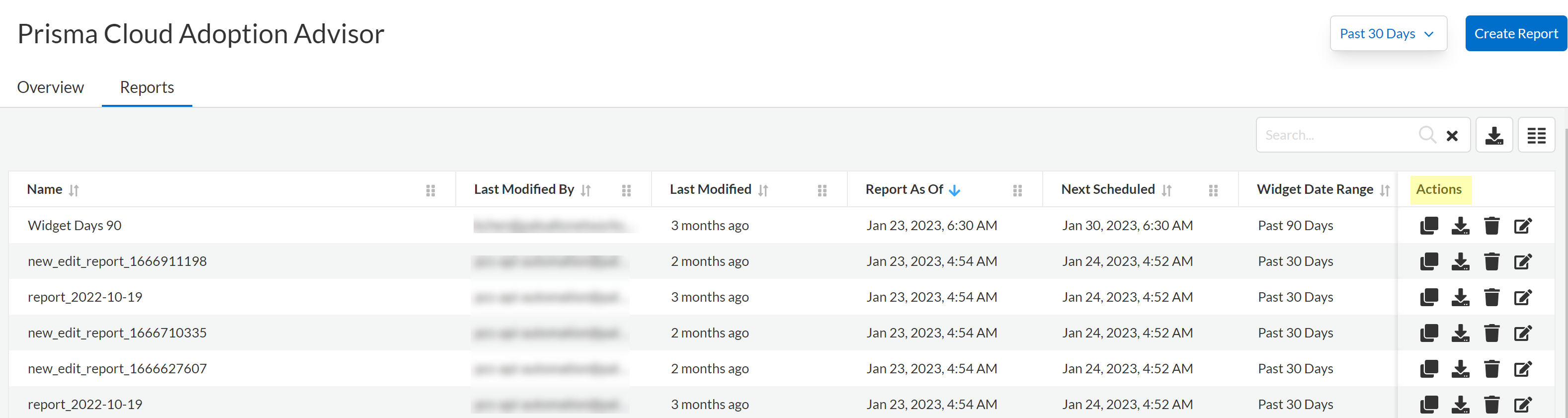
After you create a report, they will automatically run at the scheduled time. Select **Adoption Advisor > Reports** to view a list of all the scheduled reports and use the search filter to narrow the list of reports displayed or search for a specific report. You can also change the list view of the reports and download the table view as a userinput:\[.csv] file.
* From the **Reports** tab you can clone a report. You can also share reports by downloading a PDF version.
* The **Actions** tab in the **Reports** view allows you to also download reports or delete them if they are no longer required.
* For recurring reports, the **Enable Scheduling** toggle allows you to choose whether a report should be emailed automatically according to the predefined schedule. When disabled, the report is not emailed, but can be downloaded on demand.
* Select the edit icon to update or change report scheduling details, including adding or removing recipients.
---
# Agent Instructions
This documentation is published with GitBook. GitBook is the documentation platform designed so that both humans and AI agents can read, navigate, and reason over technical content effectively. Learn more at gitbook.com.
## Querying This Documentation
If you need additional information that is not directly available in this page, you can query the documentation by asking a question.
Perform an HTTP GET request on the following URL with the `ask` and `goal` query parameters:
```
GET https://docs.prismacloud.io/content-collections/get-started/adoption-advisor.md?ask=&goal=
```
`ask` is the immediate question: it should be specific, self-contained, and written in natural language.
`goal` is what the user is ultimately trying to achieve, the reason they need the answer. Sharing it helps GitBook give you a better, more relevant answer. A goal is most helpful when it describes the outcome the user wants rather than restating the question. For example, with `ask=how do I create an API token`, a goal like `automate deployments from our CI pipeline` lets GitBook tailor the answer to that use case.
The response will contain a direct answer to the question and relevant excerpts and sources from the documentation.
Use this mechanism when the answer is not explicitly present in the current page, you need clarification or additional context, or you want to retrieve related documentation sections.