> For the complete documentation index, see [llms.txt](https://docs.prismacloud.io/llms.txt). Markdown versions of documentation pages are available by appending `.md` to page URLs; this page is available as [Markdown](https://docs.prismacloud.io/content-collections/reports/create-and-manage-reports.md).
# Create and Manage Reports
Prisma Cloud Reports help you capture and share key metrics that track your progress in securing your cloud environment against potential vulnerabilities, and meeting compliance standards. View and create reports from one centeralized location **Home > Reports** in Prisma Cloud. Learn more about how to create, schedule, search for and the following report types:
* [Compliance Reports](#compliance)
* [Alerts Reports](#alerts)
* [Cloud Security Reports](#cloudsecurity)
If you have enabled SSO, policy hyperlinks included in Compliance and Cloud Security Assesment reports will only function if you are in an active Prisma Cloud session.
## Compliance Reports
Generate Prisma Cloud compliance reports, to evaluate how well your cloud environments meets select compliance standards. Create reports to run immediately for online viewing or download, or schedule recurring reports so you can monitor progress of your cloud compliance over time. You have two options to generate and view compliance reports within Prisma Cloud. Generate a report from the **Reports** as described below.
### Create a Report
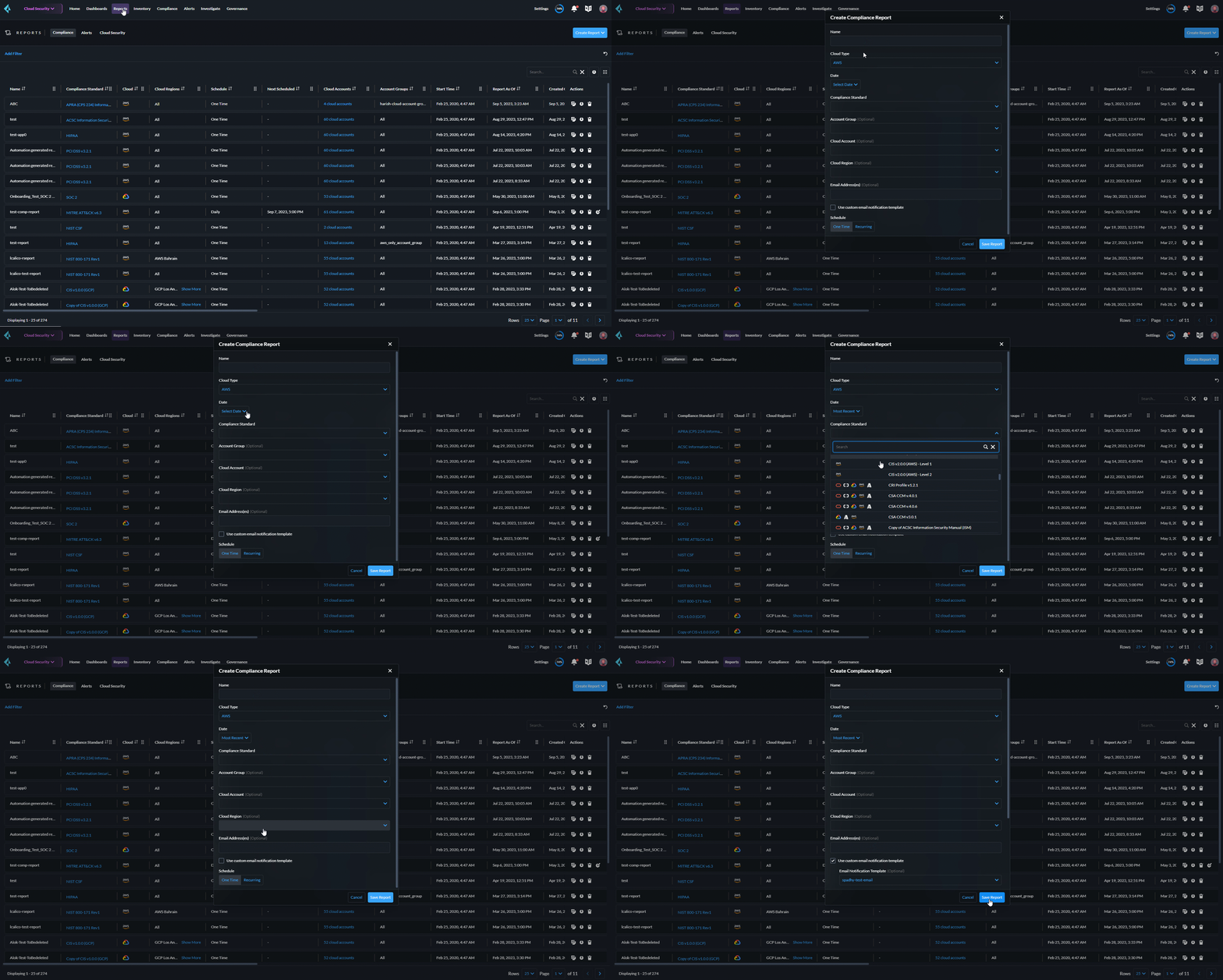
1. Select the **Reports** tab from the top navigation panel on the Prisma Cloud Administrative console.
2. The **Reports** navigation panel lists all the various types of reports you can create, view, search and download. The list is by default sorted in tabular view by last modified date.
3. Select the **Compliance** tab to view previously created Compliance reports.
4. To create a report select the **Create Report** tab on the top right.
5. On the **Create Report** dialog box, provide a descriptive name for your report.
6. Optionally, use the follow criteria to create a more targeted report.
* Compliance Standard
* Account Groups
* Cloud Accounts
* Cloud Regions
7. Enter the **Email** address to which you would like to send the scheduled report. Select the Custom Email Template checkbox if you wish to use a pre-selected notification template.
8. Select report frequency, **One Time** or **Recurring**.
If you select **Recurring** specify how often and when you want the report to run.
To prevent unauthorized access, user generated reports are only visible to System Administrators and users with the same role.
## Alerts Reports
Keep your stakeholders informed on the status of your cloud assets and compliance checks with Prisma Cloud **Alerts Reports**. You can generate two types of Alerts reports:
**Cloud Security Assessment report**: A PDF risk summary report based on data from open alerts in the monitored cloud accounts of any specific cloud environment. The report includes an executive summary and a list of policy violations, including a page with details for each policy including a description and associated compliance standards.
**Business Unit report**: A .csv file that lists the resources that have open alerts against policies for any compliance standard.
* The Business Unit alerts reports do not include Attack Path data.
* The Cloud Security Assessment and Business Unit reports do not include details about certain resources, such as accounts and regions, which are known as pseudo resources.
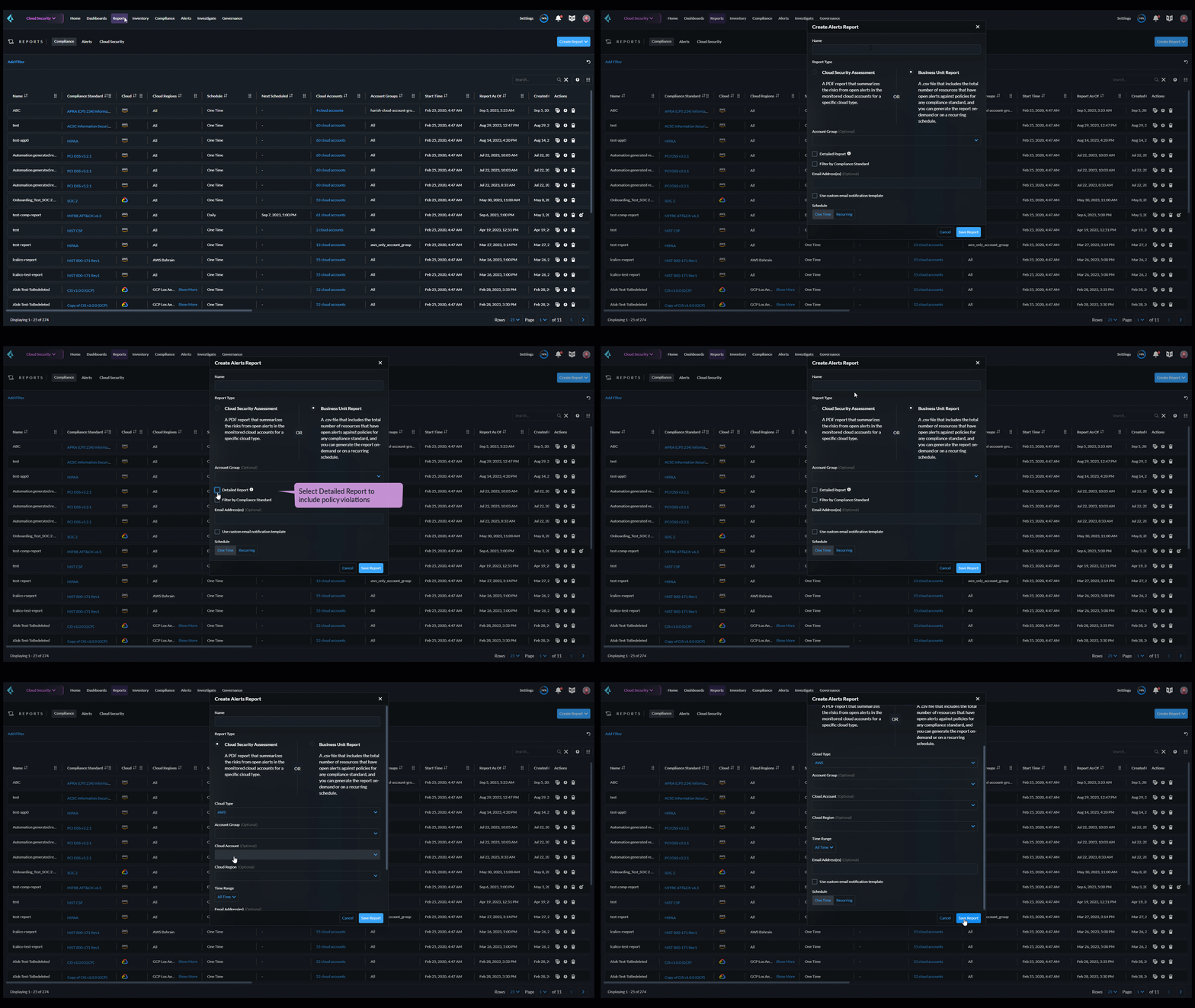
1. Select **Reports > Create Report**.
2. Choose **Alerts Report** from the drop-down.
3. Enter a **Name** and select a **Report Type**.
4. Select **Cloud Security Assessment Report** or a **Business Unit Report**.
1. To generate a **Business Unit Report**:
1. Select the **Account Groups** to include in the file.
2. Select **Detailed Report**, if you want to include a breakdown of policy details for each cloud account.
For the detailed report, select **Compress Attachments** to get a .zip file for download or email attachment.
3. Filter alerts associated with specific compliance standards.
1. Select **Filter by Compliance Standard**.
2. Select the **Compliance Standards** from the drop-down.
4. Enter the **Email** address(es) for the file recipient(s).
5. Select the **Notification template**, if you want to use a custom email template.
A custom email template allows you to tailor your message and add a URL in the message body.
6. Set the email notifications **Frequency**.
You can only edit recurring **Alerts Reports** to modify some inputs such as the time interval, whether or not to compress attachments.
7. **Submit** your changes.
2. To generate a **Cloud Security Assessment** Report:
1. Select the **Cloud Type** to include in the file.
2. Select the **Account Groups** and the **Cloud Accounts** to include in the file.
3. Select the cloud **Regions** and the **Time Range** for the report.
4. Enter the **Email** address(es) for the file recipient(s).
5. Select the **Notification template**, if you want to use a custom email template.
6. Set the **Frequency** at which to send email notifications.
7. **Submit** your changes.
## Cloud Security Reports
This comprehensive report captures your progress in operationalizing Prisma Cloud. Also included is an extensive Metrics Overview capturing key data points such as, anomalous threats detected, vulnerabilities trends and regulatory compliance achieved.
You have two options to generate and view Cloud Security reports within Prisma Cloud. Generate a report from the Reports section as described below.
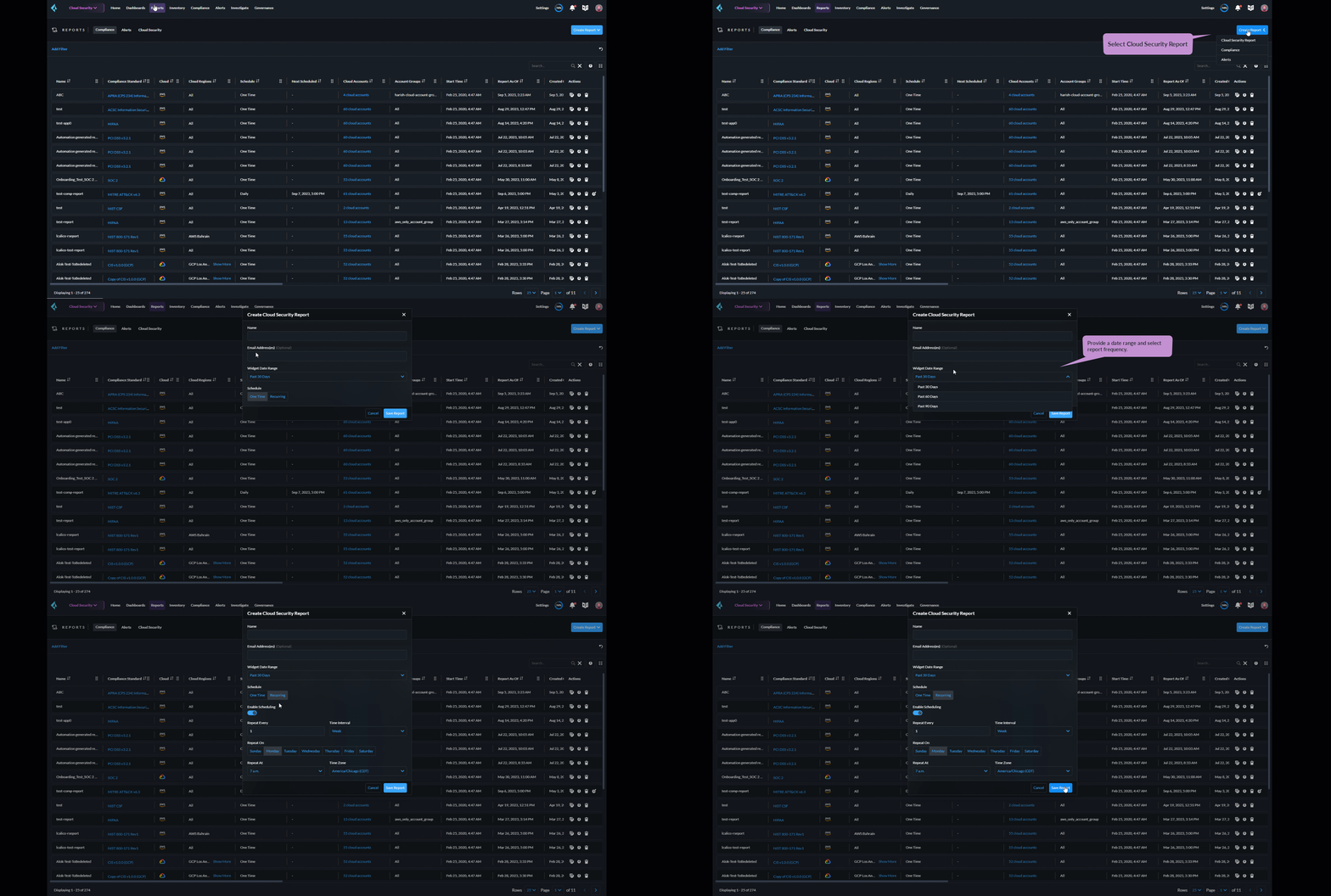
1. Select **Reports > Create Report**.
2. Choose **Cloud Security Report** from the drop-down.
3. Enter the following information:
* Enter a descriptive **Name** for the report.
* (tt:\[Optional]) Enter the **Email Address(es)** for the recipient(s) to receive the reports.
* Select the **Widget Date Range** for which you want the metrics data.
4. **Save Report**.
## Manage Generated Reports
Prisma Cloud users with the System Admin role can view, clone or delete reports generated by all users. Follow the steps below to view a previously created report:
1. Select the **Reports** tab from the Prisma Cloud administrative console.
2. Choose **Compliance**, **Alerts** or **Cloud Security** to see a list of previously generated reports.
3. Select **Add Filter** to further narrow your search results by: Cloud Account/Region/Type, Compliance Standard, Account Groups, Frequency, Recipients, Schedule, and Schedule Enabled.
Report filters to narrow your search are only currently available for Compliance Reports.
4. Use the search bar on the right to search for a specific report.
5. You can also download the current table data by selecting the download icon.
6. Select the column sorter icon to hide or reorder column data. You can drag columns to reconfigure their display configuration. Choose **Reset to default** to restore column data to its original format.
7. Choose any displayed report and select the appropriate icons on the right of the highlighted report to clone, download or delete a report.
---
# Agent Instructions
This documentation is published with GitBook. GitBook is the documentation platform designed so that both humans and AI agents can read, navigate, and reason over technical content effectively. Learn more at gitbook.com.
## Querying This Documentation
If you need additional information that is not directly available in this page, you can query the documentation by asking a question.
Perform an HTTP GET request on the following URL with the `ask` and `goal` query parameters:
```
GET https://docs.prismacloud.io/content-collections/reports/create-and-manage-reports.md?ask=&goal=
```
`ask` is the immediate question: it should be specific, self-contained, and written in natural language.
`goal` is what the user is ultimately trying to achieve, the reason they need the answer. Sharing it helps GitBook give you a better, more relevant answer. A goal is most helpful when it describes the outcome the user wants rather than restating the question. For example, with `ask=how do I create an API token`, a goal like `automate deployments from our CI pipeline` lets GitBook tailor the answer to that use case.
The response will contain a direct answer to the question and relevant excerpts and sources from the documentation.
Use this mechanism when the answer is not explicitly present in the current page, you need clarification or additional context, or you want to retrieve related documentation sections.