> For the complete documentation index, see [llms.txt](https://docs.prismacloud.io/llms.txt). Markdown versions of documentation pages are available by appending `.md` to page URLs; this page is available as [Markdown](https://docs.prismacloud.io/content-collections/runtime-security/agentless-scanning/configure-accounts/configure-gcp.md).
# Configure Agentless Scanning for GCP
Prisma Cloud gives you the flexibility to choose between agentless security and agent-based security using Defenders. Agentless scanning lets you inspect the risks and vulnerabilities of a cloud workload or container image without installing an agent or affecting the execution of your workload. Prisma Cloud supports agentless scanning for vulnerabilities and compliance on GCP hosts, containers, and clusters. To learn more about how agentless scanning works, see the [How Agentless Scanning Works?](https://github.com/PaloAltoNetworks/pc-docs-md/tree/main/enterprise-edition/content-collections/runtime-security/agentless-scanning/agentless-scanning.md)\[How Agentless Scanning Works?]
When you [onboard your GCP account](https://github.com/PaloAltoNetworks/pc-docs-md/tree/main/enterprise-edition/content-collections/connect/connect-cloud-accounts/onboard-gcp/onboard-gcp.md), you can enable agentless scanning.
Complete the steps below to configure agentless scanning based on the needs of your deployment.
## Configure Agentless Scanning for GCP
1. Log in to Prisma Cloud Runtime Security.
2. Select **Runtime Security > Manage > Cloud Accounts**.
3. Click the edit button of your cloud account.
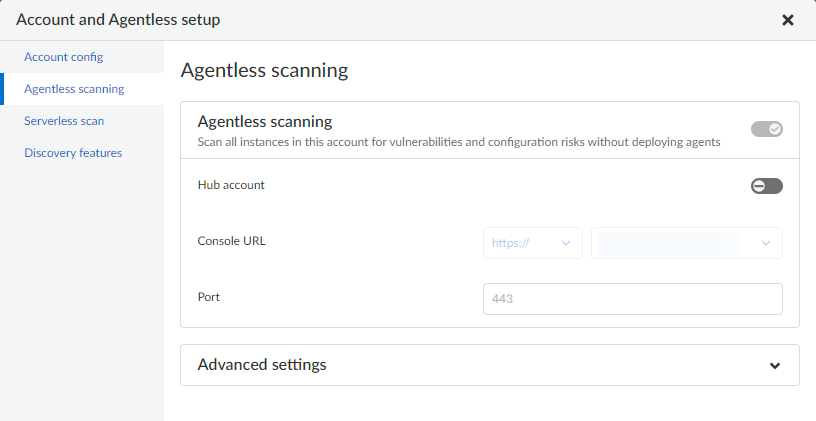
4. Go to the **Agentless Scanning** section.
5. **Hub account**: Enable the toggle to configure this account as a [hub account](/content-collections/runtime-security/agentless-scanning/agentless-scanning-modes.md).
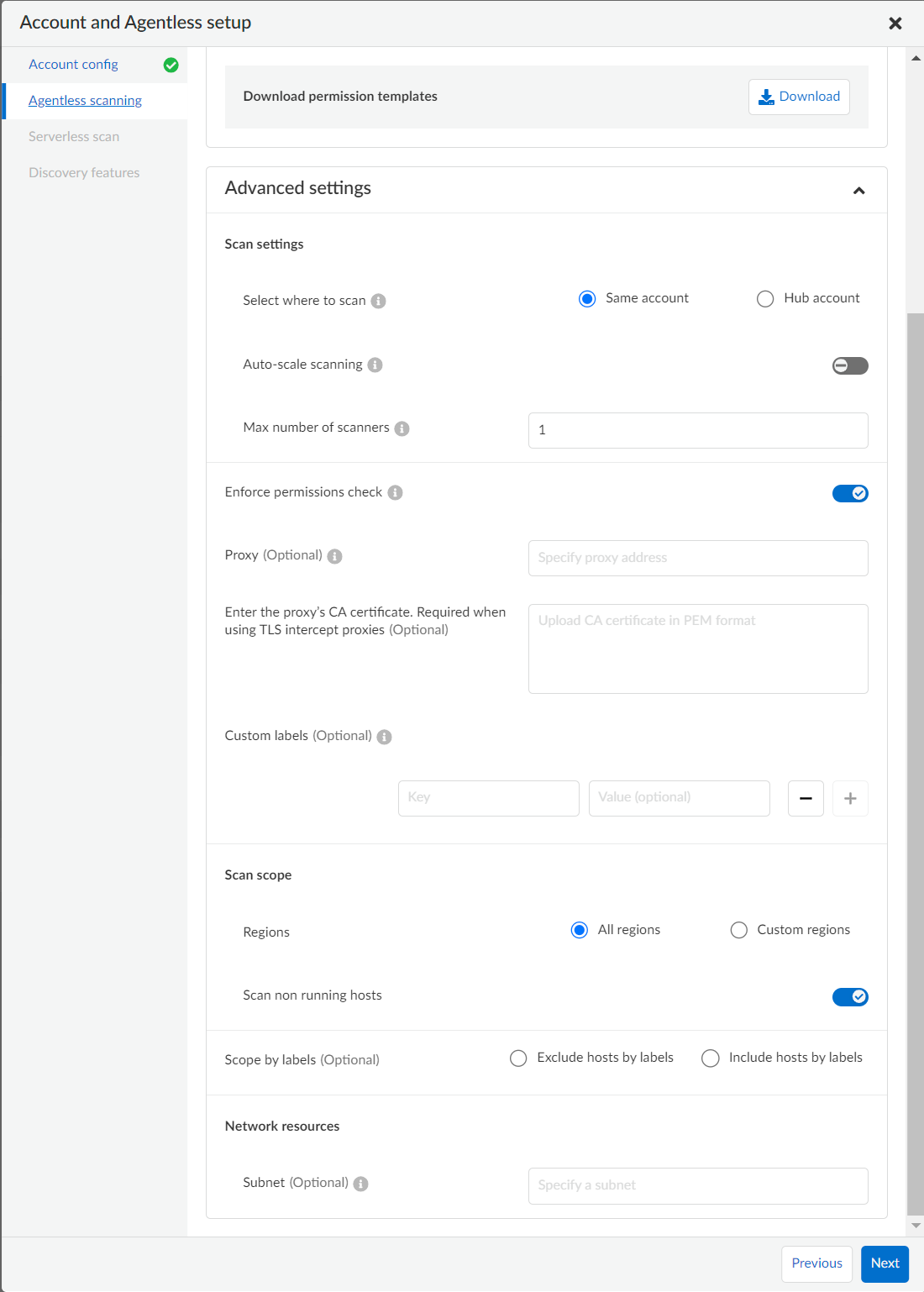
6. Expand the **Advanced settings** and provide the appropriate values based on your deployment for the following items.
7. Click **Save** to return to **Compute > Manage > Cloud accounts**.
### Scan Settings
**Select where to scan**: For GCP accounts, you can decide between [two scanning modes](https://github.com/PaloAltoNetworks/pc-docs-md/tree/main/enterprise-edition/content-collections/runtime-security/agentless-scanning/agentless-scanning.md#scanning-modes).
* **Same Account**: Perform the agentless scanning process using this account.
* **Hub Account**: Perform the agentless scanning process using a centralized hub account. Select another account from the list to use as the centralized hub account to scan this account.
If you wish Prisma Cloud to scan encrypted volumes on the target accounts, follow the steps on [encrypted volumes](#gcp-encrypted-volumes).
### Auto-scale Scanning
Automatically create the required amount of scanners to scan all of the hosts within a region, up to a limit of 50 scanners. To use a different limit specify the **Max number of scanners**.
**Max number of scanners**: Enter the upper limit of scanners that Prisma Cloud can automatically spin up within a region in your account for faster results.
### Enforce Permissions Check
When enabled, this account isn’t scanned in case of failure to validate the required permissions.
When disabled, the pre-scan check to validate permissions is skipped. If permissions are missing or blocked by an organizational policy, the scan fails at that stage.
Review the [needed permissions to enable agentless scanning in GCP](/content-collections/runtime-security/configure/permissions.md#gcp-agentless).
### Proxy
Enter a **Proxy** value if traffic leaving your GCP tenant uses a proxy.
Provide the proxy’s CA certificate.
### Custom Labels
Apply **Custom labels** to any resources Prisma Cloud creates during agentless scanning.
### Scan Scope
Under **Scan scope** you can refine the scope of the scanning by **Regions** or using labels.
* **All regions**: Scan in all GCP regions.
* **Custom regions**: Specify the GCP regions, which you want scanned.
* **Scan non running hosts**: Choose whether or not to scan hosts that aren’t running.
* **Exclude hosts by labels**: Select a subset of hosts which you want to exclude from the scan process
You can use wildcards to specify a range of labels in both keys and values following these examples:
```
"abcd*"
"*abcd"
"abcd"
"*"
"*abcd*"
```
* **Include hosts by labels**: Select a subset of hosts to scan
You can use wildcards to specify a range of labels in both keys and values following these examples:
```
"abcd*"
"*abcd"
"abcd"
"*"
"*abcd*"
```
### Network Resources
Configure custom network resources for agentless scanning.
* **Subnet**: If left blank, agentless scanning uses the default [networking infrastructure](https://github.com/PaloAltoNetworks/pc-docs-md/tree/main/enterprise-edition/content-collections/runtime-security/agentless-scanning/agentless-scanning.md#networking-infrastructure) and assigns scanners with a public IP. Specify a subnet name to use an existing subnet in your environment and to use a private IP. The subnet must be unique and identical across all regions. If you are configuring a hub account, this requirement only applies to the hub account and not for the targets.
* **Shared VPC**: If you are using a shared VPC, enter the shared VPC path in this field with the following convention. Replace `{host_project_name}` with the ID of the project that owns the shared VPC.
```
projects/{host_project_name}/regions/{region_name}/subnetworks/{subnet_name}
```
Using a shared VPC requires [additional permissions](/content-collections/runtime-security/configure/permissions.md#gcp-agentless) on the shared VPC host project. Refer to the GCP documentation to [learn more about shared VPCs](https://cloud.google.com/vpc/docs/shared-vpc).
## Scan Encrypted Volumes When Using Hub Mode
This section applies to scenarios where the following conditions are not met:
1. Your hub project is part of a GCP organization, and permissions were applied through organization onboarding.
2. Your encryption keys are not customer-managed encryption keys (CMEK)
If both the above conditions are met, no further action is required.
When you use [hub and target projects](/content-collections/runtime-security/agentless-scanning/agentless-scanning-modes.md), you can configure your hub project to access the encrypted volumes of the target accounts.
To use encrypted volumes, the service account of Google Compute Engine needs to have the `cloudkms.cryptoKeyEncrypterDecrypter` role. Without it, the service agent of the the hub project can’t access the KMS keys.
The Compute Engine service agent for your hub project is labeled with the following convention:
`service-PROJECT_NUMBER@compute-system.iam.gserviceaccount.com`
Replace `PROJECT_NUMBER` with the number of your hub project.
1. Use the following command to apply the grant the role and permissions to the Compute Engine service agent.
```
gcloud projects add-iam-policy-binding KMS_PROJECT_ID \
--member serviceAccount:service-PROJECT_NUMBER@compute-system.iam.gserviceaccount.com \
--role roles/cloudkms.cryptoKeyEncrypterDecrypter
```
2. Replace `KMS_PROJECT_ID` with any project you need to use. The KMS project isn’t required to be the hub account or the target accounts you wish to scan.
## Resource Labeling
This section lists the conventions used for identifying resources that are created by agentless scanning in Google Cloud Platform (GCP) services.
These conventions ensure that resources are effectively managed and uniformly identified in GCP cloud environments. In Google Cloud Platform (GCP), labels are used to identify resources created by agentless scanning.
Here are the details for the different types of resources.
**Agentless Scanner VMs**
* Name format: `prismacloud-scan--prisma-agentless-scan`
* Labels:
* `created-by: prismacloud-agentless-scan`
* `prismacloud-agentless-unique-id:`
`scan-unique-id` is a unique identifier generated for each scan. It changes with every scan, resulting in a distinct name for the resources created during that scan.
`console-unique-id` is a unique number associated with each console.
For Prisma Cloud SaaS customers, it remains constant even after upgrades. For on-premises setups, it may change if a new console is created without using data from the previous console. This ID is used to track resources and facilitate their cleanup after the scan is completed.
**Disks**
* Name format: `prismacloud-scan--prisma-agentless-scan`
* Labels: Not applicable
**Snapshots**
* Name format: `prismacloud-scan--prisma-agentless-scan`
* Labels:
* `created-by: prismacloud-agentless-scan`
* `prismacloud-agentless-unique-id: `
Virtual Private Cloud (VPC)
* Name format: `prismacloud-agentless-scan-vpc`
* Labels: GCP does not support labeling VPCs
## Troubleshooting
If you have organization-level policies blocking external connections, GCP applies the policies at the project level, which includes all the VMs in the applicable projects. When using agentless scanning in same account mode in GCP, the policy blocks the external connection to the Prisma Cloud console causing errors. There are to options to resolve the errors.
* You can use custom network resources to manage the external connections of your deployment.
If you have organization-level policies blocking external connections using public IPs, GCP applies the policies at the project level, which includes all the VMs in the applicable projects. When using agentless scanning in same account mode in GCP, this policy blocks the external connection to the Prisma Cloud console, resulting in errors and scan failure.
You have the following options to solve this issue.
* You can create custom network resources to manage the external connections that Prisma Cloud uses to communicate with its backend. - see the **Network resources** step in the **Configure Agentless Scanning for GCP** section.
* You can configure agentless scanning to operate in hub account mode and exclude the hub project from the organization-level policy blocking external connections.
---
# Agent Instructions
This documentation is published with GitBook. GitBook is the documentation platform designed so that both humans and AI agents can read, navigate, and reason over technical content effectively. Learn more at gitbook.com.
## Querying This Documentation
If you need additional information that is not directly available in this page, you can query the documentation by asking a question.
Perform an HTTP GET request on the following URL with the `ask` and `goal` query parameters:
```
GET https://docs.prismacloud.io/content-collections/runtime-security/agentless-scanning/configure-accounts/configure-gcp.md?ask=&goal=
```
`ask` is the immediate question: it should be specific, self-contained, and written in natural language.
`goal` is what the user is ultimately trying to achieve, the reason they need the answer. Sharing it helps GitBook give you a better, more relevant answer. A goal is most helpful when it describes the outcome the user wants rather than restating the question. For example, with `ask=how do I create an API token`, a goal like `automate deployments from our CI pipeline` lets GitBook tailor the answer to that use case.
The response will contain a direct answer to the question and relevant excerpts and sources from the documentation.
Use this mechanism when the answer is not explicitly present in the current page, you need clarification or additional context, or you want to retrieve related documentation sections.