> For the complete documentation index, see [llms.txt](https://docs.prismacloud.io/llms.txt). Markdown versions of documentation pages are available by appending `.md` to page URLs; this page is available as [Markdown](https://docs.prismacloud.io/content-collections/runtime-security/cloud-service-providers/cloud-discovery.md).
# Cloud Discovery
It’s difficult to ensure that all your apps running on all the different types of cloud services are being properly secured. If you’re using multiple cloud platforms, you might have many separate accounts per platform. You could easily have hundreds of combinations of providers, accounts, and regions where cloud native services are being deployed.
Cloud discovery helps you find cloud-native resources being used across cloud service providers - AWS, Azure, and Google Cloud, across all regions, and across all accounts. It scans these accounts, detects when new resources are added, reports which resources are unprotected, and helps you mitigate your exposure to rogue deployments, abandoned environments, and sprawl.
Cloud discovery only scans VM instances that are in the running state.
Cloud discovery offers coverage for the following services.
**Registries:**
* AWS
* Azure
* Google Artifact Registry1
* Google Container Registry2
**Serverless functions:**
* AWS34
* Azure
* Google Cloud
3 **Managed platforms:**
* AWS ECS
* AWS EKS
* Azure Kubernetes Service (AKS)
* Azure Container Instances (ACI)
* Google Kubernetes Engine (GKE)
**Virtual machines:**
* AWS EC2 instances
* Azure VMs3
* Google Cloud Platform (GCP) Compute Engine VM instances31Although Artifact Registry supports a number of content types (for example, Java, Node.js, and Python language packs), Prisma Cloud only supports discovering and scanning Docker images.
2 For Google Container Registry, create credentials on **Runtime Security > Manage > Cloud accounts**.
Prisma Cloud doesn’t support scanning Helm charts saved as OCI images and stored in Artifact Registry. The OCI image that represents a Helm chart has a single layer that contains the Helm package. It’s only a way to store a Helm chart, but it has no meaning in terms of a container. Prisma Cloud has no way to run the image to scan it. Note that Helm charts stored as OCI images will be shown in the list of resources discovered in the registry because we can’t indicate their type until we actually pull and scan them.
3Auto-defend is currently not yet available for these services. Auto-defend utilizes rule-based policies to automatically deploy Prisma Cloud Defenders to protect resources in your environment.
4 Prisma Cloud ingestion only provides information on $LATEST version of AWS serverless functions and not other versions.
Cloud discovery won’t find Google Artifact Registry and Google Container Registry when credentials are imported from Prisma Cloud. Prisma Cloud finds those registries if you create the credentials in **Runtime Security > Manage > Cloud accounts**.
You cannot enable VM tag discovery for external credentials from the Cloud Accounts page. VM tags are identified during the platform cloud discovery as of the v30.00.140 release. You can create new host collections using the tag metadata of the cloud hosts. The tags propagate to your images and containers belonging to the host. Additional tags captured during Defender deployment are appended to the existing tag list and are also available to you when creating new host collections. To configure Cloud Discovery for the Cloud Account see the steps listed below.
## Ingestion-Based Discovery
After [onboarding a cloud account into the platform](https://github.com/PaloAltoNetworks/pc-docs-md/tree/main/enterprise-edition/content-collections/connect/connect-cloud-accounts/connect-cloud-accounts.md), you can reuse the same onboarded account in Compute for Cloud Discovery without the need for additional permissions on cloud accounts. Cloud Discovery uses this ingested data to discover unprotected workloads across your monitored environment. By using the same ingested metadata from cloud providers for both CSPM and CWP, the time to scan for unprotected resources is reduced substantially, providing instant visibility into undefended workloads in your organization.
Prisma Cloud needs an additional set of permissions to enable protection for these workloads. For example, to deploy Defenders automatically on undefended VM machines. Review the [permissions by feature table](/content-collections/runtime-security/configure/permissions.md) to learn about the needed permissions and protection for the onboarding template.
## Configure Discovery for Cloud Service Providers
You can configure Prisma Cloud to scan your cloud service provider accounts for cloud-native resources and services. Then, you can configure Prisma Cloud to protect them with a single click.
You must [onboard your cloud service providers in Prisma Cloud](https://github.com/PaloAltoNetworks/pc-docs-md/tree/main/enterprise-edition/content-collections/connect/connect-cloud-accounts/connect-cloud-accounts.md) before you start.
1. Log in to Prisma Cloud.
2. Select **Runtime Security > Manage > Cloud Accounts**.
3. Select the accounts to scan. If there are no accounts in the table, you can import Prisma Cloud onboarded accounts, using the "Add account" workflow and selecting "Prisma Cloud" as the provider.
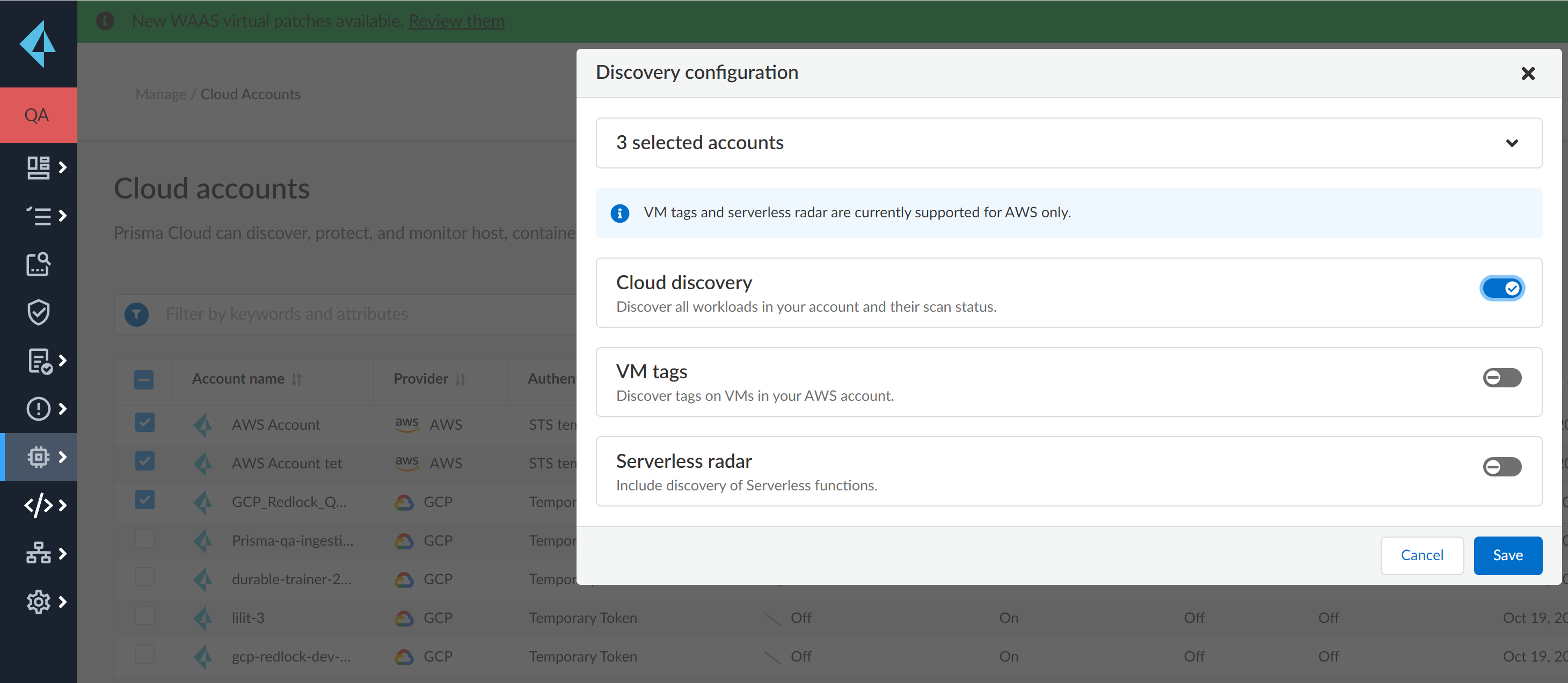
4. Select **Bulk actions** > **Discovery configuration**
5. Enable **Cloud discovery**.
6. **Save** your changes.
7. Review the scan results.
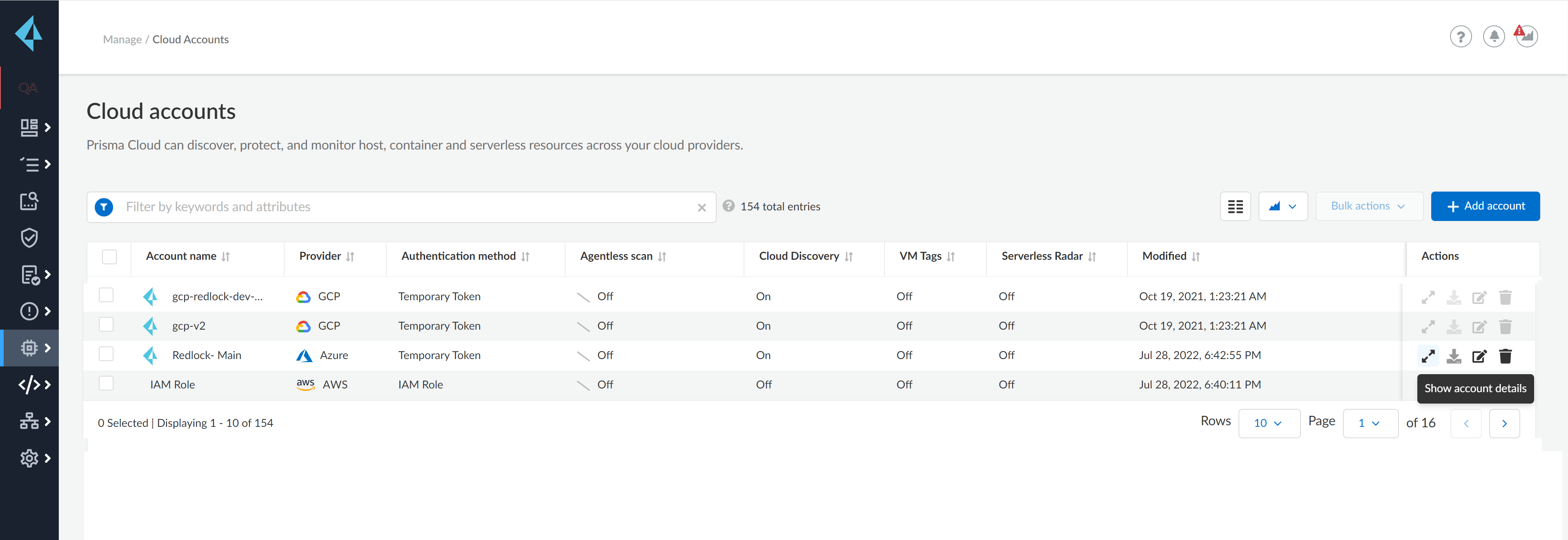
1. Select **Runtime Security > Manage > Cloud Accounts** to view the scan report in tabular format.
1. Select the Show account details icon to see the discovery scan results for resources within the cloud account.
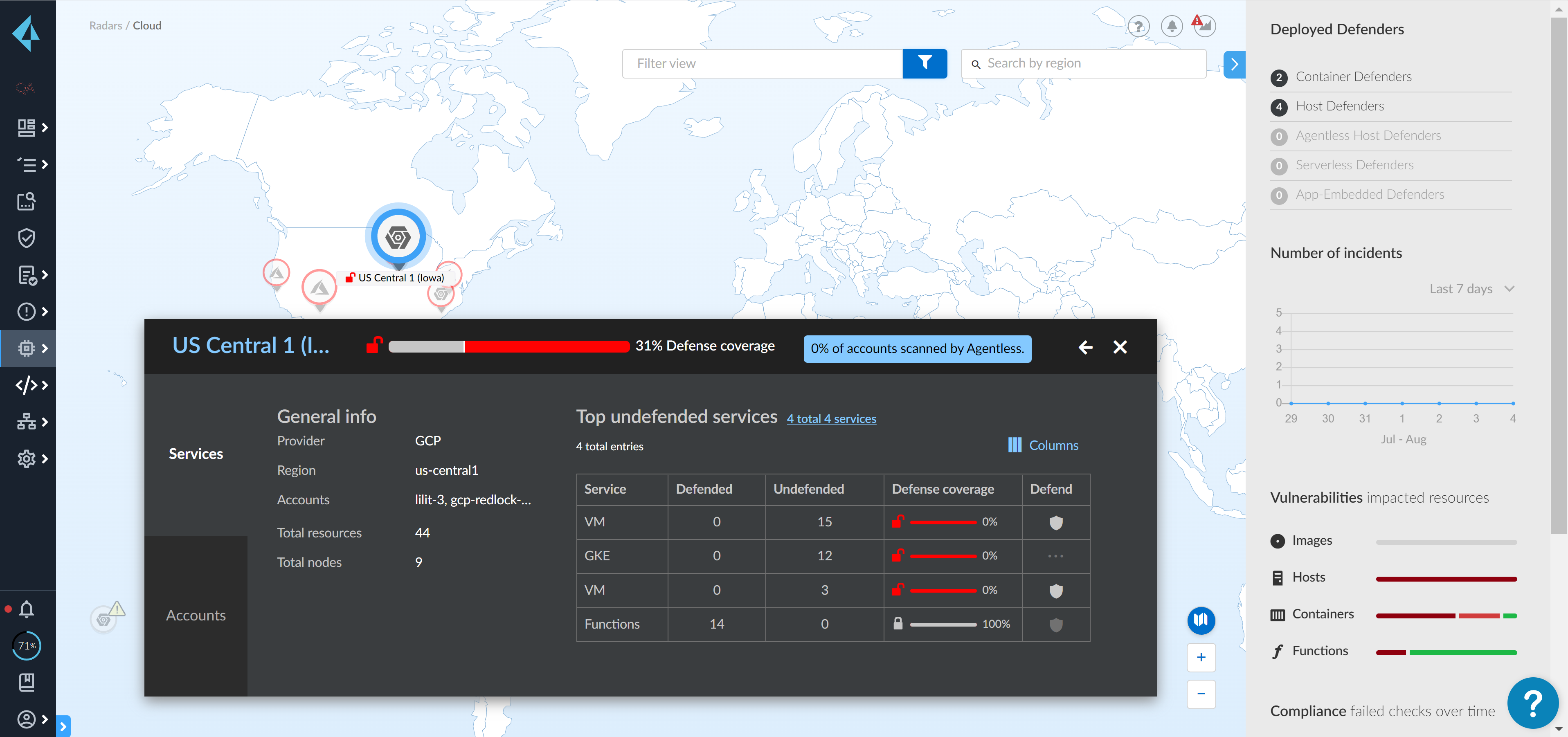
2. Select **Radar > Cloud** to view the scan report in a visual format.
In the Radar you can see the details for the resources that are protected using Defenders and agentless scanning across the services in each region.
3. Select **Defend** for the entities you want Prisma Cloud to scan for vulnerabilities.
A new auto-defend rule is proposed. Select the appropriate credential, tweak the scan rule as desired, then click **Add**.
4. See the scan results on **Runtime Security > Monitor > Vulnerabilities > {Images > Registry|Functions}**.
---
# Agent Instructions
This documentation is published with GitBook. GitBook is the documentation platform designed so that both humans and AI agents can read, navigate, and reason over technical content effectively. Learn more at gitbook.com.
## Querying This Documentation
If you need additional information that is not directly available in this page, you can query the documentation dynamically by asking a question.
Perform an HTTP GET request on the current page URL with the `ask` query parameter, and the optional `goal` query parameter:
```
GET https://docs.prismacloud.io/content-collections/runtime-security/cloud-service-providers/cloud-discovery.md?ask=&goal=
```
`ask` is the immediate question: it should be specific, self-contained, and written in natural language.
`goal` is optional and describes the broader end goal you are ultimately trying to accomplish on behalf of the user. GitBook uses it to tailor the answer towards what is most useful for that goal.
The response will contain a direct answer to the question and relevant excerpts and sources from the documentation.
Use this mechanism when the answer is not explicitly present in the current page, you need clarification or additional context, or you want to retrieve related documentation sections.