> For the complete documentation index, see [llms.txt](https://docs.prismacloud.io/llms.txt). Markdown versions of documentation pages are available by appending `.md` to page URLs; this page is available as [Markdown](https://docs.prismacloud.io/content-collections/runtime-security/configure/certificates.md).
# Certificates
This article summarizes all the certificates used by Prisma Cloud Compute. Learn more about the certificates used on Prisma Cloud Compute including details on what it is used for, signing CA, and your customization options.
Customizing certificates is only allowed for Prisma Cloud Compute edition.
| Category | Certificate | Communication | Certificate customization | Default CA | CA customization |
| ---------------------------------------------------------------------------------------------- | ------------------------------------------- | ----------------------------------------------------------- | ------------------------------------------------------------------------------------------------------------------------------------- | ----------------------------- | -------------------------------------------------------------------------------------------------------------------------------------------------------------------------------------------------------------------------------- |
| Console TLS communication | Console Web and API certificate | Web browser, API, and Twistcli access to Console | Customize under Manage > Authentication > System certificates > TLS certificate for Console > Concatenate public cert and private key | Console CA | Your organization CA |
| Certificate-based authentication to Console | | Clients access the Console | | No CA by default |
Enable Console verification of the client’s CA certificate when accessing the Console.
Define CA under Manage > Authentication > System certificates > Certificate-based authentication to Console > CA certificate
|
| Console-Defender communication | Defender server certificate (Console side) | Console-Defender communication | Yes, for Compute Edition only. | Defender CA (defender-ca.pem) | Yes, for Compute Edition only. |
| Console-Defender communication | Defender client certificate (Defender side) | Console-Defender communication | No | Defender CA (defender-ca.pem) | No |
| [Admission control](/content-collections/runtime-security/access-control/open-policy-agent.md) | Admission certificate (admission-cert.pem) | Admission webhook authentication with Prisma Cloud Defender | No | Defender CA (defender-ca.pem) | No |
## Console TLS communication certificates
You can secure access to Console with your own digital certificate. By default, Prisma Cloud accesses the Console’s web portal and API with a self-signed certificate.
The self-managed certificate generated by Console is valid for three years. 90 days prior to expiration, Prisma Cloud will let you rotate it (a banner will appear at the top of the UI). After rotating Console’s certificate, you must restart the Console.
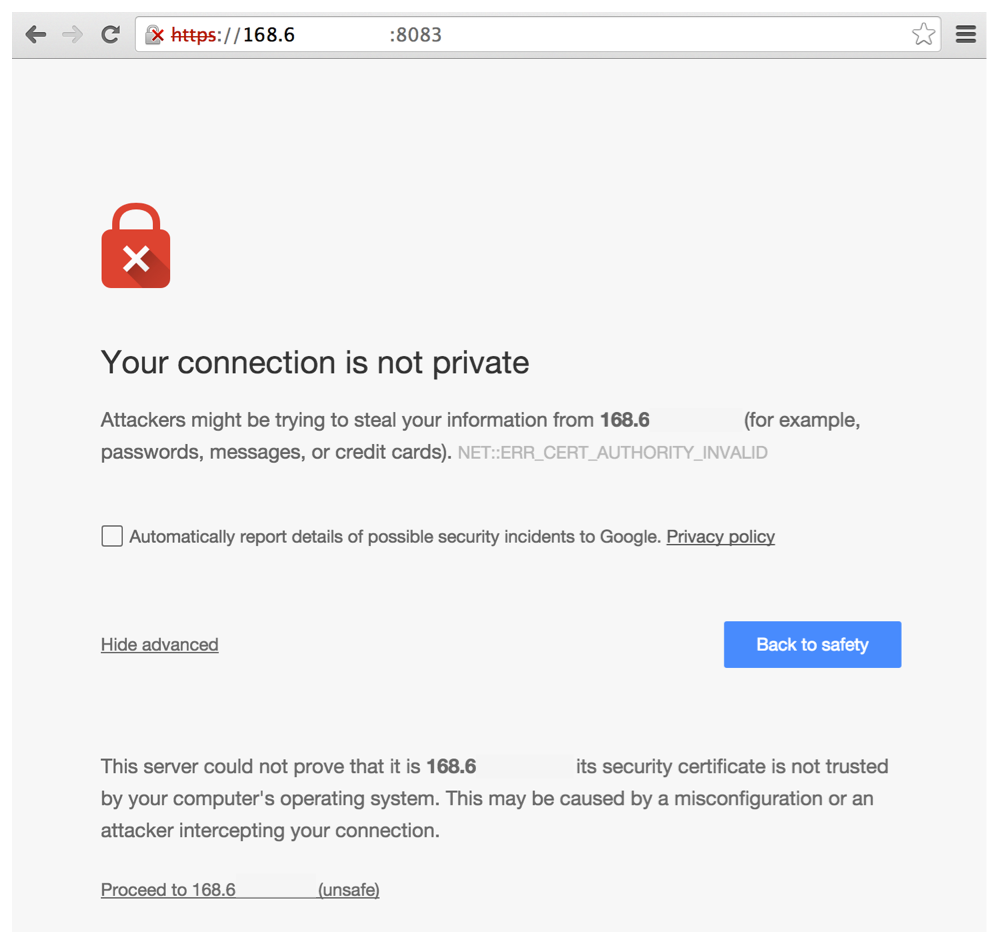
When you access Console’s web portal with this setup, for example, the browser flags the portal as untrusted with a warning message. The following screenshot shows the warning message in Chrome:
You can resolve these warnings by installing your own certificate that proves your server’s identity to the client. With the proper certificate, users are taken directly to Console, and the green padlock in the address bar indicates that the site is trusted.
Creating certificates is outside the scope of this article. For more information about how SSL and certificates secure a site, see [How does HTTPS actually work](http://robertheaton.com/2014/03/27/how-does-https-actually-work/).
### Configuration options
Prisma Cloud secures the communication between various actors and entities with certificates. These certificates are automatically generated and self-signed during the Prisma Cloud install process. They secure communication between:
* Users and the Console web portal
* Users and the Console API
* Console and the Prisma Cloud Intelligence Stream
The following options control the properties of the certificates generated during the installation process. The default values for these options are typically adequate.
Note that these settings only change the values used when creating self-signed certificates. Thus, users accessing the Console will still see warning messages because the certificates are not signed by a trusted certificate authority (CA). To configure the Console to use a certificate signed by a trusted CA, follow the steps later in this article.
These options can be found in *twistlock.cfg* under the General Configuration section:
| Configuration option | Description |
| -------------------- | ------------------------------------------------------------------------------------------------------------------------------------------------------------------------------------------------------------------------------------------------------------------------------------------------------------------------------------------------------------------------------------------ |
| `CONSOLE_CN` |
Specifies the Common Name to be used in the certificate generated by Prisma Cloud for the host that runs Console. The Common Name is typically your hostname plus domain name. For example, it might be [www.example.com](http://www.example.com) or example.com.
(Default) By default, the Common Name is assigned the output from the command hostname --fqdn.
|
| `DEFENDER_CN` |
Specifies the Common Name to be used in the certificate generated by Prisma Cloud for the hosts that run Defender.
(Default) By default, the Common Name is assigned the output from the command hostname --fqdn.
|
### Securing access to Console with custom certificates
Secure access to Console with your own custom certificates.
**Prerequisites:**
* Your certs have been generated by a commercial Certificate Authority (CA) or with your own Public Key Infrastructure (PKI). You should have the following files on hand:
* A *.pem* file, which contains your certificate and your Certificate Authority’s intermediate certificates.
* A *.key* file, which contains your private key.
1. Have your signed certificate (*.pem* file) and private key (*.key* file) ready to be accessed and uploaded to Console.
Make sure that the private key starts and ends with:
```
----BEGIN PRIVATE KEY----
----END PRIVATE KEY----
```
or:
```
-----BEGIN RSA PRIVATE KEY-----
-----END RSA PRIVATE KEY-----
```
2. Open Prisma Cloud Console in a browser.
3. Navigate to **Manage > Authentication > System Certificates**.
4. Concatenate your public certificate and private key into a single PEM file.
```
$ cat server.crt server.key > server-cert.pem
```
5. Open the **TLS certificate for Console** section
1. Upload the PEM file into the **Concatenate public cert and private key (e.g., cat server-cert.pem server-key.pem)**
2. Click **Save**
6. Verify that your certs have been correctly installed.
Open your browser, and navigate to: https\://\:8083
If you see the locked padlock icon, you have installed your certs correctly.
HTTP Public Key Pinning (HPKP) was a security feature that was used to tell a web client to associate a specific cryptographic public key with a certain web server to decrease the risk of Man In The Middle (MITM) attacks with forged certificates. This feature is no longer recommended. See
## Certificate-based Authentication to Console
This feature allows the Console to verify the client’s CA certificate when accessing the Console. Use certificates from an implicitly trusted CA for securing the TLS connection. To enable this feature, follow the steps below:
1. Open Console, and go to **Manage > Authentication > System Certificates**.
2. Open the **Certificate-based authentication to Console** card.
3. Under **Console Authentication** upload the CA certificate(s) in PEM format, then click **Save**.
If you have multiple CAs, such as a root CA and several issuing CAs, you must add all these certificates into the PEM file. The order of certificates in the PEM file should be from the lowest tier of the hierarchy to the root. For example, if you have a 3 tier hierarchy that looks like this:
```
->RootCA
->IntermediateCA
->IssuingCA1
->IssuingCA2
```
Your PEM file should be ordered as IssuingCA1, IssuingCA2, IntermediateCA, RootCA. To create such a PEM file, you’d get the public keys of each CA in PEM format and concatenate them together:
```
$ cat IssuingCA1.pem IssuingCA2.pem IntermediateCA.pem RootCA.pem > CAs.pem
```
## Console-Defender communication certificates
By design, Console and Defender don’t trust each other and use certificates to mutually authenticate when Defender establishes a connection with Console. The certificates for Console-Defender communication are issued by the Defender CA (defender-ca.pem). The Defender CA is a self-signed CA, generated by Console, and it’s valid for three years. Console is considered the server and Defender the client. Console generates certs for each party, and signs them with the Defender CA.
Prisma Cloud automatically rotates the Defender CA and related server and client certificates 1.5 years before the Defender CA expires. Console and Defender use the old certs until the old Defender CA expires.
New Defenders, deployed after the certificates have been rotated, automatically get both the new and old certificates. Existing Defenders, however, must be redeployed to get the new certificates. Existing Defenders use the old certificates until they expire. Thereafter, these Defenders won’t be able to establish a connection to Console until they’re redeployed.
Single Defenders upgraded from the Console UI don’t get newly rotated certificates. To set up single Defenders with the new certificate, you must manually redeploy them.
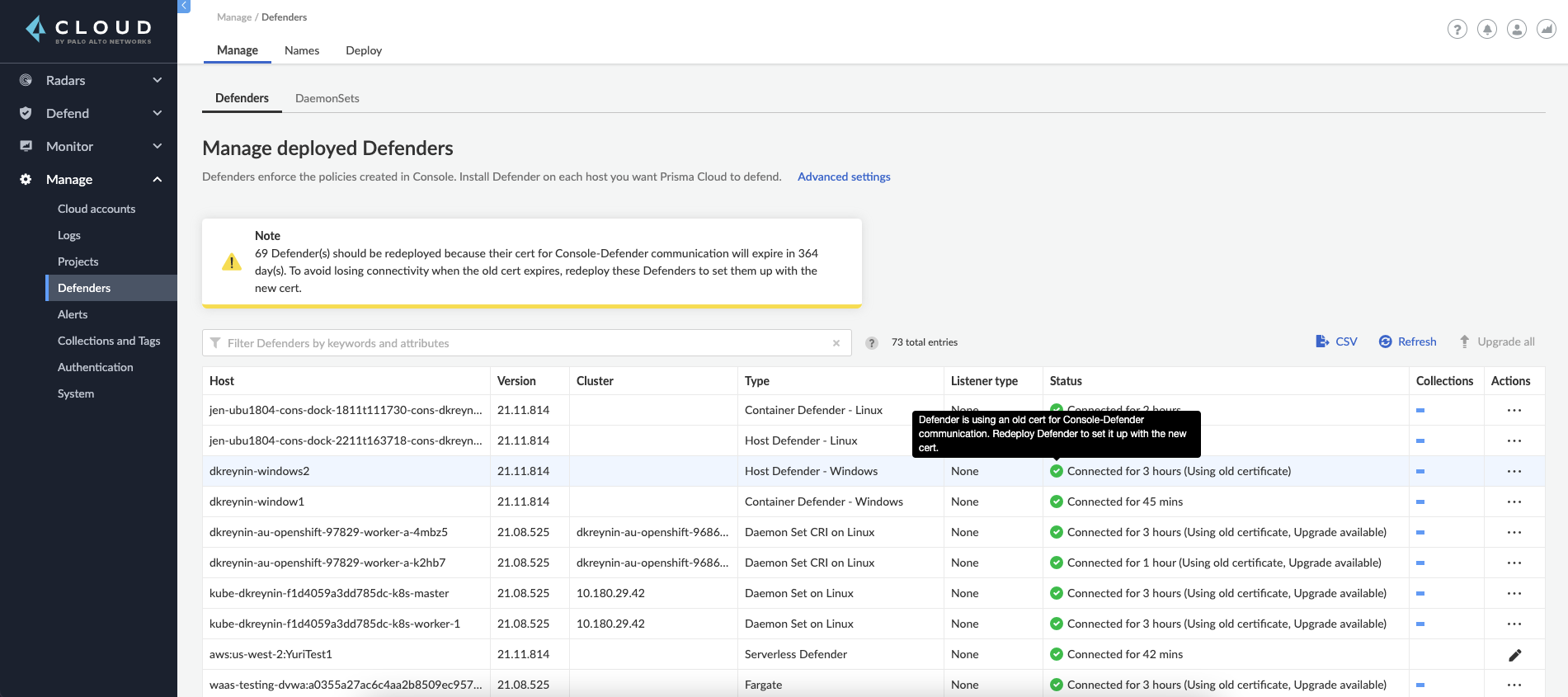
To identify which Defenders need to be redeployed, go to **Manage > Defenders > Manage > Defenders**. Use the **Status** column to identify the Defenders that are using an old certificate. Use the note at the top of the page to understand how many Defenders require redeployment, and when the old certificate will expire.
Use the **Using old certificate** filter on the Defenders list to see only the Defenders that are using an old certificate:
If you still have Defenders in your environment that are using an old certificate, which is about to expire in 60 days or less, you will get notified once entering the Console UI:
If the old certificate has expired, and you still have Defenders in your environment that are using the expired certificate, you will get notified once entering the Console UI. The **Status** column on the Defenders page will reflect the Defenders that are using an expired certificate. Use the **Certificate expired** filter on the Defenders list to see only the Defenders with expired certificates.
### Additional technical details
This section provides additional technical details about how the certificates that secure Console-Defender communication are managed.
#### What is the rotation model?
When Console is first deployed, it generates a set of certs for Console-Defender communication - a Defender CA, a Defender server cert, and a Defender client cert (with keys). The certs are valid for three years. Console initiates the certificate rotation. Console rotates the certs 1.5 years before the Defender CA expires. Thereafter, Console holds two sets of certificates: old and new Console rotates the new certs 1.5 years before the new Defender CA expires. The old certs are deleted, the new certs become the old certs, and a new set of certs are created.
Newly deployed Defenders, after rotation, are deployed with two sets of certs: old and new. Defenders that aren’t redeployed only have the old client certs and CA, and keep using them until they expire.
Until the old Defender CA expires, Console responds with the old Defender certs during the TLS handshake when Defender tries to connect to Console. As long as the old Defender CA is valid, Defender uses the old client cert for TLS handshakes. When the old certs expire, Defender uses the new certs for TLS handshakes.
#### Which certificates are rotated?
Console rotates the following files:
* `defender-ca.pem` — Rotated to defender-ca.pem.old, and then Console creates a new defender-ca.pem.
* `defender-server-cert.pem` and `defender-server-key.pem` — Rotated to defender-server-cert.pem.old and defender-server-key.pem.old, and then Console creates new ones.
* `defender-client-cert.pem` and `defender-client-key.pem` — Rotated to defender-client-cert.pem.old and defender-client-key.pem.old, and then Console creates new ones.
#### Are all certs rotated at the same time?
Yes, the Defender CA cert, server cert, and client cert are all rotated at the same time.
#### What triggers Console to regenerate and rotate the certs?
Console checks the expiration date of the Defender CA, and rotates all certs 1.5 years before the Defender CA expires.
#### What is the rotation frequency?
Once every 1.5 years.
#### What happens when you upgrade Prisma Cloud Compute?
When Console or Defenders are upgraded, the old, unexpired certificates remain on the system. Defenders that only have the old certificates are supported until the old Defender CA expires.
#### How can you programmatically determine that certs have been rotated?
Look for changes to the Defender certificates on the machine that runs Console. Certificates are stored in `/var/lib/twistlock/certificates`.
Inspect the Defender CA cert for its expiration time. When the .old suffix is added to the cert file, you will know it has been rotated.
#### Can you manage the certificate lifecycle yourself?
Yes, for Compute Edition (self-hosted) only.
SaaS Defenders connect to Console using an API token, not certs.
#### After certs have been rotated, what’s returned from api/v\/defenders/daemonset.yaml?
The DaemonSet yaml will include both sets of new and old certs:
New certs:
* defender-ca.pem
* defender-client-cert.pem
* defender-client-key.pem
Old certs:
* defender-ca.pem.old
* defender-client-cert.pem.old
* defender-client-key.pem.old
#### Which Defender types support certificate rotation?
Supported Defender types:
* Container Defenders (Windows and Linux)
* Host Defenders (Windows and Linux)
* DaemonSet Defenders
* App-Embedded Defenders, including Fargate
Serverless Defenders aren’t supported. Serverless Defenders are always deployed with old, unexpired certs, even if new certs exist.
#### What happens the moment a Defender’s old certs expire?
Defenders can switch to new certificates from old certificates at runtime. No restart is required.
## Admission control certificates
Prisma Cloud provides a dynamic admission controller for Kubernetes built on the Open Policy Agent (OPA). The admission control certificate is used for the authentication between the Defenders and the admission webhook. When deploying the admission webhook, make sure it is configured with the right CA bundle, according to the Defender’s admission certificate. See the webhook configuration section on the [admission control article](/content-collections/runtime-security/access-control/open-policy-agent.md).
---
# Agent Instructions
This documentation is published with GitBook. GitBook is the documentation platform designed so that both humans and AI agents can read, navigate, and reason over technical content effectively. Learn more at gitbook.com.
## Querying This Documentation
If you need additional information that is not directly available in this page, you can query the documentation by asking a question.
Perform an HTTP GET request on the following URL with the `ask` and `goal` query parameters:
```
GET https://docs.prismacloud.io/content-collections/runtime-security/configure/certificates.md?ask=&goal=
```
`ask` is the immediate question: it should be specific, self-contained, and written in natural language.
`goal` is what the user is ultimately trying to achieve, the reason they need the answer. Sharing it helps GitBook give you a better, more relevant answer. A goal is most helpful when it describes the outcome the user wants rather than restating the question. For example, with `ask=how do I create an API token`, a goal like `automate deployments from our CI pipeline` lets GitBook tailor the answer to that use case.
The response will contain a direct answer to the question and relevant excerpts and sources from the documentation.
Use this mechanism when the answer is not explicitly present in the current page, you need clarification or additional context, or you want to retrieve related documentation sections.