> For the complete documentation index, see [llms.txt](https://docs.prismacloud.io/llms.txt). Markdown versions of documentation pages are available by appending `.md` to page URLs; this page is available as [Markdown](https://docs.prismacloud.io/content-collections/runtime-security/vulnerability-management/registry-scanning/scan-gitlab.md).
# Scan Images in GitLab Container Registry
Configure Prisma Cloud to scan your GitLab Container Registry on GitLab without using administrator credentials. You can use GitLab Personal access token method to authenticate Prisma to access the GitLab Container Registry to manage and get a full list of all container registries/images.
## Create a New Registry Scan
**Prerequisites**
* [Install a Defender](/content-collections/runtime-security/install/deploy-defender/defender-types.md) somewhere in your environment.
* Enable the GitLab Container Registry under your GitLab project settings if it’s not enabled already. See the [GitLab administrator documentation](https://docs.gitlab.com/ee/administration/packages/container_registry.html) to enable GitLab Container Registry across your GitLab instance.
* Create a [GitLab Personal access token](https://docs.gitlab.com/ee/user/profile/personal_access_tokens.html#personal-access-token-scopes) with at least "read\_api" scope permission.
* Create [GitLab credentials using API token](/content-collections/runtime-security/authentication/credentials-store/gitlab-credentials.md).
1. Log in to Console, and select **Defend > Vulnerabilities > Images > Registry settings**.
2. Select **Add registry**.
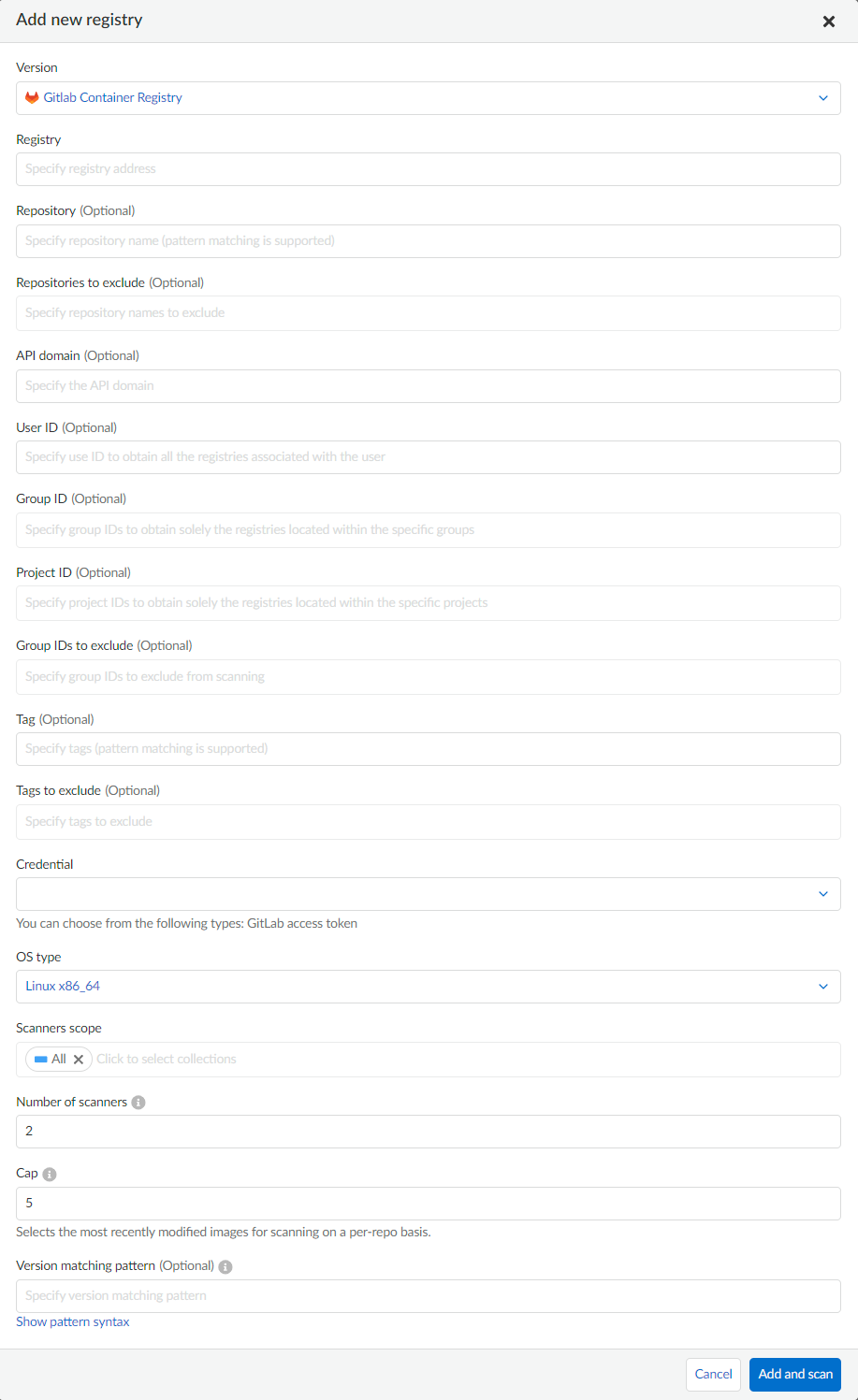
3. In **Add New Registry**, enter the following values:
1. In **Version**, select **GitLab Container Registry**.
2. In **Registry**, enter your custom domain URL address to scan. If you don’t have a custom GitLab domain, enter the URL as "".
3. In **Repository**, enter the name of the repository to scan, or leave this blank to scan all repositories.
4. Optionally enter the **Repositories to exclude** them from being scanned.
5. Optionally enter the **API domain** used.
6. Enter the details for at least one of the fields based on your GitLab configuration:
1. **User ID**: GitLab user account. The user ID is used to get all registries associated with the user.
2. **Group ID**: Enter a single group ID, or a list of group IDs. The group ID is used to locate all the registries within a specific group.
3. **Project ID**: Enter a GitLab Project ID, or a list of project IDs. The project ID is used to locate all the registries located within a specific project.
* To trigger a full scan, including all repositories associated with the User ID you provided, enter the User ID.
* When you enter all 3 IDs, Prisma Cloud uses the Project ID and the Group ID to query the GitLab registry. The User ID is not used.
* When you enter any of the following two choices, the ID used to query is
* User ID and Group ID, Prisma Cloud uses the Group ID to query the registry.
* User ID and Project ID, the Project ID is used.
* Group ID and Project ID, both IDs (AND logic) are used.
7. **Group IDs to exclude** - Only top-level groups should be set here. When user set top-level group to exclude, sub-groups will also be excluded.
8. Enter **Tag** numbers to scan, leave blank, or enter a wildcard (\*) to scan all the tags.
9. Optionally, enter **Tags to exclude**, to avoid scanning images with specified tags.
10. In **Credential**, select the GitLab access token credentials that you created in the prerequisites section.
11. In **OS type**, specify whether the repo holds **Linux x86\_64**, **Linux ARM64**, or **Windows** images.
12. In **Scanners scope**, specify the collections of Defenders to use for the scan.
Console selects the available Defenders from the scope to execute the scan job according to the **Number of scanners** setting. For more information, see [deployment patterns](/content-collections/runtime-security/vulnerability-management/registry-scanning/scan-docker.md#deployment-patterns).
13. In **Number of scanners**, enter the number of Defenders across which scan jobs can be distributed.
14. Set **Cap** to the number of most recent images to scan. Leaving **Cap** set to the default value of **5** will scan the most recent 5 images. Setting this field to **0** will scan all images.
15. Optionally, add a **Version matching pattern**.
4. Click **Add and scan**.
Verify that the images in the repository are being scanned under **Monitor > Vulnerabilities > Images > Registry settings**.
---
# Agent Instructions
This documentation is published with GitBook. GitBook is the documentation platform designed so that both humans and AI agents can read, navigate, and reason over technical content effectively. Learn more at gitbook.com.
## Querying This Documentation
If you need additional information that is not directly available in this page, you can query the documentation by asking a question.
Perform an HTTP GET request on the following URL with the `ask` and `goal` query parameters:
```
GET https://docs.prismacloud.io/content-collections/runtime-security/vulnerability-management/registry-scanning/scan-gitlab.md?ask=&goal=
```
`ask` is the immediate question: it should be specific, self-contained, and written in natural language.
`goal` is what the user is ultimately trying to achieve, the reason they need the answer. Sharing it helps GitBook give you a better, more relevant answer. A goal is most helpful when it describes the outcome the user wants rather than restating the question. For example, with `ask=how do I create an API token`, a goal like `automate deployments from our CI pipeline` lets GitBook tailor the answer to that use case.
The response will contain a direct answer to the question and relevant excerpts and sources from the documentation.
Use this mechanism when the answer is not explicitly present in the current page, you need clarification or additional context, or you want to retrieve related documentation sections.