> For the complete documentation index, see [llms.txt](https://docs.prismacloud.io/llms.txt). Markdown versions of documentation pages are available by appending `.md` to page URLs; this page is available as [Markdown](https://docs.prismacloud.io/content-collections/search-and-investigate/build-modify-queries.md).
# Build and Modify Queries
You can use the **Simple Mode** (filter-based) or the **Advanced Mode** (RQL text-based) for building queries. All the simple mode inputs can be converted to RQL queries, while only certain RQL queries can be converted to simple mode. As you type in your query, Prisma Cloud will automatically provide you with query completion options with the supported query attributes.
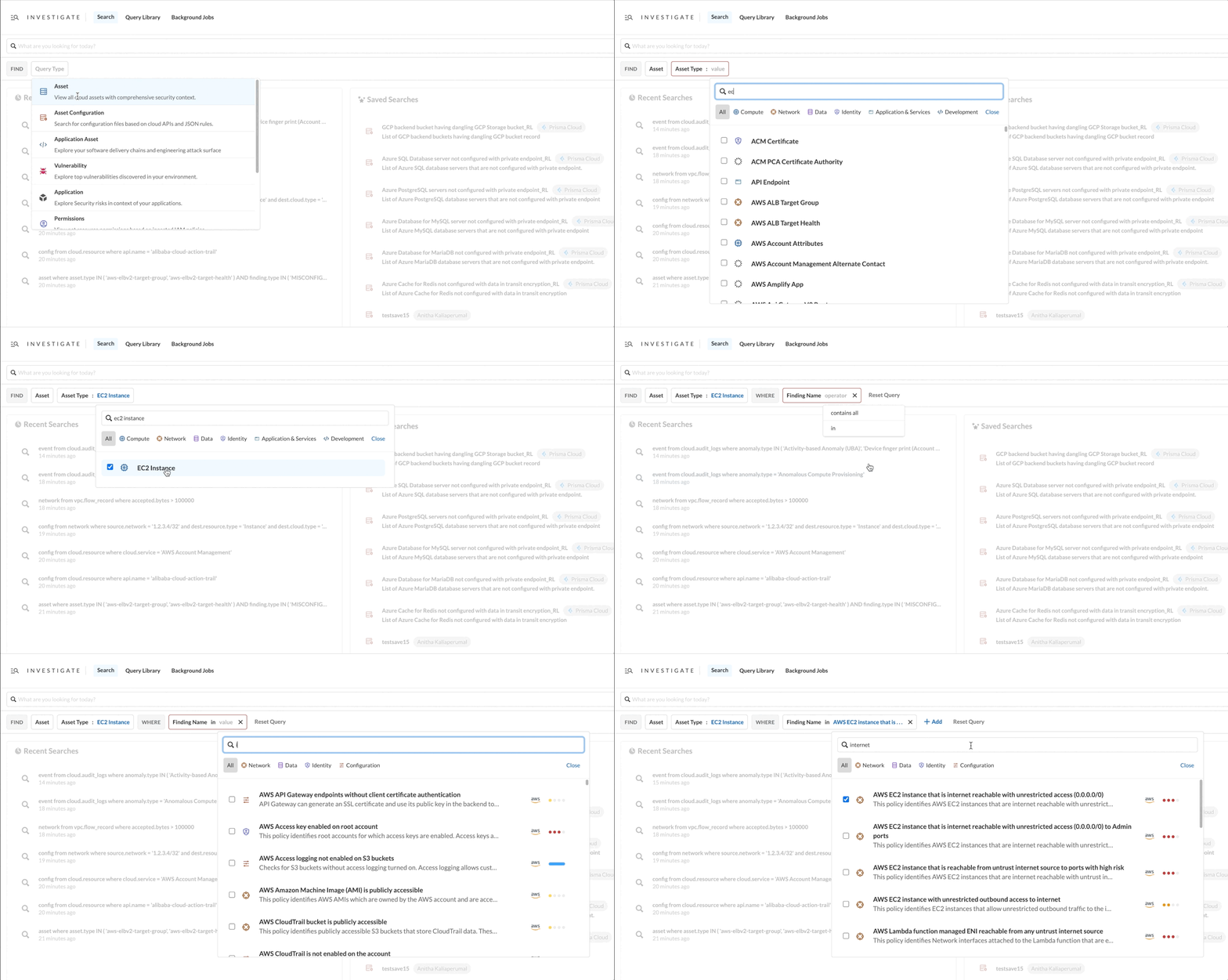
1. Before you begin, understand the basic query building blocks.
* **FIND**: Investigation category (query type).
* **Type**: Asset or node in your cloud environment. This varies depending on the category (query type) you select.
* **WHERE** clause: Attribute representing the relationship or edge between the nodes. You can select an attribute or a more complex condition such as a relationship between two nodes.
* **+Add**: Add more clauses as required to build your query
When selecting an attribute, auto-suggest will display applicable expressions and operators that you can use to narrow your search criteria.
2. Build a query using Simple Mode.
Your cloud security team wants to prevent IAM overly permissive access. To make sure that this is implemented, you need to see all assets exposed to the internet with excessive IAM permissions. Traditionally, this can take you hours of digging through config files, roles, and policies. Using the **Simple Mode** you can now find such issues easily and quickly.
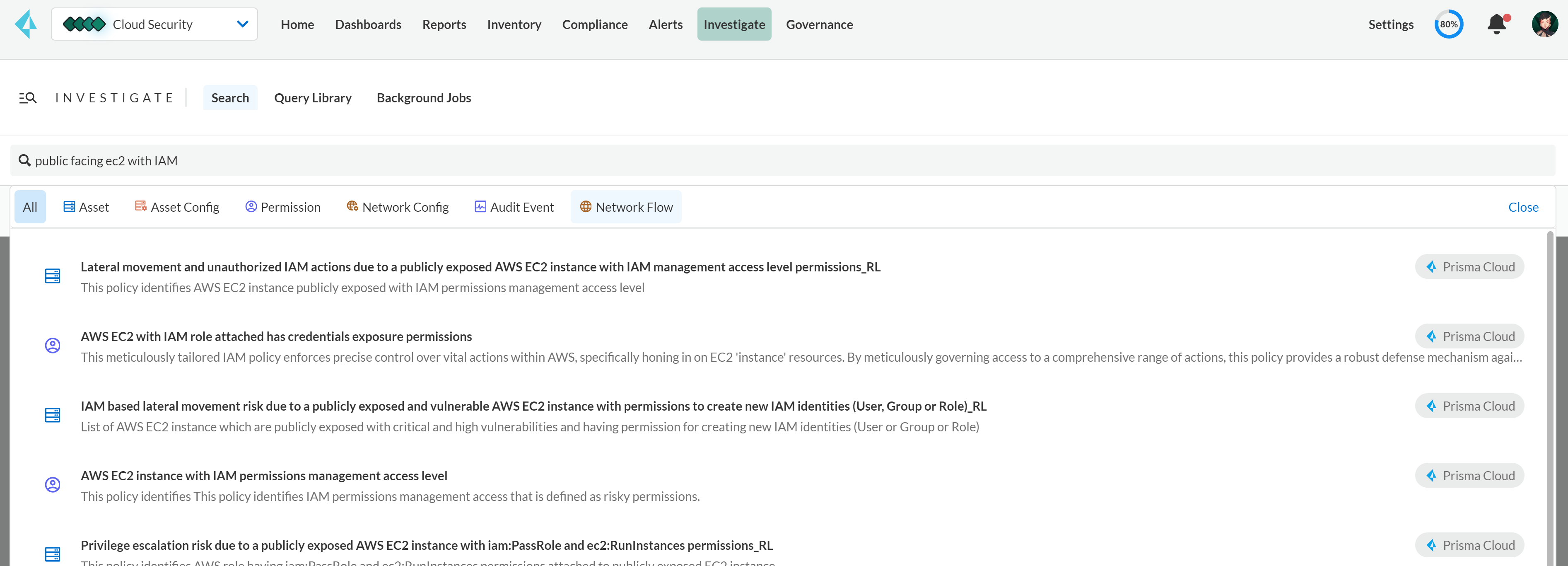
1. In the **Search** box start typing `public facing EC2 with IAM` and even before you complete typing your query, Prisma Cloud displays the most relevant suggestions on the top.
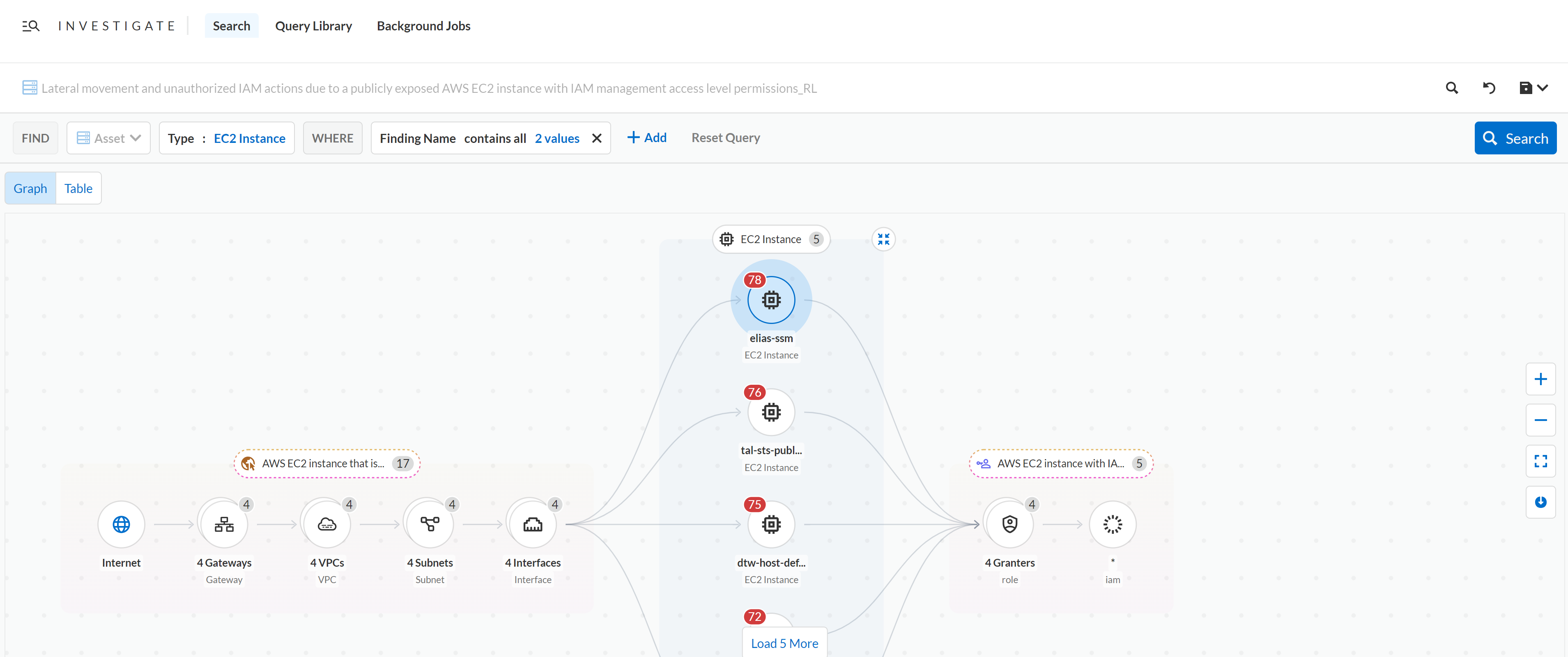
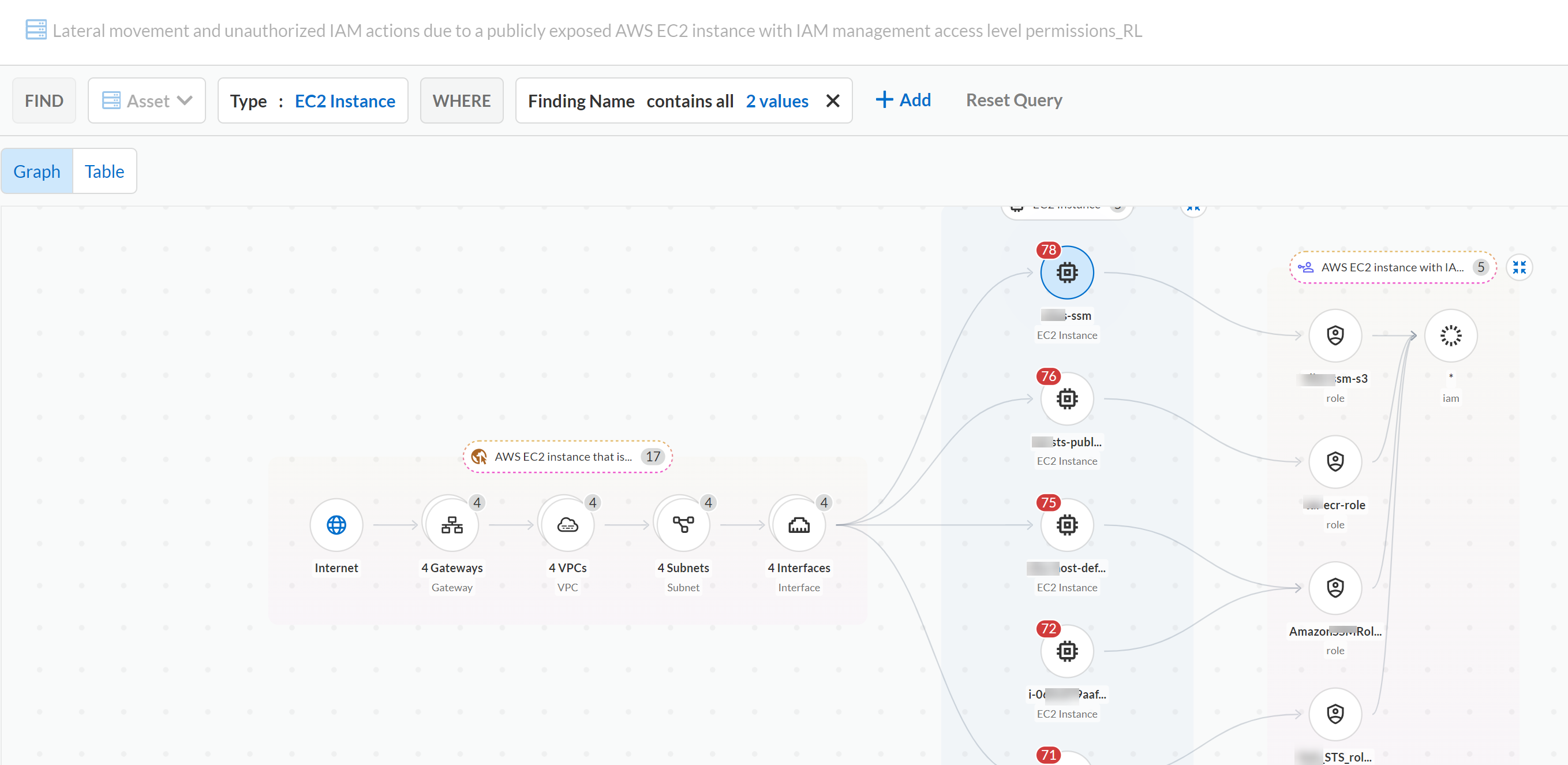
2. Select the query that you want to review or modify, and the **Investigate** graph displays immediately with the EC2 instances in the middle and the relevant security issues on both sides. Now you can easily visualize the common link between assets and these issues.
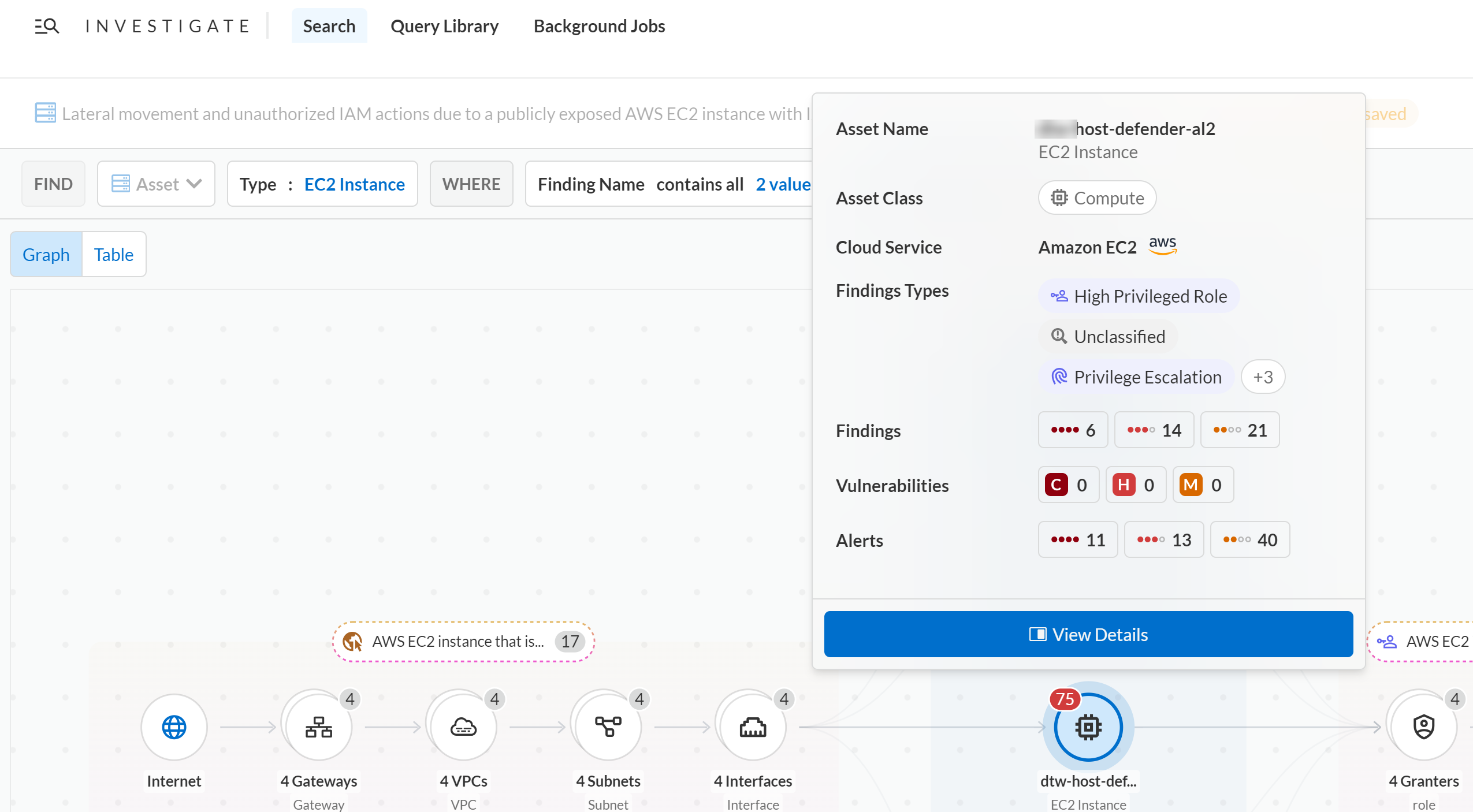
3. Select one of the asset nodes to get a preview of the top security issues of the asset.
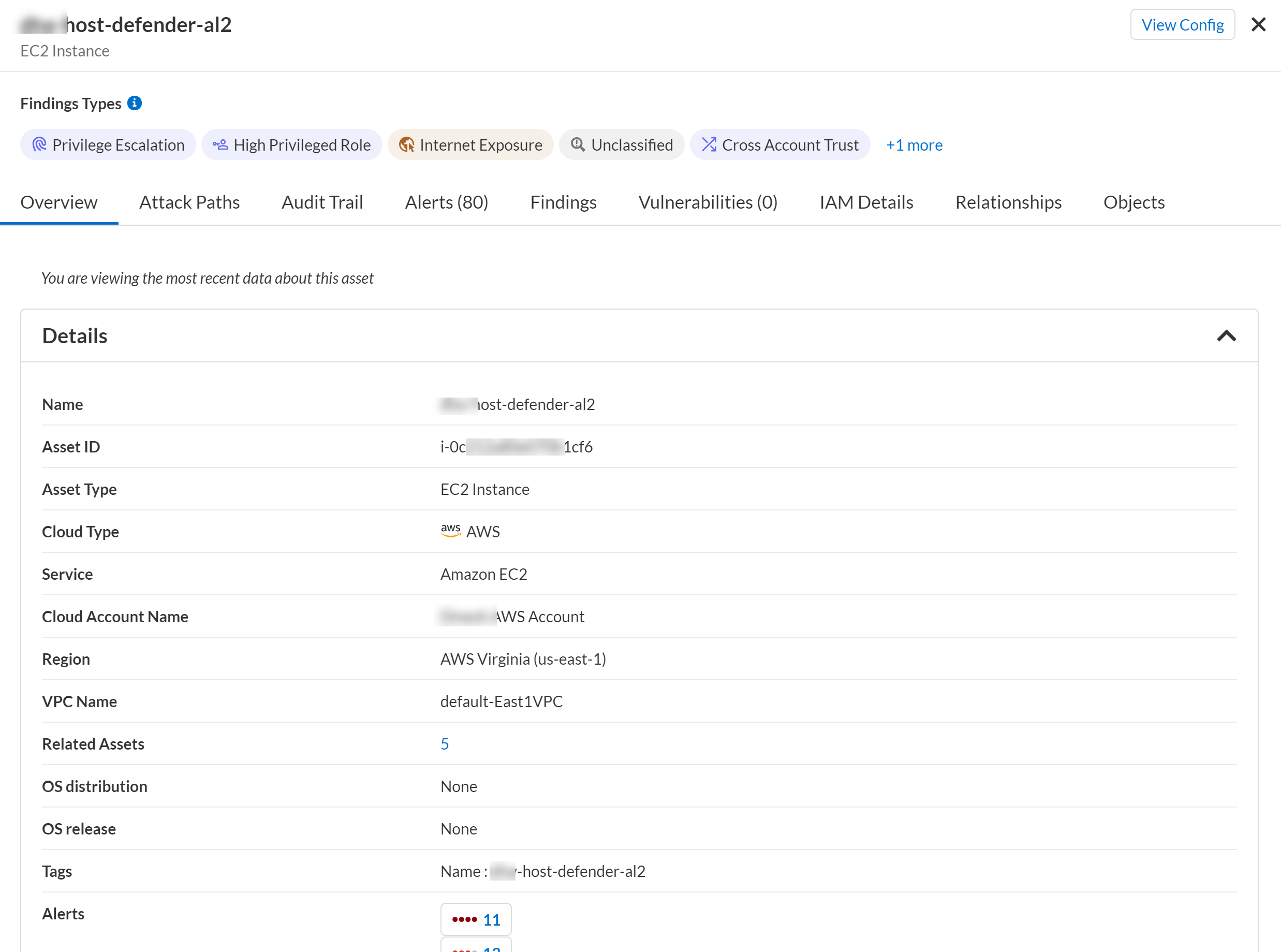
4. If you see a finding type such as, *High Privileged Role* you can select **View Details** to get more information and drill down the findings further, such as **Attack Paths**, **Alerts**, and **Vulnerabilities**. Select **View Config** to view the asset configuration file.
5. Select **X** to return to the Graph view of your query. You can also preview each individual finding node to review the policy or **Expand** the finding to view the additional context. You can view the individual network exposure paths on the left or the IAM permissions paths on the right to identify the highest leverage asset nodes for resolving these issues.
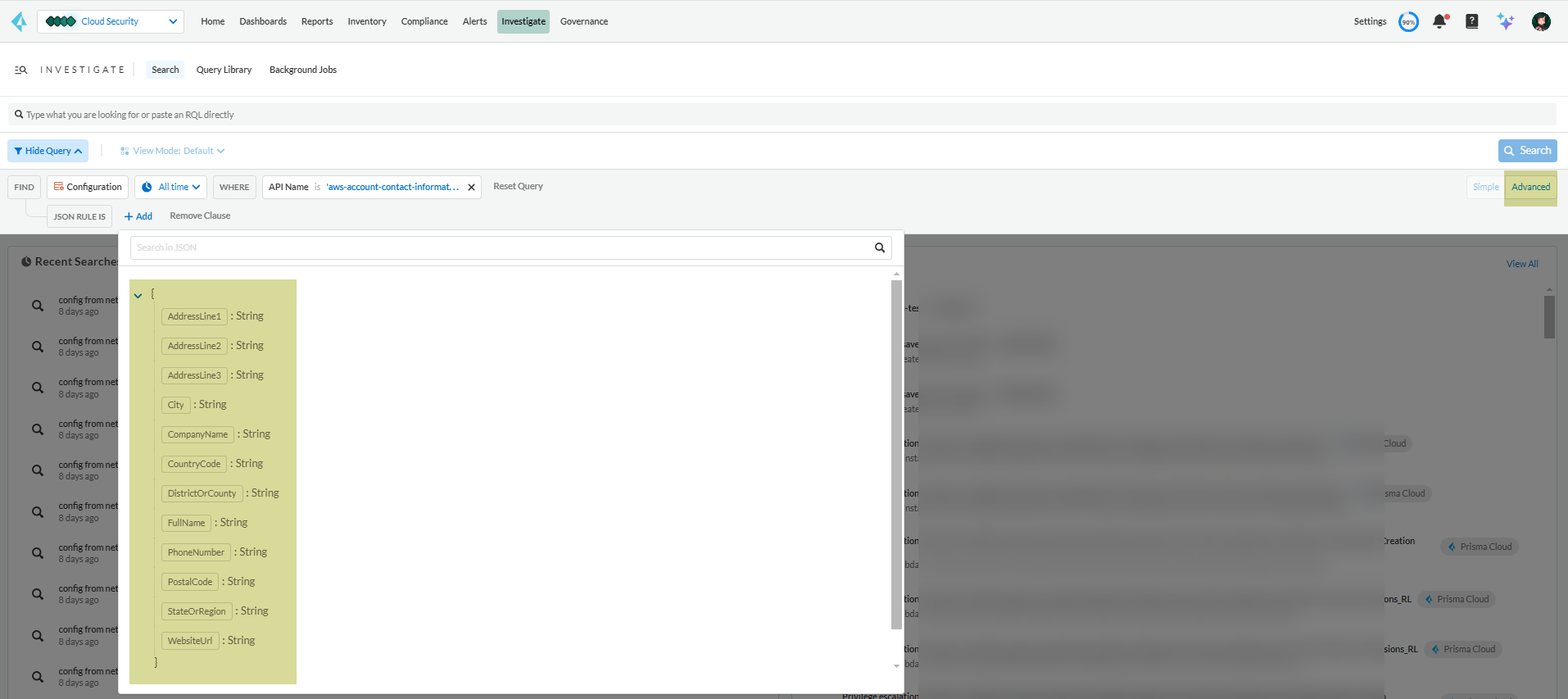
Since the auto-complete (autosuggest) model is static and is not built on live data from your accounts, some of the fields may not be displayed on selecting **JSON RULE IS**. If you see a few fields missing, do not use auto-complete; instead switch to the **Advanced** mode and manually enter the RQL and JSON path.
3. Build a query using Advanced Mode.
Prisma Cloud proprietary Resource Query Language (RQL) is a powerful and flexible tool that helps you gain security and operational insights about your deployments in public cloud environments. It is a structured query language that resembles Structured Query Language (SQL).
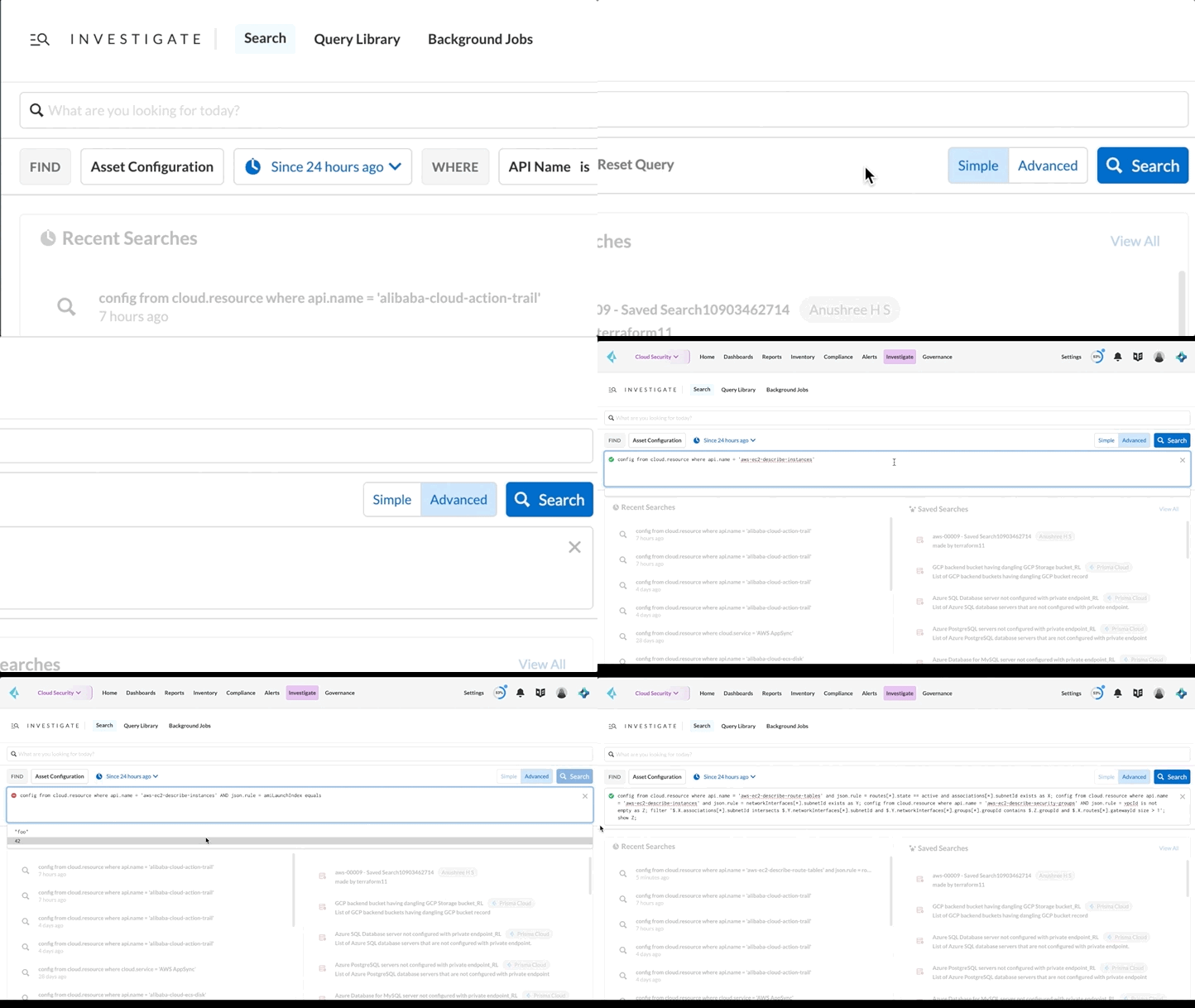
* To build some queries, you need to use the **Advanced Mode** (RQL) instead of the **Simple Mode** since certain queries, such as config queries are not supported in the simple mode. Also, nested rules and joins are only supported in RQL.
* You can use RQL in **Advanced Mode** to perform configuration checks on resources deployed on different cloud platforms and to gain visibility and insights into user and network events. You can use these security insights to create policy guardrails that secure your cloud environments.
* An operator in RQL is one or more symbols or words that compare the value of a field on its left with one or more values on its right, such that only valid results are retrieved and displayed to you. You can use an RQL operator to find a specific term included as a value within an object or an array within a JSON structure.
---
# Agent Instructions
This documentation is published with GitBook. GitBook is the documentation platform designed so that both humans and AI agents can read, navigate, and reason over technical content effectively. Learn more at gitbook.com.
## Querying This Documentation
If you need additional information that is not directly available in this page, you can query the documentation by asking a question.
Perform an HTTP GET request on the following URL with the `ask` and `goal` query parameters:
```
GET https://docs.prismacloud.io/content-collections/search-and-investigate/build-modify-queries.md?ask=&goal=
```
`ask` is the immediate question: it should be specific, self-contained, and written in natural language.
`goal` is what the user is ultimately trying to achieve, the reason they need the answer. Sharing it helps GitBook give you a better, more relevant answer. A goal is most helpful when it describes the outcome the user wants rather than restating the question. For example, with `ask=how do I create an API token`, a goal like `automate deployments from our CI pipeline` lets GitBook tailor the answer to that use case.
The response will contain a direct answer to the question and relevant excerpts and sources from the documentation.
Use this mechanism when the answer is not explicitly present in the current page, you need clarification or additional context, or you want to retrieve related documentation sections.