> For the complete documentation index, see [llms.txt](https://docs.prismacloud.io/llms.txt). Markdown versions of documentation pages are available by appending `.md` to page URLs; this page is available as [Markdown](https://docs.prismacloud.io/content-collections/search-and-investigate/launch-your-query.md).
# Launch Your Query
**Investigate** provides a quick and simple option to launch your queries. You get out-of-the-box visibility and risk prioritization filtering with minimal learning.
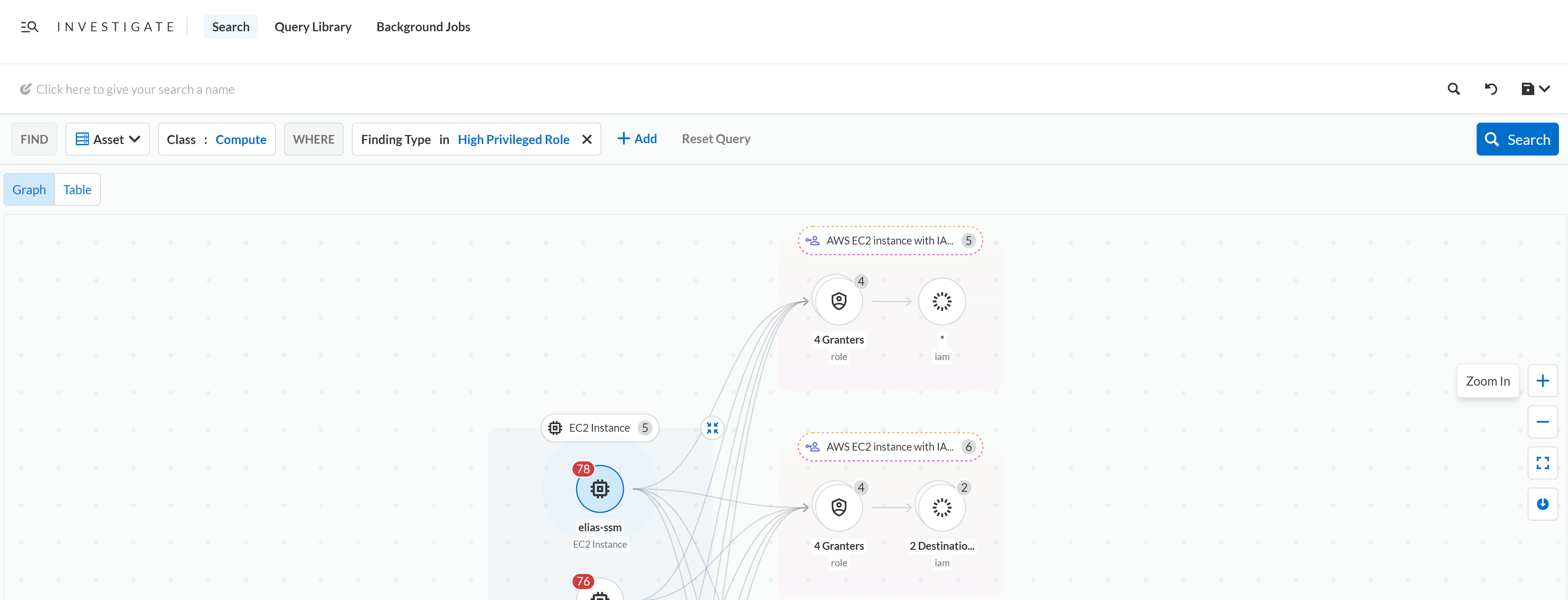
Before you write a custom query, you can view the queries you recently searched or use one of the top saved queries that allow you to take advantage of the rich set of AI-powered security research provided by Prisma Cloud. You can choose to either create a new search or directly load a query from the **Query Library** (search suggestions) and view the search results in the interactive graph view (default, when available depending on the query type) or the table view.
You can launch a query using any of the following methods:
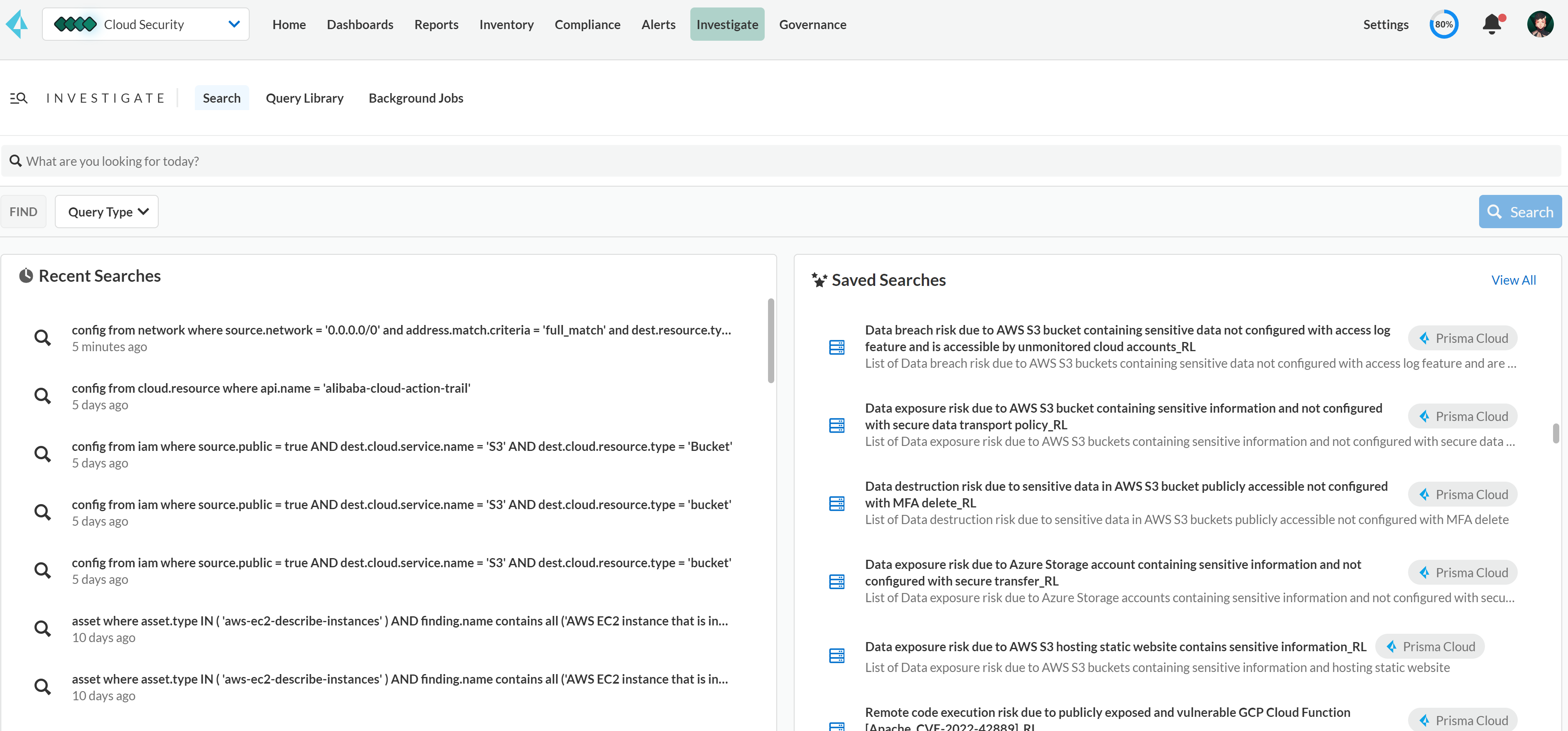
1. Select **Investigate > Search**.
1. Choose from the **Recent Searches** that display the most recent query search results along with the query title and the timestamp for when it was run.
2. You can view up to 5 pages and each page lists 10 recent searches.
3. **Saved Searches** displays the top 10 most popular queries along with query title, who created it (author), and a description of the query.
4. Select any query listed under **Recent Searches** or **Saved Queries** to see the details in a graph or table format.
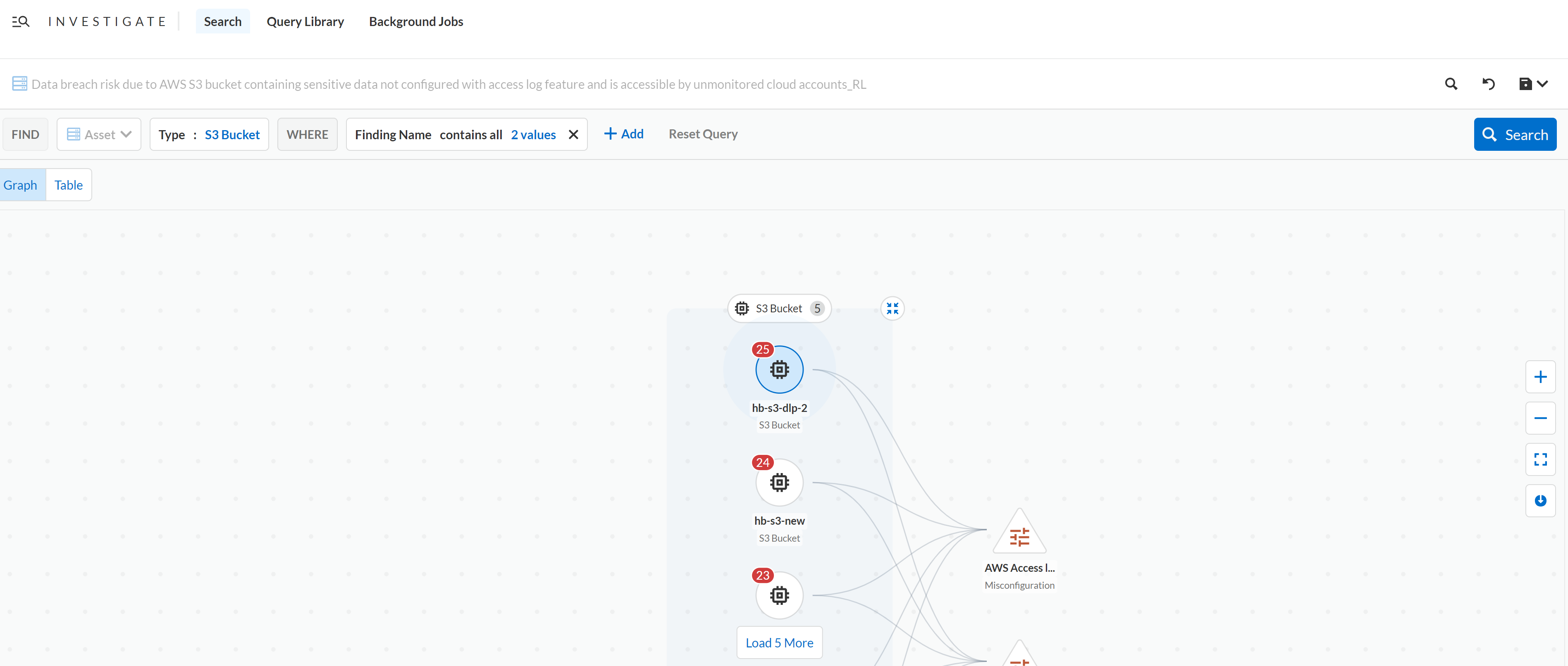
Irrespective of the number of assets displayed in the **Table** view, the **Graph** view displays only up to 50 assets. For example, if your `asset where` query search displayed 75 assets in the table view, when you switch to the graph view you will only see the first 50 assets.
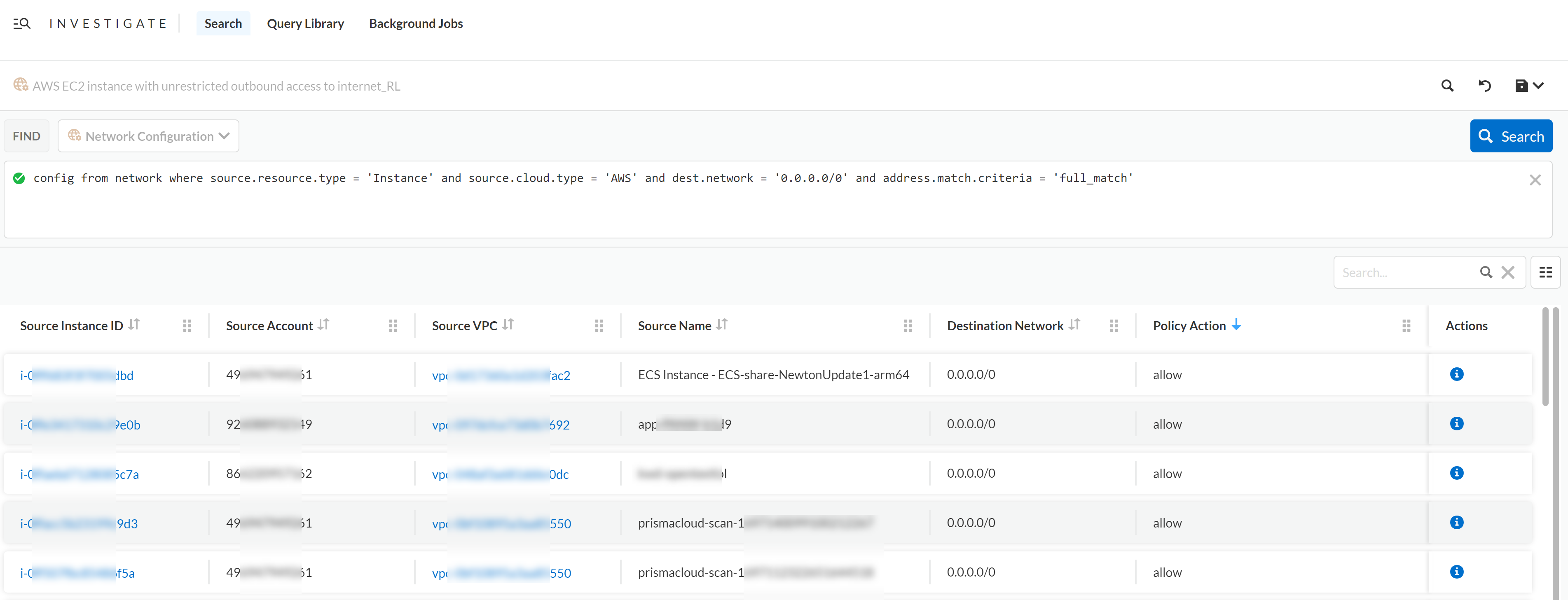
5. Select any query type, such as **Asset**, **Asset Configuration**, **Application Asset**, **Vulnerability**, **Permissions**, **Network Configuration**, **Network**, or **Audit Event**, to view queries specific to that query type. You cannot change the query type of a saved query.
6. With additional keywords you get more details on what you want to investigate. The blinking asset node guides you to view the asset. You can then expand your query by adding additional findings.
2. Click in the **Search** bar.
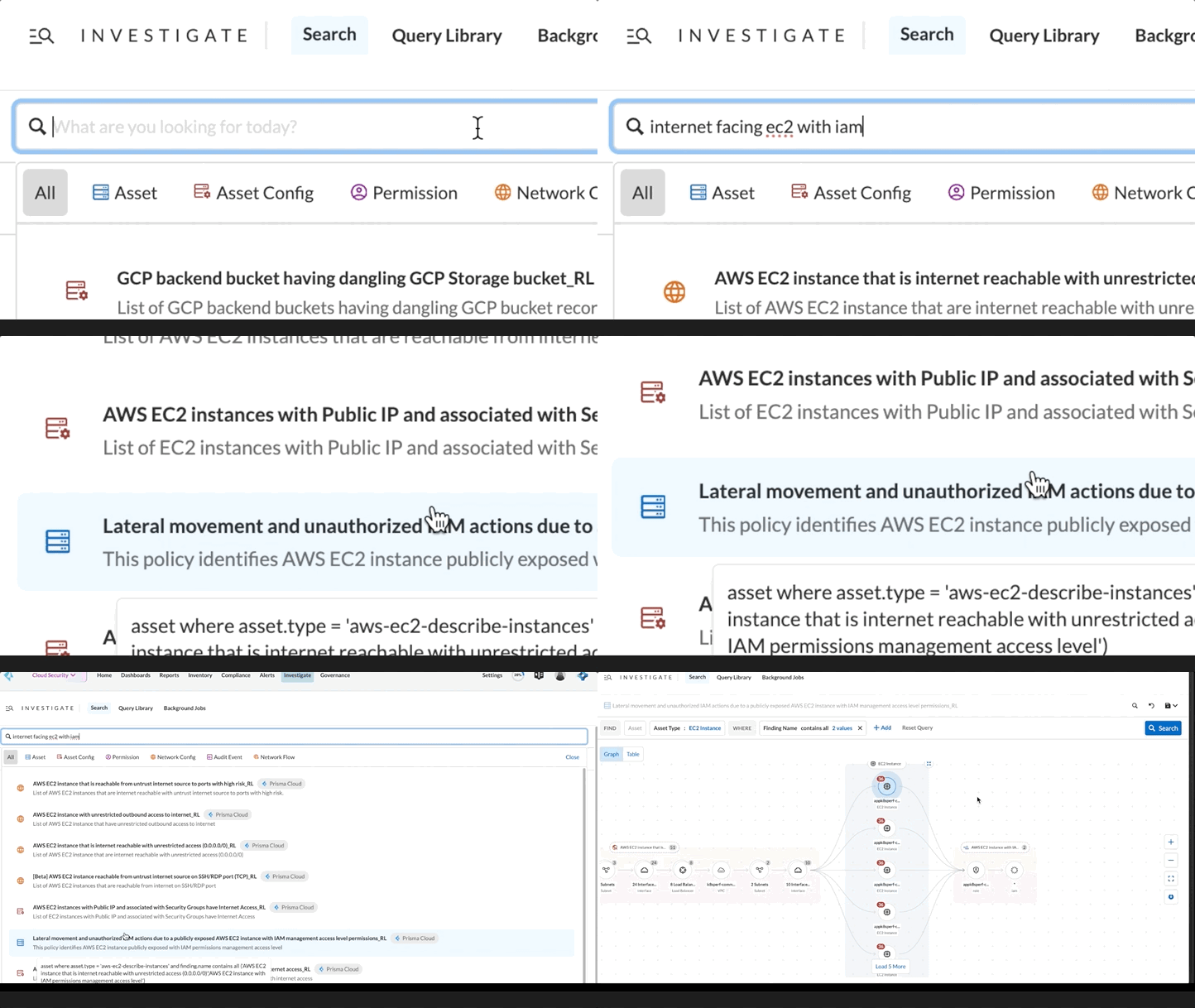
1. Enter your query, for example `reachable from untrusted internet sources`.
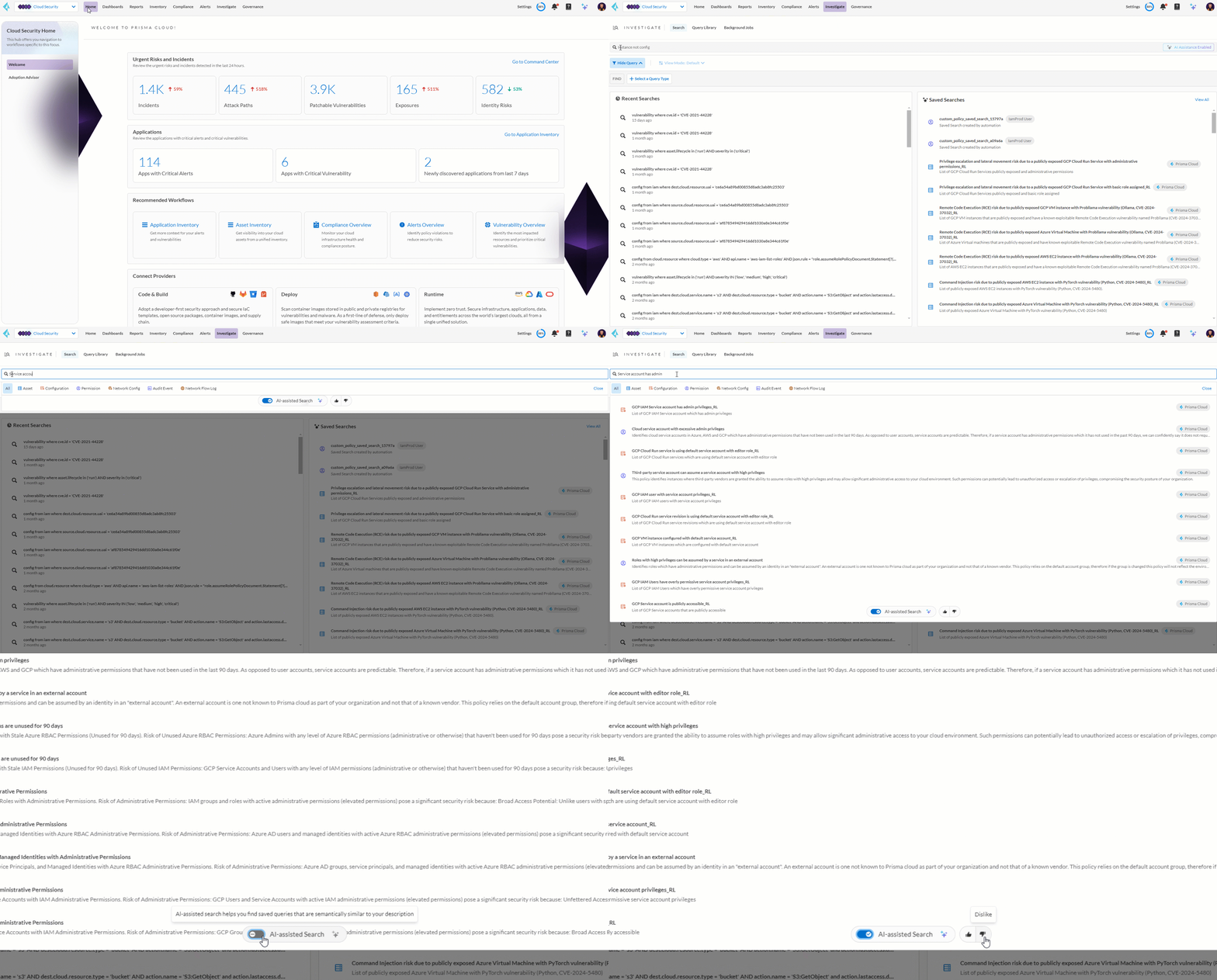
2. As you start typing the query in plain English, Prisma Cloud uses AI assisted semantic matching to retrieve previous top saved queries and displays the most relevant results. For instance, typing “public facing” as a query, returns results with “reachable from untrusted internet sources” as well, because the saved search matches the meaning of the query "public facing". AI assisted search can be toggled on and off as needed. Hover over a result to view additional details.
3. Select any query to see the details in a graph or table format.
3. Select **Search** to build a query from scratch.
1. Select a query type from the dropdown, for example **Asset**.
2. Filter further by selecting additional sub-types such as, **Asset Class**, **Finding Type in**, or more.
3. Select **Search** to view the results in a graph. **Search** is enabled only when you enter a valid query, for invalid queries it is grayed out.
4. Select **+Add** to select more options and click **Search** again.
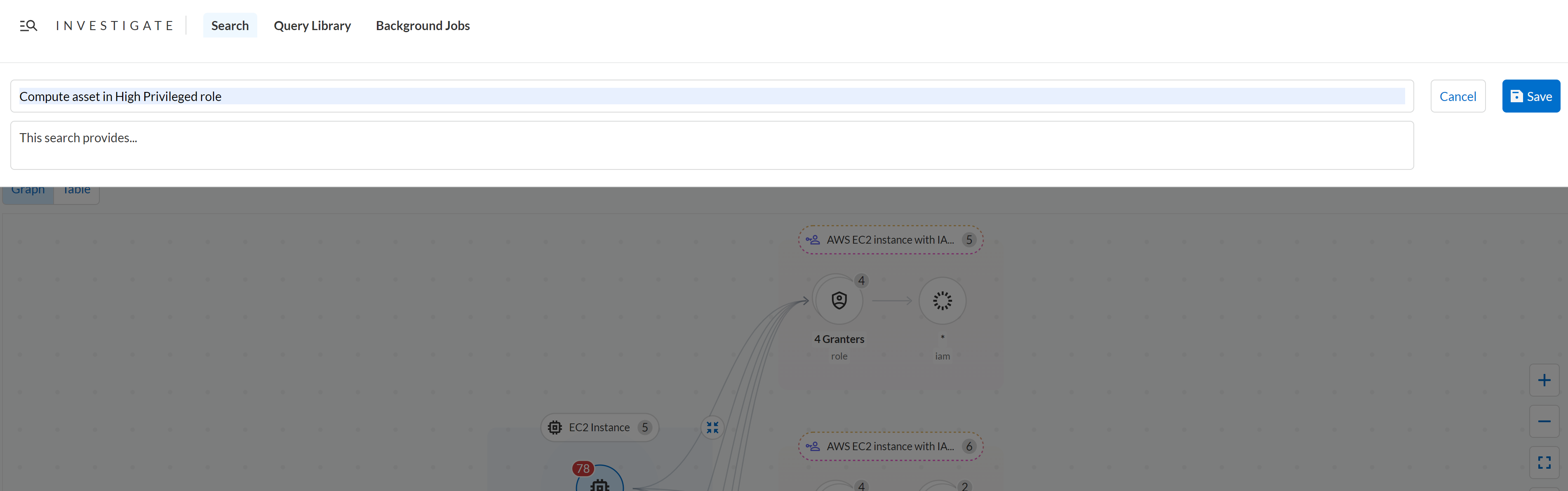
5. After viewing the results, you can enter a name and description for your custom query and **Save** it.
---
# Agent Instructions
This documentation is published with GitBook. GitBook is the documentation platform designed so that both humans and AI agents can read, navigate, and reason over technical content effectively. Learn more at gitbook.com.
## Querying This Documentation
If you need additional information that is not directly available in this page, you can query the documentation by asking a question.
Perform an HTTP GET request on the following URL with the `ask` and `goal` query parameters:
```
GET https://docs.prismacloud.io/content-collections/search-and-investigate/launch-your-query.md?ask=&goal=
```
`ask` is the immediate question: it should be specific, self-contained, and written in natural language.
`goal` is what the user is ultimately trying to achieve, the reason they need the answer. Sharing it helps GitBook give you a better, more relevant answer. A goal is most helpful when it describes the outcome the user wants rather than restating the question. For example, with `ask=how do I create an API token`, a goal like `automate deployments from our CI pipeline` lets GitBook tailor the answer to that use case.
The response will contain a direct answer to the question and relevant excerpts and sources from the documentation.
Use this mechanism when the answer is not explicitly present in the current page, you need clarification or additional context, or you want to retrieve related documentation sections.