Onboard a Snowflake account to easily and seamlessly protect data within Snowflake databases using Prisma Cloud DSPM
Prisma Cloud DSPM solution supports the ability to onboard a Snowflake account, automatically onboarding the existing databases within the account.
New databases created within the already onboarded Snowflake account are automatically discovered by the Prisma Cloud DSPM, however new permissions must be configured to allow for these databases to be classified.
Snowflake Overview
Snowflake is a fully managed SaaS (software as a service) that provides a single platform for data warehousing, data lakes, data engineering, data science, data application development, and secure sharing and consumption of real-time / shared data. Snowflake features out-of-the-box features like separation of storage and compute, on-the-fly scalable compute, data sharing, data cloning, and third-party tools support in order to handle the demanding needs of growing enterprises.
Snowflake Deployment Overview
The deployment of Prisma Cloud DSPM for Snowflake uses an existing Prisma Cloud DSPM orchestrator account, allowing the classification engines running within the orchestrator account to access the data stored within Snowflake databases. This means that all data remains within environments managed by your organization.
Within your Snowflake environment, Prisma Cloud DSPM creates a dedicated warehouse. This resource serves the purpose of isolating the computational resources needed for Prisma Cloud DSPM's operations. This approach guarantees that Prisma Cloud DSPM's tasks, which involve running queries to discover, classify, and identify potential risks, do not compete for computing resources with your existing warehouses in the Snowflake account. The Prisma Cloud DSPM Security Warehouse is intentionally designed to be compact and efficiently manage its functions.
Access to Snowflake is done through a dedicated user created with the permissions to access and perform the required operations of classification. This user is responsible for handling the data classification aspects, including the Prisma Cloud DSPM Database and Prisma Cloud DSPM Warehouse.
IMPORTANT: If your Snowflake subscription has any firewall or network restrictions in place, it is imperative to grant access to the following Prisma Cloud DSPM's IP addresses:
- EU
- 52.48.123.3
- 99.80.210.235
- 99.80.210.235
- 34.247.249.123
- US
- 54.225.205.121
- 18.214.146.232
- 3.93.120.3
In addition, you must allow the orchestrator IP address to access your Snowflake subscription.
In order to find the IP address in an AWS environment, follow these steps:
- Go to the AWS console
- Make sure you are in the region where Snowflake is hosted
- Search for VPC in the service search at the top
- Select NAT Gateway on the left panel
- Locate the Gateway with 'dig-security' in it's name
- Locate the outbound static IP ('primary public IPv4 address')
- Add the IP located in the previous step to the allowed IP in the network configuration of Snowflake
Snowflake Required Permissions
As mentioned above, as part of the Snowflake onboarding process a user with appropriate permissions must be created.
The following tables lists the permissions that will be required for the user.
USAGE
USAGE ON ALL + FUTURE SCHEMAS
SELECT ON ALL + FUTURE TABLES
SELECT ON ALL + FUTURE VIEW
Enables this role to list and get metadata ONLY on the tables in the account.
This permission gives the ability to list all tables, without getting access to the actual data inside.
Prerequisites
Before performing the onboarding process of a Snowflake account to the Prisma Cloud DSPM solution, ensure that the following prerequisites are fulfilled:
- Updated Orchestrator Project: The Snowflake account needs to utilize a previously onboarded Prisma Cloud DSPM orchestrator project. Make sure that an orchestrator project is onboarded, monitored, and updated:
- Go to the Settings page on the left side menu of the Prisma Cloud DSPM console.
- Click on the Configure button under the cloud provider that includes the orchestrator.
- Locate the orchestrator project you would use to be the orchestrator project for the organization. If such does not exist, you can onboard a new project. For more information refer to the cloud onboarding guides.
- Make sure that project installation is up-to-date. That can be verified by making sure that there is no Update Required marking next to the project name. If an update is required, click on the Update Required button and follow the on-screen instructions.
- Make sure that project is monitored correctly. In the “Monitoring” column, make sure that the toggle is set to Enabled. In the “Discovery”, “Detections”, and “Scanning” columns, make sure the status is marked as Active.
- Note that currently we do not support Legacy Account IDs.
Onboarding Flow
In order the onboard a Snowflake account to the Prisma Cloud DSPM solution, follow these steps:
- Create a Snowflake user for Prisma Cloud DSPM
- Follow the Snowflake instructions for creating a new user here.
- You can use any string for the username, login name, and password (make sure these comply with any internal considerations your organization may have).
- There is no need to grant roles or permissions to the user. These will be configured automatically during the next steps.
- Go to the Settings page on the top-level menu of the Prisma Cloud DSPM console.
- Click on the Configure button under “Snowflake”.
- On the right side, above the projects table, click on Add New.
Note: If such an option is not available, refer to the Prerequisites section - While connected to your Snowflake account, follow the steps on the screen
- Enter the account information for DSPM
- Name - Enter a name for the account. The name will be used across the console to reference this Snowflake account, including for assets, risks, findings, and more.
- Hosted on - Select on which cloud provider the Snowflake account is hosted on.
- Orchestrator - Select the cloud service project that will be used as the Orchestrator Project. For more information, refer to the Prerequisites section.
- Label - Select the environment label that will be assigned to the onboarded Snowflake account, such as Production, Staging, etc.
- Enter your Snowflake account connection information
- Account Identifier - An account identifier in the format: <organization>.<account> which uniquely identifies a Snowflake account within your organization, as well as throughout the global network of Snowflake-supported cloud platforms and cloud regions.
- User information - This is the information of the user that was created in step 1.
- When completing filling in the input fields, click on Get Snowflake Script.
- Copy the presented script by clicking on Copy or selecting the entire script and pressing Command+C or Ctrl+C.
- In a separate browser window, sign in to the Snowflake console.
- Click Worksheets at the top of the Snowflake console. An empty worksheet will open.
- In the worksheet, paste the script from the above steps.
- Click Run.
Done!
Frequently Asked Questions
How do I retrieve my Snowflake account identifier?
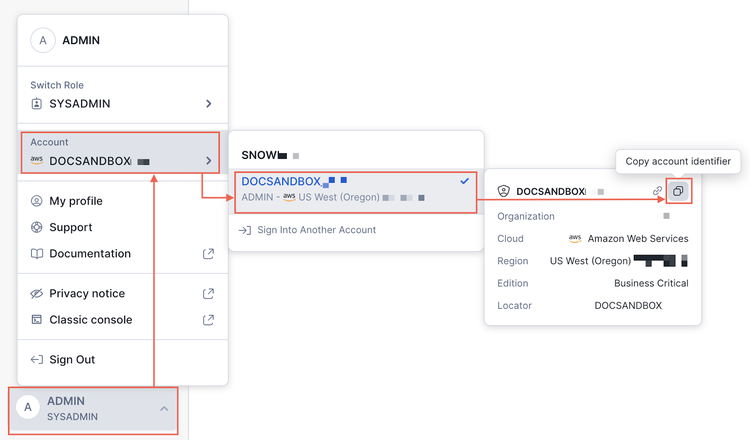
To get your Snowflake account identifier using Snowflake web interface, do the following:
- Open the account selector and review the list of accounts that you previously signed in to.
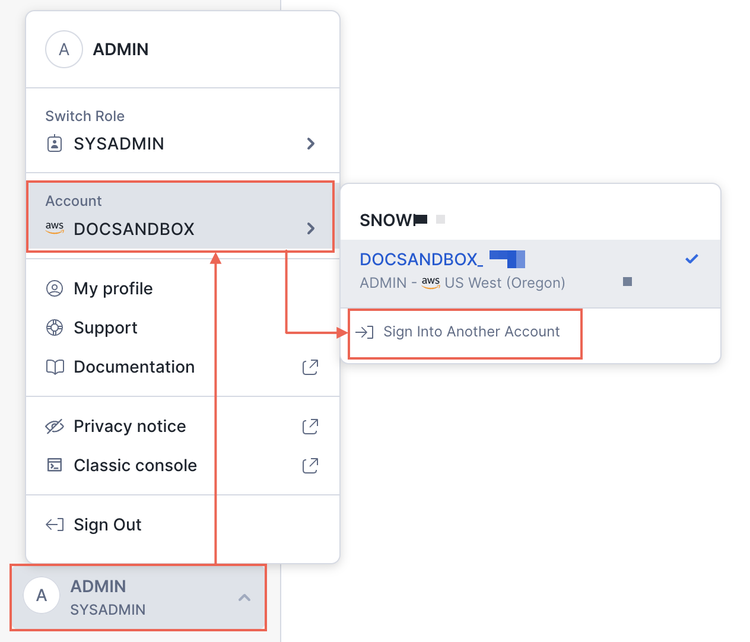
- Locate the account for which you want to copy the account name.
- Hover over the account to view additional details, and then select the copy icon to copy the account identifier in the format <orgname>.<account_name> to your clipboard.